
Emporium
Members
-
Joined
-
Last visited
Everything posted by Emporium
-
No issues here. Both of the 2 main services, I have, still work perfectly fine. Have you tried turning on a VPN ? Many ISP are blocking certain CDN networks used by IPTV services. And lately they seem to start around the time that local hockey games or other sporting events are starting to air. If you don't have any paid VPN service, you can always download and install Proton VPN. And you can create a free account, which works relatively well.
-
Well, On the L1, when BuzTV 6 (lite) V1.0.105 was released back in February (at least on the L1) the release notes stated: I have not tested it on the classic AI, but if I get a sec, I can try it later tonight after I get home.
-
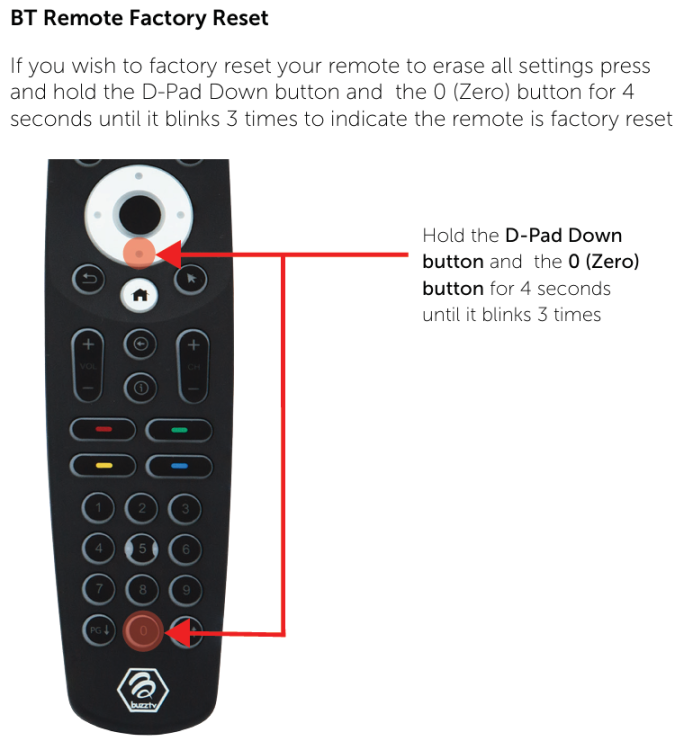
We'll agree to disagree on that one. By the time any X5 was released, BuzzTV 5 was quite mature. BuzzTV 5 was first rolled out via OTA in late 2021 to the xrs4900 (Android 9 device). And then rolled out to others. The first X5 units only went on sale to public in May or June of 2022. Even till this date, BuzzTV 5 still get's minor bug fixes or small feature updates. Most new features however are being added to BuzzTV 6. Now for the fact that you can't add favorites without a buzz remote (don't specifically need the BT400 - Any buzztv remote will do), that is true, since you do need the colored buttons. For the BT400 being defective, was it defective out of the box ? Did you try getting a replacement under guarantee, since they do come with 1yr ? Did you try a fresh set of batteries and tried to do a RESET on the remote (since after a failed TV programming, you may need to reset the remote to get all the buttons to work as expected). This resets the remote only, not the box. On BuzzTV 6 (which is not available on the X5), they have added a new feature which allows you to use the app without depending on the colored buttons. When you long press the OK button, it gives you a popup with some options, like start recording, add to favorites, aspect ratio, and a few others. So that even if you don't have a buzz remote to quickly press yellow button to add to favorites, or red to start recording, you can always long press the OK button and do what you need. This would be nice on BuzzTV 5, but at this stage of development, I don't think they are adding too many new features on BuzzTV 5 (but they may surprise us - since it is mostly just shortcuts).
-
Great Dudette. No chance. You must have misunderstood, because there is NO buzz box that came WITHOUT a version of BuzzTV already preinstalled and functional. I got all 3 of my X5 boxes (X5 128AI, X5 64XC, and X5 SS) before they were released to general public and all 3 had BuzzTV preinstalled and fully functional. So there is NO way yours came without it.
-
Sorry dude, but that is BS. BUZZ themselves, would never have told you that. Maybe some 3rd party seller did because they did not want to support it on their service, but NOT BUZZ. EVERY BUZZ box that has ever been released to the public has had a version of BuzzTV Pre-installed. From Buzz TV 2, 4, 5 and now BuzzTV 6. The ONLY exception was the latest BuzzTV G-Series where it was not preinstalled (due to google requirements) but you had to download it from the google play store. You will probably NOT have a choice but to uninstall and reinstall Smarters if you plan to continue using Smarters. But instead of doing that, why not just finally setup the BuzzTV LiveTV application (which includes VOD/TV Series) also. And once you set it up, there is an option in the menu, which allows you to backup you server settings, favorites, etc.. to a USB stick. And should you ever need to reinstall, reset the box, or buy a new buzz box, you can restore your servers, favorites and other stuff without going through the whole hassle again.
-
Have you uninstalled 3.1.5.1 first before installing 5 ? Maybe they changed the apk signature, which will basically not allow you to update or install the new version if it clashes. I can tell you for a fact that 5 is the current version and I install it on many boxes as a "backup" for some people. But just curious, is there any reason you are not using the integrated BuzzTV 5 software on an X5 ?
-
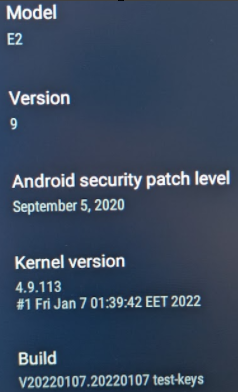
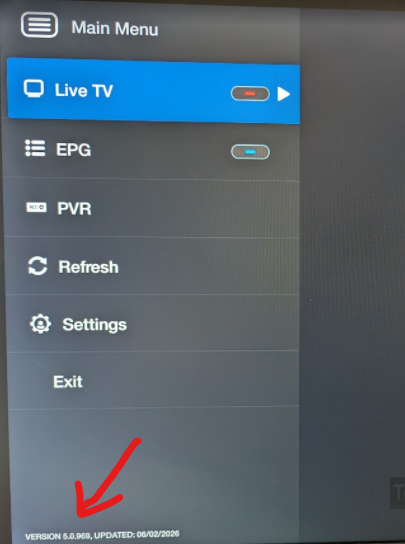
That is the kernel, I wanted the buzztv version. That is where the functionality is. My kernel is a little older than yours. And no, there is nothing newer as far as I know. And really no point, if it ain't broken, don't fix it 🙂 But BuzzTV I am running 5.0.969 (which is pretty recent - from earlier this summer). If you do not see that, hit "Settings" in the menu and then you should have option for "Check for Updates" so it can get latest version of the app. If you have recent enough version of BuzzTV 5, From that menu (which you can get to by hitting the menu button while in LiveTV), you can go to Settings->configuration and if you scroll down a bit, the first item under "App Settings" is "Backup&Restore". And that is where you can do the backup I am mentioning. And the nice thing about this version is that the file it generates can be used to restore on pretty much any BuzzTV device going forward, so you can easily setup a new device if you ever upgrade and not need to redo all your favorites.
-
What version of BuzzTV 5 are you running ? Truly curious.
-
Have you tried to go into backup ? What version of BuzzTV are you running on the E2 ? I believe it originally came with BuzzTV 4, and later it was updated to BuzzTV 5. Which one do you have installed (if you bring up the menu, the version is typically printed on bottom left of the menu). When you go into backup options and it prepares things, you are prompted with 2 options Backup Application Settings Backup servers + Favorites + Favorite Groups And you can choose only 1 option or both. I'd recommend both, since the backup file is tiny, and you have the option of what to restore later, so you can ignore one upon restore if you need. The second option is designed to take a snapshot of your server entries, and all the favorites you have created. Obviously the favorites are bound to each server, hence why it backups the server and the favorites details in one. The backup options creates a ZIP file, and inside the zip file is a single .yaml file which includes all the backup info. You can save it internally, but I would recommend putting it on a USB stick (and check that you have a non-zero sized sized file), that way if you have to reset your box, you always have a backup. All boxes running BuzzTV 5 have this backup option. And as far as I recall, all boxes with BuzzTV 6 (I just confirmed on the Classic AI). Possible exception for now is the G-Series, but I'm sure something will be added shortly (if it hasn't already).
-
This thread HAS zero to do with any storage or recordings. When it is mentioned to remove some categories, it is that some services/panels allow resellers to customize the categories that are available to users accounts. So instead of having 100 categories, where you don't ever watch 60 of them (international, specialty, etc..), then why not remove them and therefore you box does not see them or need to sort or index them. This can help speed up some devices. Not all services offer this amount of granularity, but some do. I have one service where I can literally select nearly every single category and enable or disable it at the server panel level. I even have one user who asked to enable only 1 category (50 some channels) on his account. So instead of getting over 13000 channels, he only sees just over 50, so loading up or refreshing channel list is super fast.
-
He did say he tried with BOSE headphones also and got same result. I tried 2 different BOSE headphones and had no issues. I'm assuming however that he has at least unplugged the power waited a few seconds and then re-plugged it to power cycle it. Using the remote to power it off is obviously not the same (especially if device is configured to suspend instead of shutdown)..
-
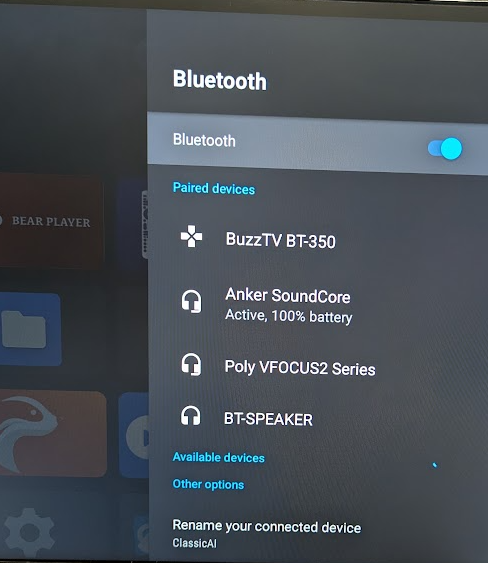
I don't know about Airpods since my home is an apple free zone. But I had NO issues pairing all sorts of devices. Not a single one failed, even a generic chinese crappy BT speaker. Below is a pic of some of them I tried initially, but I continued and tried more after this. Generic Chinese crappy BT-Speaker Anker Soundcore Speaker Poly Voyager Focus 2 (originally by Plantronics) headphones Bose QC 35 headphones Bose QC SE headphones JBL Wonderboom BT Speaker Anker P40i earbuds All paired at first attempt on each one. Not a single one hesitated or needed a second attempt. If all else fails, Maybe you need to do a hardware based factory reset and start from scratch. Unplug the USB-C power cable. Press and hold side button, and while holding it down, plug the power back in. Keep holding the button until you see the Android recovery menu. You can then use the remote (which will be in IR mode) to scroll down and select the "Factory reset" option. go through and accept the confirmation prompts and then let it go through, reboot and it will reinitialize the box.
-
Every one of your 11 posts so far have been to bash and complain about the fact that this box is manufactured by SEI ROBOTICS. You seem to have some beef with them obviously and your setup, or yourself, are not compatible with it. You should have returned the box as soon as you got it if you have such a dislike for SEI. I have ZERO issues with my box (and many others are in the same boat) that would require any firmware update. Works as expected and I don't try to control my whole home with a single box. Turning on and controlling boxes/TVs with CEC is something I turn off even on other boxes. Every vendor implements it slightly differently, and every one of them has some sort of odd behaviors which can be annoying. Turn it off, and just turn your TV on before you sit down to use your box and you will have less of a risk of a heart attack. No point on harping on it over and over and over. You fix it for one person and it will break something for someone else, since no one has all the exact same combination of peripherals. Keep it simple and you'll be happy.
-
I am not belittling anyone, and I did not insult anyone either. I just posted a fact about the use of this forum. I have no issue saying anything I post, in person to anyone. Bottom line, this is a support forum SPECIFICALLY for BuzzTV products (hardware or software). Not for recommendations of IPTV services, nor VPN services. There are thousands of forums out there for that, and many of us here are also on those forums. On those forums, your question about a VPN service recommendation would have been answered without an issue. Just not here. Your issue is NOT a buzztv specific issue, it is an issue with some 3rd party service provider. And a recommendation that is NOT specific to a particular service: Most VPN services offer the choice to change the connection protocols (Wireguard, IKEv2, UDP, etc..). I've had (and still have) an IPTV services that for some odd reason would not work when any other protocols was used, except for wireguard. Had to manually change it. From a technical point of view I don't see how that could make a difference, but it does. I have also had services in the past which did NOT accept connections from VPN connections at all. Some endpoints would slip through for a while, but that was always short-lived when they'd update their endpoint databases.
-
That's more because the L1 does not have an app store and the OpenVPN client is alreeady pre-integrated into the L1. It is not a 3rd party app from a playstore installed on the L1. The issue was with the integrated client and an misbehavior due to a kernel update. It was NOT an advise or recommendation on a specific service.
-
OK.. So V20260813180821 + Buzz 6 App Update V361 were released on Aug 17th, 2026 to public. I identified the VPN issue and they quickly fixed it with 20260903110532 and V369 shortly after. They also fixed some UI issues with the VPN also. I assume you did do a "check for update" from the settings screen ? Not sure when it will be released to general public, but I am sure @allaboutbuzz will announce it here when the next update is ready and will be sent out to all. But rest assured, the issue is known and was fixed. It is just a matter of time before it rolls out to all with a few other fixes.
-
What version of software and firmware are you running (can check system info) ? I don't recall exactly which version it was, but I think when V361 was released the associated firmware had a new kernel, and something broke on VPN. Then it was fixed on V369 and 20260903110532 (not sure if that went out to all - if not I am sure that or newer will go out soon enough). In the meantime, check to make sure your credentials have not changed. With Windscribe for some reason my ovpn file was still valid, but for some reason my ovpn credentials changed. Never saw that before, but I just rechecked the credentials, used the same ovpn file and created a new entry and it worked.
-
XC, MAC or M3U type SUB ? I'm assuming you have unplugged the power and re-plugged it just to make sure it was not a bad boot ? What version of s/w is running ? When you hit menu button, it should be on bottom of the menu. Have you enabled any features or just default settings ? From LiveTV Menu->settings->configure, what is the LiveTV Player list at the top (Primary?) ? And are any of of the features like RealTime Streaming or Tunneled playback turned on ? If so, turn them off. If you have a Stream Format option, ensure it is set to Automatic. If you have enabled Timeshift and/or Force USB TS (from menu->PVR->PVR Options) disable it for now.
-
There is a reason you could not find where to post. This is a BuzzTV support forum. There is no discussion about services in this forum. Not IPTV services or others. This forum is for BuzzTV hardware or software support. There are other forums you can use to get that kind of advice.
-
MAC/XC or M3U based type sub ? And what version of BuzzTV 6 software are you running ? when you go to the "Main menu" where you can seelct TV/VOD/TV Series, it should be printed at the bottom of the menu pane (5.0.xxx).
-
I use Windscribe Pro personally and I install ProtonVPN (free Tier) for many of my friends) on a variety of buzz boxes. But you can use pretty much most VPN services. Most work pretty much the same. The only box which is a little different is the L1 (which is Linux and not Android), which only has OpenVPN client installed so whatever service you decide to get, you need to generate ovpn credentials to use it. BTW: Don't pay full price for any VPN service, many of the cashback sites like topcashback and rakuten often have offers for 100% cashback offers on a number of VPN services (sometimes more). Google is your friend.
-
Maybe you can reply to that thread and mention what you did and what fixed it in order to help others who may be in that situation.
-
Download and install MX Player. Once installed and it will also have MX player in the list, so you can choose that. VLC is great (and I believe the backup player is libVLC essentially). But sometimes using VLC as external player, it may not work. Ever since old version 3.63 I believe, VLC broke external calls and sometimes, depending on how it registered itself during install, it may fail to load and play an external link passed to it. MX Player is just as good as an external player. If backup player is freezing also, then I strongly suspect the issue is on the server end, not your box. If you are connected using WiFi, and you are not too far from your router, maybe you can try connecting the box with an Ethernet cable. That way you can rule out WiFi interference. I am assuming you have already tried rebooting your modem and router, just in case ?
-
Have you asked your "premium" provider if they have any app available for Android boxes ? I can't post any links to other apps here, but your provider should be able to give you something. You can install it in parallel on your buzztv box. There are many other apps you can install on the box and that way when you have an issue on buzztv 5, you can also check using the other app also which is installed on the same box, so you can validate if the problem is on the server, or the app. Have you tried using a VPN service ? Many Internet providers are throttling (and sometimes blocking) many services. If you don't have one, you can surely create a free Proton account and download and use ProtonVPN which does have a free tier which works perfectly fine. Easy way to test if your internet provider is blocking/throttling. On BuzzTV 5, have you tried to go into settings->configuration and change the "player" that it uses for VOD/TV Series ? I often use the backup player or external player (and I have MX player installed).
-
OK.. So you are running firmware V20260701 which is the latest one. When you say "hard reset", you held the side button while plugging it in and went to the recovery screen to do a factory reset ? OK, try one more thing. Go into settings, Network and Internet. If your WiFi network is listed and connected, select it, scroll down and FORGET it. Then scroll to the top and turn the WiFi OFF. Then go back to settings, scroll down to Remote and Accessories and turn off the Bluetooth (your Remote will switch to IR mode for a while). Then go back to main screen, unplug the power, and wait 5 seconds. Plug unit back in. Go back into Settings and turn Bluetooth ON and WiFi ON again. Go into your network options and connect to your network again and see if it makes any difference. Just so you know why I am asking for the above tests (so you don't assume they are useless), it is because I have seen some boxes where the WiFi/BT chip gets into some strange state, and even a factory reset will not help recover it. But toggling the states (turning them on/off) forces them to properly initialize and reconfiguring connection does help. If problem persists, try disconnecting again (forget) your home network, and as a quick test, just connect to your phone Data (put phone into hotspot mode) for a while, and see if it behaves the same. Just curious if it is something it doesn't like with your WiFi router (or access point). I assume you have already rebooted the device that provides your WiFi (access point, router and/or modem) ? Also, does you modem/router only advertise a single SSID ? Or does it advertise one for the 5Ghz band and one for the 2.4Ghz band ? IF you have the option try configuring it to advertise both (ie: disable what some companies like ASUS call "band steering" or some just have option to enable separate bands) where the router tries to decide which band to use. This sometimes causes problems when a router connects to one band and signal gets weak, or router decides you might be better on the other band and it will try to transfer the connection to the other band and some devices just don't like it. By splitting the bands to separate SSID, YOU have control on which band to connect to. 5Ghz for speed, or 2.4Ghz for stronger signal and longer distance.