nbs.
Members
-
Joined
-
Last visited
Everything posted by nbs.
-
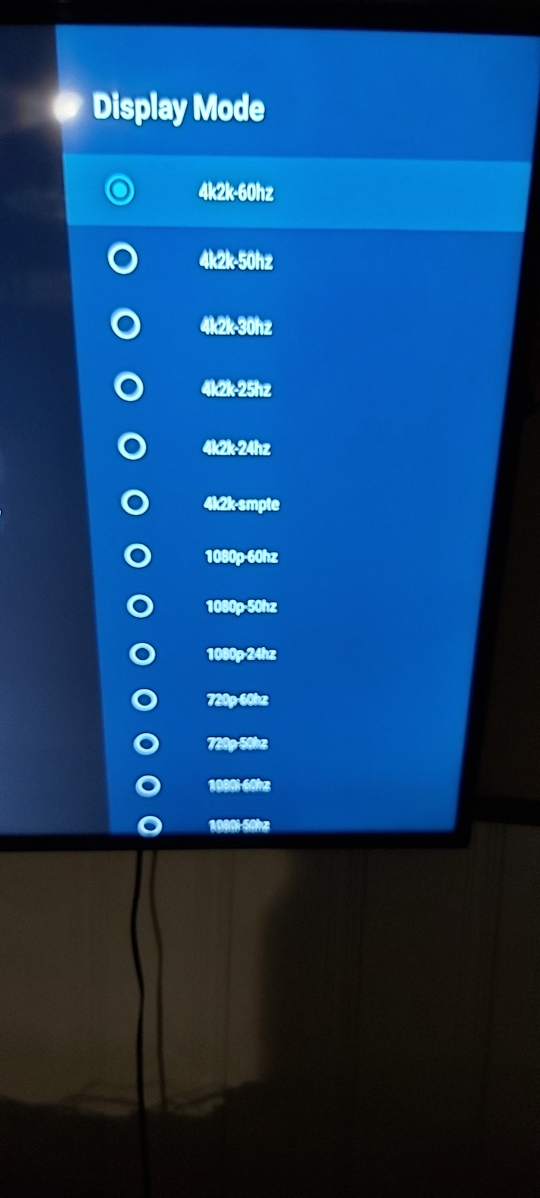
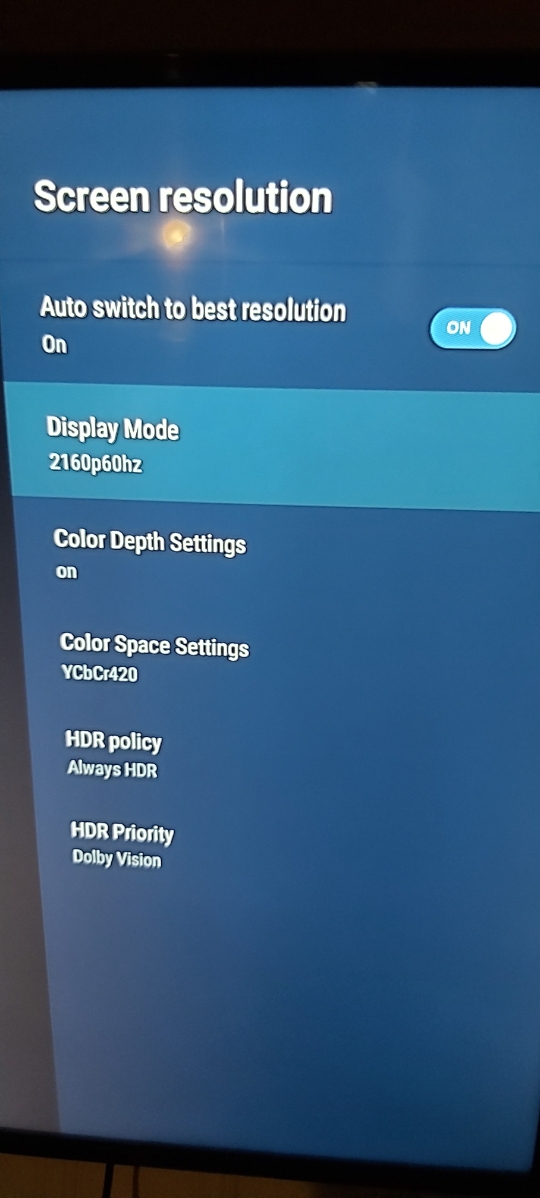
It has auto switch to best resolutiondragoon doesnt have a speed issuenot working for you? ,only issue you ever posted about was fast forward on recorded programswhats incorrect about it?i dont know for sure but you just cant take someones player and use it without licensing agreements Allaboutbuzz can provide more infoNo set date. It comes when it comes.issue is resolvedinstall file onto usb stick ,insert into buzz and go to appinstaller in appsupdate file sentI know ,just trying to provide a temp solutionIf you have the ir extender connected it should still work and you would not have to reset the boxYes its been very quiet on the forums which is a good thing for an update.How much memory is being used?0you will need to do a hard resetcurious how you wound up back in recovery mode after you fixed it last time?Answered in your other threadjust ignore this thread and read the other oneHit the green button
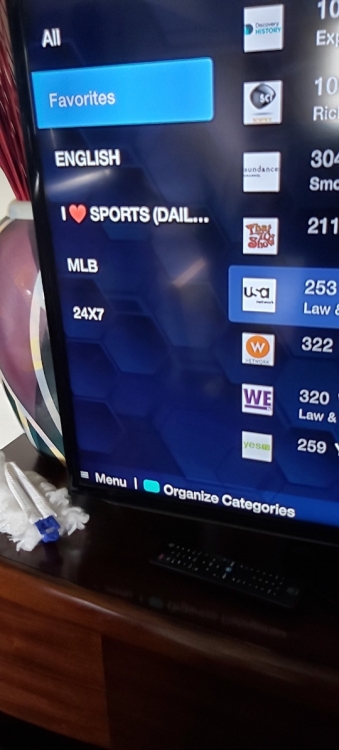
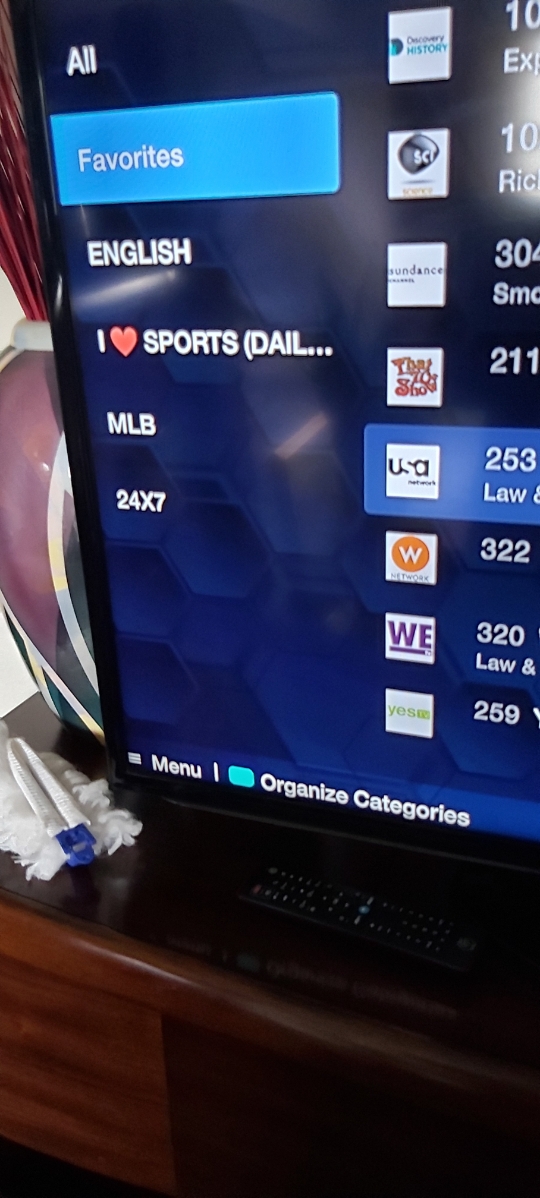
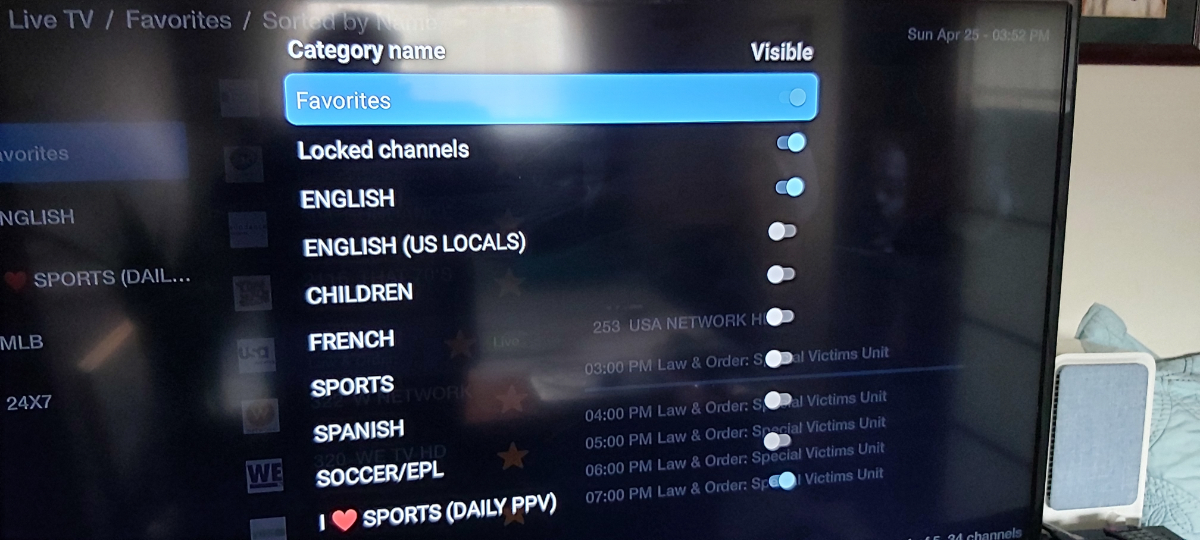
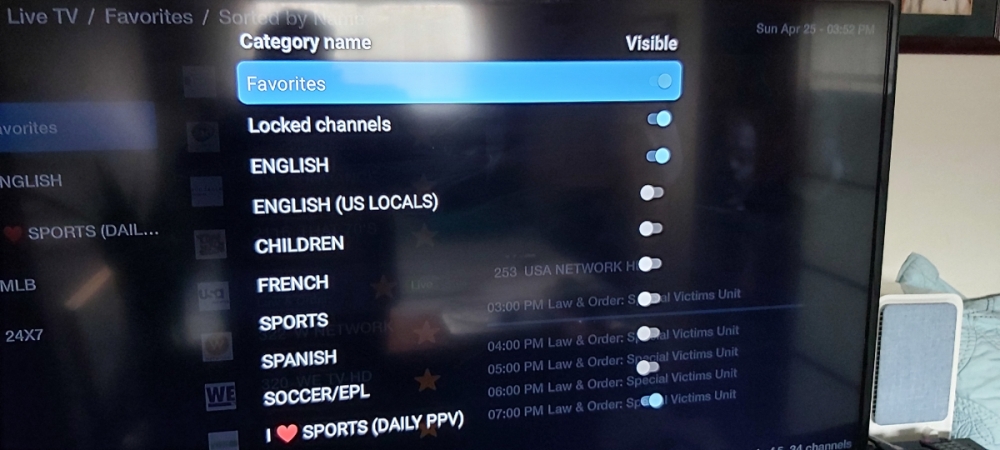 Look at the bottom Does it not say organize categories?first one will be organize categories ,then you can hide themopen up categories .and hit the appropriate colourAs soon as I clicked on the pic it downloaded for meYes it was resolved when he pmd allaboutbuzz as requested