dishuser
Members
-
Joined
-
Last visited
Everything posted by dishuser
-
set it to live tv on startup
-
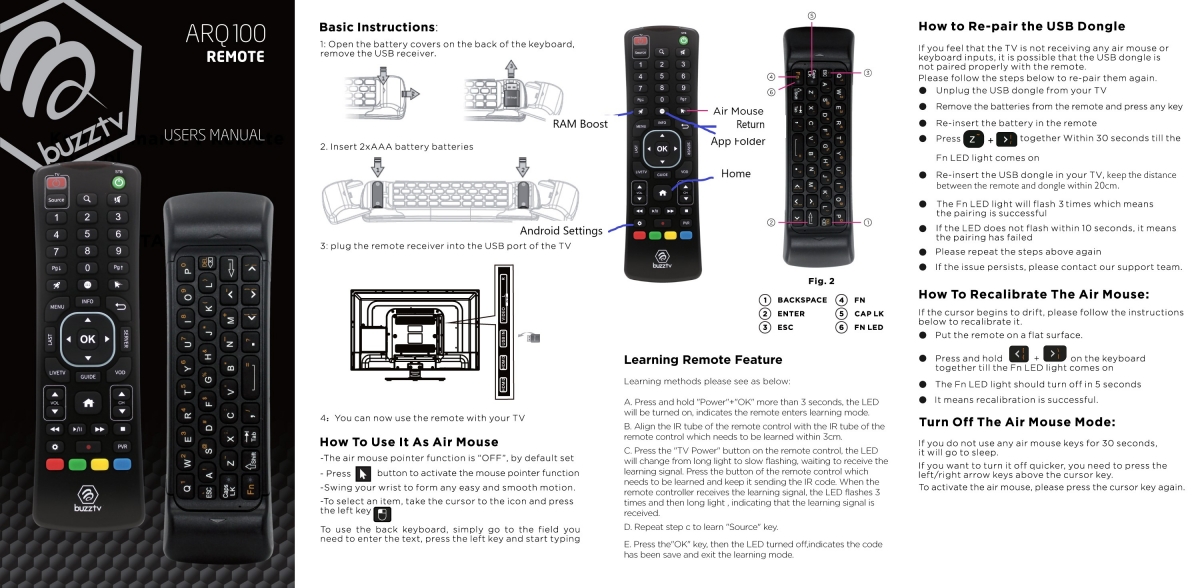
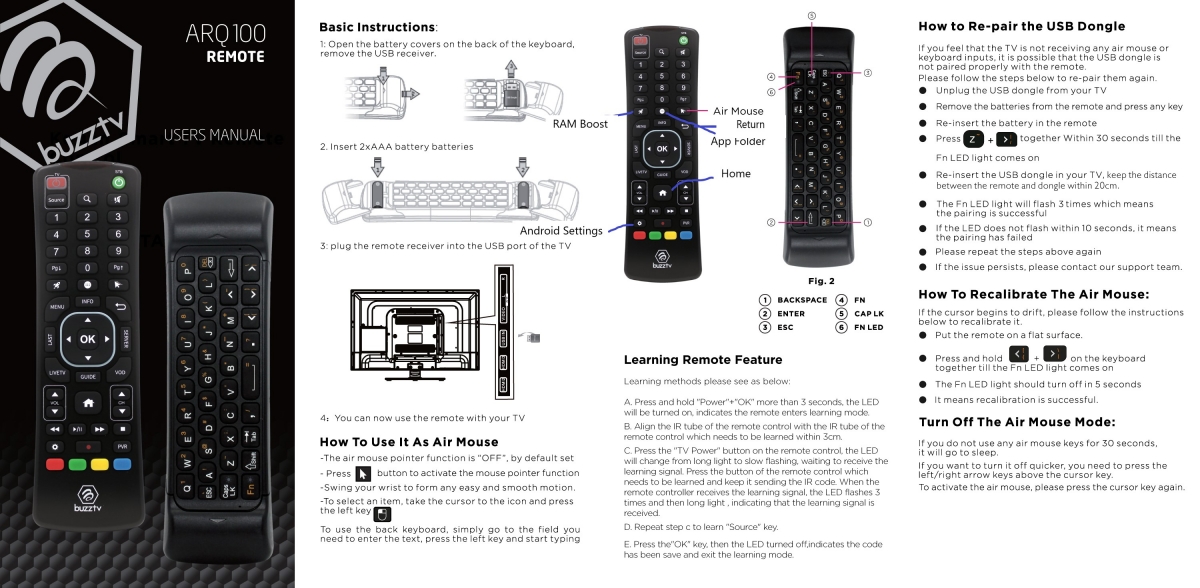
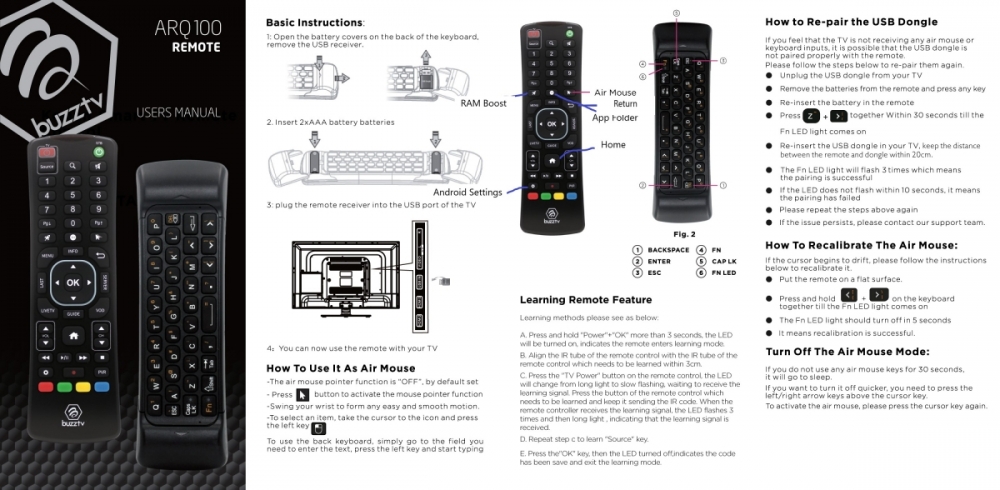
both my arq-100 remotes work perfectly
-
it's not in standby it's suspended so how can it update when it's off?
-
I posted the user manual a couple of months ago worx fine with my samsung
-
they're not having issues with their 3000
-
try a hard reset
-
more than likely they'll have to wait until renewal to do that
-
not sure why you're confused after all you are entering info in "server"
-
cause mac is the devices addy all buzz's have 2 mac's with 4000 series you submit server id
-
you must have set it to live tv on boot exit and go to settings
-
you have to use mouse with netflixhave you tried a different player?ok,left arrow,green buttonare you using scheduled?it's in the av hole push a toothpick or paperclip in and you'll feel it hold it and then power upuse analtiwhen you go to connect to wifi you will know what you're signing in to xxxxxxx or xxxxxxx-5GACnot helpful? the answer above is not for favourite but for locked just because you enter password doesn't permanently unlock channel until you do as instructed to unlock channel try it and see what happens when you go back to that channel later bet it requires a password...lolyou're welcomewhy not just go to aptoide and get it?I'm guessing you mean the arq-100??
 try a different player or try a free vpn