


Everything posted by BigBision
-
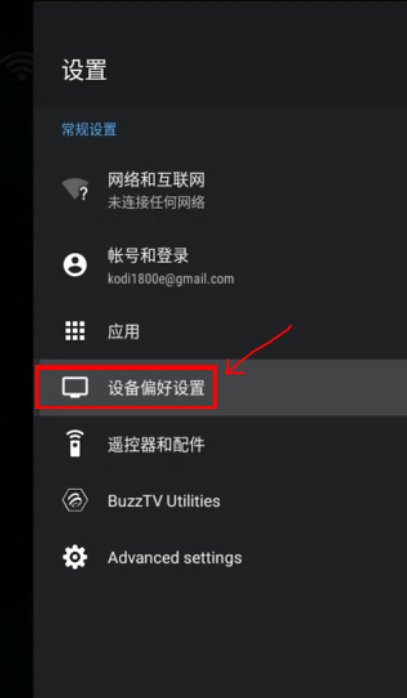
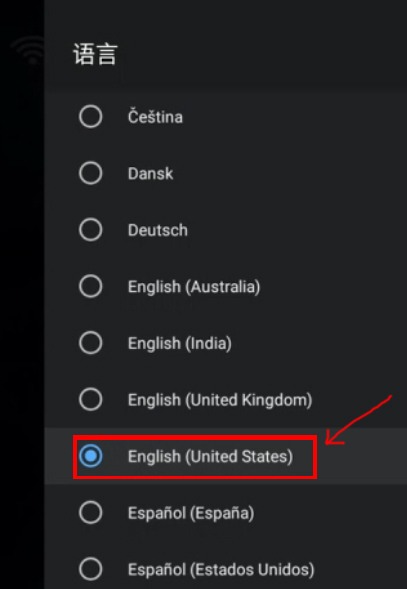
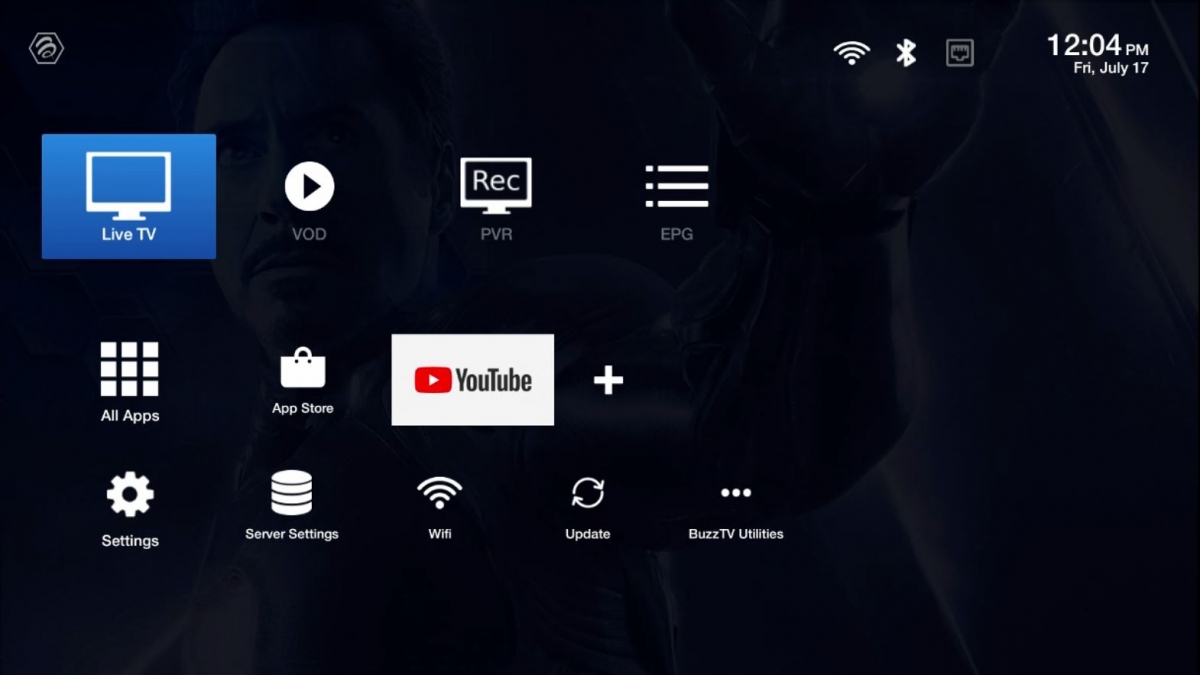
for people who are looking for manual, here it is. BuzzTV-ARQ100-Remote-Manual-2020-v2.pdfI am sure you come across this issue, a guest at your house or a kid for fun or Prank change your language to something you can not read. here is how easy it is to fix it back. 1. From Main Screen Scroll down to Settings and Select it. 2. Scroll Down and Select Device Management. 3. Scroll down and Select Language. 4. Scroll down and Select English ( USA ) Then Click on back button a few times till you are back to main screen, and you are set. Enjoy!.


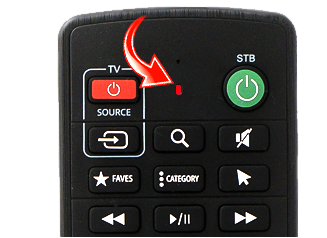
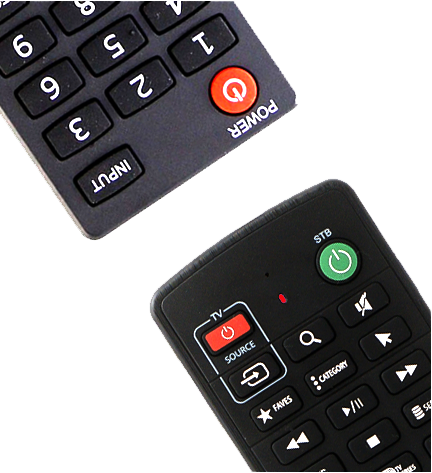
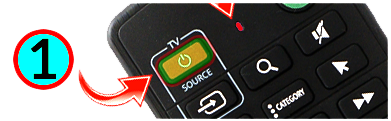
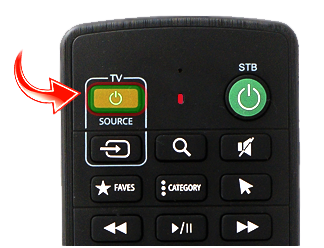
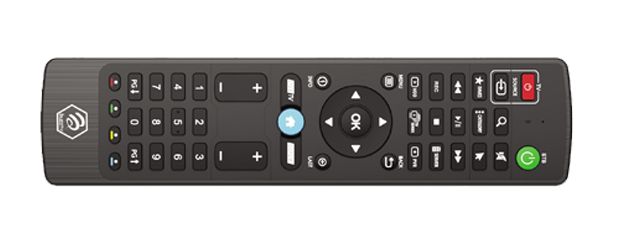
 What you are asking for and learning what is legal and not legal is not something we can talk or teach you here. you have genuine tech question ask here, we are not here to take your hand and baby walk you through settings and say what really portal is where you getting your server info from, why not to purchase MicroSD card lower then U3, If you want to pair your BT-100 or ARQ-100 remote how to hold it and why you have to point it to the ST4000 or XRS4000. Its not hard to request a article on this forum or a Quick Video on how to change your Video player on XR4500. while you really don't need to process this and its only meant for geekier users.Yes i read that but i just wanted to bring up. that our boxes do not need down-loader.create a RMA ticket http://buzztv.com/RMA and let one of our repair personal fix your unit.don't get mad or anything, but why are we going through such a trouble looking from "Downloader" on VidStick??? This Unit have a Chrome Browser use that to download any apps you want. leave "Downloader" for units that has no root access, no way to install apps like FireStick. Case Closed.1. Long Press [ TV Power + OK ] keys for 3 seconds Until you see the blue light LED turns Solid Red. 2. Press the key to be programmed. Example [ TV Power ] The Blue LED begins to blink. 3. Aim the Remote to the front of the TV Remote( distance less then 3CM ) 1) Press Power button on Buzztv Remote 2) Press Power button on your TV remote. 3 ) You will see that Light will blink 3 times 4. Press Power on Buzztv TV remote to sync the code. Now test your Buzztv remote with your TV to make sure the power works. Also you can same type of steps for Source button on buzztv remote.
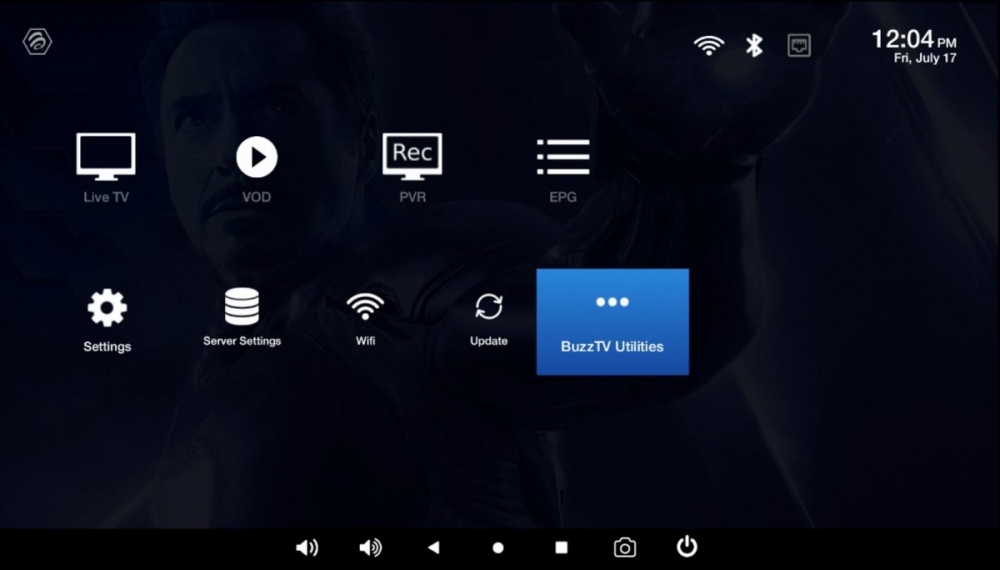
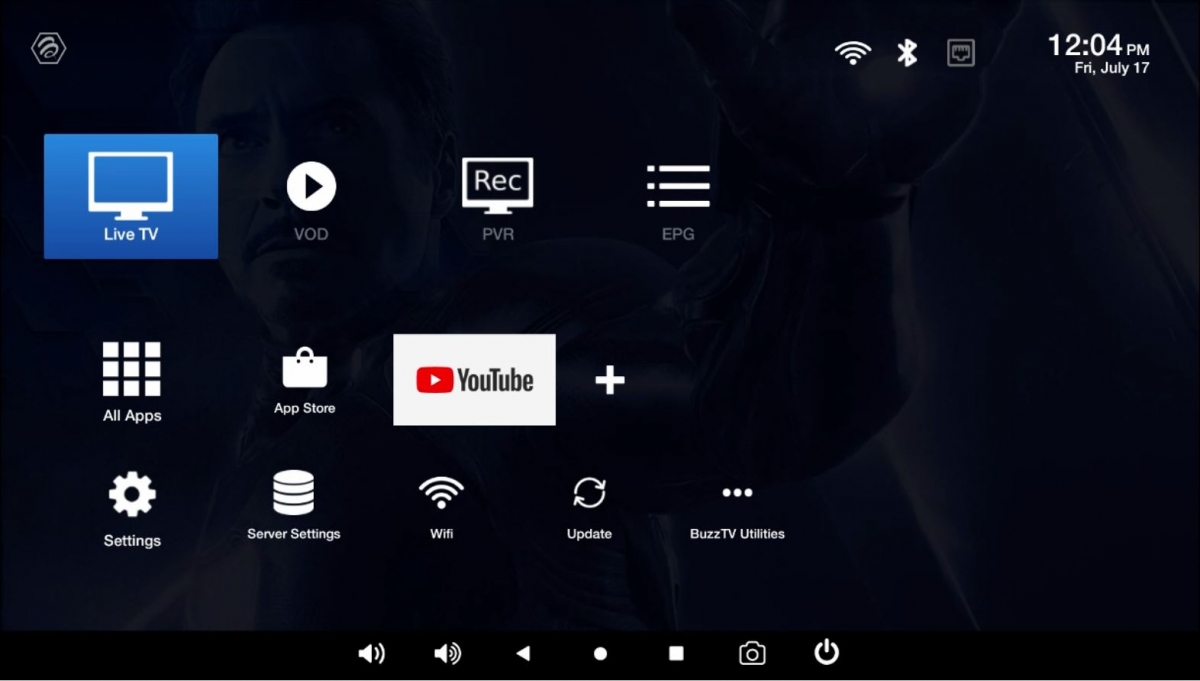
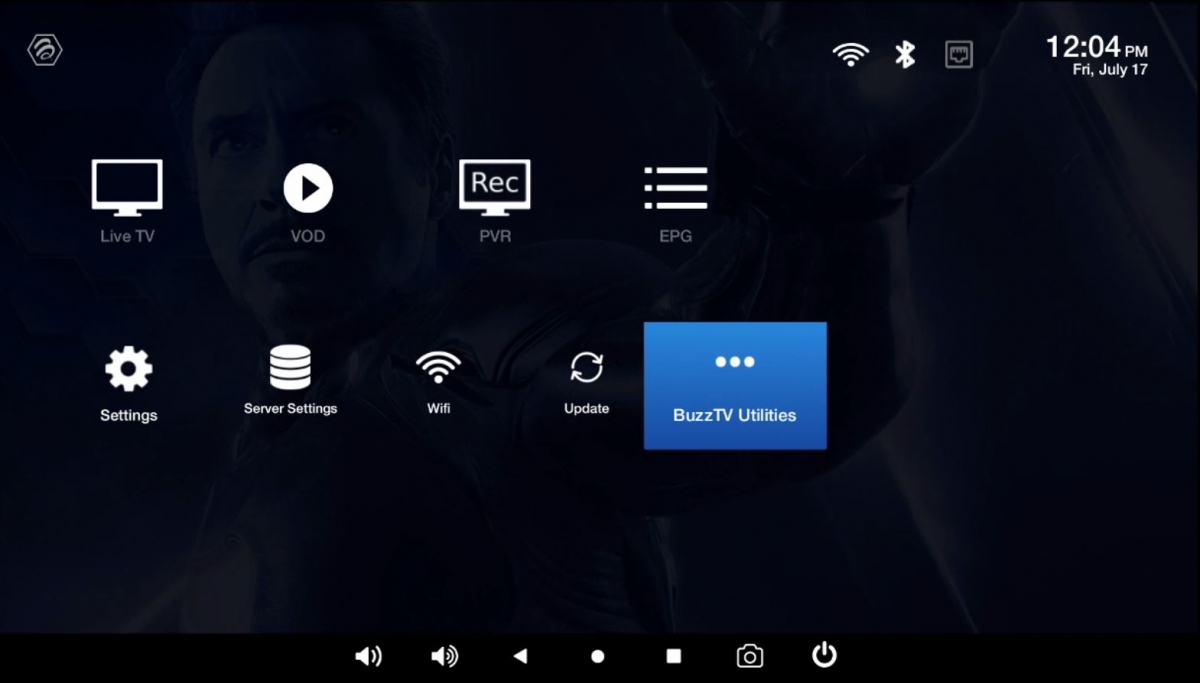
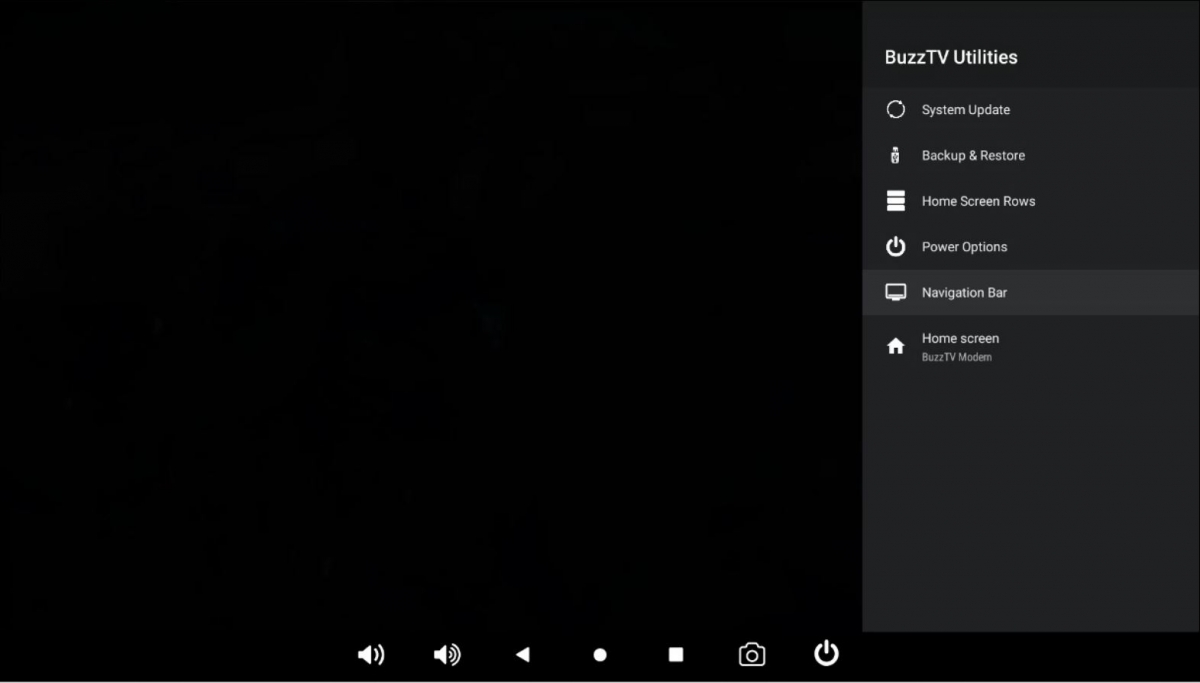
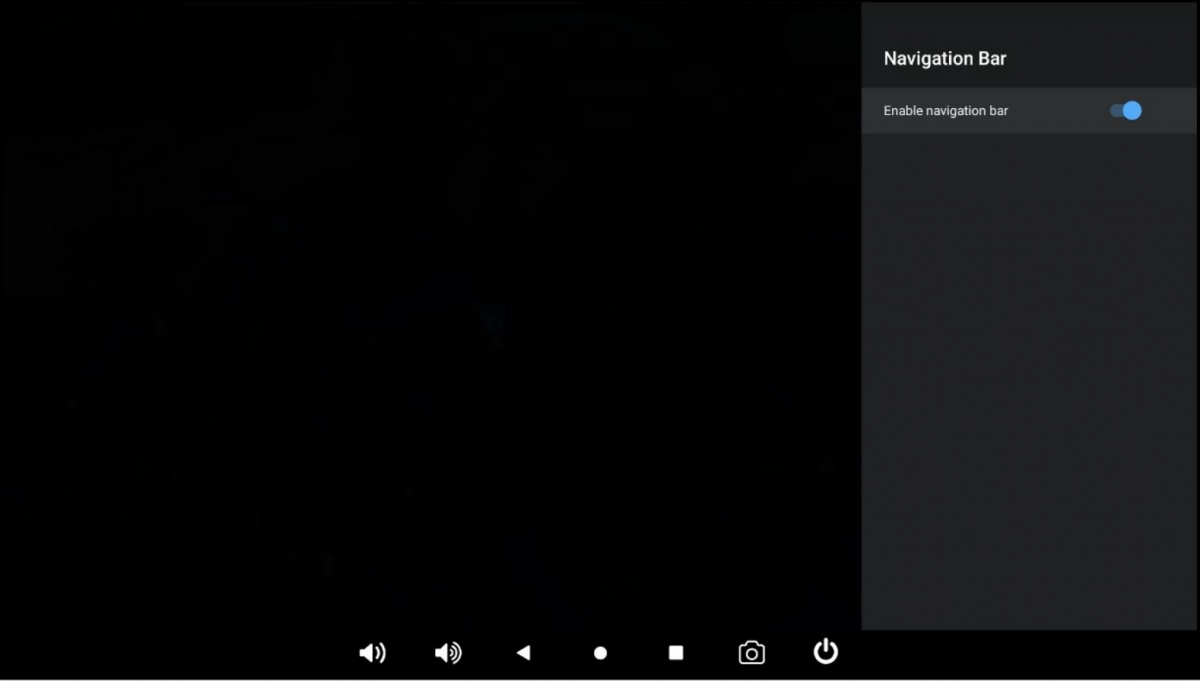
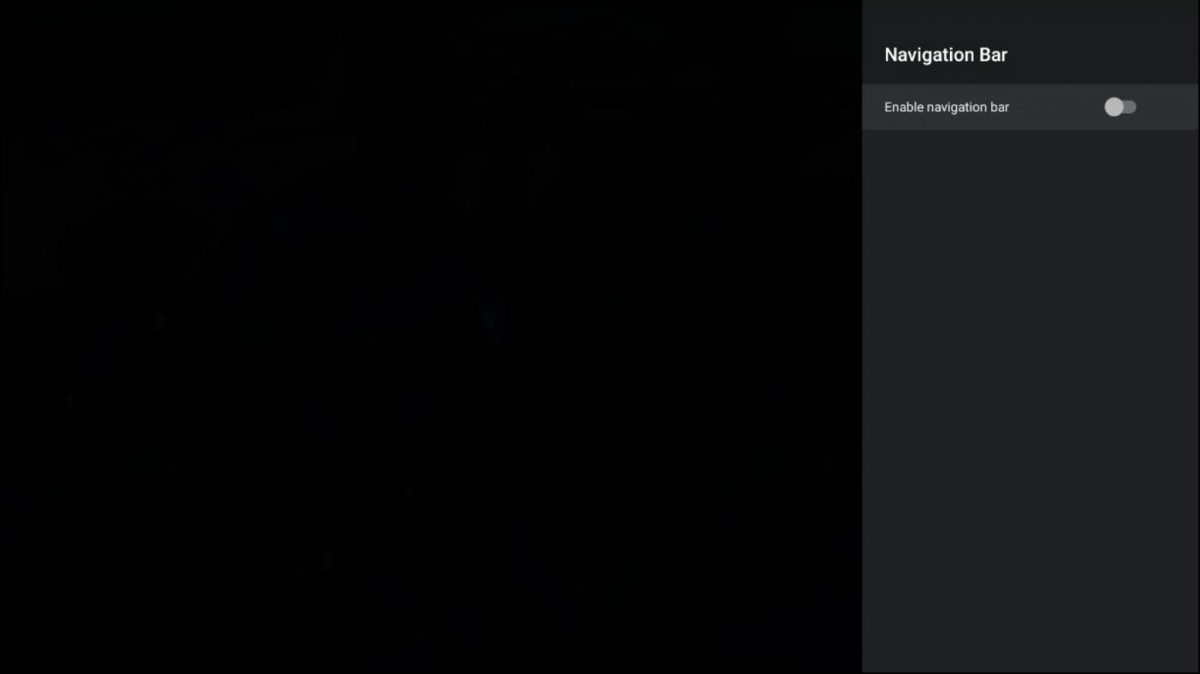
 You need to have the IR extender hooked up and make sure the remote can see the IR extender you can not hide it behind your tv that has to be visible.As i can check you are spamming all over the forums with questions, but after reading most of your post i see that you have VidStick, and VidStick do not have IR sensor built in, and when you turn on Bluetooth The IR Indicator turns off, even if you hooked up the IR extender. So On ARQ-100 The Green Power button only works with IR and not USB dongle. so the remote works 100% no problems with it.I know having a Navigation bar is a good thing, but some people do not like to see it all the time, so here is how you can remove it. 1. From Main screen 2. Scroll down and Select Buzztv Utilities. 3. Scroll down and select Navigation bar 4. Click On Enable navigation bar The blue button will change to grey color. 5. Once you Click it will turn Grey 6. Press back few times till you are back to main screen and you are done, Enjoy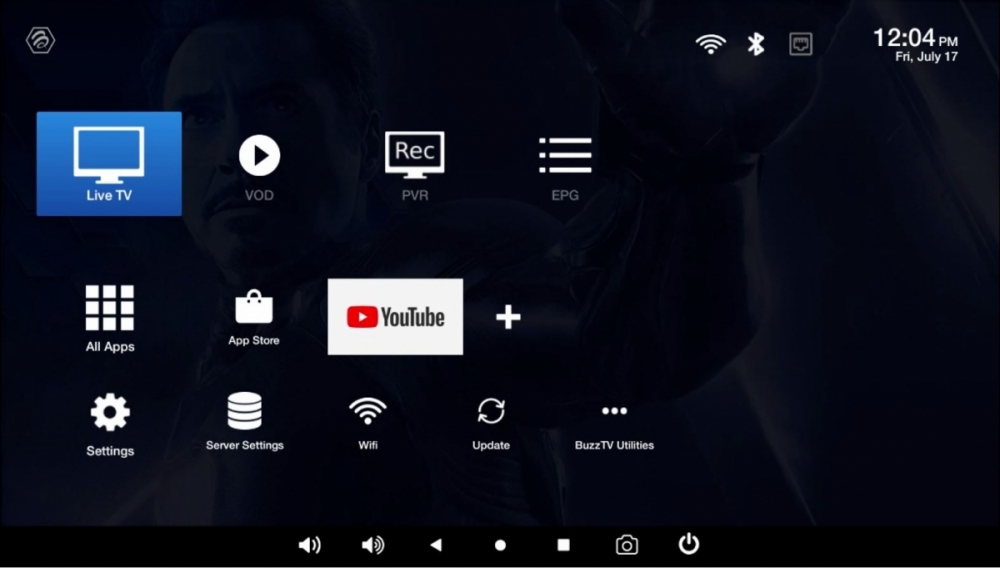
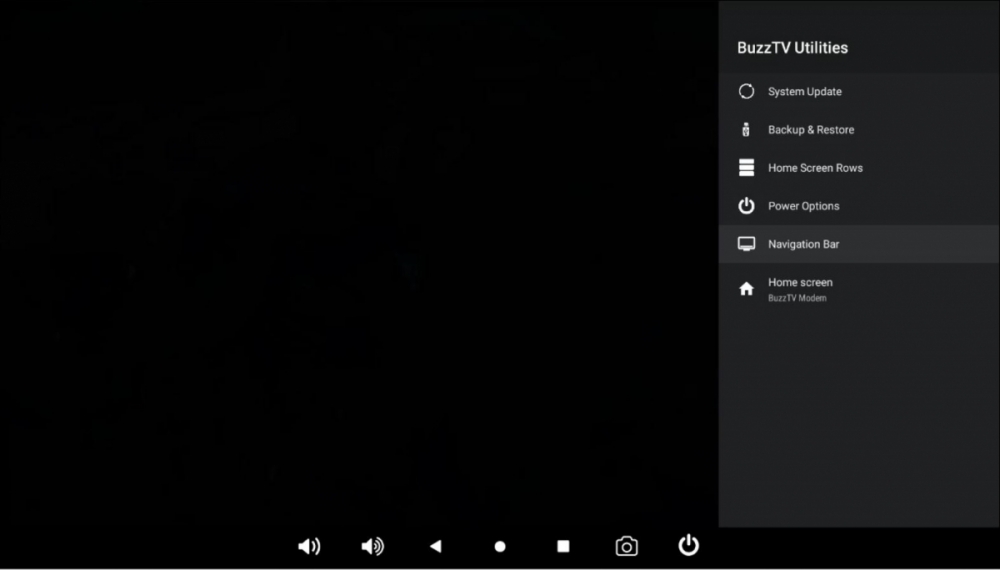
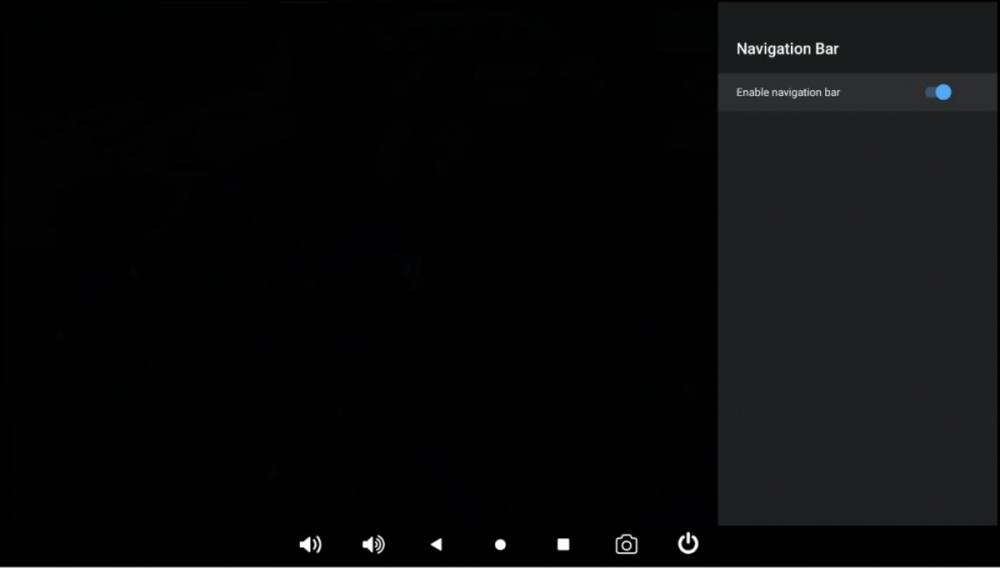
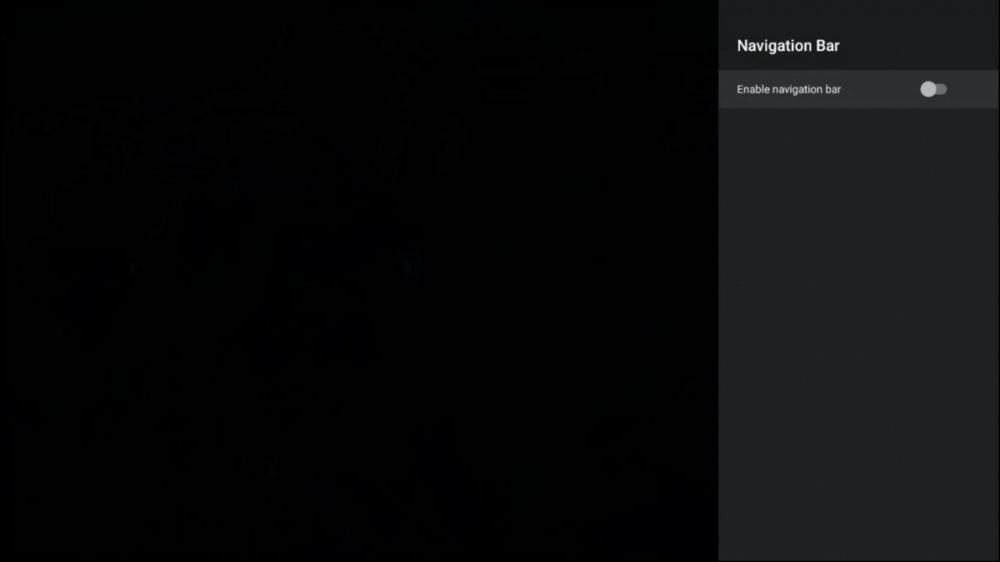
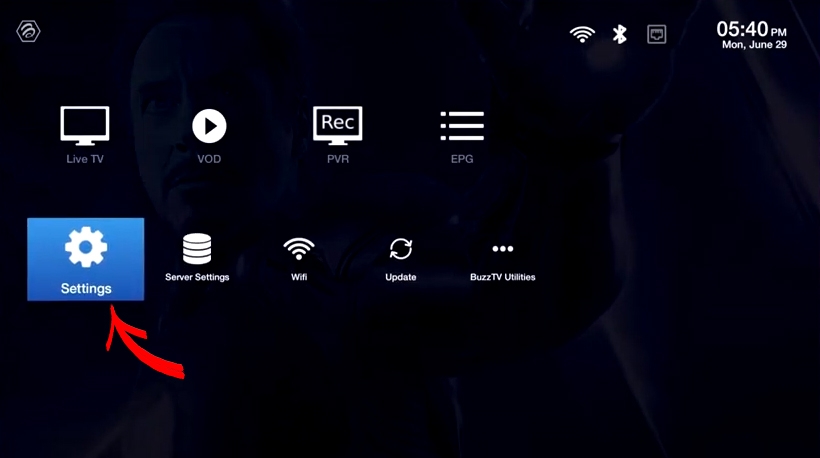
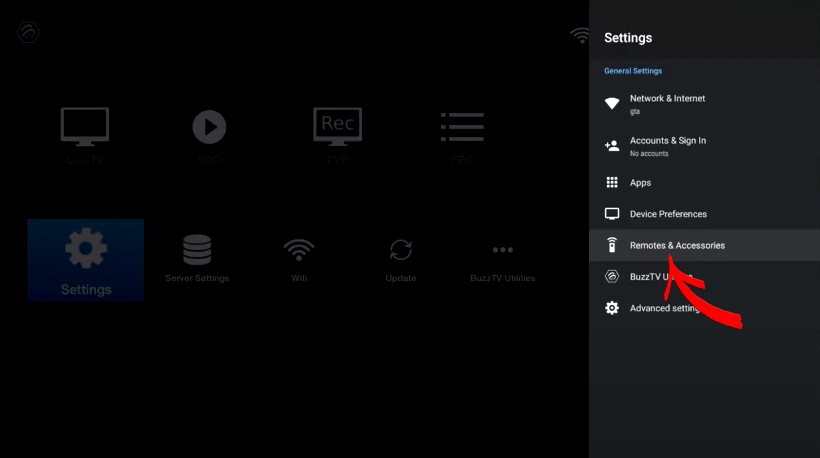
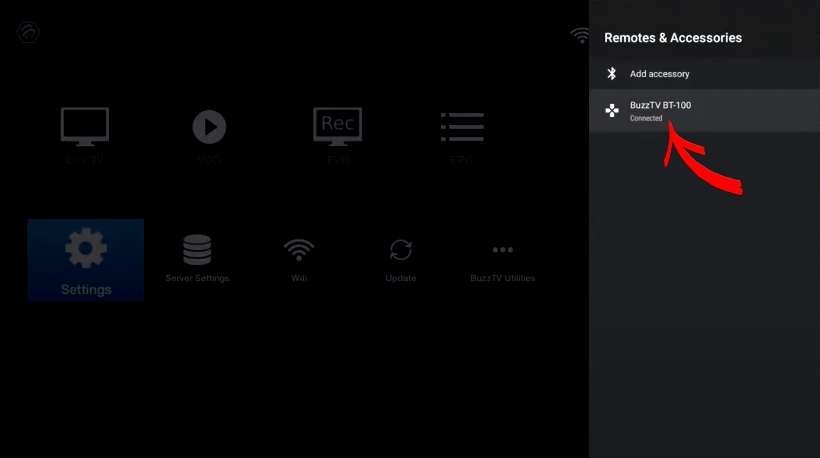
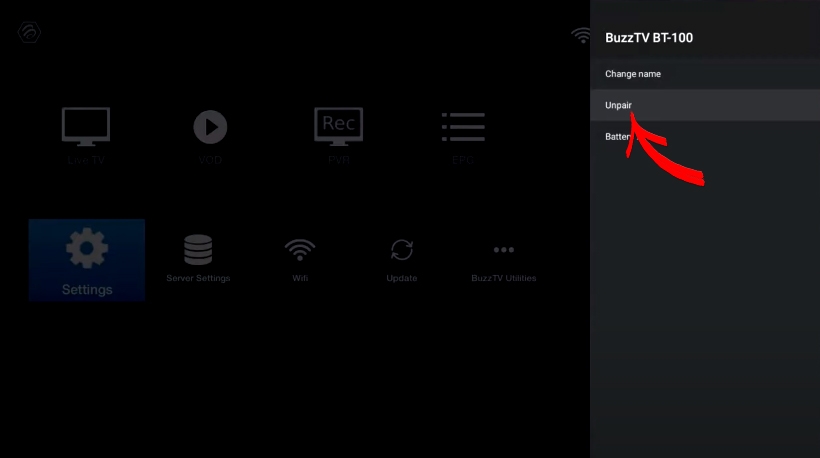
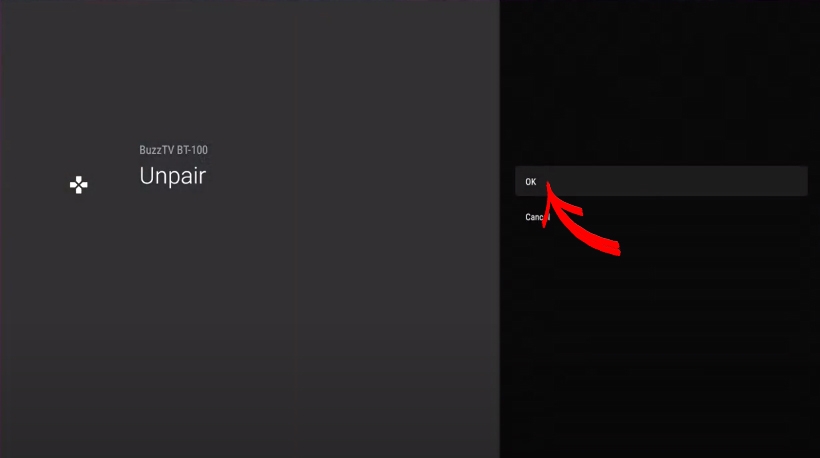
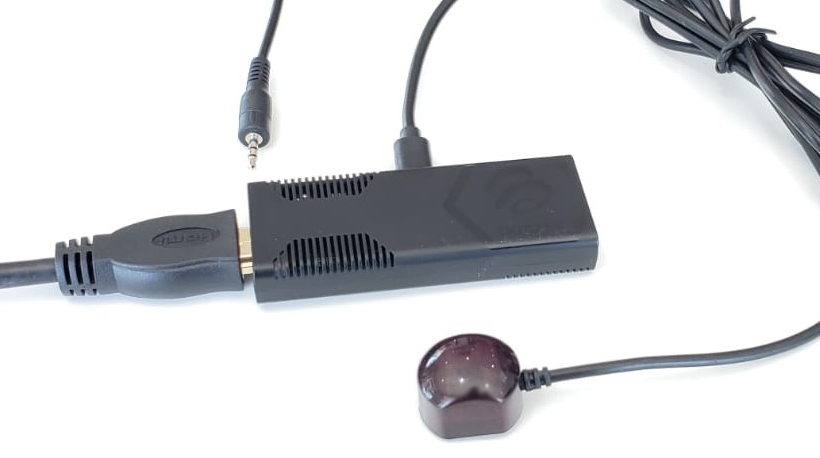
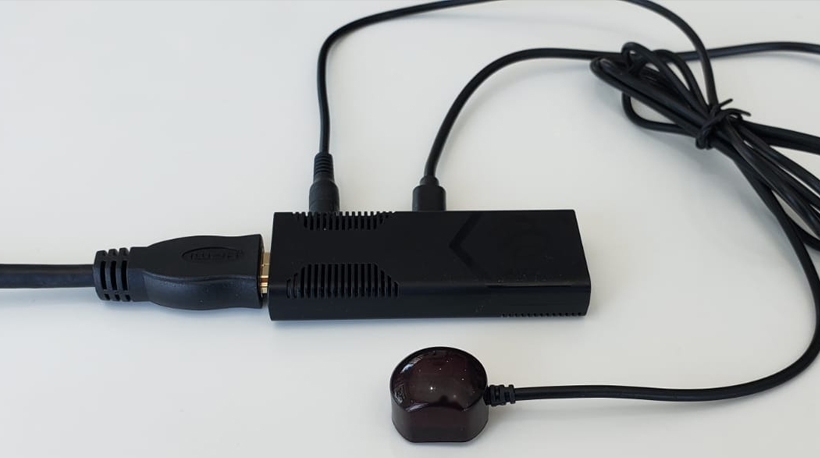
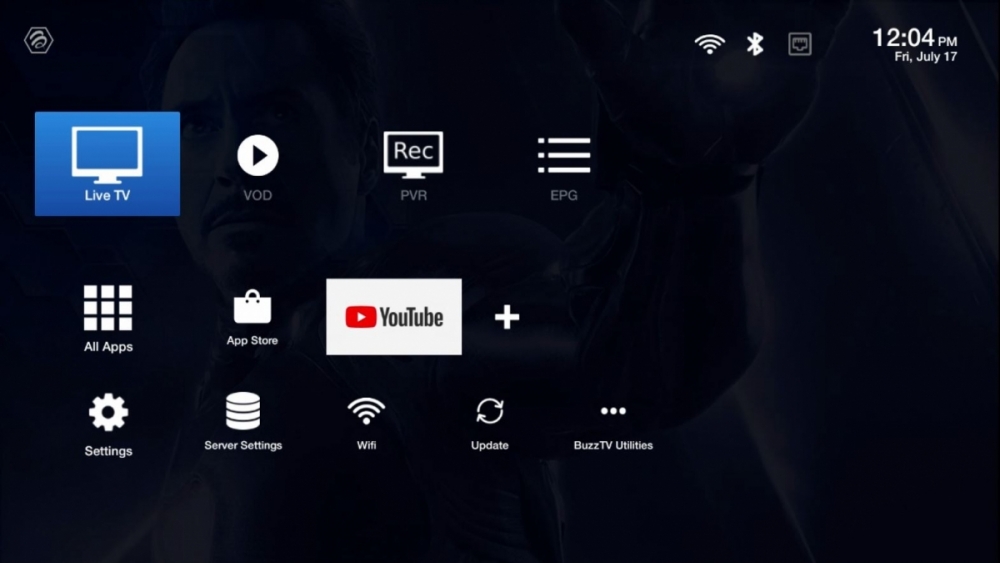 This Tutorial should show you how to use IR portion of your Remote, and how to change from Bluetooth Remote to IR. 1. Make sure you have your IR extender ready, and make sure VidStick is Turn on and YourTV is On. 2. Hookup the IR Extender to your VidStick aka ST4000. Using your BT-100 Remote 3. From the Main screen Scroll and Select Settings 4. Scroll down and select Remote and Accessories. 5. Select BT-100 6. Scroll down and Select Unpair 7. You see a page will ask you to Select OK 8. Now it is unpaired and you are using Your Remote as IR remote. Point your remote to the IR Extender and press back till you are back to the main screen. Enjoy your VidStick with IR Remote.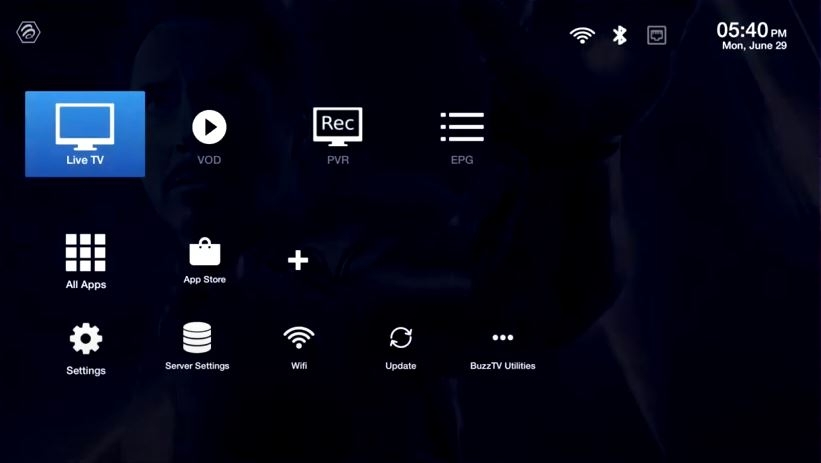
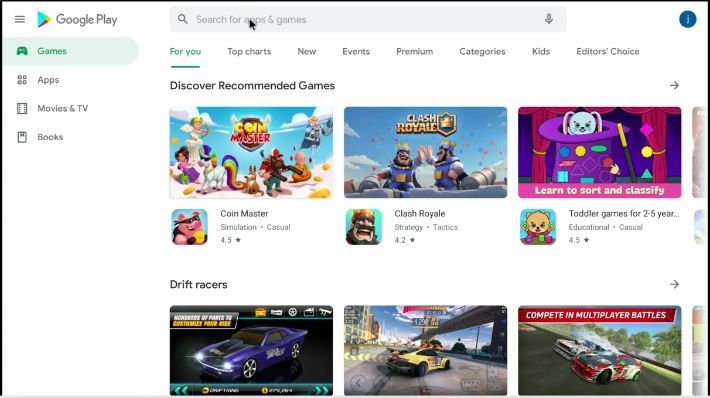
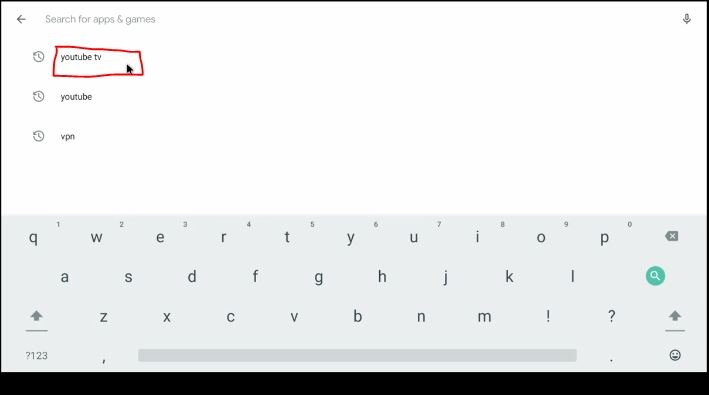
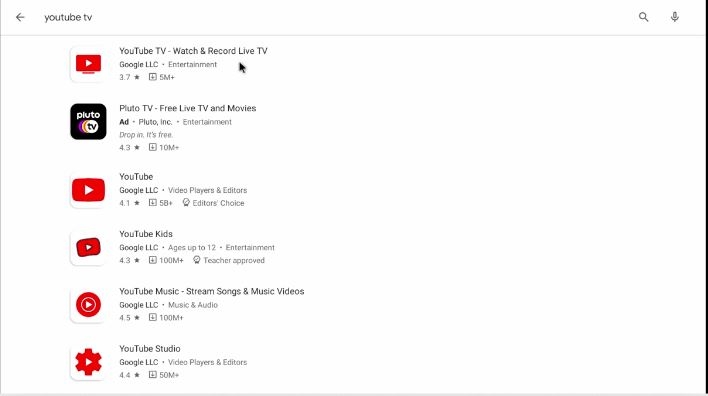
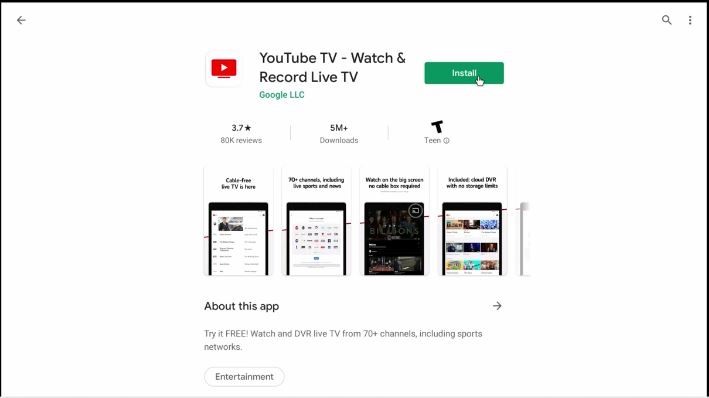
 remember that processing this will wipe and delete all your data from the device.we do not support 3rd party, data not loading, that is that app issue. has nothing to do with VidStick. lock this topic due to not being issue without product.Reminder: This app is made for US Customers only and not outside of Clients if you are using VPN to get access we have no support! Follow the steps to download, 1. From Main Screen Select Google Play-store or Select All Apps and Google Play-store. 2. Select the Search bar on the top. 3. Type YouTube TV and click Search or Enter. 4. Once the name YouTube TV comes up select the App. 5. Click on Install. 6. let it install. 7. Once it is installed Select Open. 8. Create account or if you have userid and pass just login.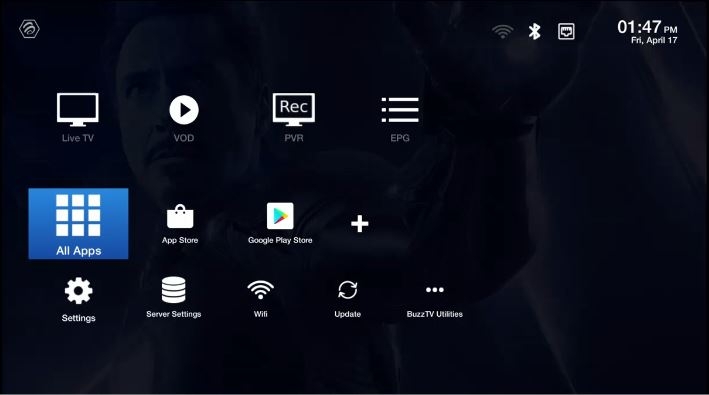
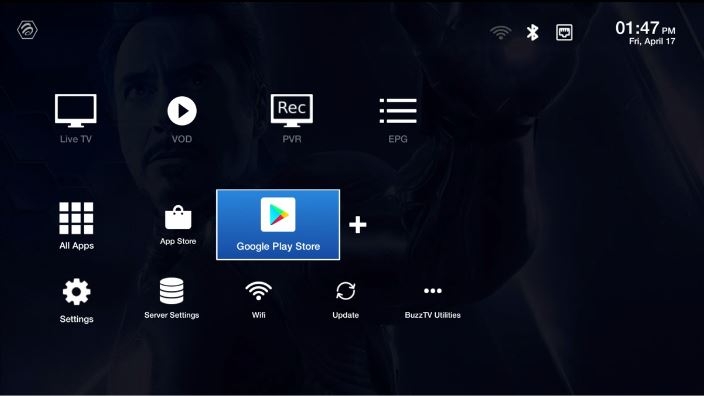
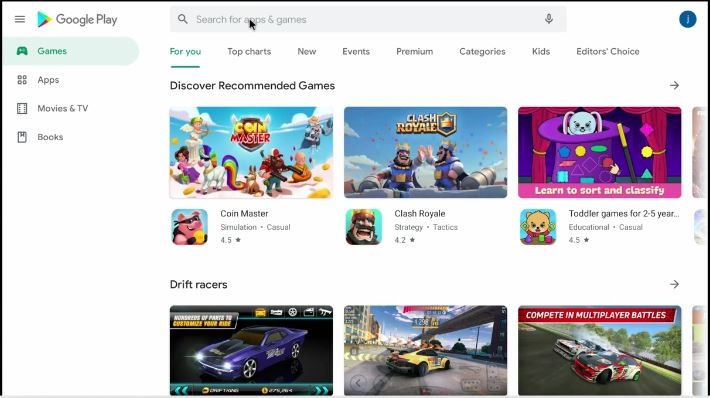
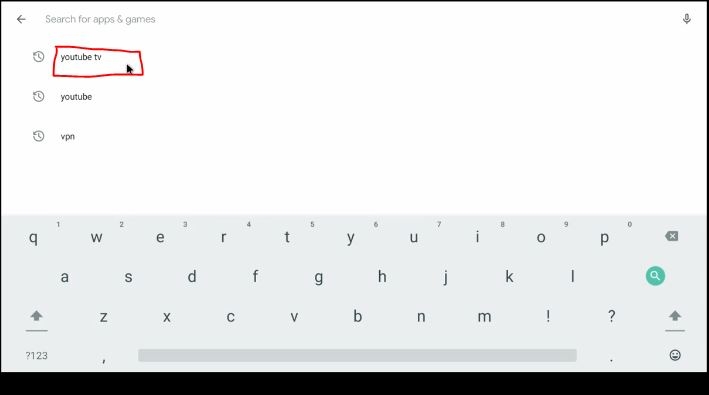
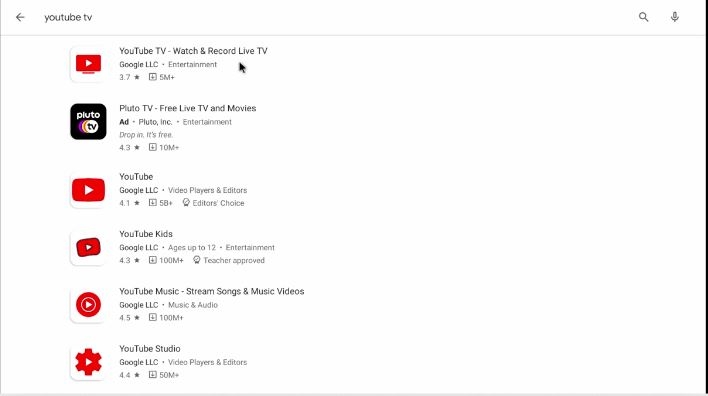
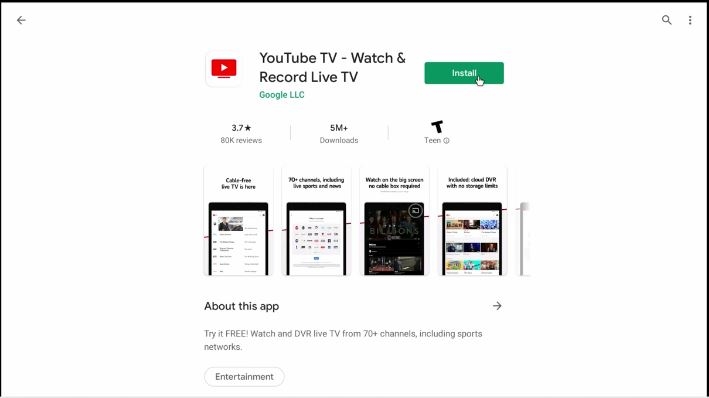
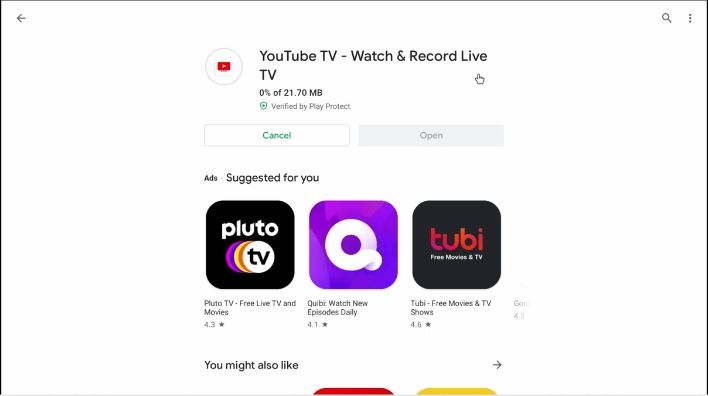
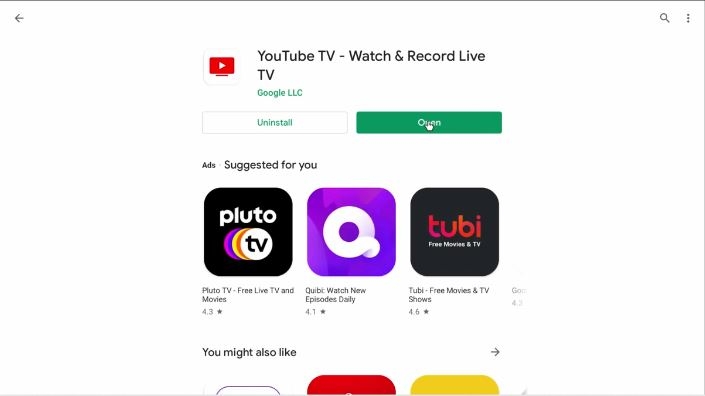
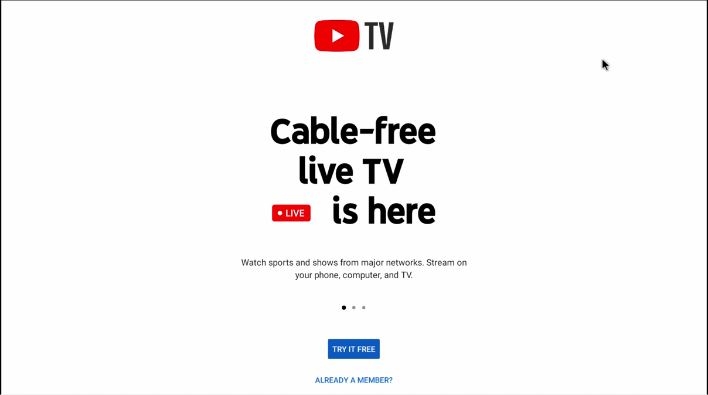 can you please pm me your serial numberReminder: This app is made for US Customers only and not outside of Clients if you are using VPN to get access we have no support! Follow the steps to download, 1. From Main Screen Select Google Play-store or Select All Apps and Google Play-store. 2. Select the Search bar on the top. 3. Type YouTube TV and click Search or Enter. 4. Once the name YouTube TV comes up select the App. 5. Click on Install. 6. let it install. 7. Once it is installed Select Open. 8. Create account or if you have userid and pass just login.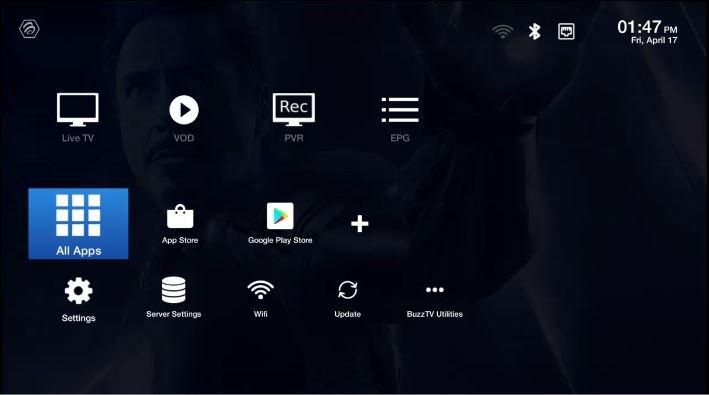
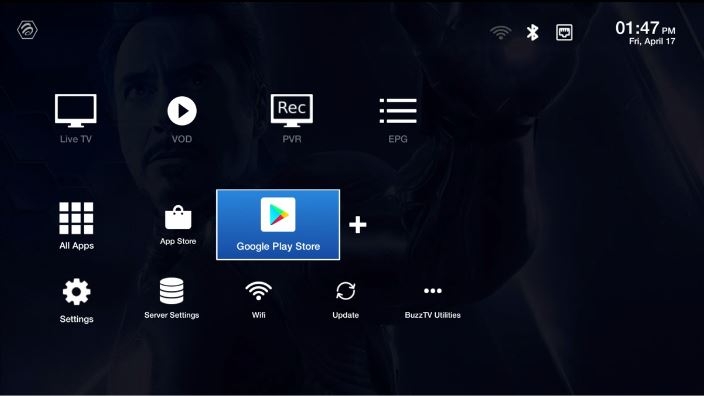
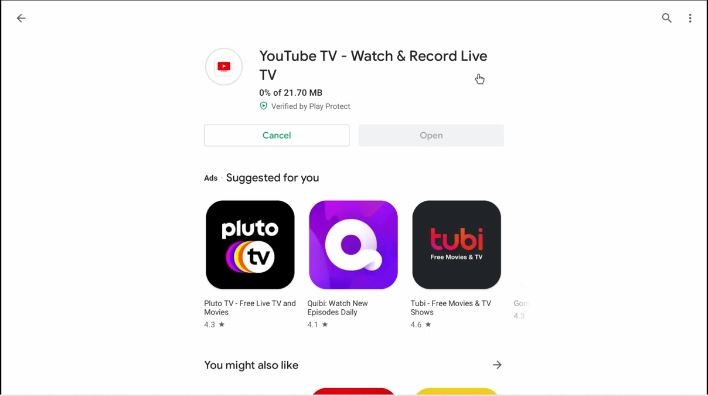
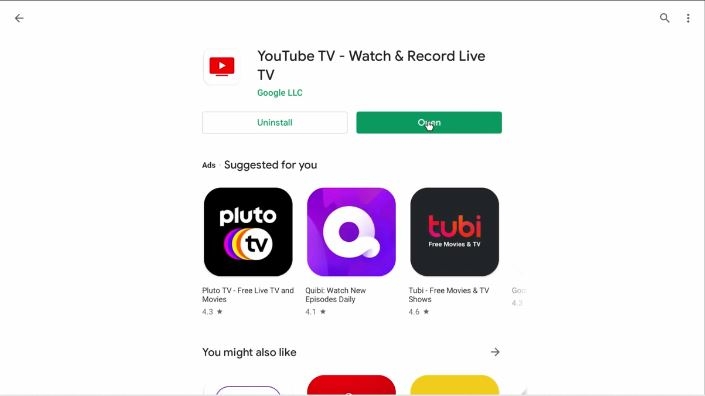
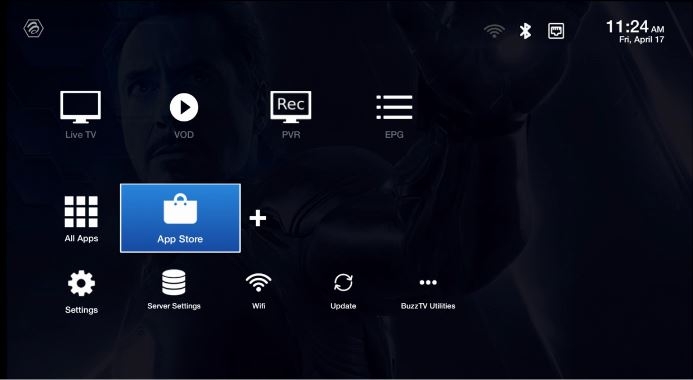
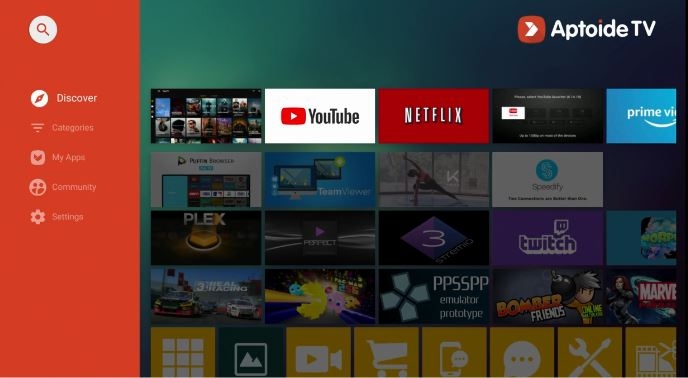
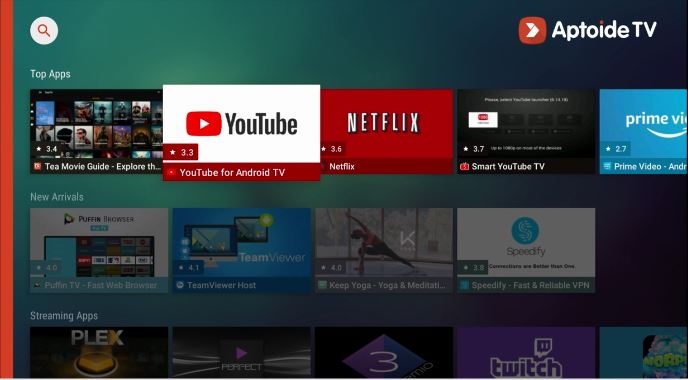
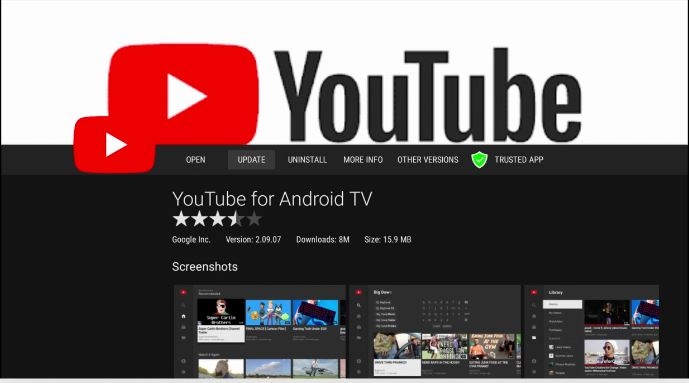
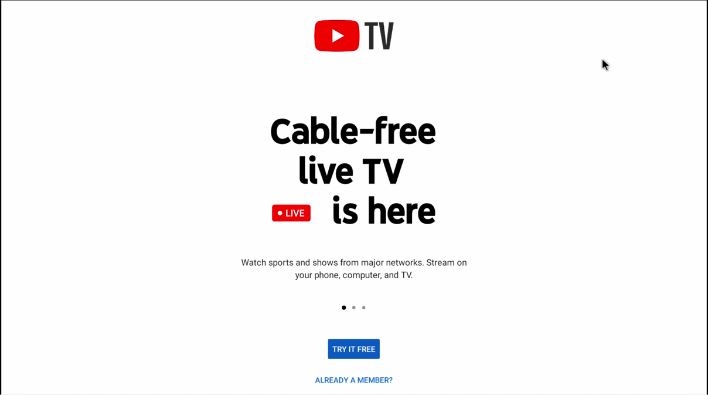 If your YouTube App asking for update follow these steps. Note: ( If your YouTube App is not asking for update and Opens do not process this update or install ) 1. From Main Screen Scroll Down 2. Select App Store. 3. When App Store Opens 4. Scroll towards the right and Select YouTube App. 5. Scroll To Update and Select it. 6. let it download it may take you up to 2 minutes or depending to the connection of your Internet. 7. Once Download is done you will see a installation popup and select Install. 8. Once Installation is done Click on Done. 9. Press home, then scroll Down to All Apps and Select. 10. Scroll Down to YouTube app and Select. 11. Once First Screen Comes up you can login or click on Skip. 12. Enjoy YouTube App.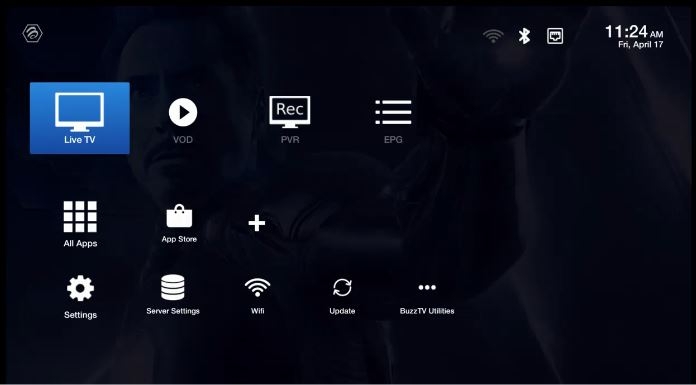
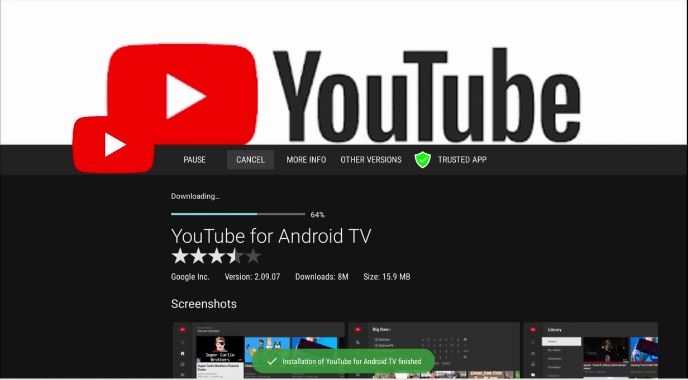
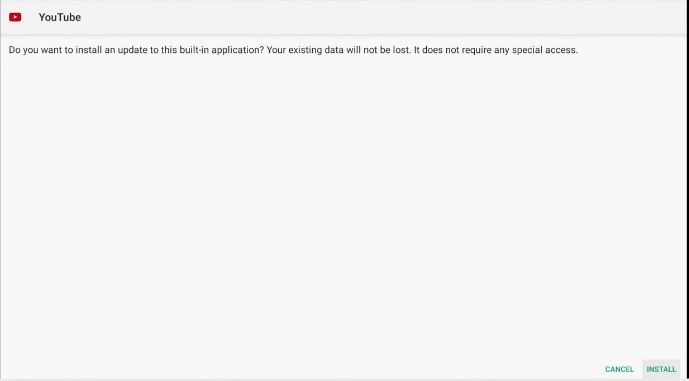
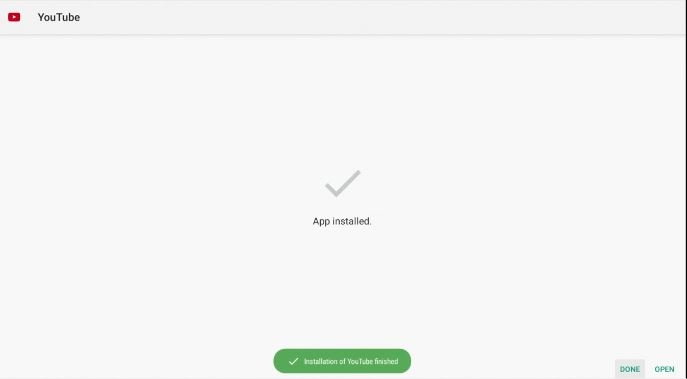
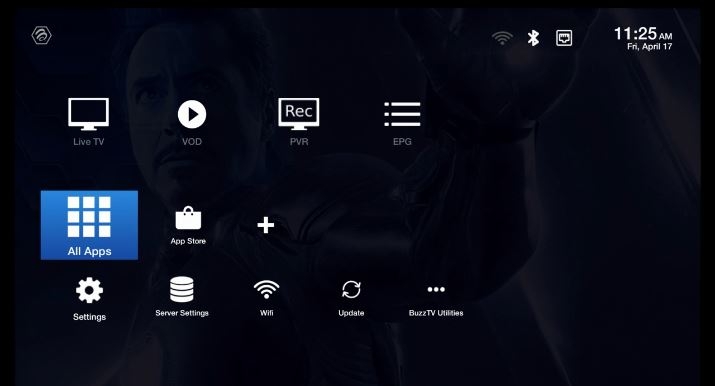
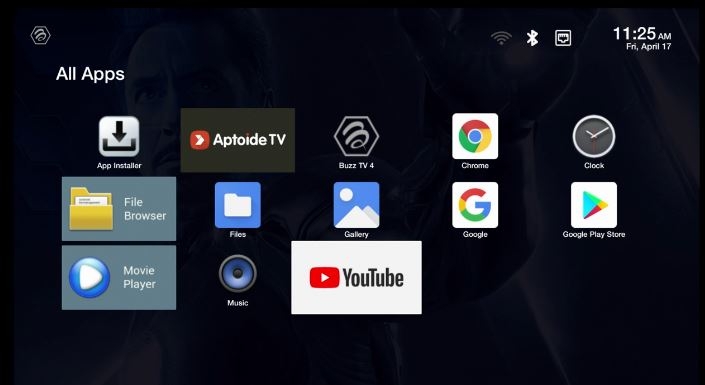
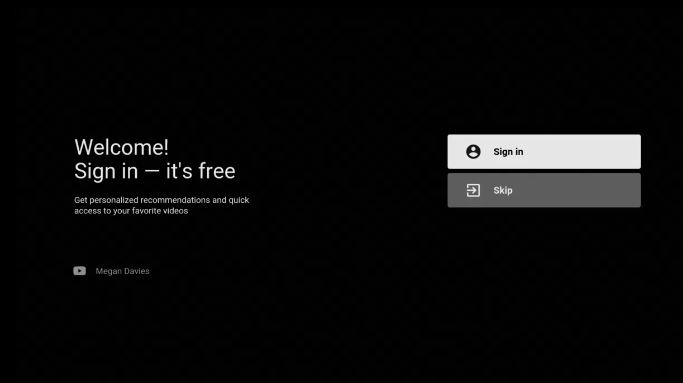
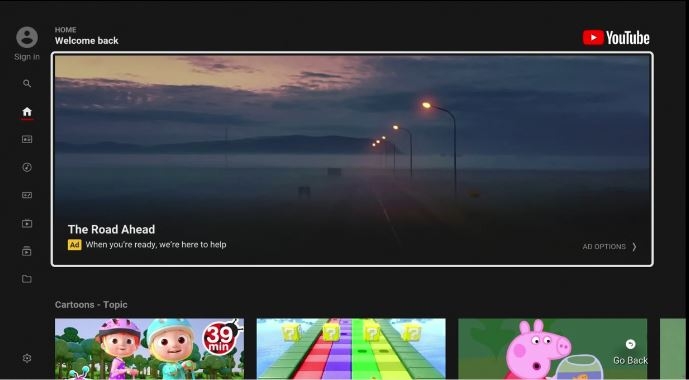 So one of the YouTuber and our fan, created this video using buzztv box to show how to fix your login issues, and compatibility issues with Netflix.that is on the hand of your live content provider, if they are allowing you to be able to record 1 channel and watch 2nd. most of these guys don't allow you, but you can record the channel you are watching.



Account
Navigation
Search
Configure browser push notifications
Chrome (Android)
- Tap the lock icon next to the address bar.
- Tap Permissions → Notifications.
- Adjust your preference.
Chrome (Desktop)
- Click the padlock icon in the address bar.
- Select Site settings.
- Find Notifications and adjust your preference.
Safari (iOS 16.4+)
- Ensure the site is installed via Add to Home Screen.
- Open Settings App → Notifications.
- Find your app name and adjust your preference.
Safari (macOS)
- Go to Safari → Preferences.
- Click the Websites tab.
- Select Notifications in the sidebar.
- Find this website and adjust your preference.
Edge (Android)
- Tap the lock icon next to the address bar.
- Tap Permissions.
- Find Notifications and adjust your preference.
Edge (Desktop)
- Click the padlock icon in the address bar.
- Click Permissions for this site.
- Find Notifications and adjust your preference.
Firefox (Android)
- Go to Settings → Site permissions.
- Tap Notifications.
- Find this site in the list and adjust your preference.
Firefox (Desktop)
- Open Firefox Settings.
- Search for Notifications.
- Find this site in the list and adjust your preference.