

dishuser
Members
-
Joined
-
Last visited
Everything posted by dishuser
-
you select what you want to backup
-
-
do what Ryu suggested
-
you need to ask 16 more questions...lol
-
that's why it helps to stay on topic 😉
-
it's on last page in thread below yours some people hijack their own threads...lol
-
only in beta it was already posted in another thread
-
what firmware version are you currently at?
-
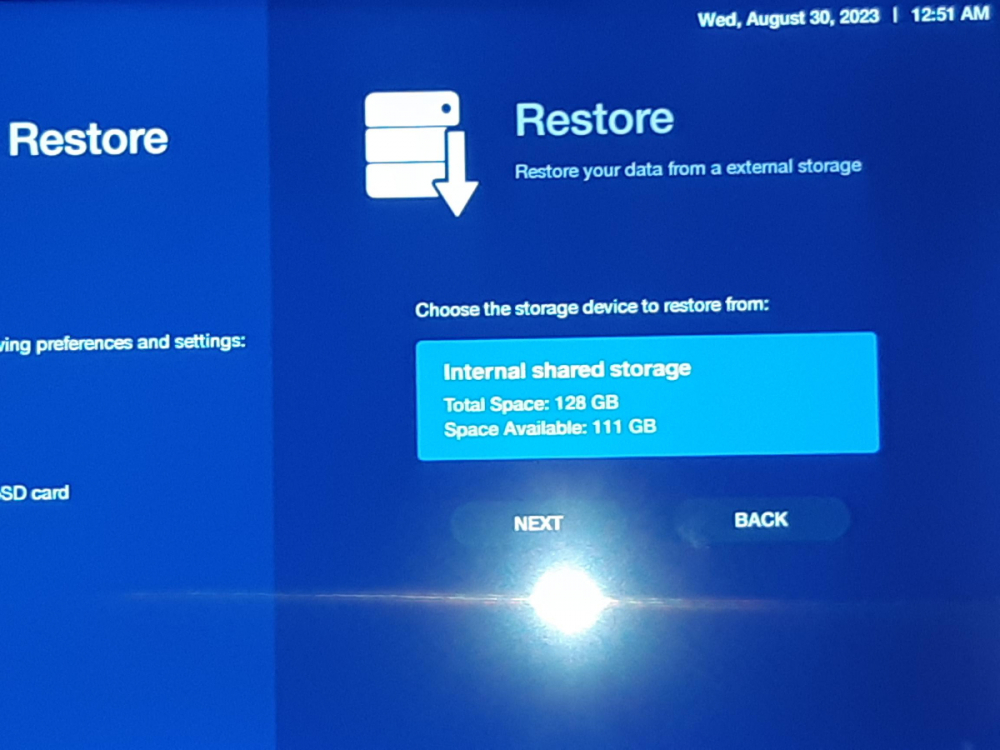
backup only worx to internal not external since it's not the same OS as the u5
-
maybe user needs to change where they're grabbing epg from in configuration?
-
weird no issues here using same firmware/softwarethey answered itwhat software version are you at? cause an app update went out to correct issuesno issues on mac or xc api maybe something changed on server sideI use auto and channel changes are instant on same service by the way auto selects hlsyou should have got it yesterday morning I didcontact your servicebut they have more than 50 years in electronics so they're an expertI use auto and it selects hls which is better for catchup channels my neighbour picks ts like you but doesn't use catchupalso use fast login 2 seconds...lolI use from serverwhere are you grabbing epg from? server or xml?

