dishuser
Members
-
Joined
-
Last visited
Everything posted by dishuser
-
I get a ding when there's a notification
-
are you using same hdmi cable at both locations?
-
ok and volume down
-
-
and it was fixed and it was fixed
-
you still haven't answered about timeshift repeating the same answer over and over is useless if you expect help
-
load server info using phone or pc
-
how long are you waiting before pressing ok button?
-
have you rebooted?
-
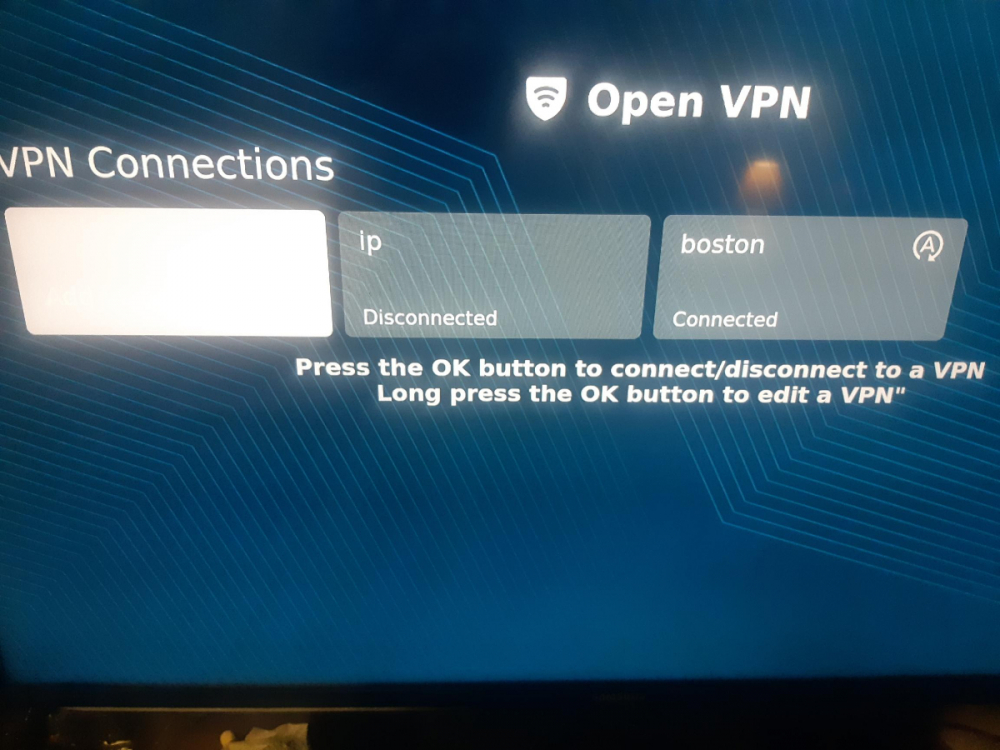
are you selecting add vpn and the selecting file? then picking a server location and naming it and save?
-
so you can see what I'm saying
-
you don't load the whole config at once you load a server location one at a time I spent more time editing config than loading it
-
I used the IR sensor for my vidstick
-
and how's that working out for you?
-
B5 or L1 are great for iptv
-
why are you asking in this section? post in your model's section
-
https://buzztvglobal.com/en-ca/collections/buzztv-boxes/products/buzztv-powerstation-6-unlimited
-
nope
-
since the beginning mine has loaded in under a minute
-
I used my backup from a different model
-
I did that a couple of updates ago takes minutes to reload backup and vpn 👌
-
I left mine plugged in with hdmi unplugged when I went to bed last night 😉
-
how close are you to the box? are you clicking on the mac
-
it finally updated having themes is a nice touch 👍
-
you're in the wrong section and you can't