
Everything posted by BigBision
-
The last update was from Nov 21 2018, we have no more Firmware updates, only Buzztv App updates. which should be on 317
-
please create your RMA ticket and lets take it to next level to get your box fixed, http://buzztv.com/rma make sure you have all the info completed.
-
please select 1080P 60Hz and see the difference.
-
That is a dead link, maybe the they are not working anymore. but it is not a box issue.
-
can you try it with different tv also, just for a test.
-
process these steps, 1. check your internet connection, 2. Reboot box and try to connect again, 3. get VPN and try to connect, cause it can be blocked by isp, to learn this try using a computer browser and check that url see if you are going to see the blue screen. Note: double check your provider to make sure your Buzztv XPL2000 is compatible with Servers, sometimes Provider change the compatiblity and then you are not able to connect.
-
With the Stick which is model XPL3100, you can turn it off today, but you can not turn it back on without taking the power out from back of stick and placing it back. Since there is no IR sensor it is impossible to turn the XPL3100 back on Via remote, from total shut down. There is a way for you to try to shut down if you have a 2018 or 2019 TV, under settings on your Box turn on CEC that way, you connect your XPL3100 Power to TV USB. and when you turn off your TV your box shuts down too. and When you turn on TV your XPL3100 turns back on.
-
if it has a none stop flashing, please take the batteries out, and try to press all the buttons to make sure none of them are stuck under the shell, then install the batteries back. If you are still having the same problem that means your remote quit. please purchase another remote for your XPL1000 best remotes are - Buzztv ARQ 100 - MyGica KR41 Air - MyGica KR301 - MyGica KR303
-
can you tell me, what is the error message can you write it fully? or can you post a picture of your error message here?
-
use this page to pair your remote.
-
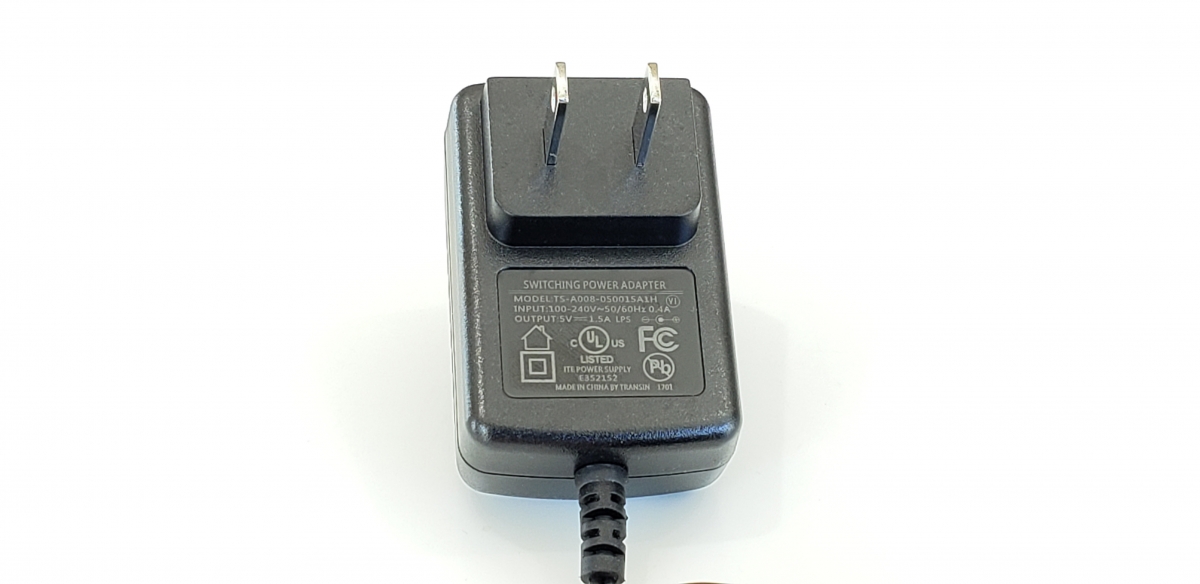
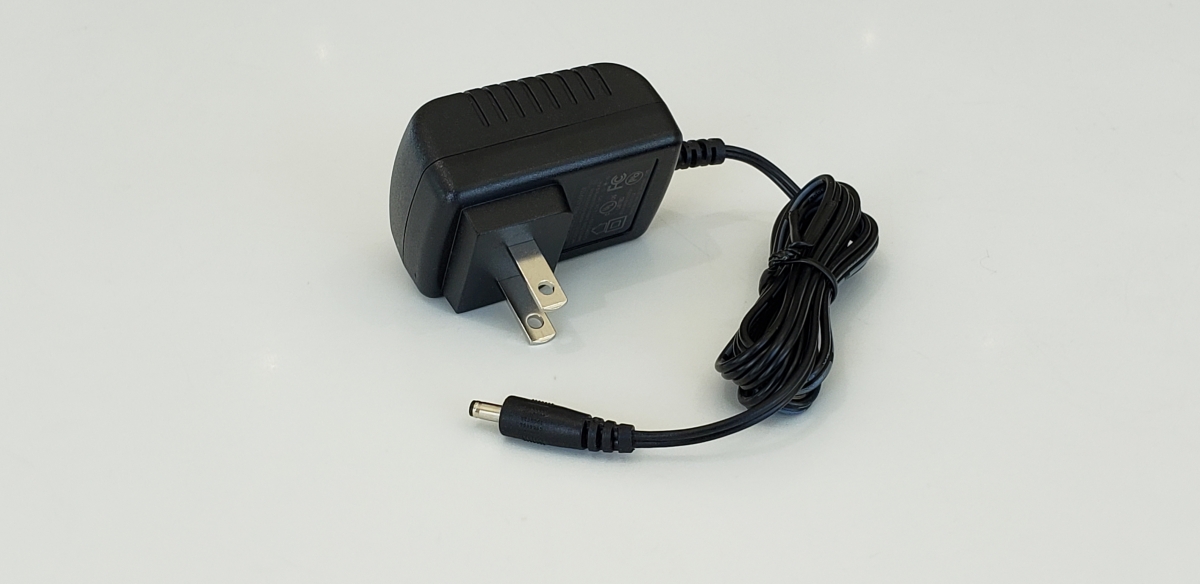
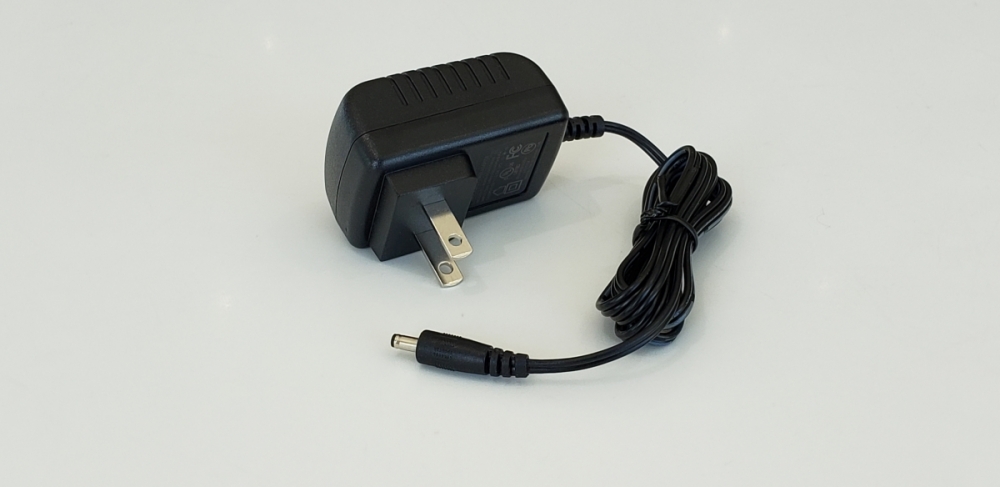
The Power adapter have different design when it comes to XPL2000 the back is little small, and the connector is small too as the picture shows. The Power adapter details, Intake: Max 240V-50/60Hz 0.4A Power Out: 5V = 1.5A
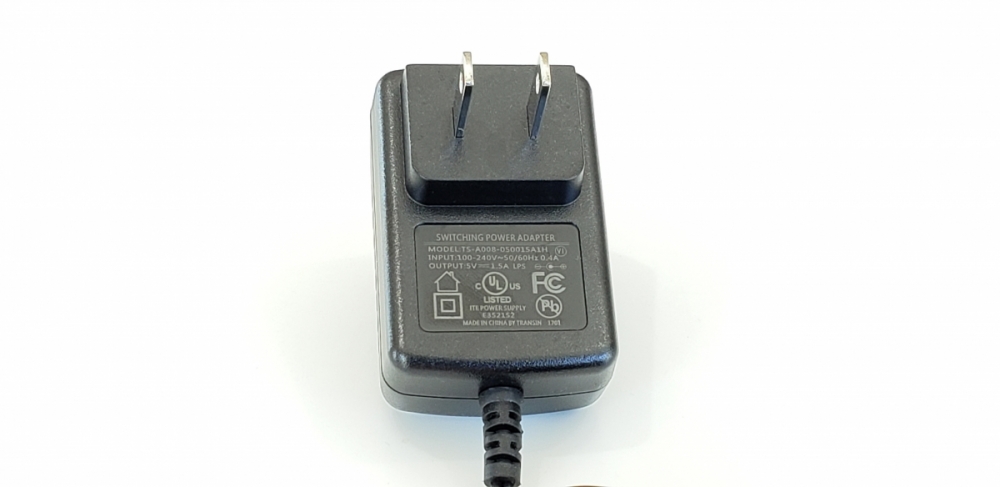 I suggest you re-download the file from This link Here then load it to the USB or SD card and process the steps again. do update us here.your box will never be garbage, we have a great repair team that will take care of you. if you could not fix your unit with the file we provided please kindly create your RMA ticket http://buzztv.com/rma and one of our repair team will work on your box.that error 21 means boot system differs. it can crash. you can wipe data clear cache before you factory reset then install the firmware on it. " Not different brand box. "Here is a 101 very basic video