
Everything posted by BigBision
-
your provider should help you with EPG.
-
please process this steps to fix, 1. Hookup the HDMI, and take the power cored out of the box. 2. Using a toothpick place it inside of AV connection and if you push in you will feel a little click, 3. Once you feel that click hold it and hookup the power. 4. Hold the AV port with toothpick for 15 seconds, 5. You should see the recovery Screen on TV. 6. Using the buzztv remote Select factory reset. it will factory reset and comes back to recovery screen. 7. Select Reboot. let it do its thing and it will load back to welcome screen. please update us here the results.
-
please check with the app to make sure it is compatible with OS 9.0 and if they left the part blank, under google play store you can check who created the app you can contact them for help and support.
-
We can do not support 3rd party apps on this forums. please use search engines for that.
-
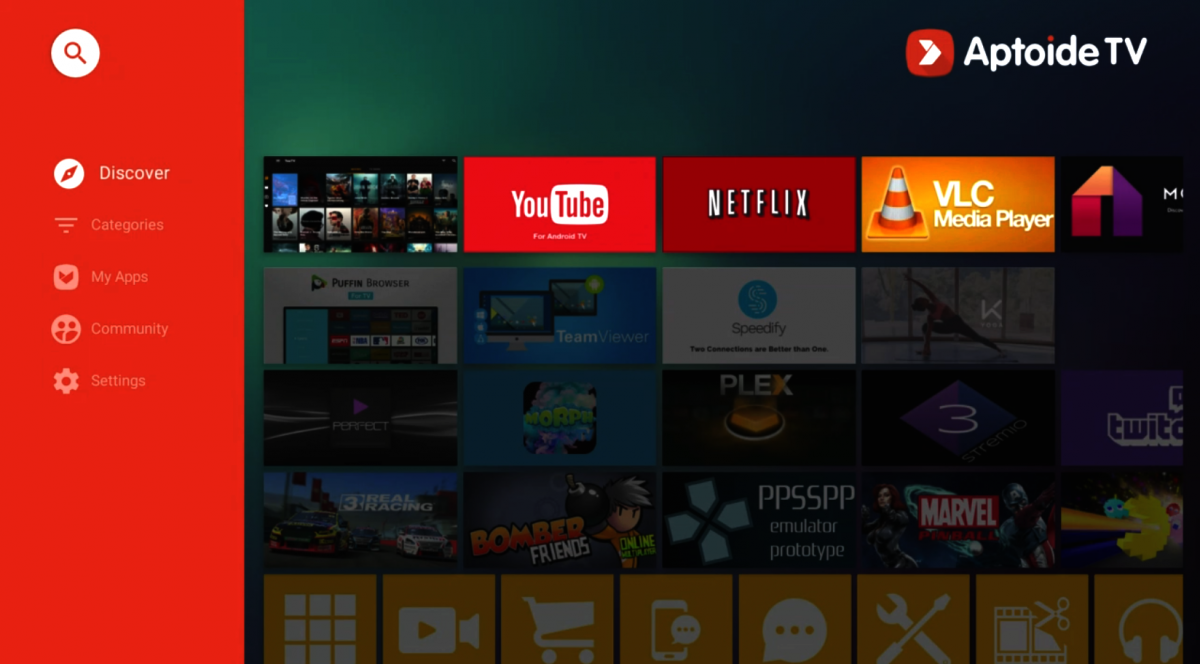
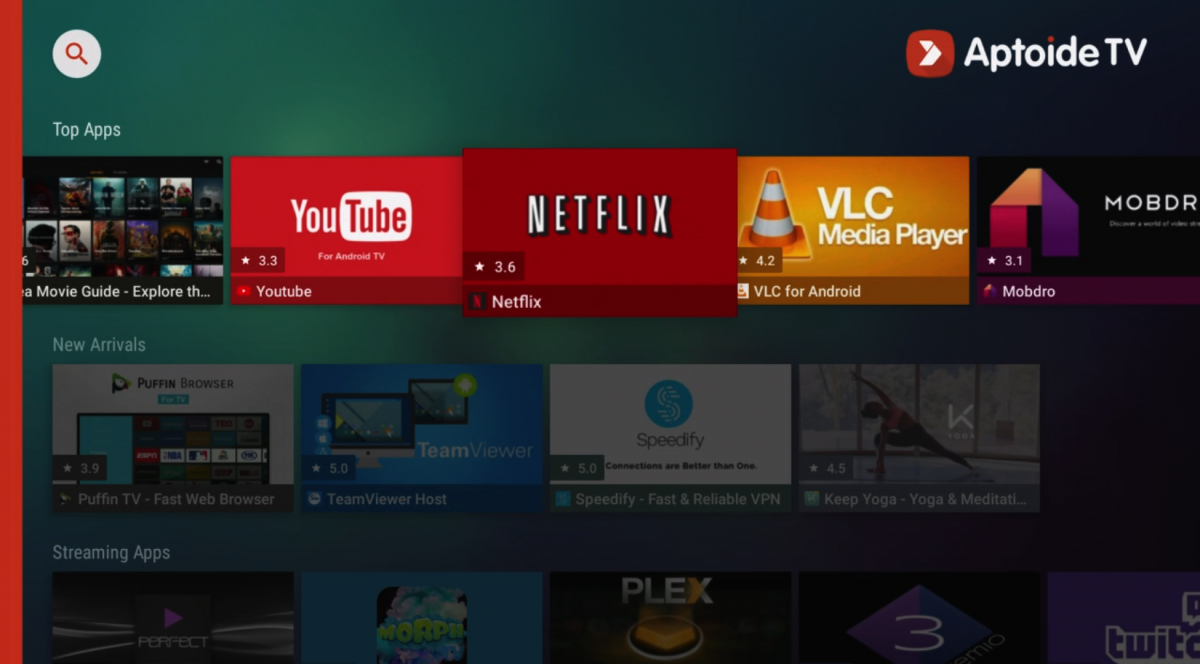
The XR4000/XRS4000 is running OS 9.0 so mainly the Data read inside is read as MB and not Bits. Maybe the data you are getting rid of is just a temp info from an app. that should not show with main data. and to install Aptoide i would suggest you use the main browser on the box and search for aptoide tv and download it from official website, and once it is download you can install it.
-
which app is it that you are trying to delete data cache?
-
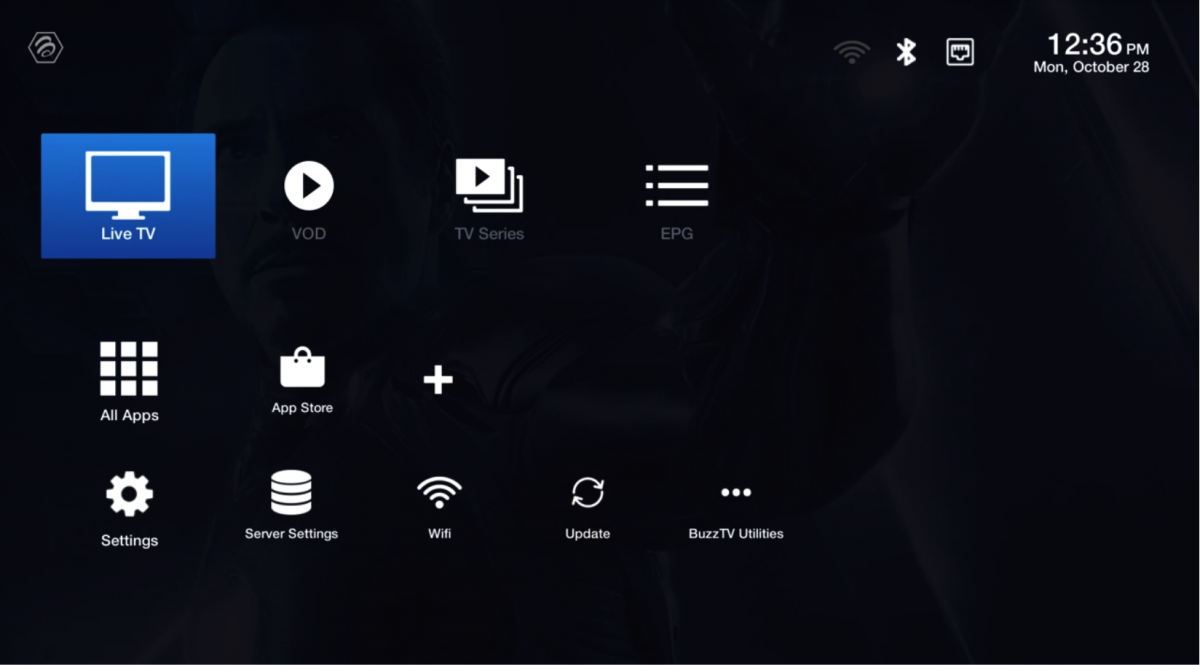
XPL 3000 + BASIC + 3900 + STICK Update Version 2.0 (328) - October 26th, 2019 Changes: - Fixed Reset M3U URL issue on Server Settings - Fixed bugs from Version 317 - Fixed removing favorite issue on VOD - Fixed issue for episodes not updating properly on VOD - Updated Secondary and New Player versions - Added support for New Portal APIs that had issues connecting - Changed background color + font color for CC on Secondary Player - Some Minor Bug Fixes.
-
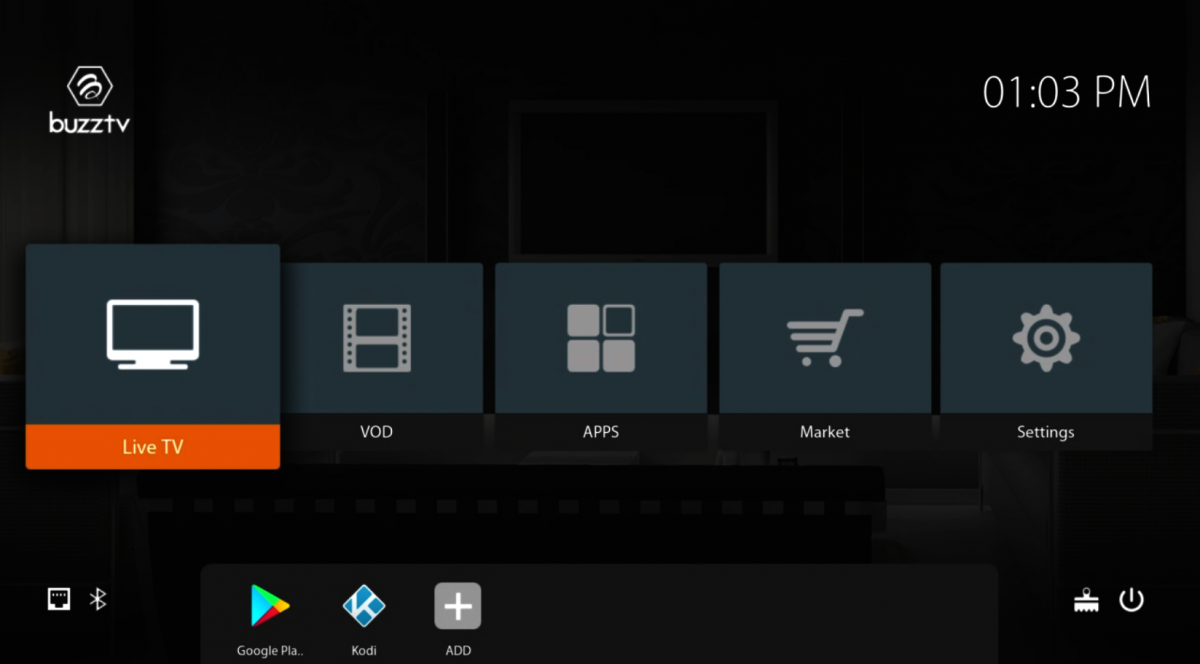
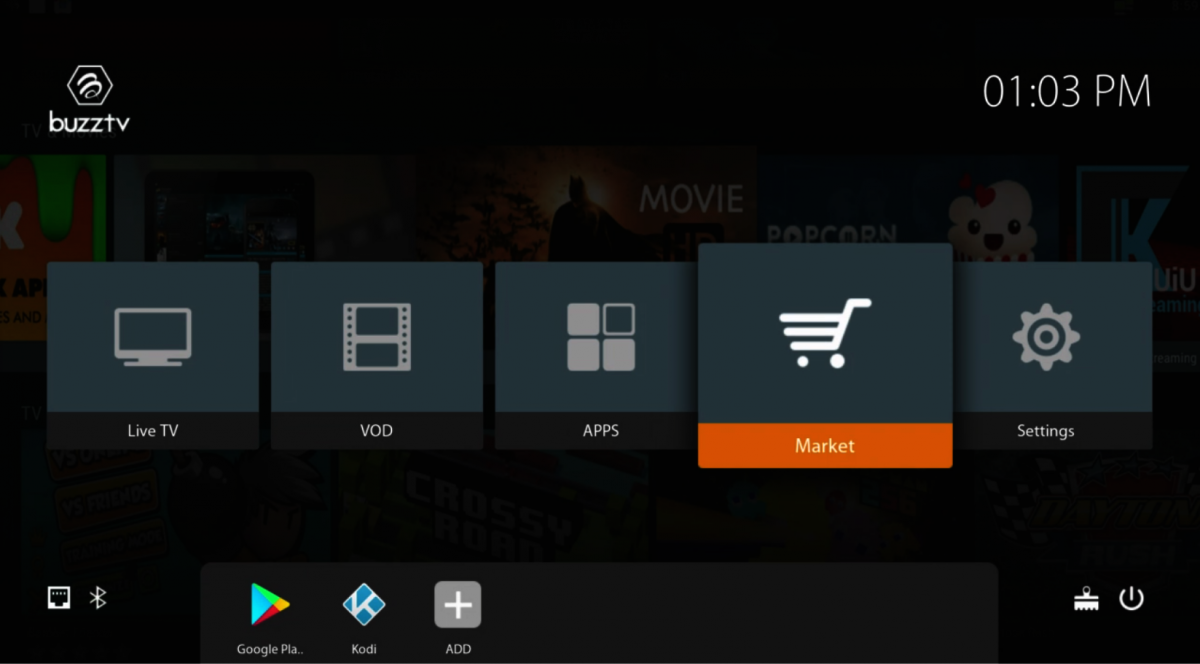
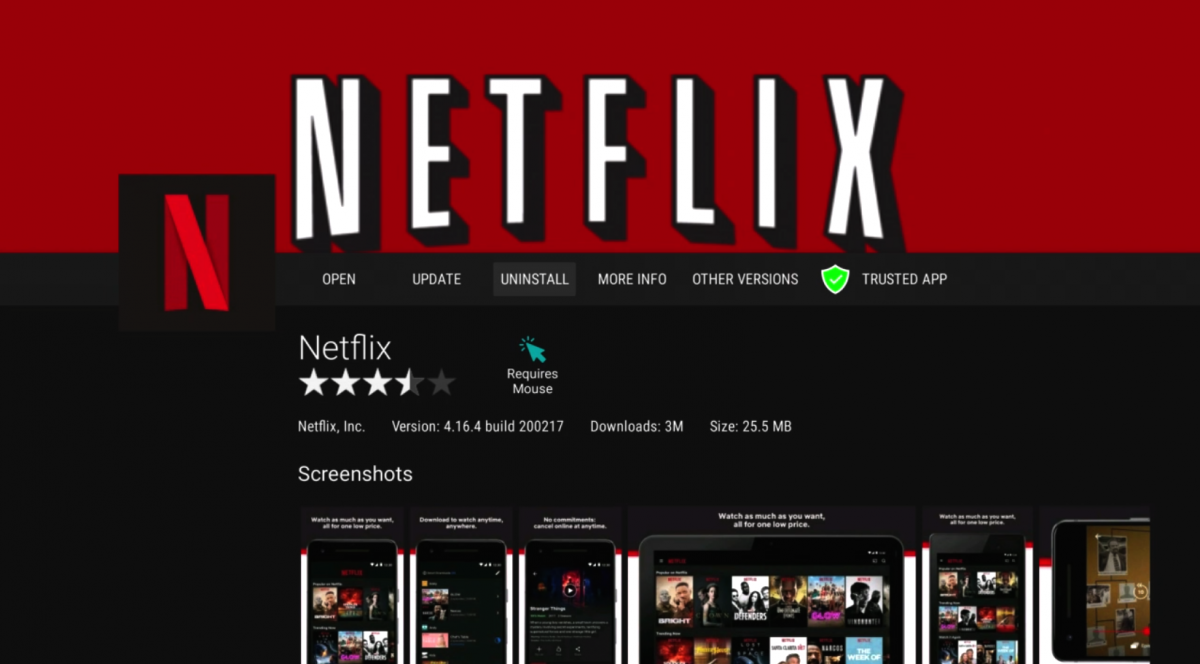
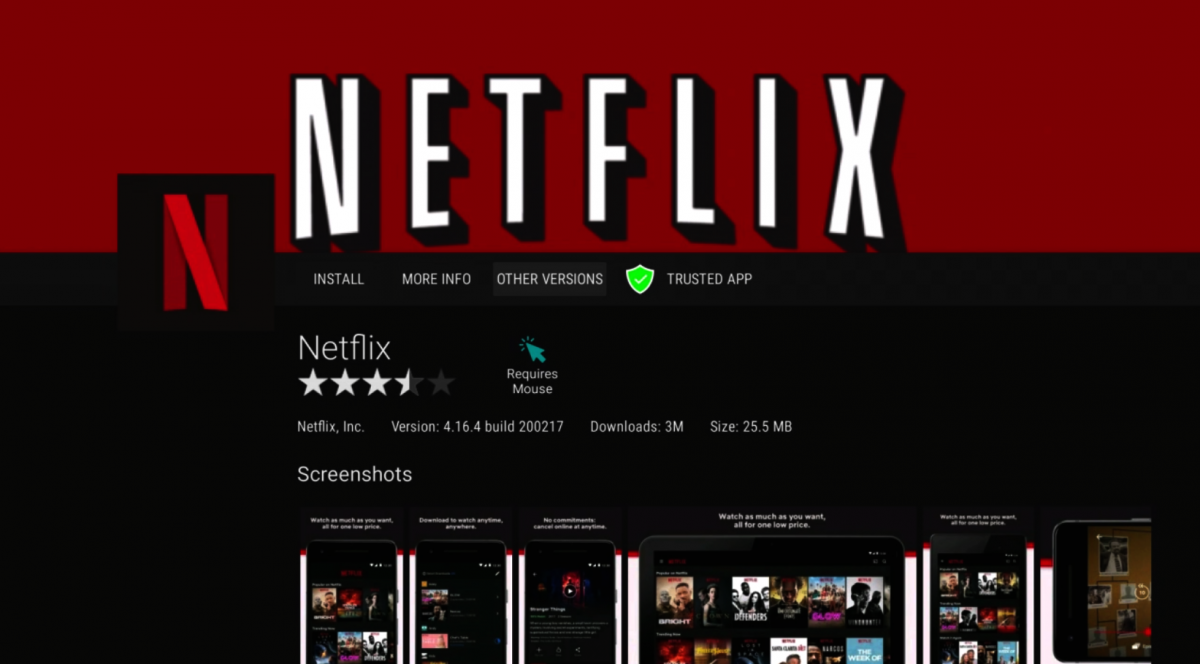
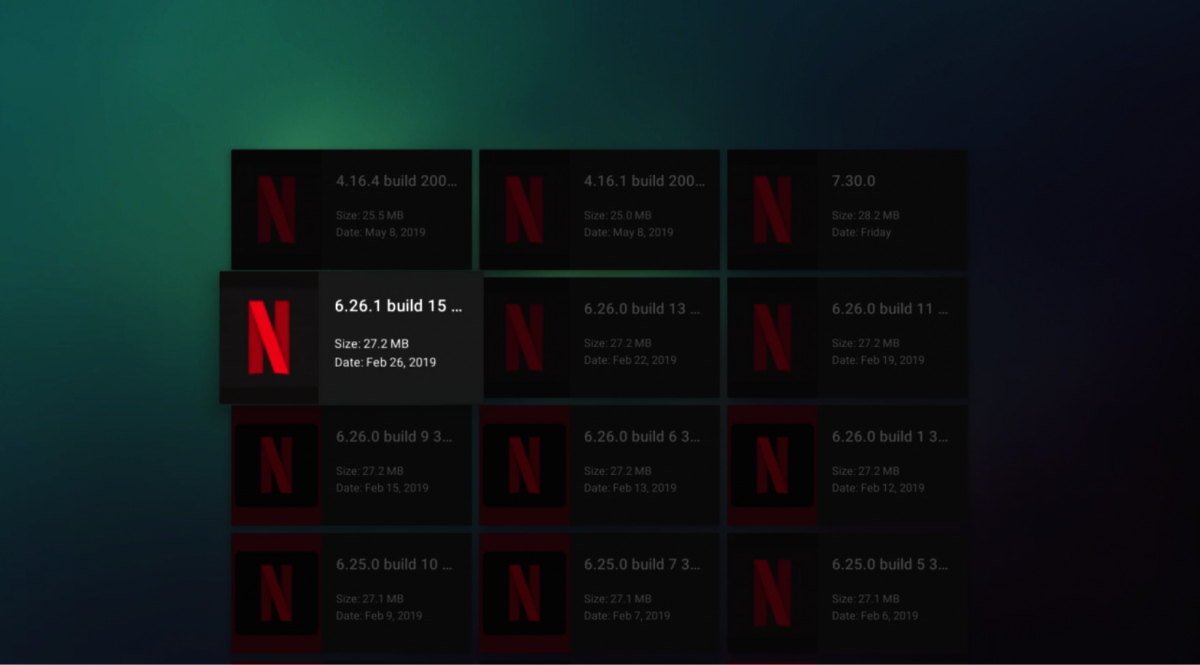
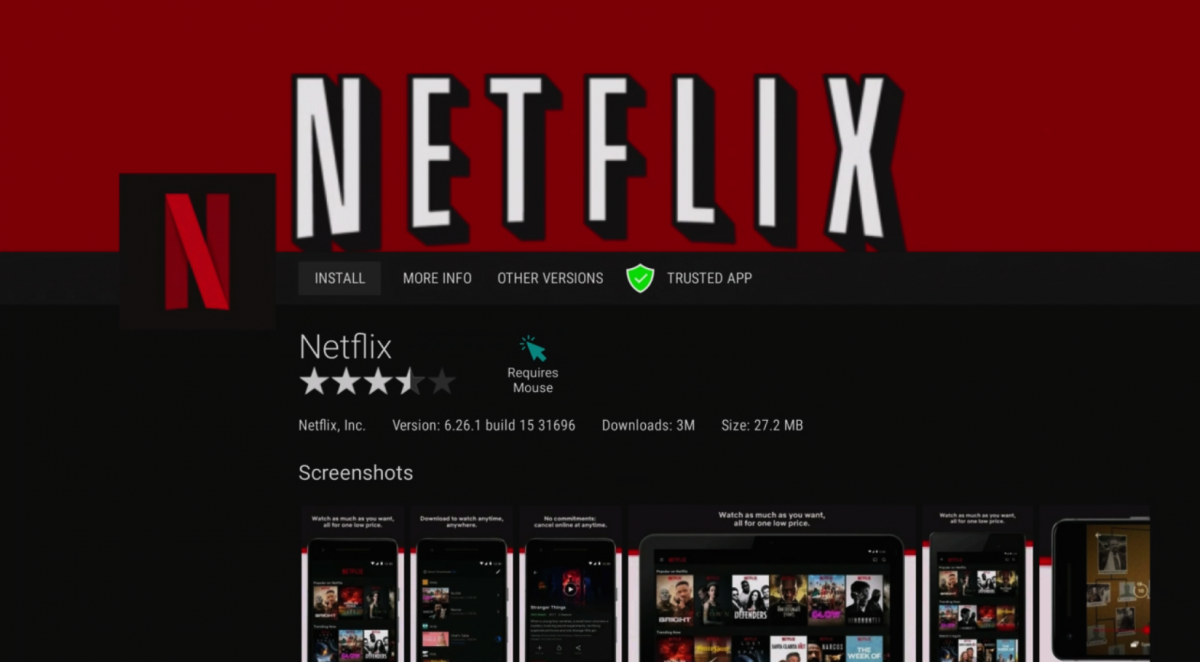
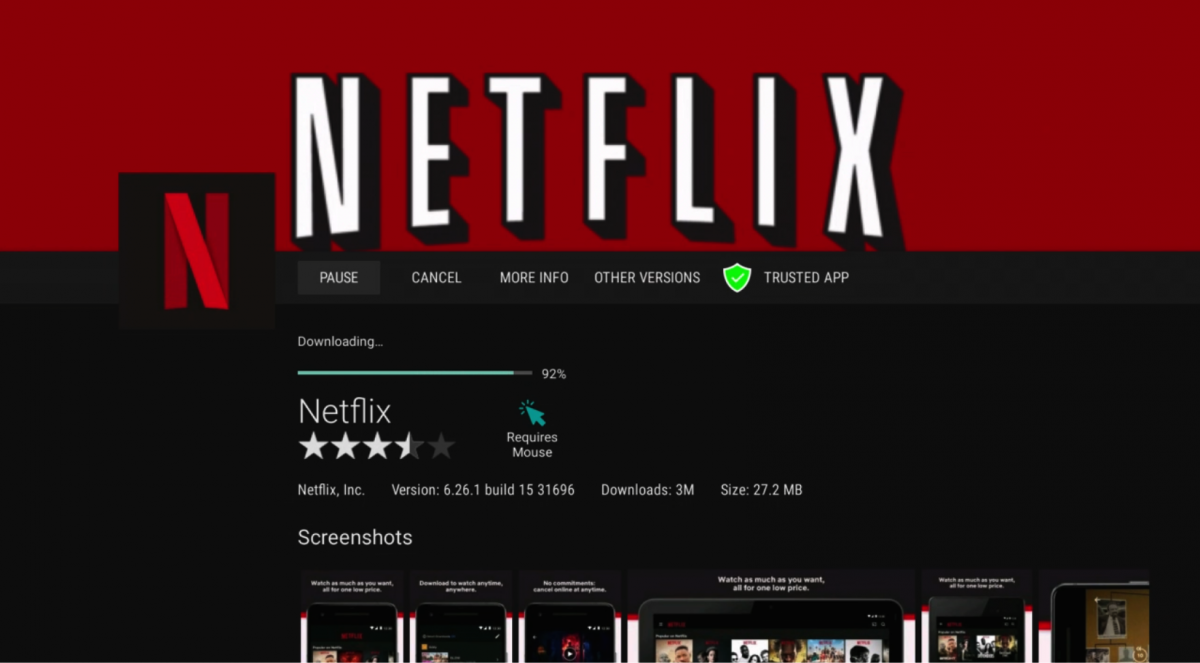
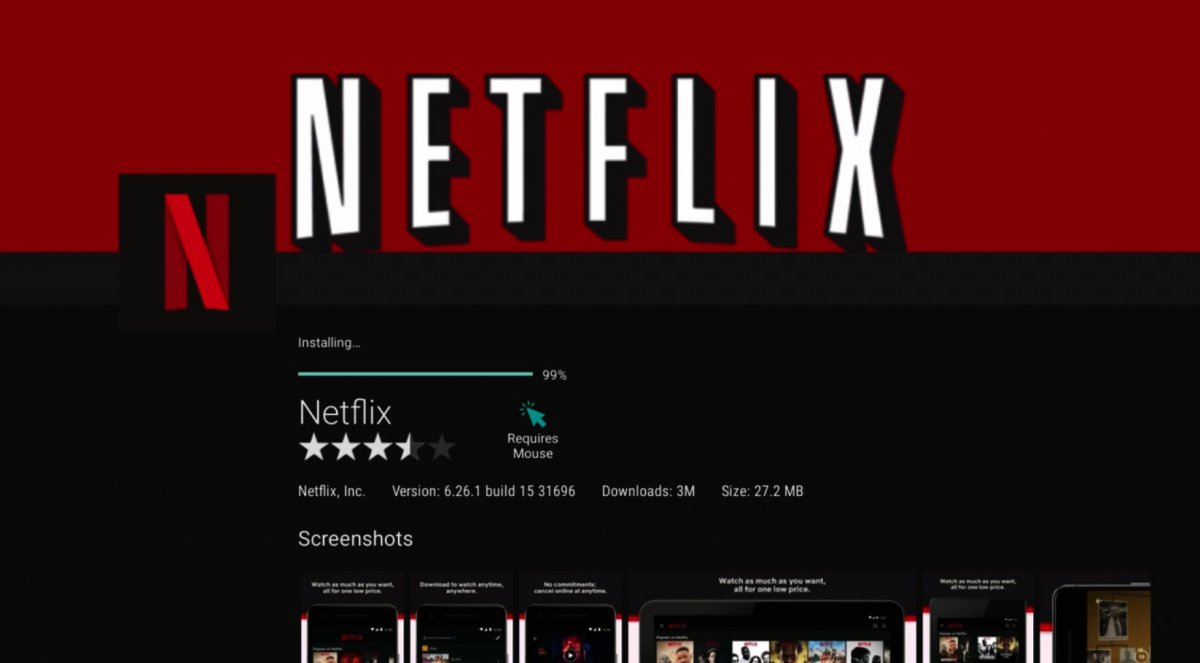
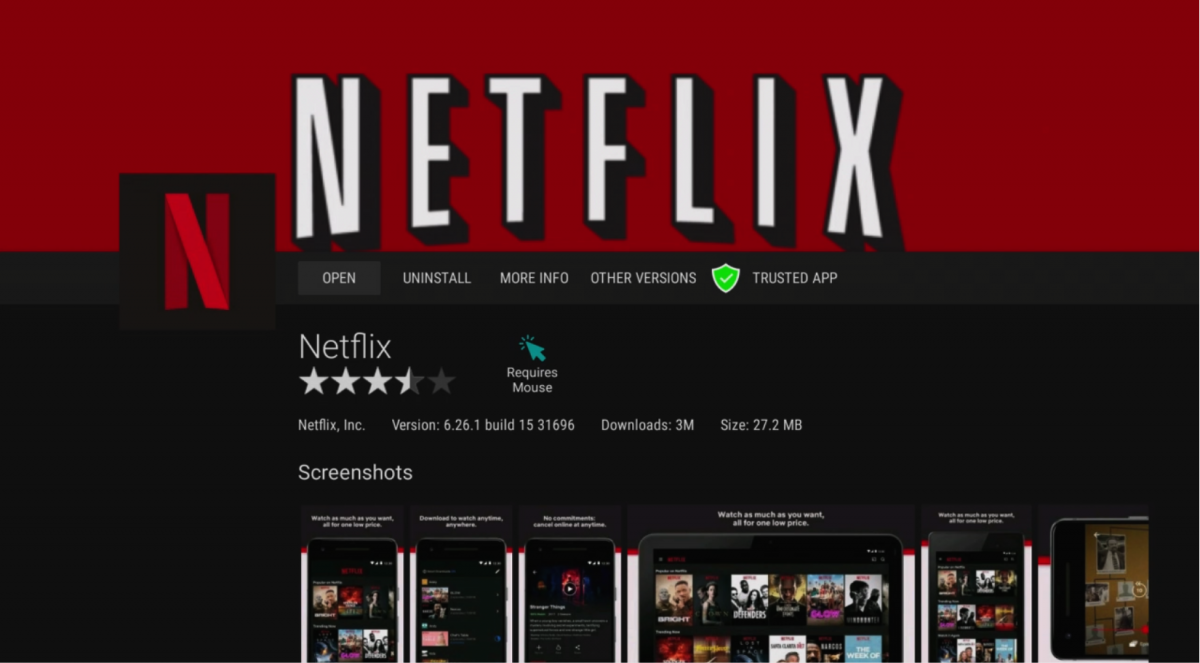
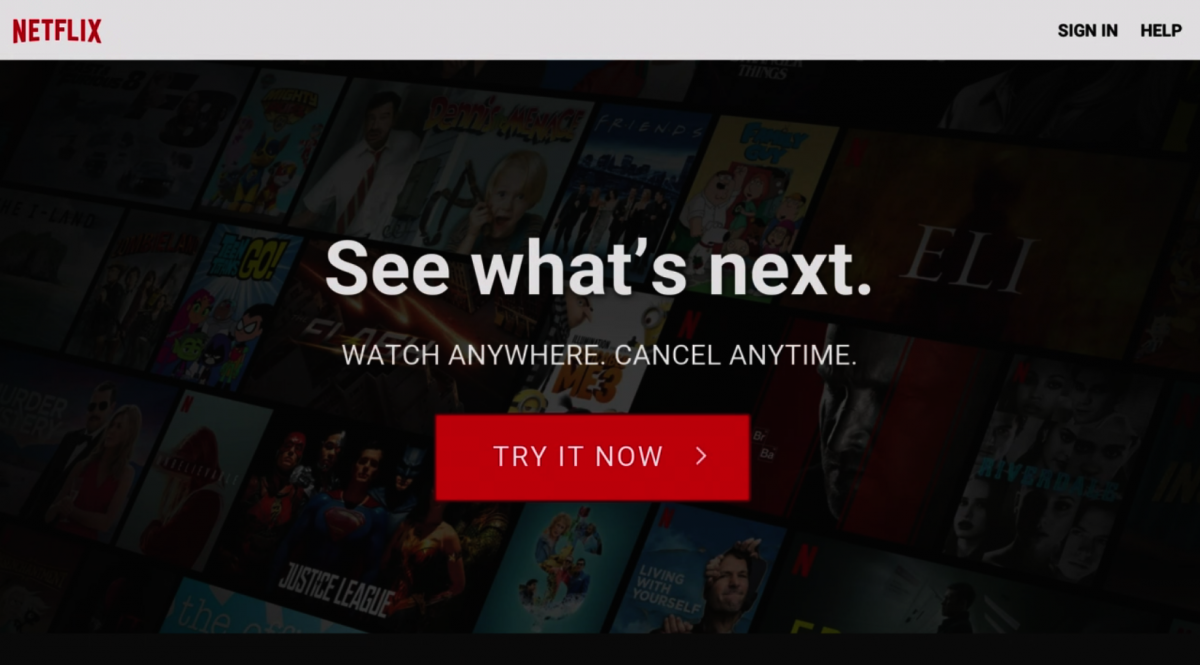
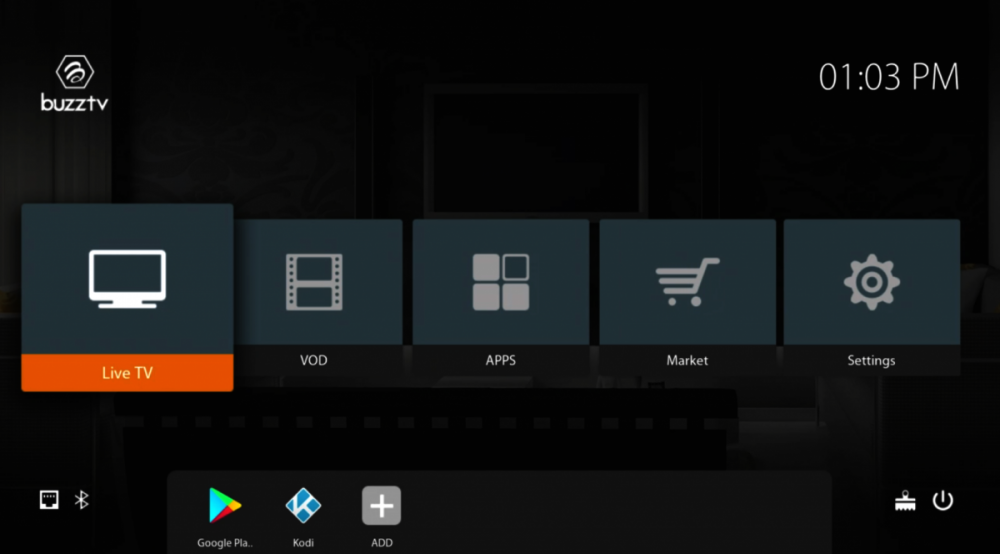
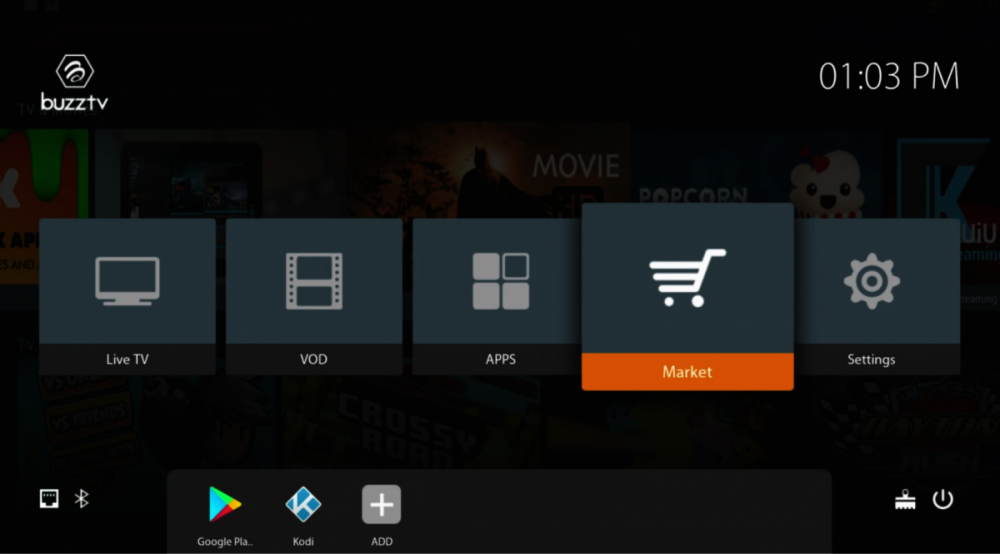
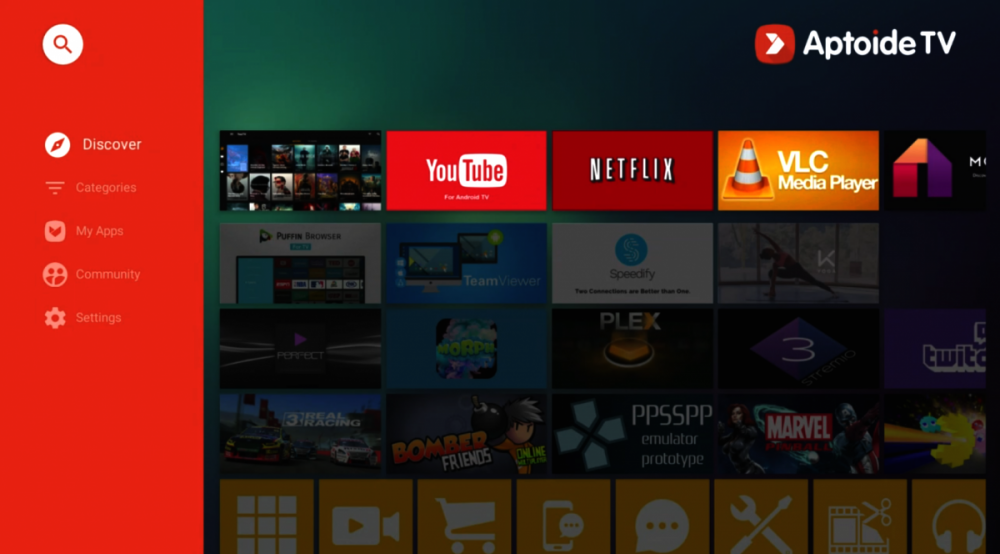
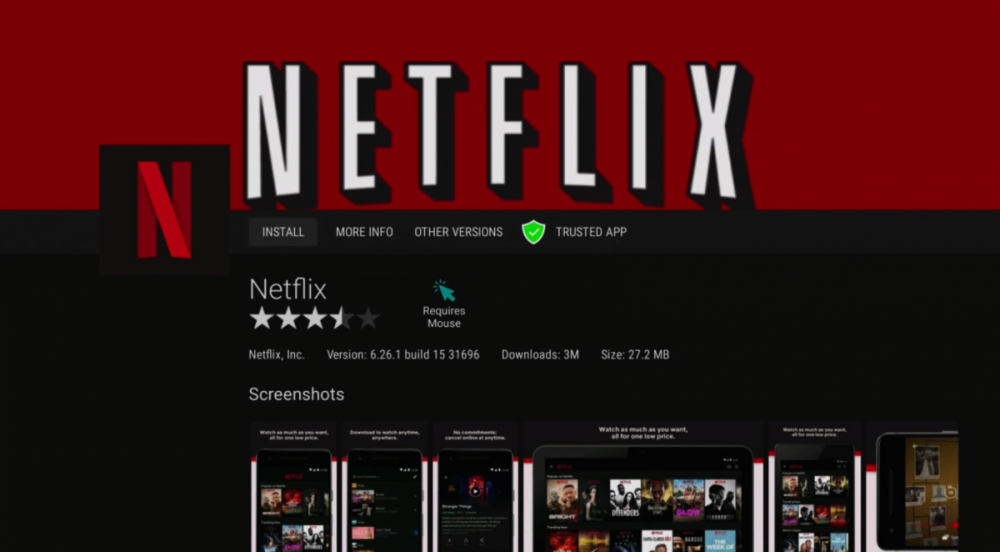
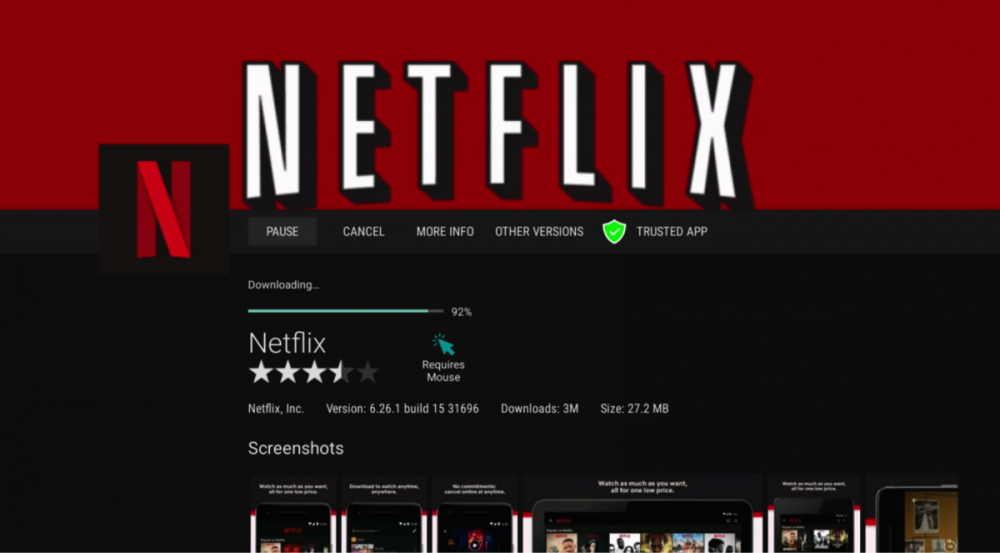
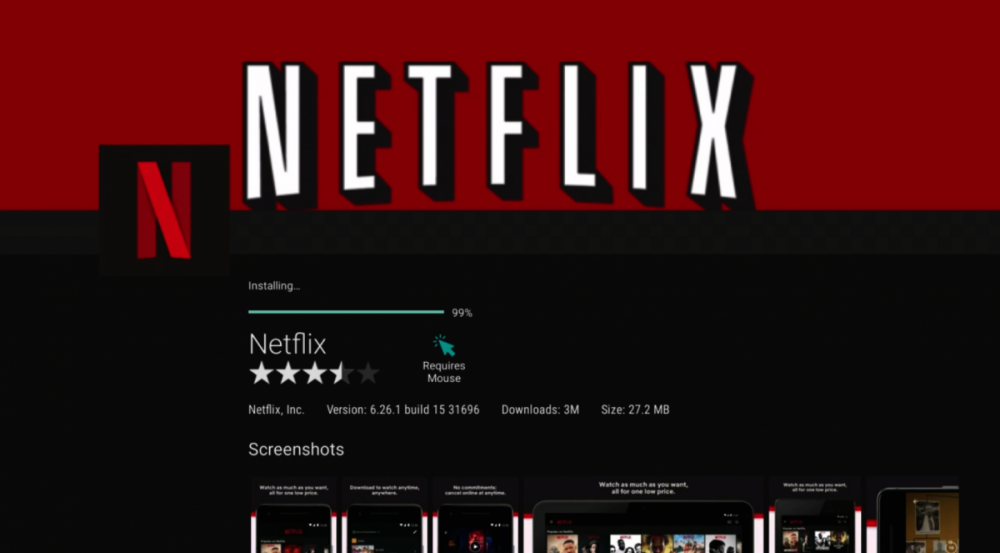
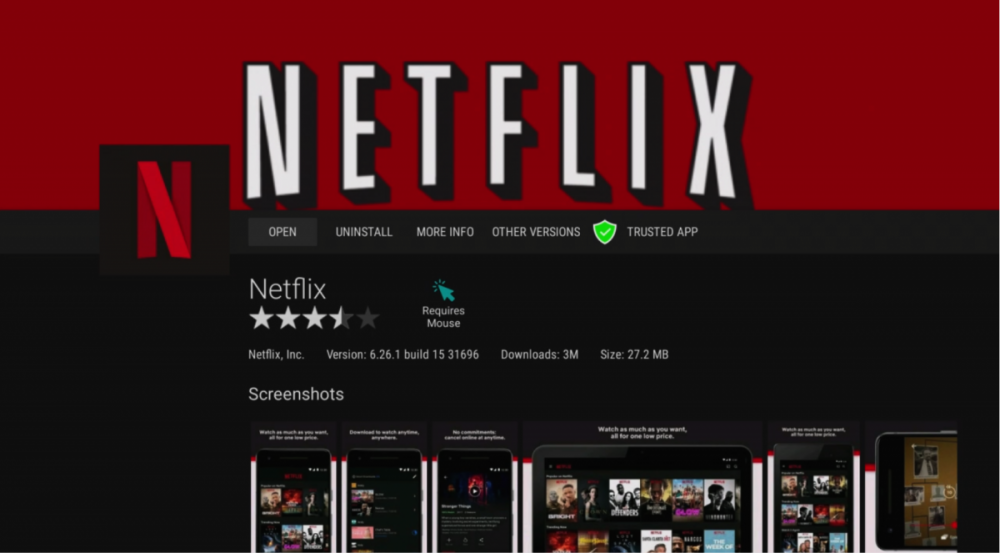
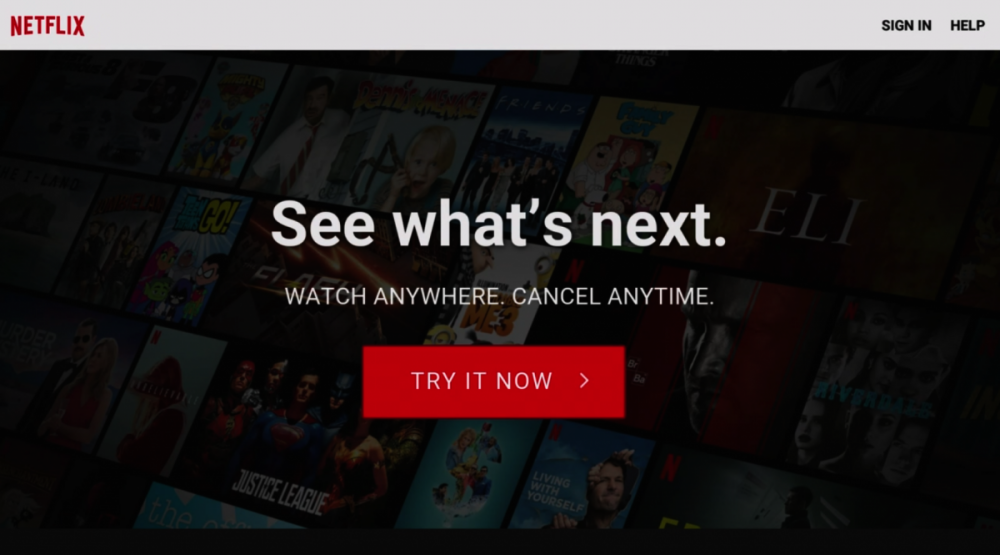
1. From Main Screen Select Market 2. Scroll and Select Netflix 3. Scroll and Select Uninstall Your Current Version By doing this, you will be logged out of your Netflix account. 4. Scroll and Select Other Versions 5. Scroll and Select Version 6.26.1 Build 15 6. Select Install 7. Select Open 8. Using your Remote Select Login Enjoy!
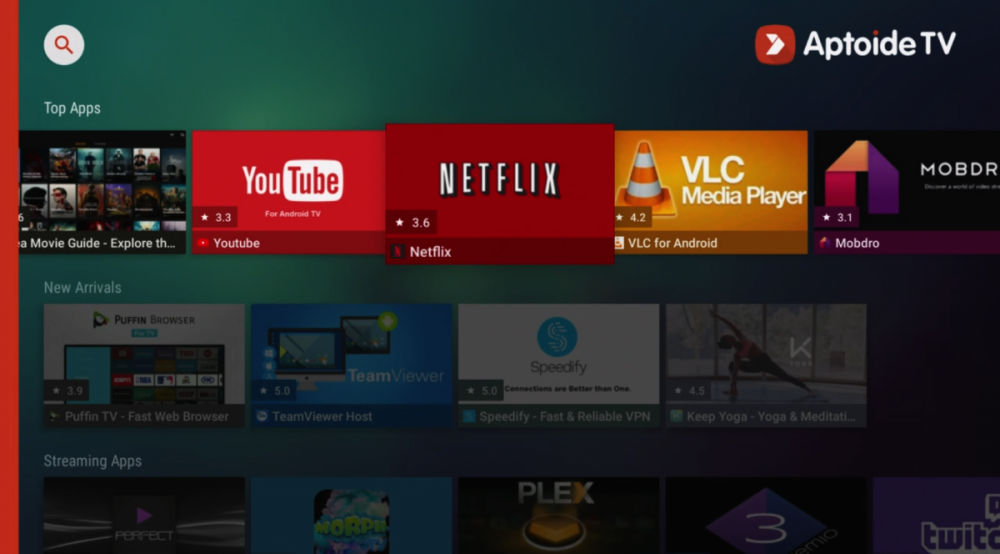
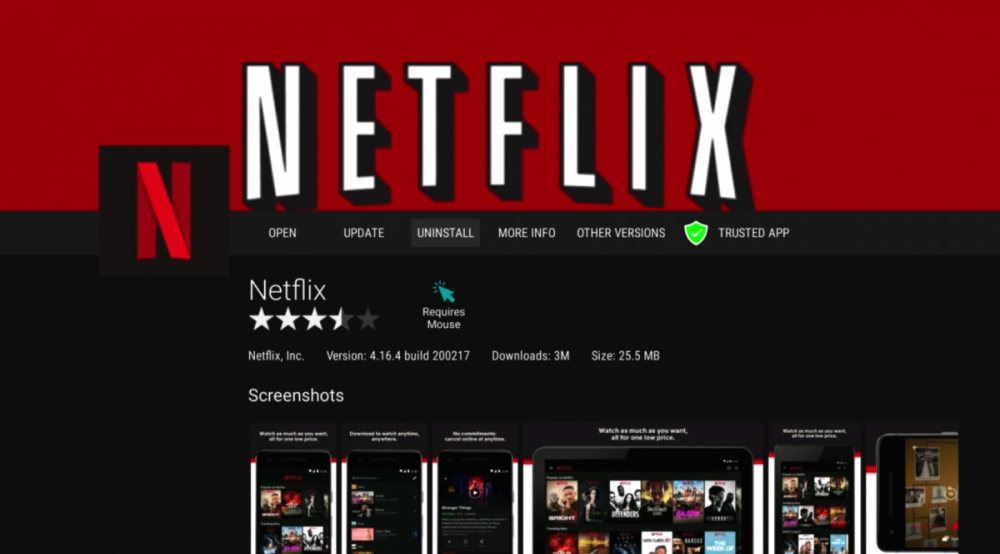
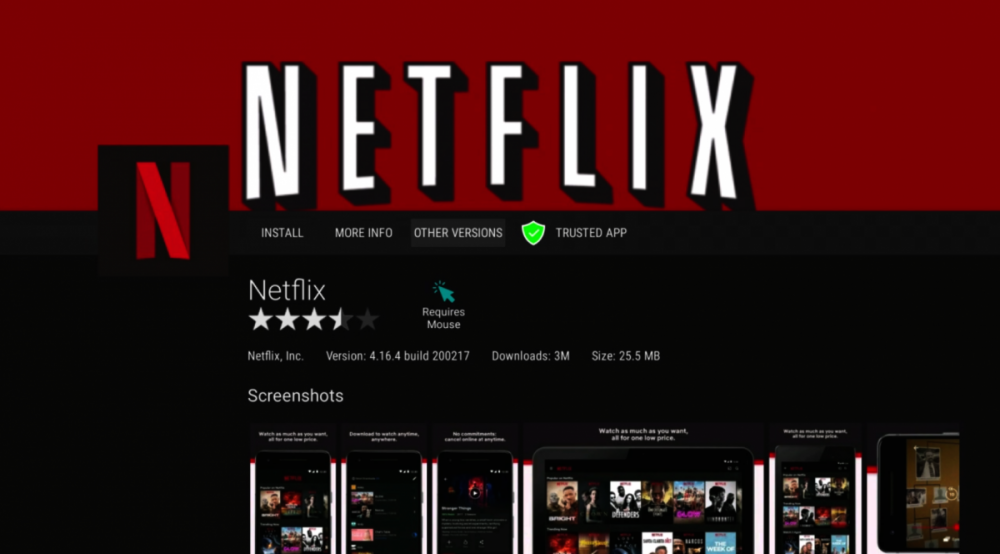
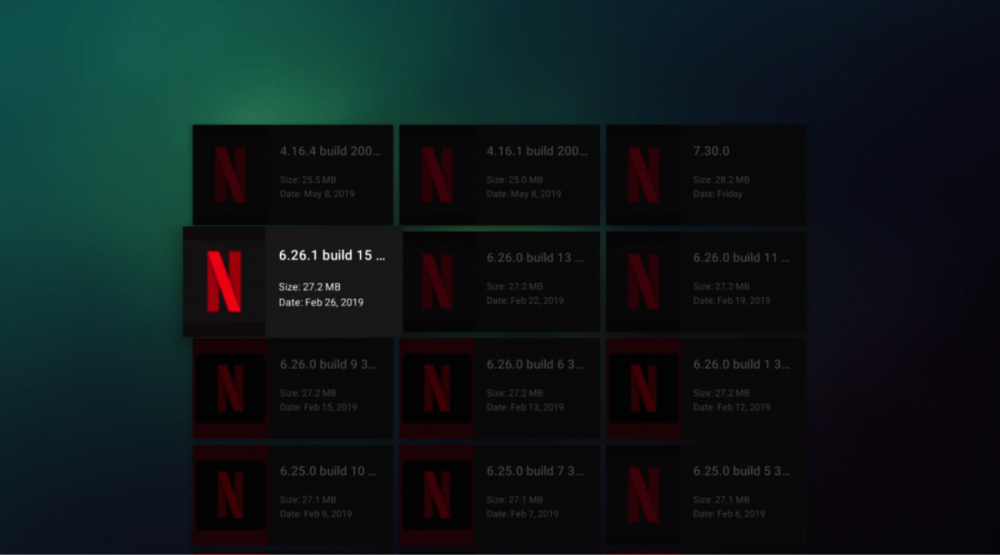
-
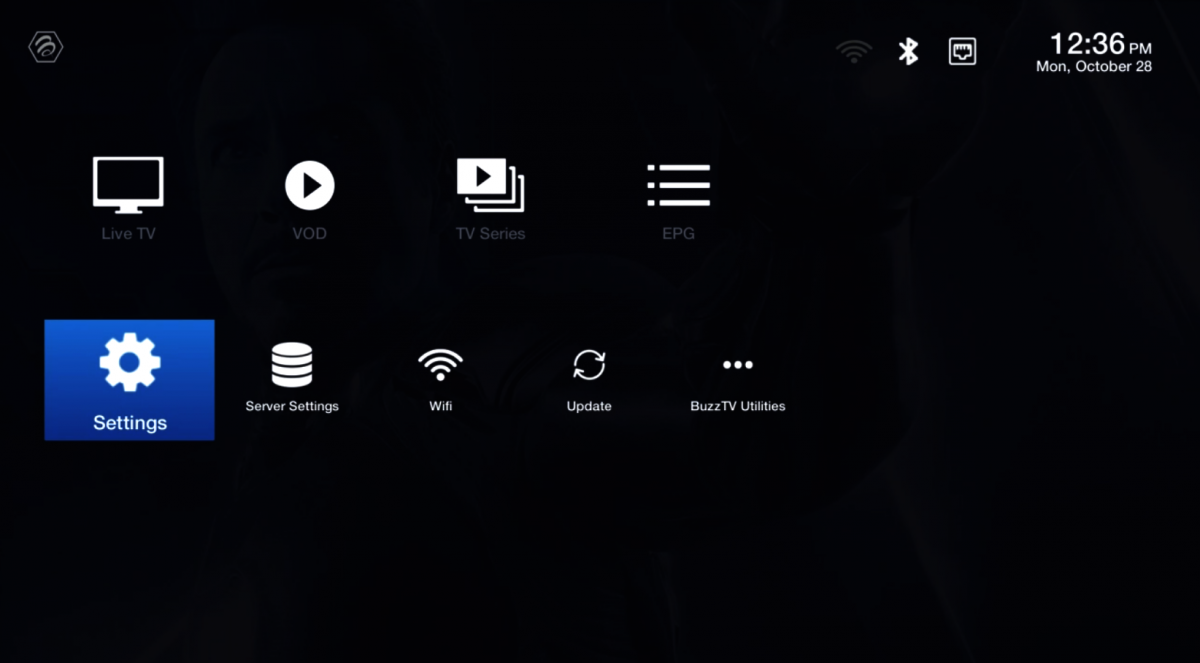
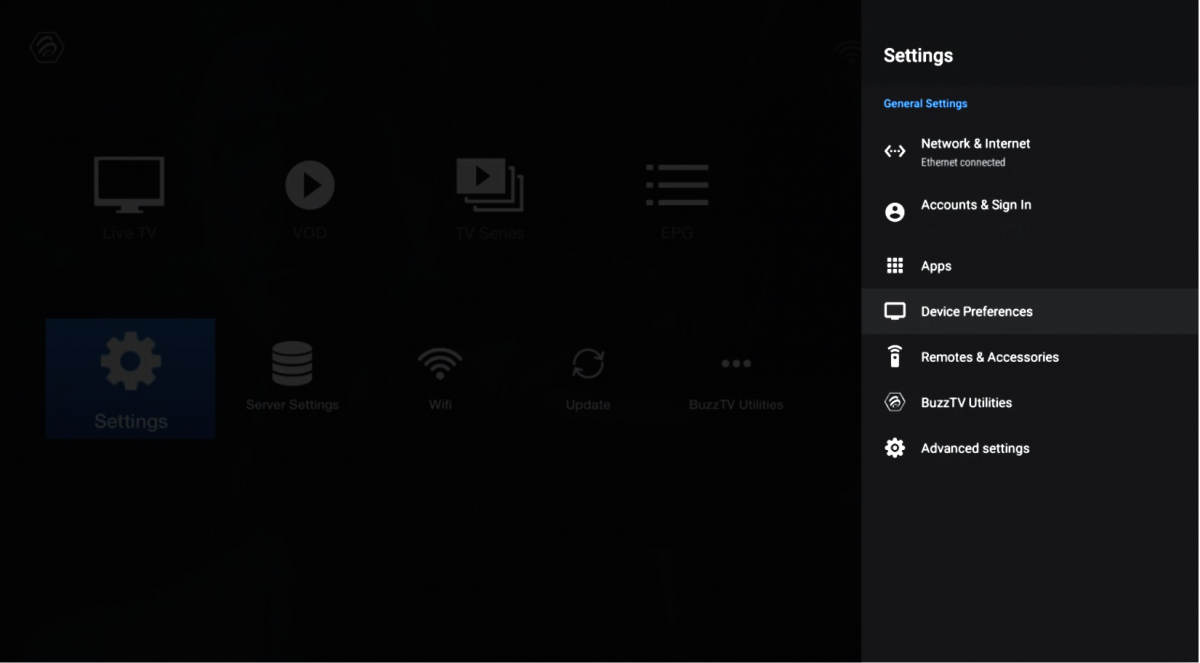
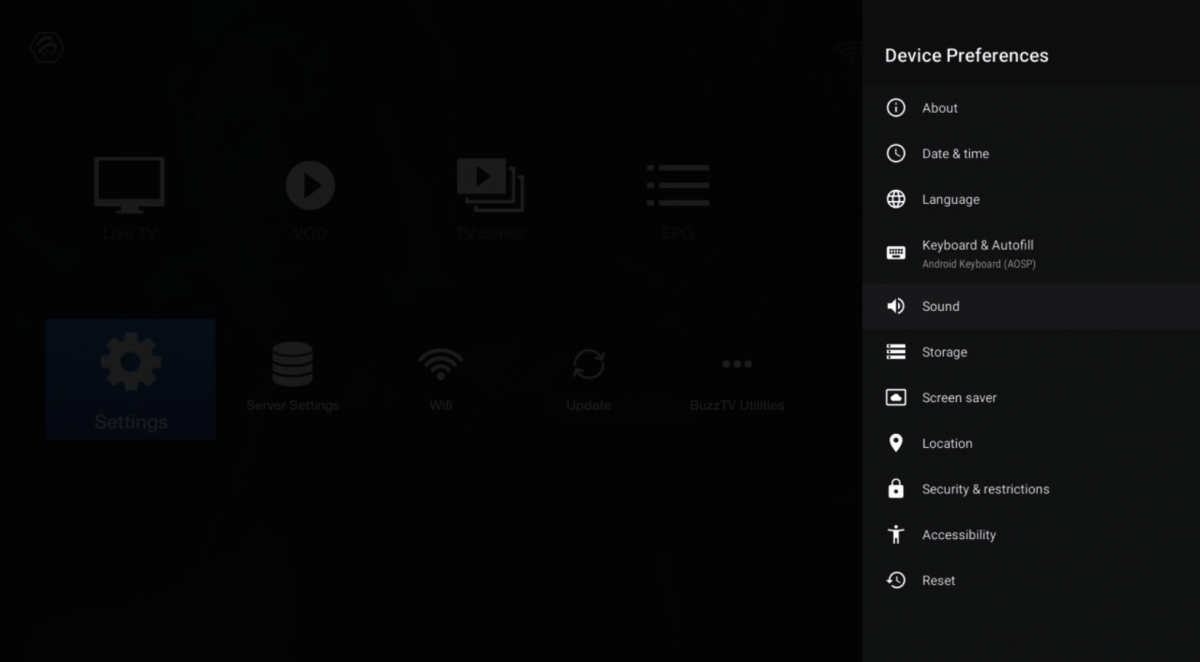
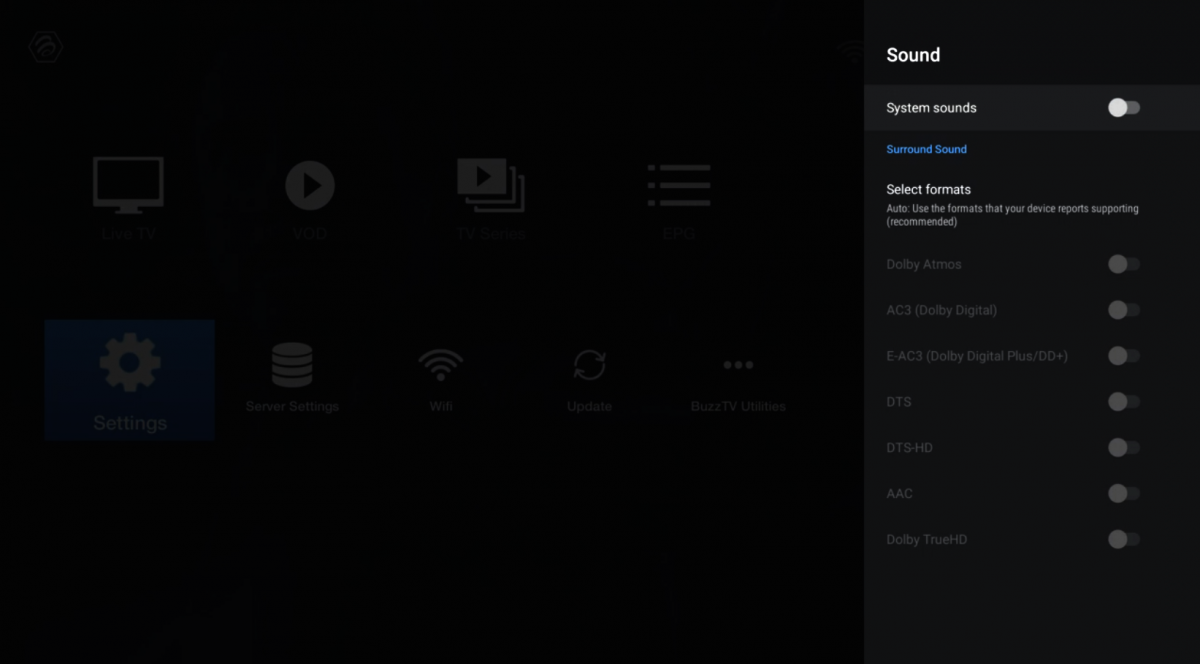
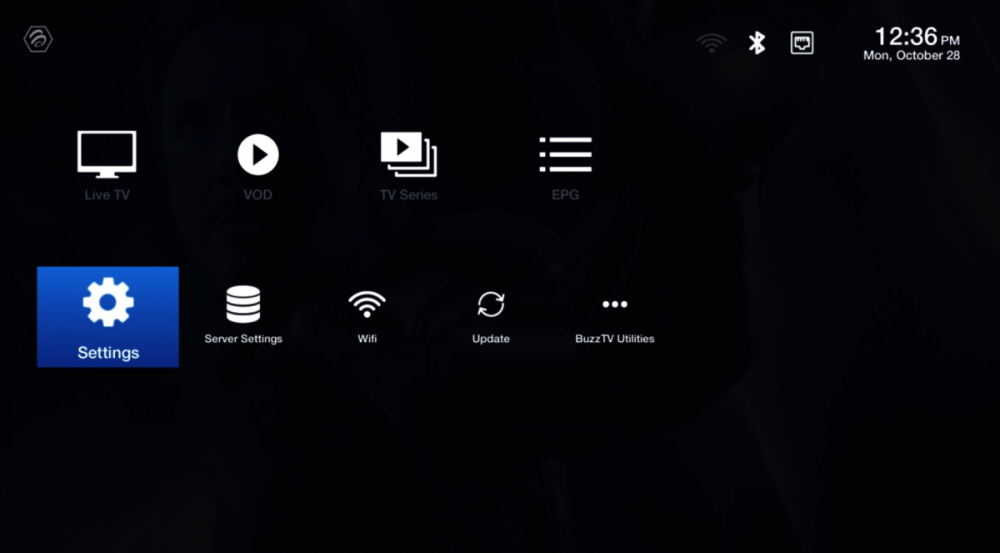
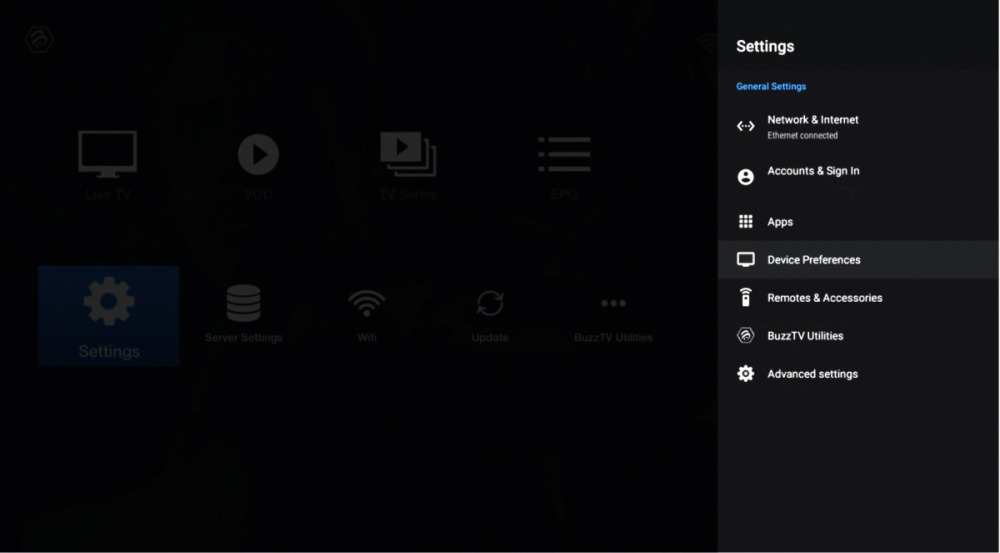
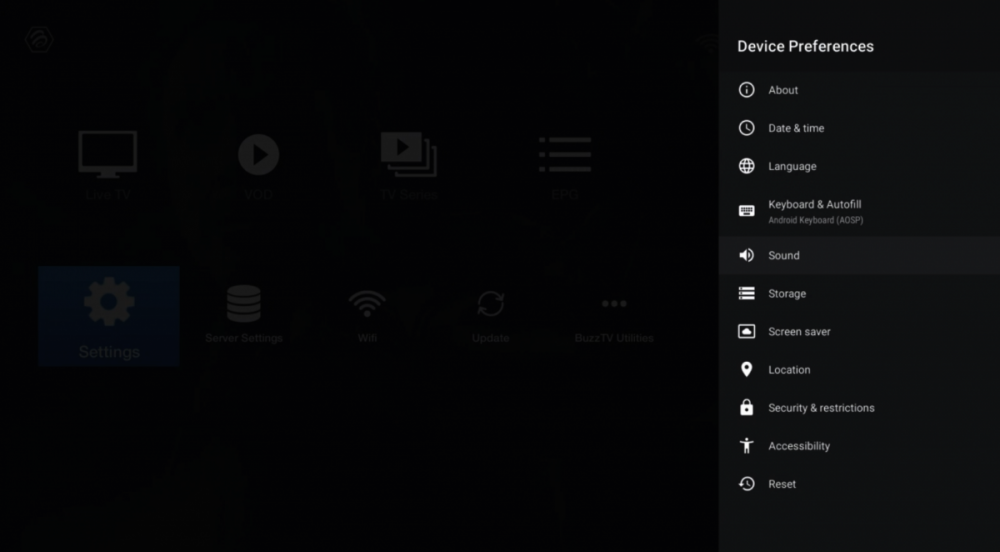
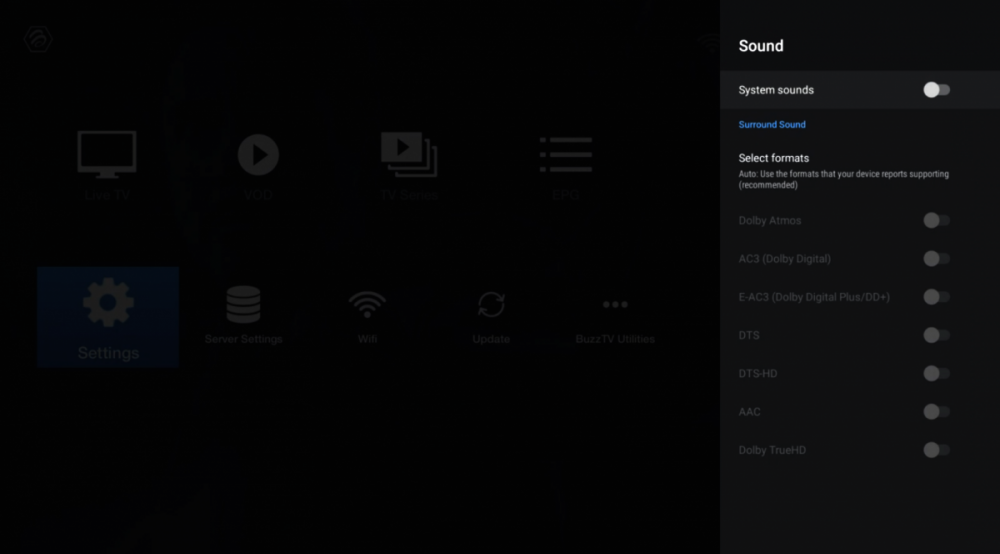
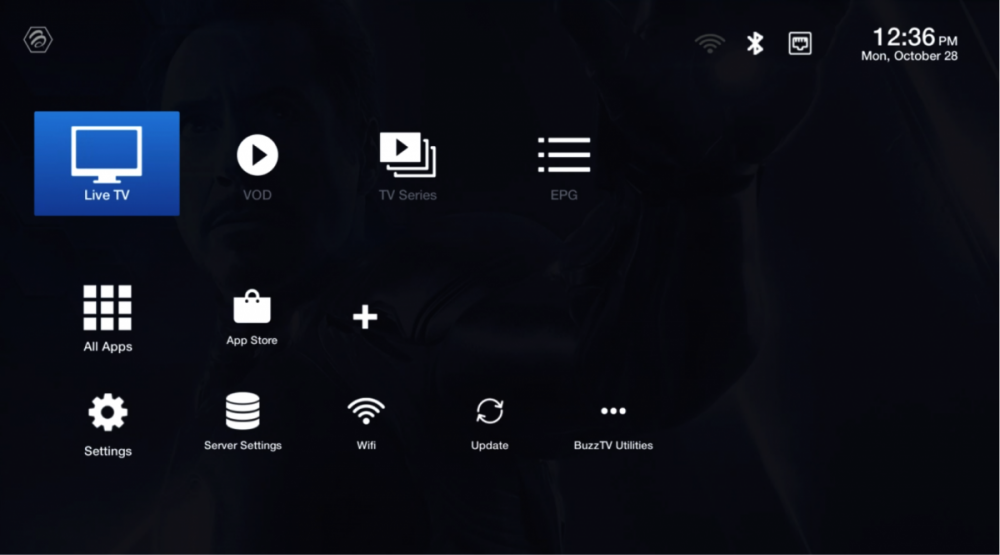
1. Select Settings 2. Select Device Preferences 3. Scroll Down and Select Sound 4. Click on System sounds By Default The System Sounds is always On, by clicking OK on your remote you will turn off the Sound notification. 5. Press Back till you are in Main Screen Enjoy!
-
Account
Navigation
Search
Configure browser push notifications
Chrome (Android)
- Tap the lock icon next to the address bar.
- Tap Permissions → Notifications.
- Adjust your preference.
Chrome (Desktop)
- Click the padlock icon in the address bar.
- Select Site settings.
- Find Notifications and adjust your preference.
Safari (iOS 16.4+)
- Ensure the site is installed via Add to Home Screen.
- Open Settings App → Notifications.
- Find your app name and adjust your preference.
Safari (macOS)
- Go to Safari → Preferences.
- Click the Websites tab.
- Select Notifications in the sidebar.
- Find this website and adjust your preference.
Edge (Android)
- Tap the lock icon next to the address bar.
- Tap Permissions.
- Find Notifications and adjust your preference.
Edge (Desktop)
- Click the padlock icon in the address bar.
- Click Permissions for this site.
- Find Notifications and adjust your preference.
Firefox (Android)
- Go to Settings → Site permissions.
- Tap Notifications.
- Find this site in the list and adjust your preference.
Firefox (Desktop)
- Open Firefox Settings.
- Search for Notifications.
- Find this site in the list and adjust your preference.