
Skip to content
View in the app

A better way to browse. Learn more.

BuzzTV Help

A full-screen app on your home screen with push notifications, badges and more.

To install this app on iOS and iPadOS
  1. Tap the Share icon in Safari
  2. Scroll the menu and tap Add to Home Screen.
  3. Tap Add in the top-right corner.
To install this app on Android
  1. Tap the 3-dot menu (⋮) in the top-right corner of the browser.
  2. Tap Add to Home screen or Install app.
  3. Confirm by tapping Install.

parveshgogna

Members
  • Joined

  • Last visited

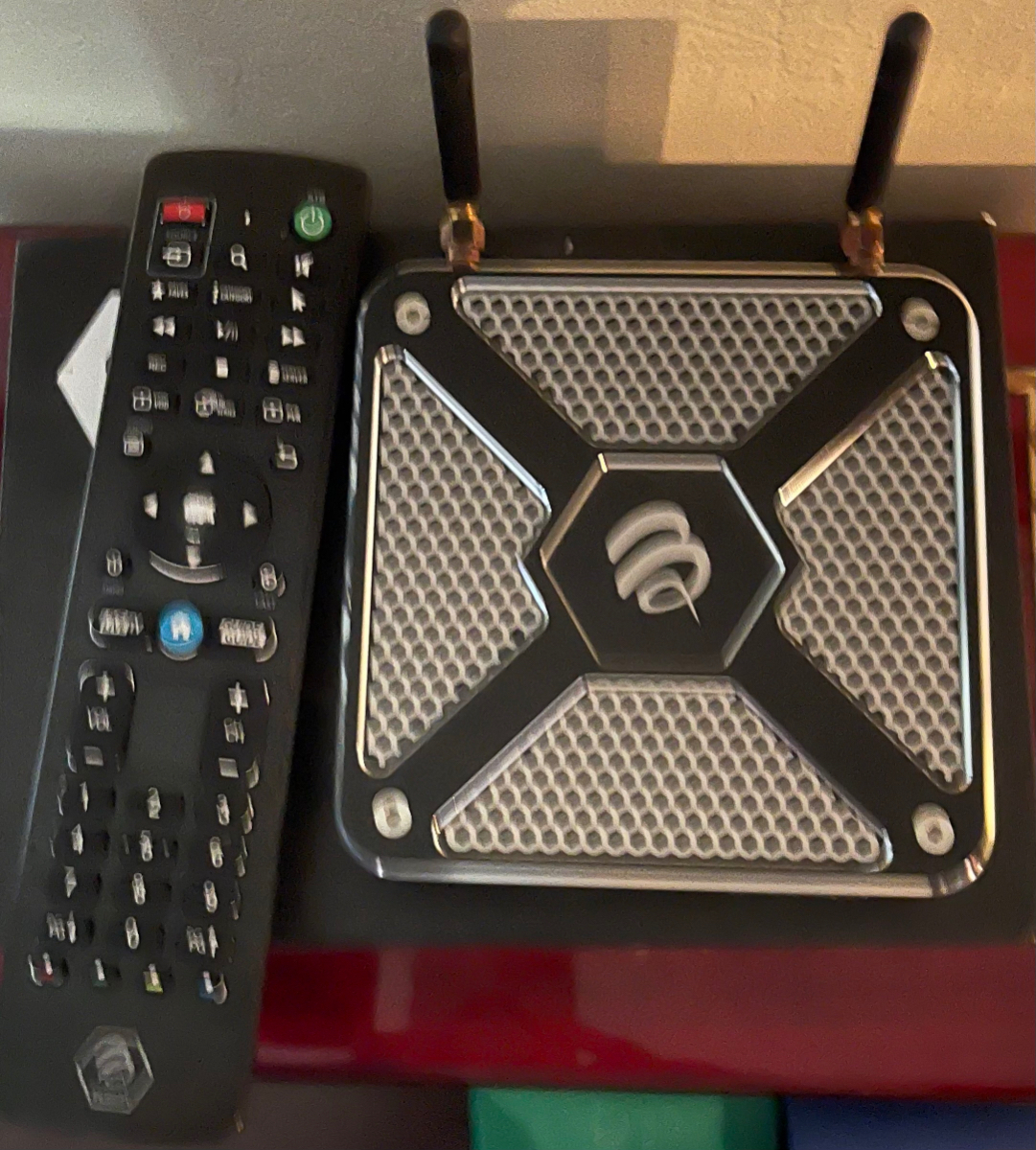
  1. I did everything I think it is your WiFi external defective I would like to get it fix or trade I have sent pictures of this unit but tell me what do I need to ship I got even box it came
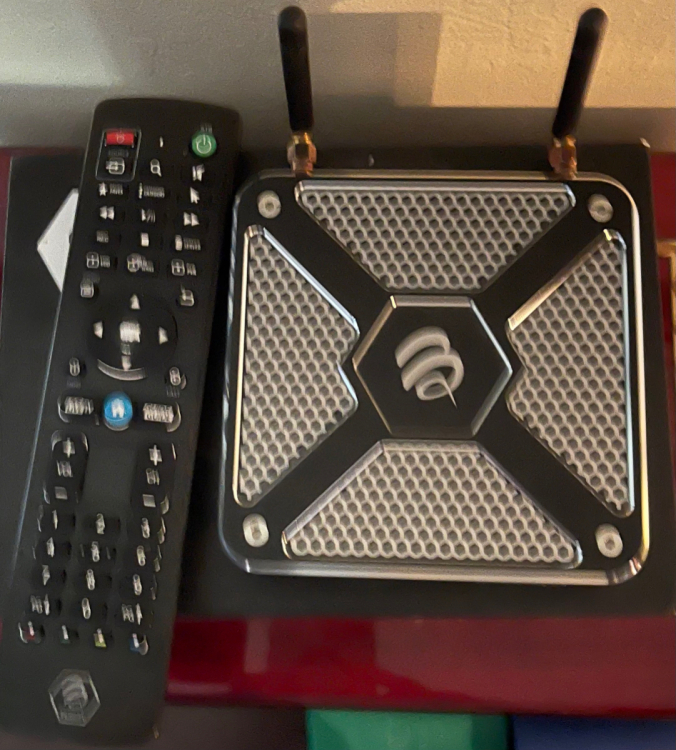
  2. Only x5 need help I did everything what you guys advised my service provider and internet also now what can we do?
  3. I did all it is up to date
  4. If I sent you my unit it keep dropping wifi and I have to boot again every time when it goes off ? Or trade it please advise. All my devices are Buzz 4 go them accept this one gives trouble
  5. I will ship tomorrow.Thanks
  6. Ticket # 65683. xrs4500 i did everything factory reset +server+internet changed cable it cuts and go. i sent few clips and you guys asked to send it in for repairs. please advise. Thanks

Account

Navigation

Search

Search

Configure browser push notifications

Chrome (Android)
  1. Tap the lock icon next to the address bar.
  2. Tap Permissions → Notifications.
  3. Adjust your preference.
Chrome (Desktop)
  1. Click the padlock icon in the address bar.
  2. Select Site settings.
  3. Find Notifications and adjust your preference.
