Woody
Members
-
Joined
-
Last visited
-
Are you using the buzz 5 or buzz 6 app
-
Ahh ok makes sense
-
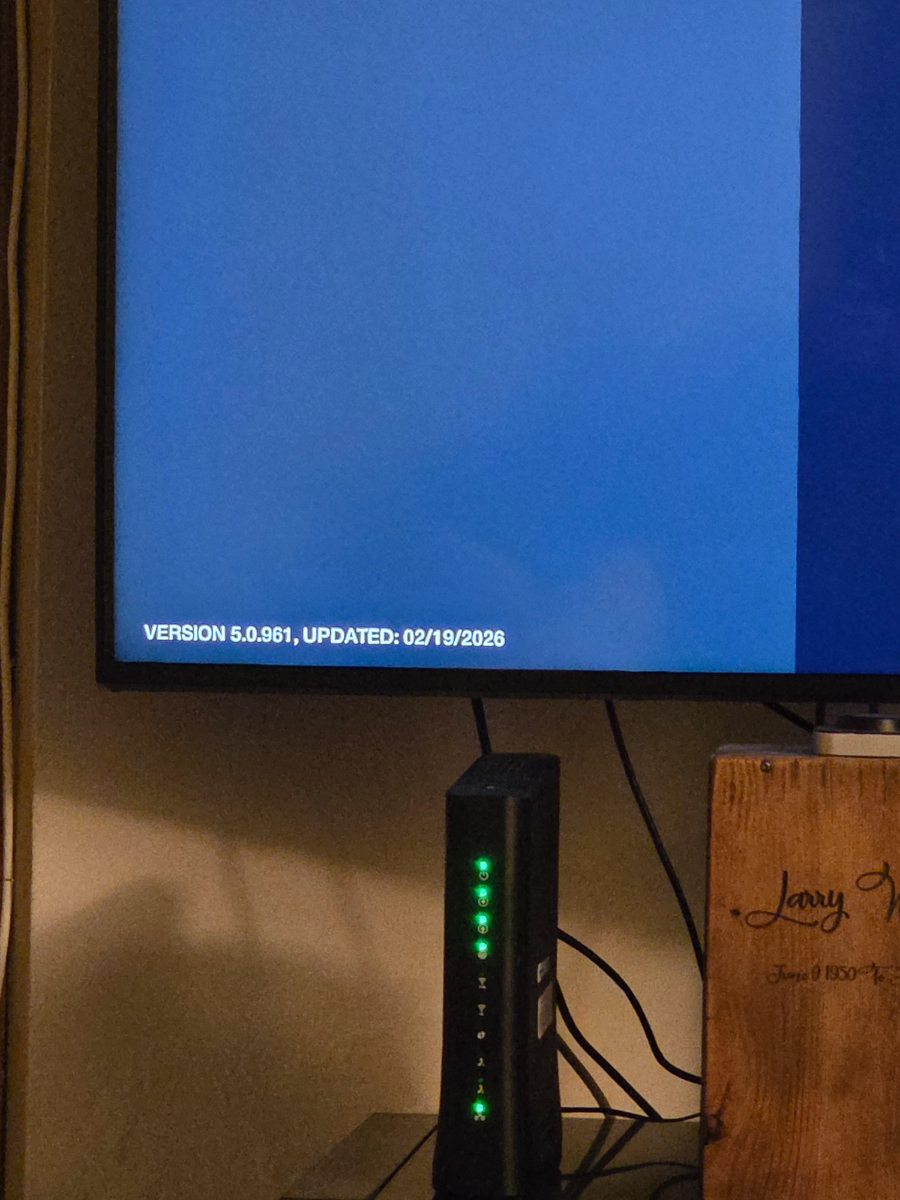
Not sure if it matters but the update date that shows is imcorrect shpuld say 03 but displays 02
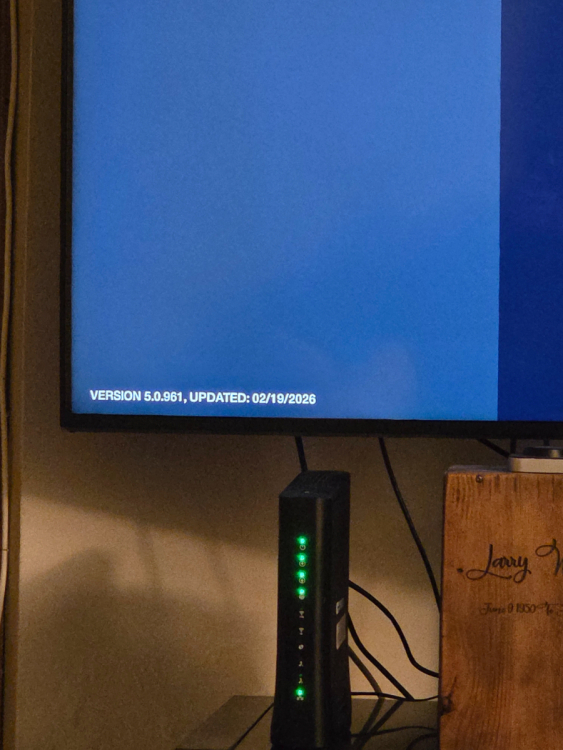
-
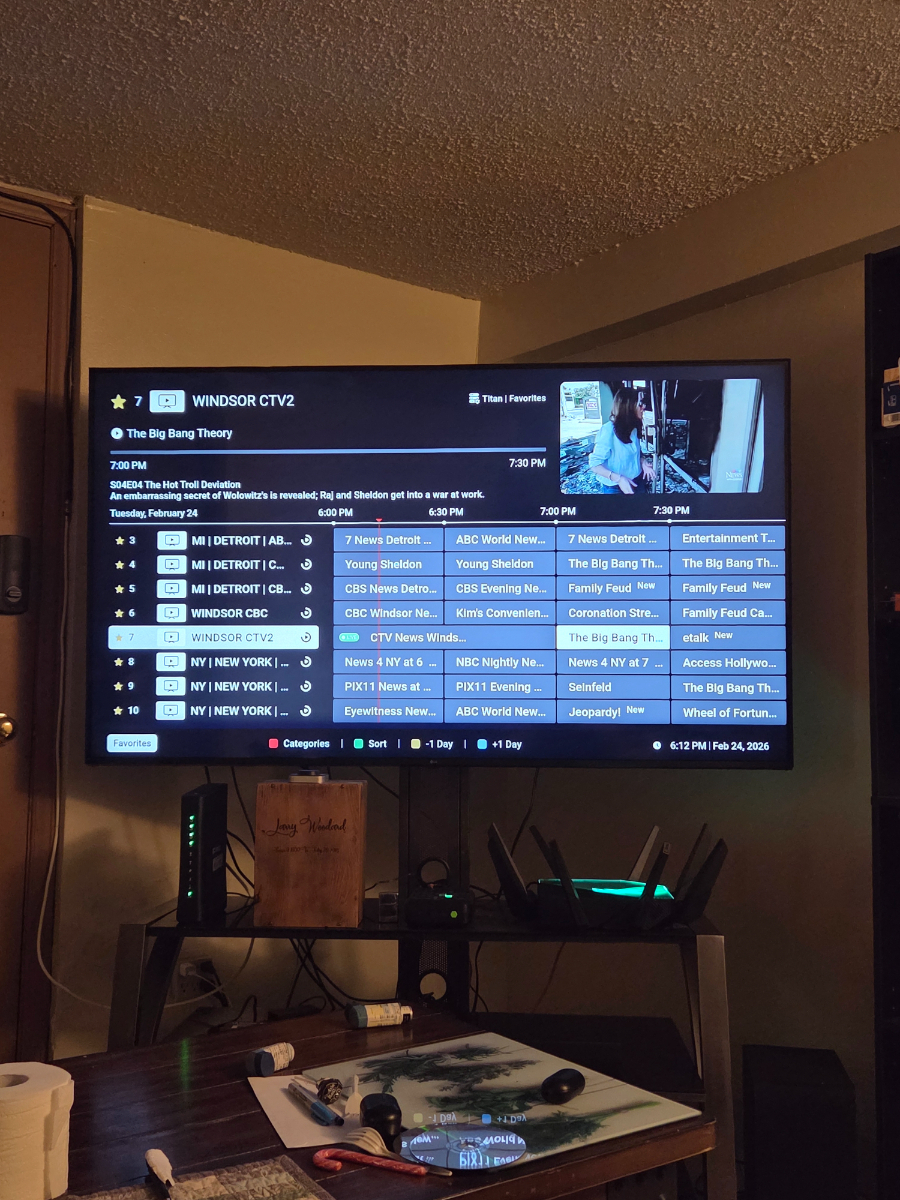
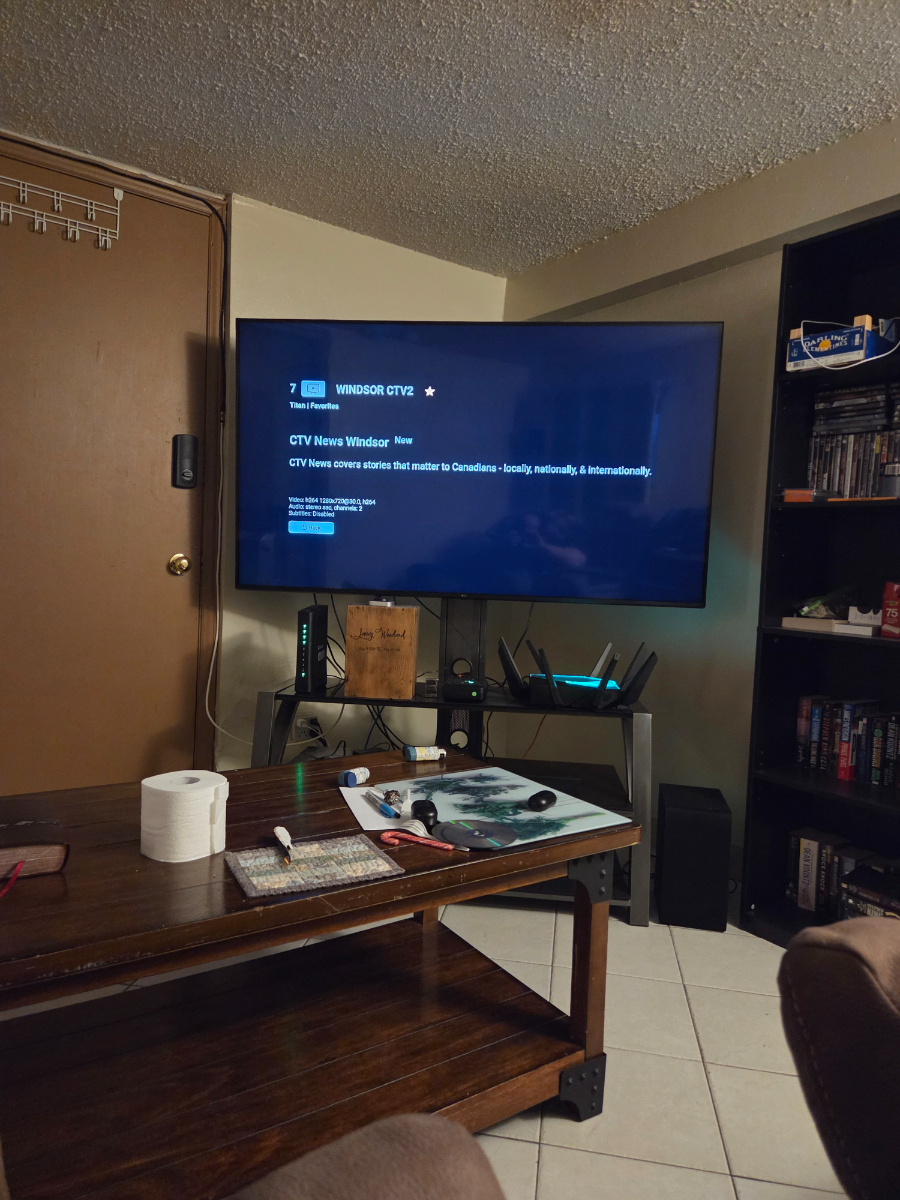
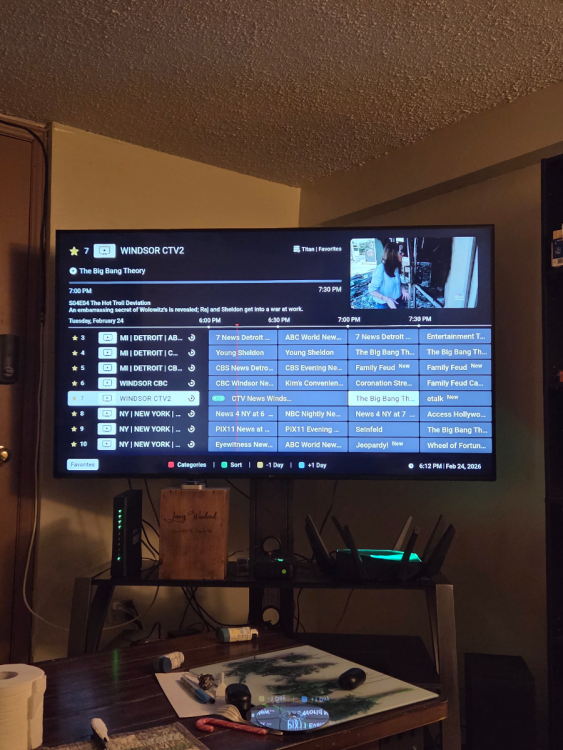
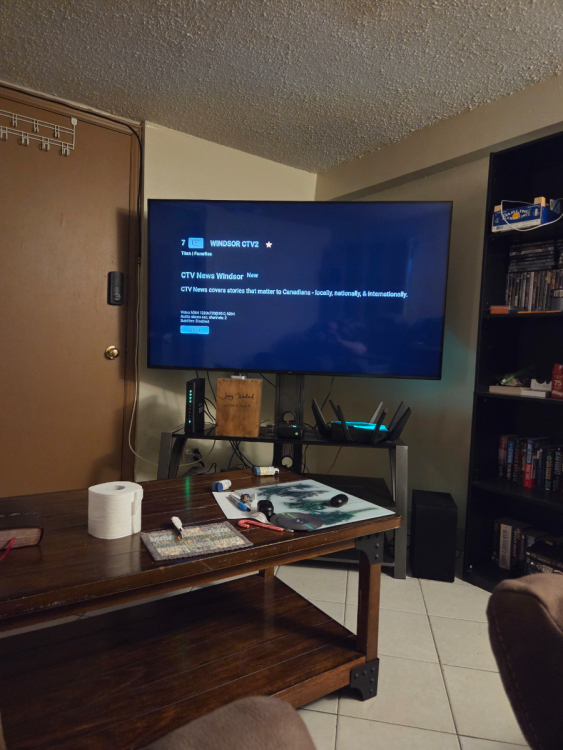
If u hit info button as i did ij second pic it pops up wuth current show.. when u just move cursor to next show it show properly....
-
If yiu are on epg and you scroll down to a shpw coming oon next and you hit info button it only displays the current shows info will not display next shows info.
-
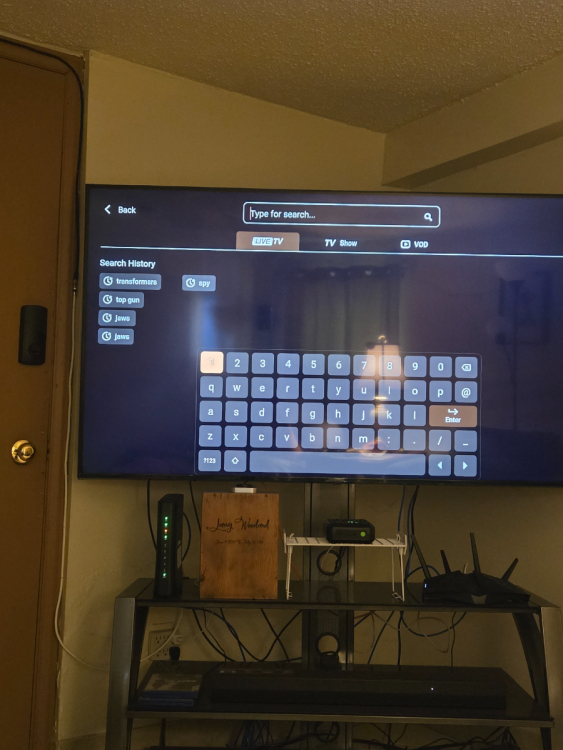
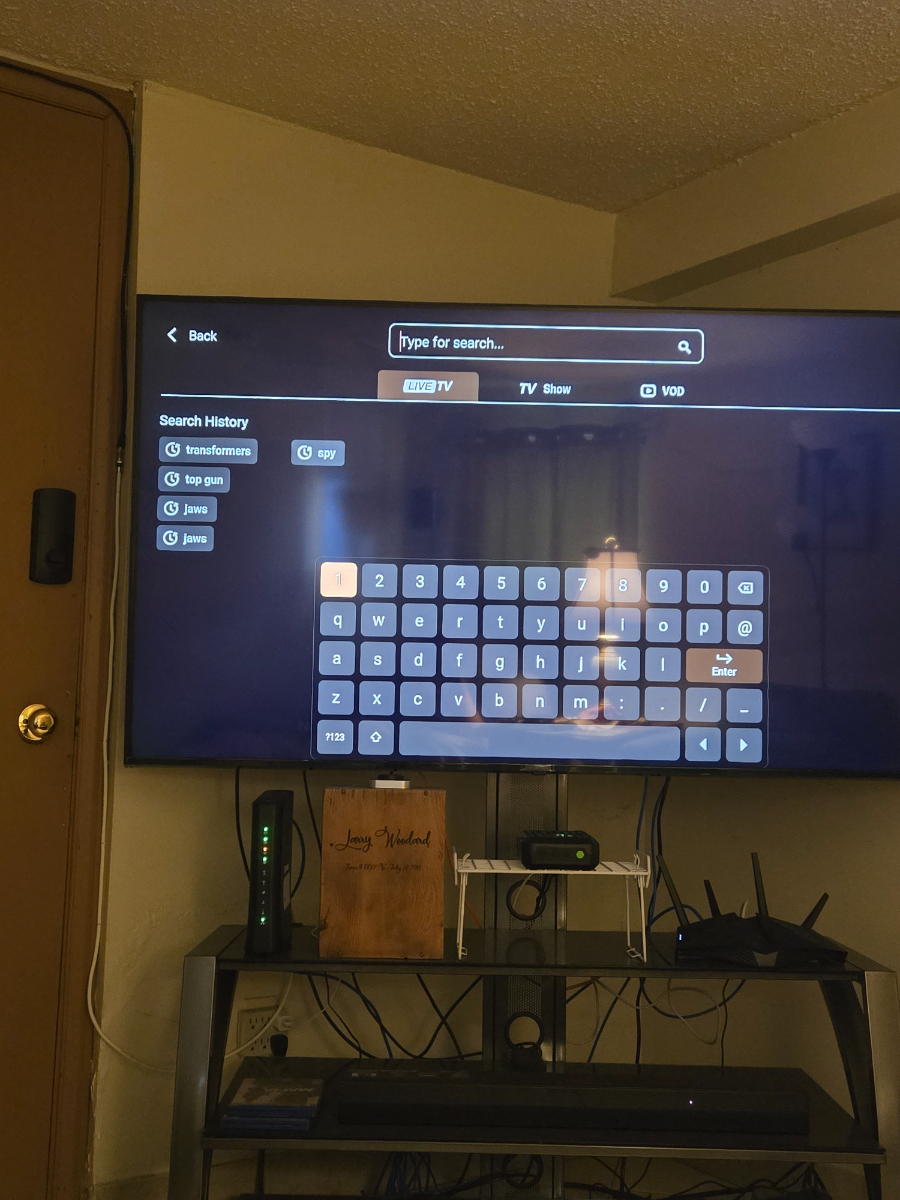
Buy a buzz box that had buzz6Sounds like server issue i occassionally encounter this if other vods work it is server issue if it is not playing at all try disconnevting and reconnecting to serverwhat volume buttons are you using. if you have the remote paired totv use the volume buttons on the top of the remote.. and if u have forced max volume on the big buttons wiill not do anything at bottom of the remoteYepYep wont let me turn it offUnable to turn auto connect off on server. Using mac server.I use my tv to decode have the hdmi input set to bitsream. Have not had any drop out issues at all. And i have lg 4.1 ch sound bar im using for sound.Firmware version and app versionThe p6 only does a stanby so in order to have it automatically go to live tv u have to restart it and boit to live tv has to be enabled.. and for searching hit the search button.. it wikl pop up the search menu and u cand choose live tv tv series or vod to search