IR11
Members
-
Joined
-
Last visited
-
IR11 changed their profile photo
-
I see. Okay thanks!
-
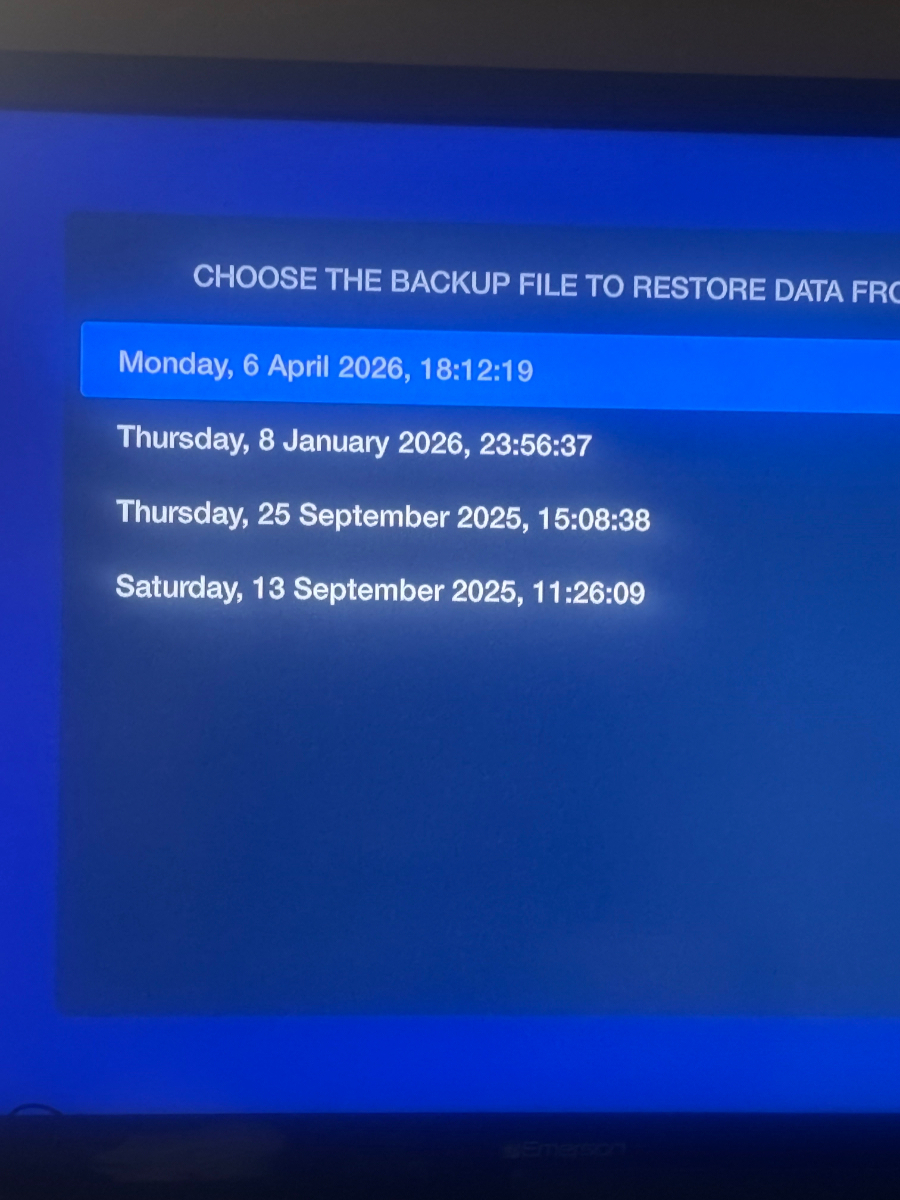
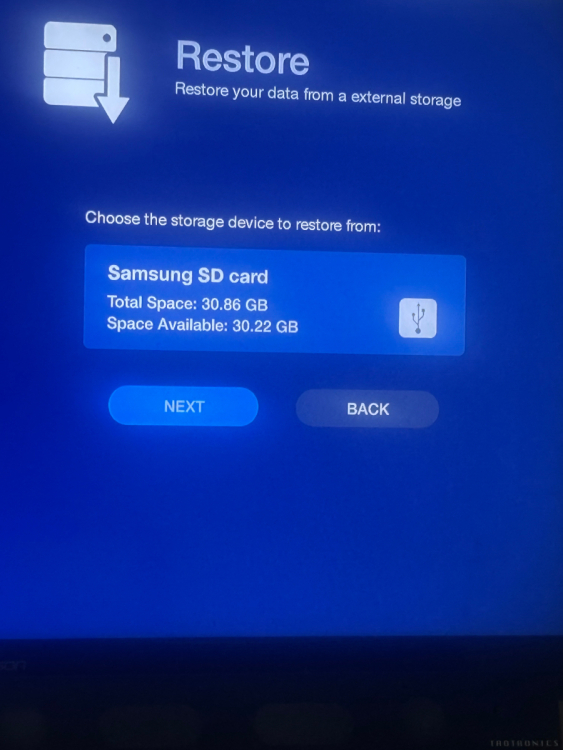
I actually have backed up the servers to an SD card in the past but when I tried to restore the saved servers I got an error message. I tested the new back ups I just created and they’re all working! Thanks for the tips!
-
I agree it is a pain to have to choose all your favorite apps and channels again!
-
Even though it looked like I was on the latest update I manually checked it and updated again and then Epg loaded properly. Thanks for the suggestion!
-
So I did a factory reset and only a few channels have a guide, most don’t. After the reset I did not insert the sd card. I did not restore any saved content.
-
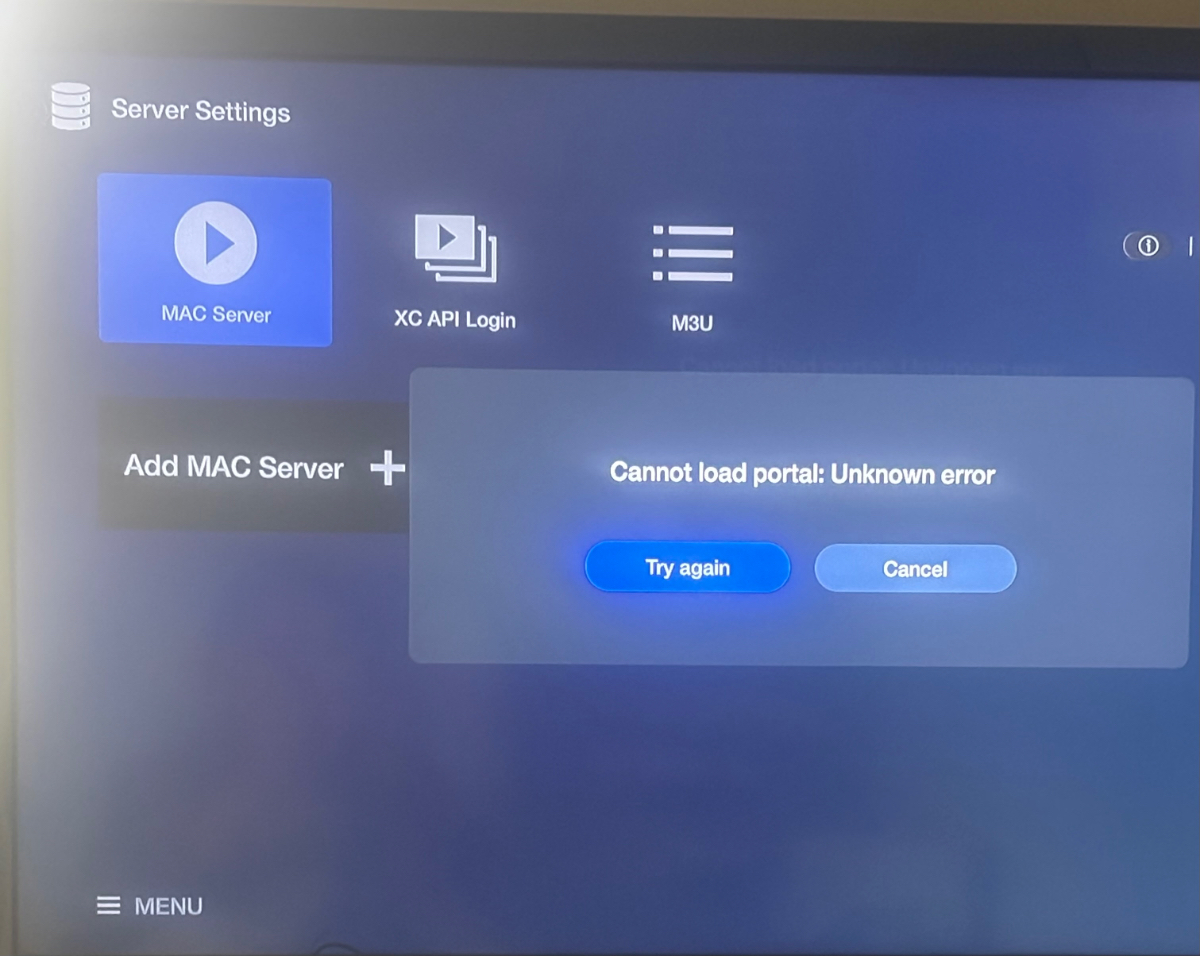
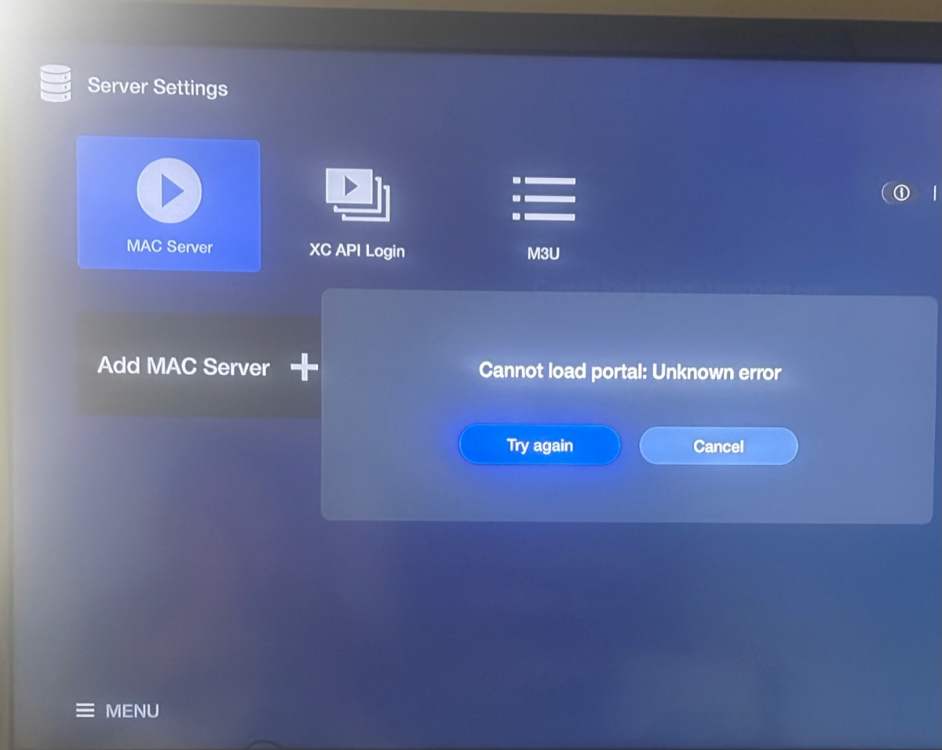
It is definitely an m3u. Just that when the error message comes up it shows Mac highlighted in the background. Thanks for responding.
-
I have cleared EPG and cache. Still no luck. I think maybe I should do a factory reset. I’m afraid to do that because I have checked the backups(which are on an SD card). I can click on a backup from a certain date to restore it but when I try to open the restored server it will not open. So if I do a factory reset, none of my app settings, servers and favorites have been backed up.

-
Yes, it works on TiviMate.
-
On m3u
-
The update downloaded a few days ago. I am still having a problem with the Epg not loading. It’s an XML format. I tried clearing the cache and restarting but it’s not loading. I have a Classic 5. Should I be doing something else? Thanks.