Angiesdroids
Members
-
Joined
-
Last visited
Everything posted by Angiesdroids
-
Tried the zoom, no change. Im at a loss
-
In what screen? If referring to while playing then it just changes to 16:9, auto, stretch etc, tried, doesn't fix
-
Tried... buzz 5 allows for zoom in/out and resolution changes. I cant find that anywhere in this..
-
Yes I have. It's not that anyway, main screen, live tv and every other app is fine..
-
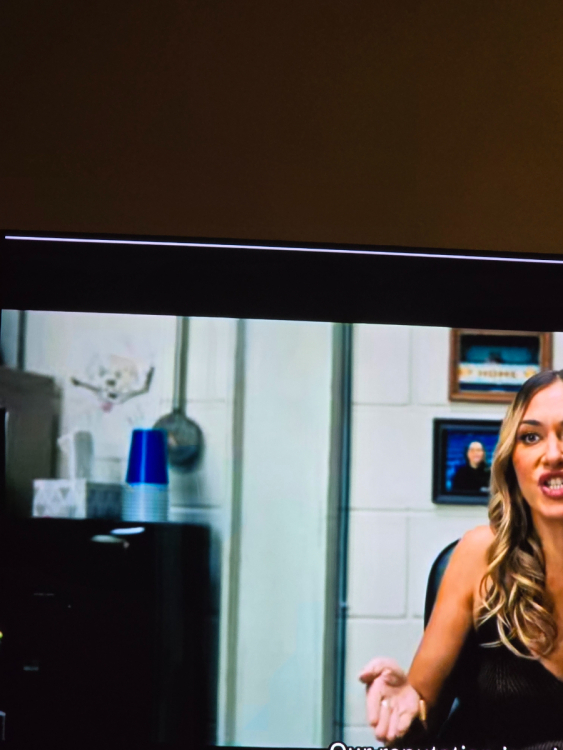
I think this is related to resolution but its not an issue in live tv. White line top of screen on all vod/TV series. Using 3 servers, all the same. Any ideas?
-
Try using a vpn. That will fix the issue
-
HD5 devices, totally random and I've even seen it in live tv, pop up sayiing media not supported. VOD and Tv Series some do it some don't. Def not the provider, tried different providers, and different devices/apps and works fine. Is Mike on here?? Thanks
-
Teamviewer remote support will only allow for screen sharing and no remote support. Is there a fix for this? this is very important for myself and customers. Thanks