
Skip to content
View in the app

A better way to browse. Learn more.

BuzzTV Help

A full-screen app on your home screen with push notifications, badges and more.

To install this app on iOS and iPadOS
  1. Tap the Share icon in Safari
  2. Scroll the menu and tap Add to Home Screen.
  3. Tap Add in the top-right corner.
To install this app on Android
  1. Tap the 3-dot menu (⋮) in the top-right corner of the browser.
  2. Tap Add to Home screen or Install app.
  3. Confirm by tapping Install.

JKA

Members
  • Joined

  • Last visited

Everything posted by JKA

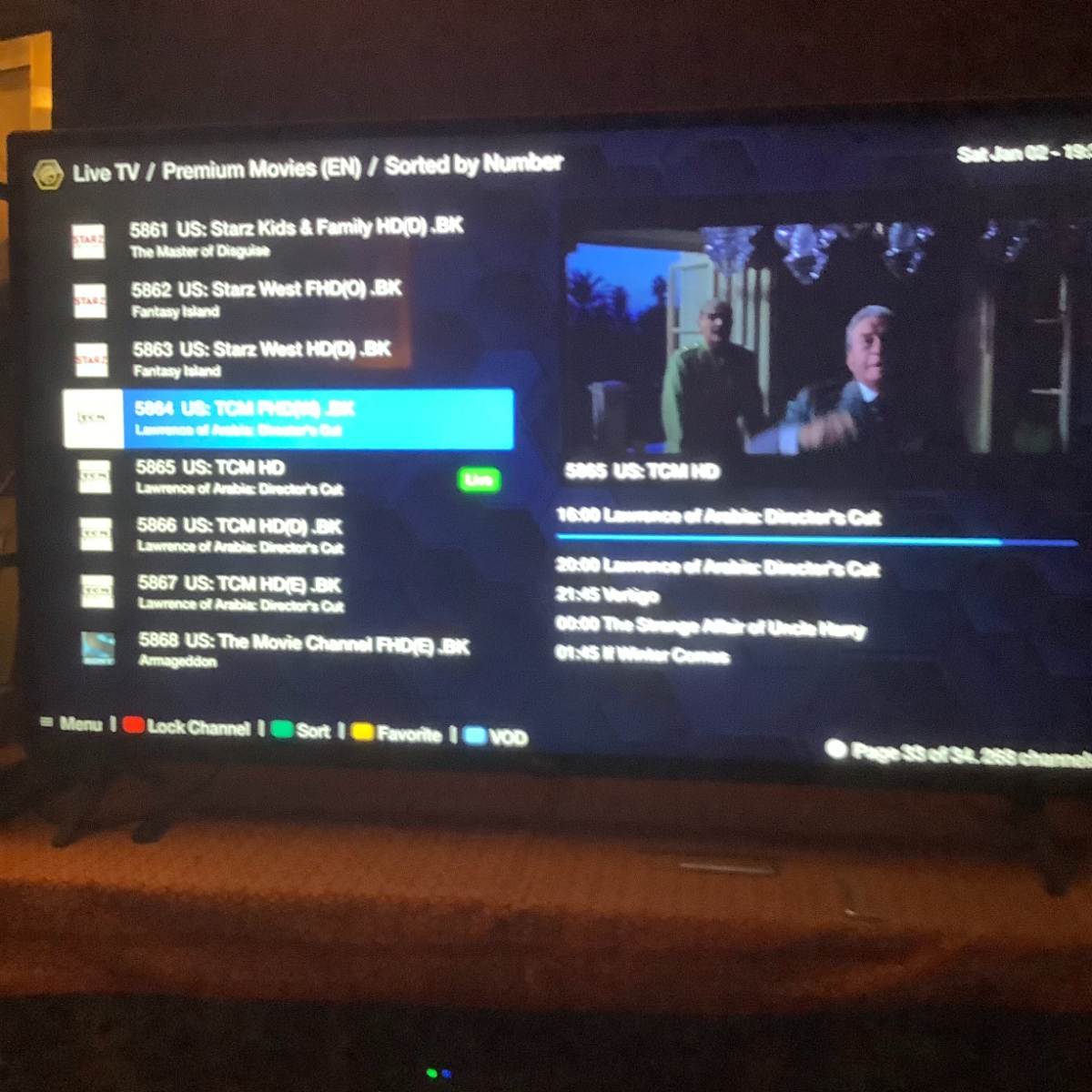
  1. I think I may have found a bug in the epg code that was not apparent to me prior to the update. Since the update, the epg duplicates the current channel info, and inserts it into the next available time slot. I tried it on every service I have, and it’s the same. start on the left side of the epg and pick a show to watch. Now look on the right hand side below the Picture in Picture to upcoming shows. You will see the current show info being displayed at the starting time at the top. You will then see the same info for the next time slot. it’s not showing the right information. hope this helps. Jim.

Account

Navigation

Search

Search

Configure browser push notifications

Chrome (Android)
  1. Tap the lock icon next to the address bar.
  2. Tap Permissions → Notifications.
  3. Adjust your preference.
Chrome (Desktop)
  1. Click the padlock icon in the address bar.
  2. Select Site settings.
  3. Find Notifications and adjust your preference.