Figs88
Members
-
Joined
-
Last visited
-
So for some reason epg only works on the vidstick on my IPTV providers newest server and not on the current server I’m on, even though all my other boxes that are on the same server has had no epg issues. (I only know because we did a quick test On the new server, but I can’t switch over to the new server until my current subscription expires otherwise I’ll be out 6 months worth of credits)...My reseller said that each of the servers are programmed the same exact way so he can’t see why it would work on one server and not the other..Confusing
-
@Stugots is there a beta firmware you think could fix this issue that I can try??
-
Yes he did.
-
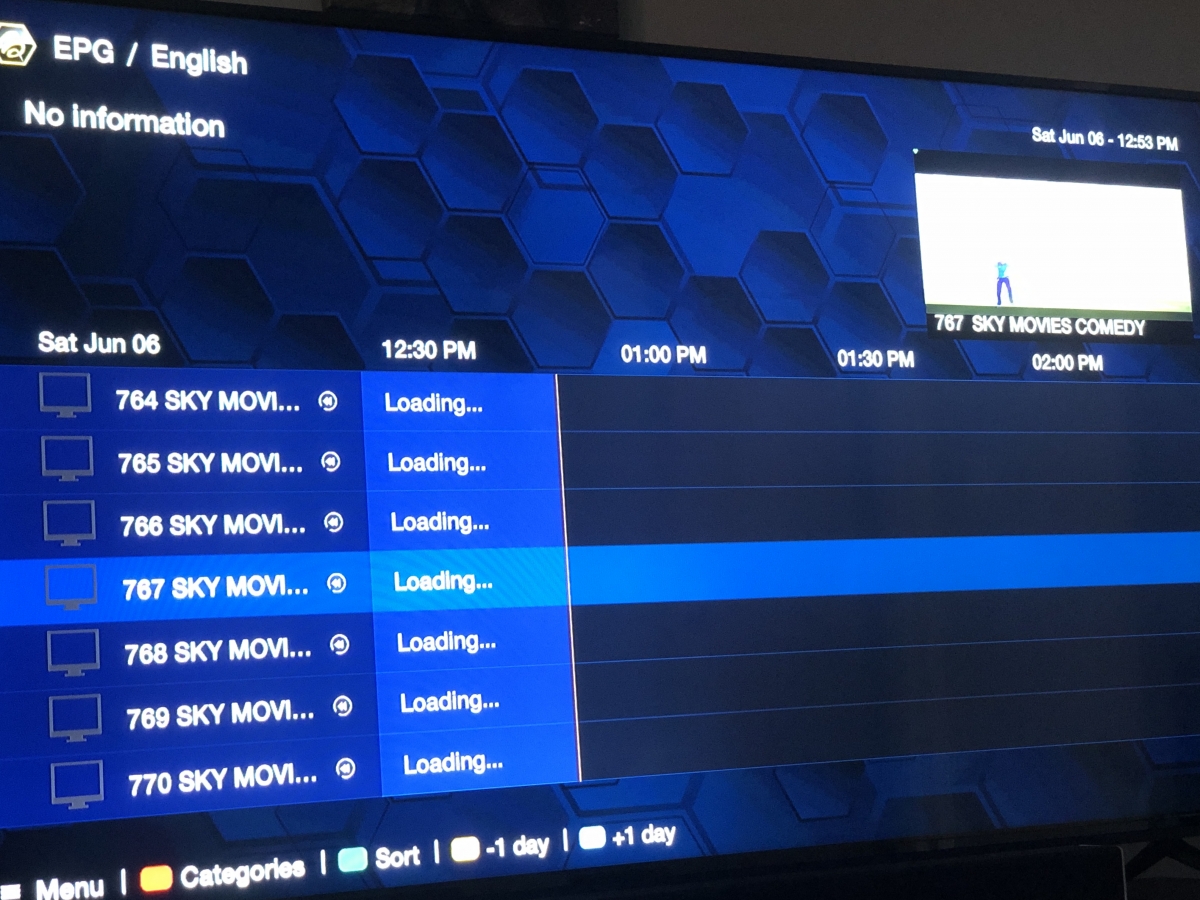
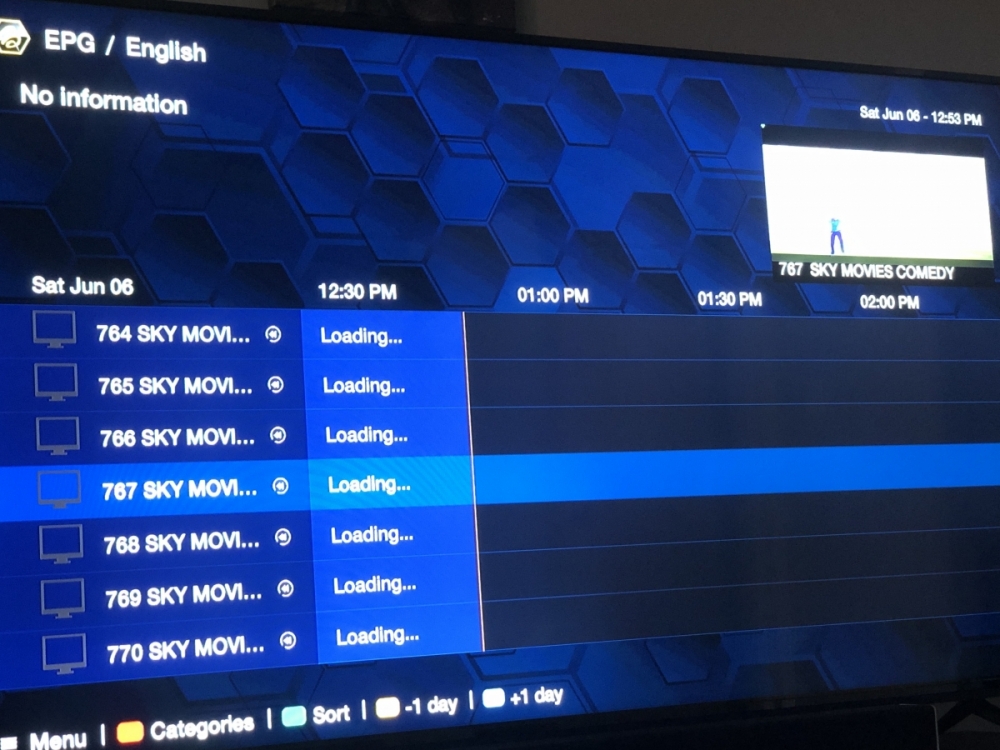
Already did. Still nothing.. when I click on the guide it just says “loading” but nothing shows up. Epg works on all my other boxes including my buzztv xpl3000 using the same iptv service.
-
MAC address. And no I’m not sharing Mac.
-
Yes, I’ve rebooted. I actually do a full shutdown of the box every night. Still no epg
-
I’ve cleared the epg and I have the correct time settings.. still no epg 😔
-
Figs88 joined the community
-
My vidstick epg is not working. Each channel says no information available, and no it is not the live tv provider because my other box, the buzztv xpl3000, has a full working epg. It was however working when I first plugged it in. I’m wondering if it might’ve been a firmware update that caused the issue. Is anyone else having this issue, and if yes, have you been able to fix it and how?