Tommy Ray Staley Jr.
Members
-
Joined
-
Last visited
-
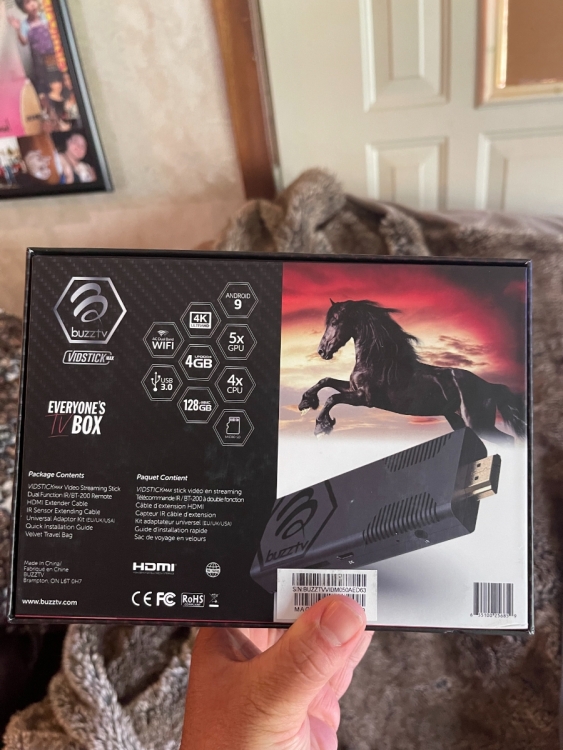
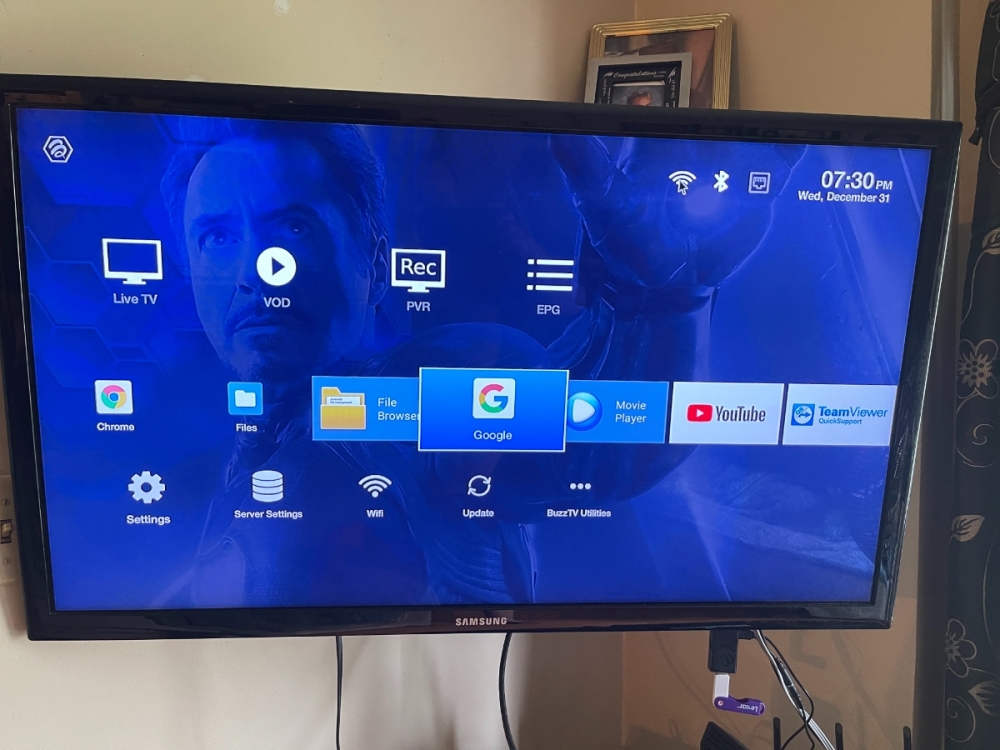
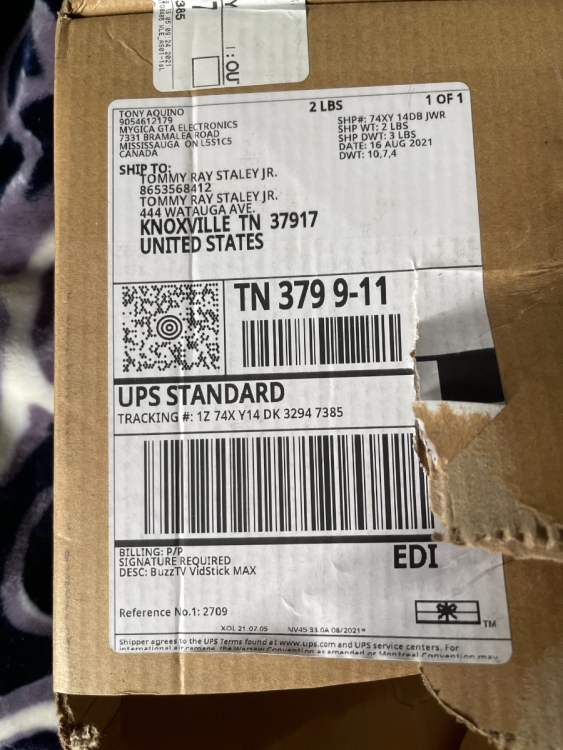
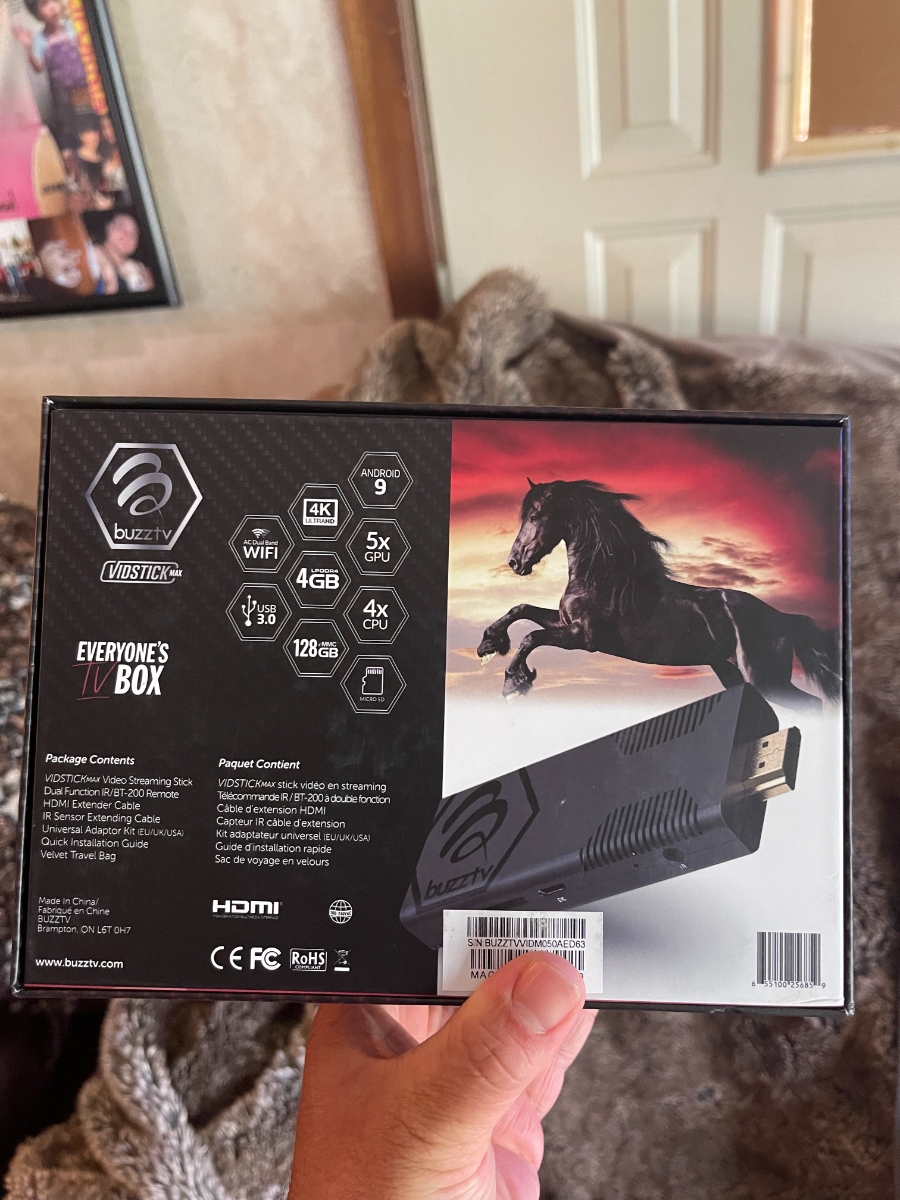
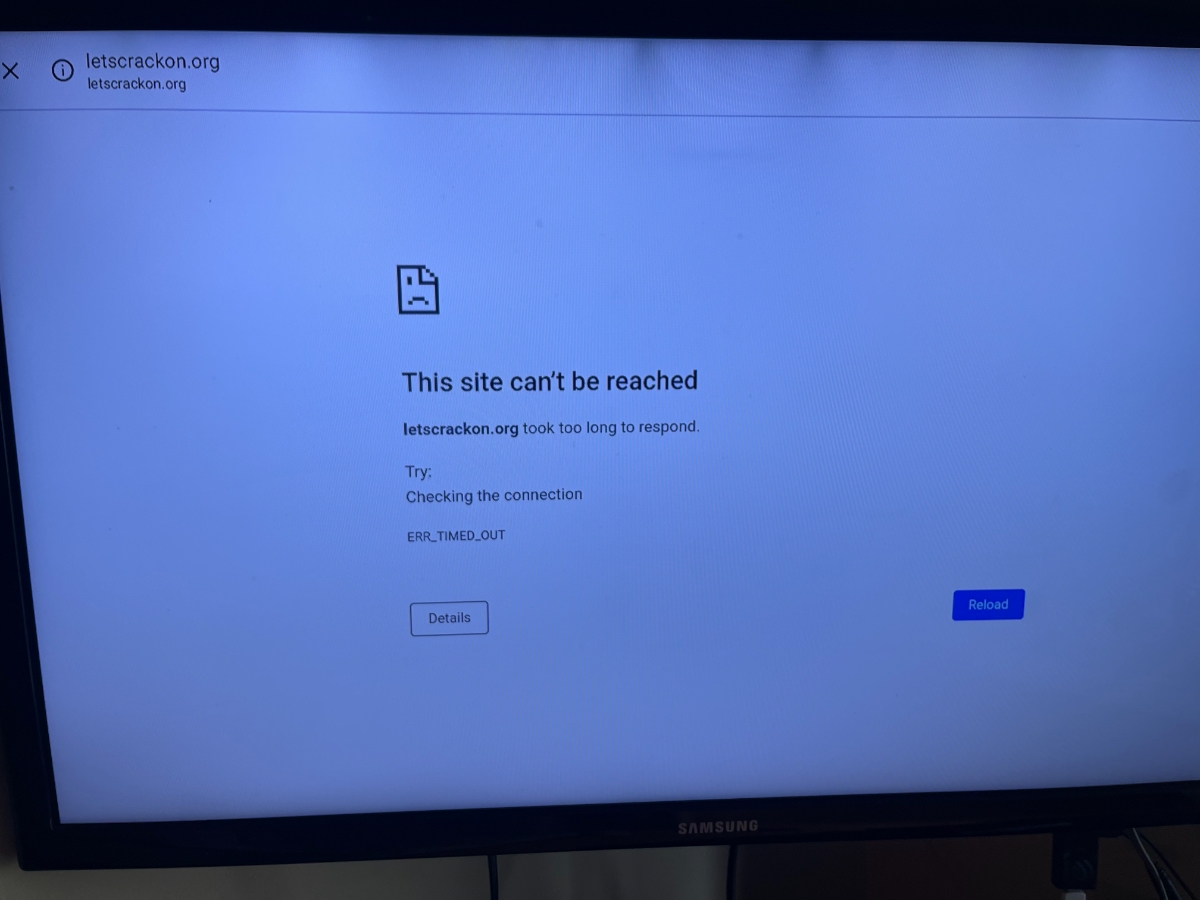
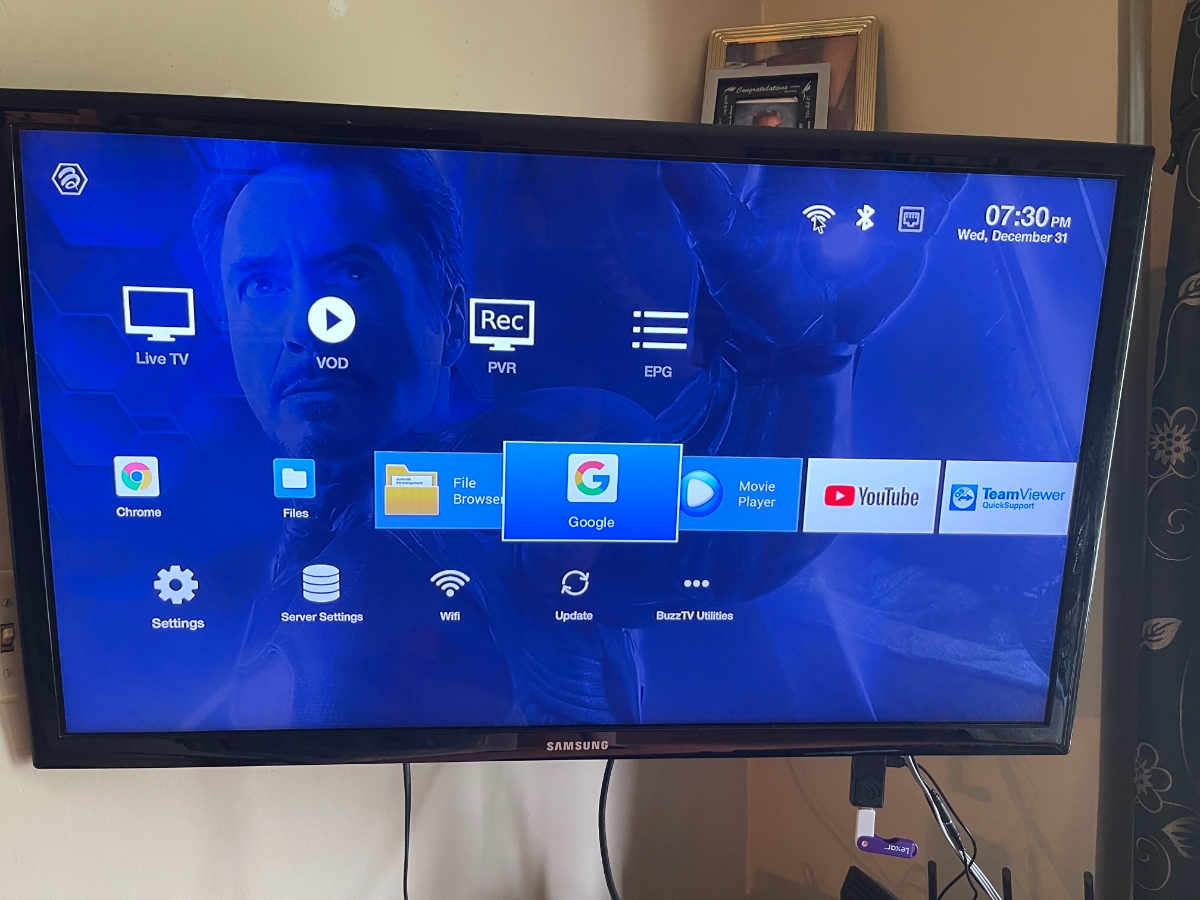
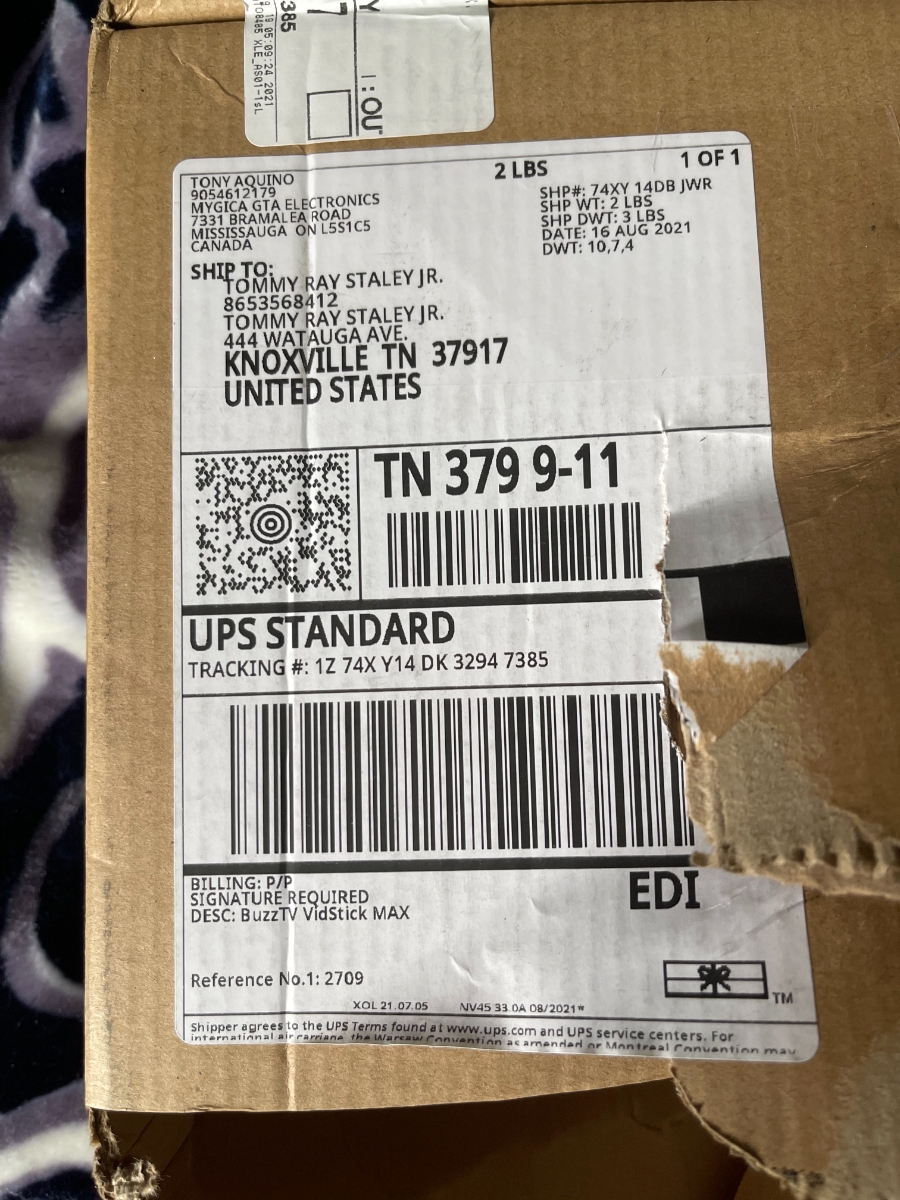
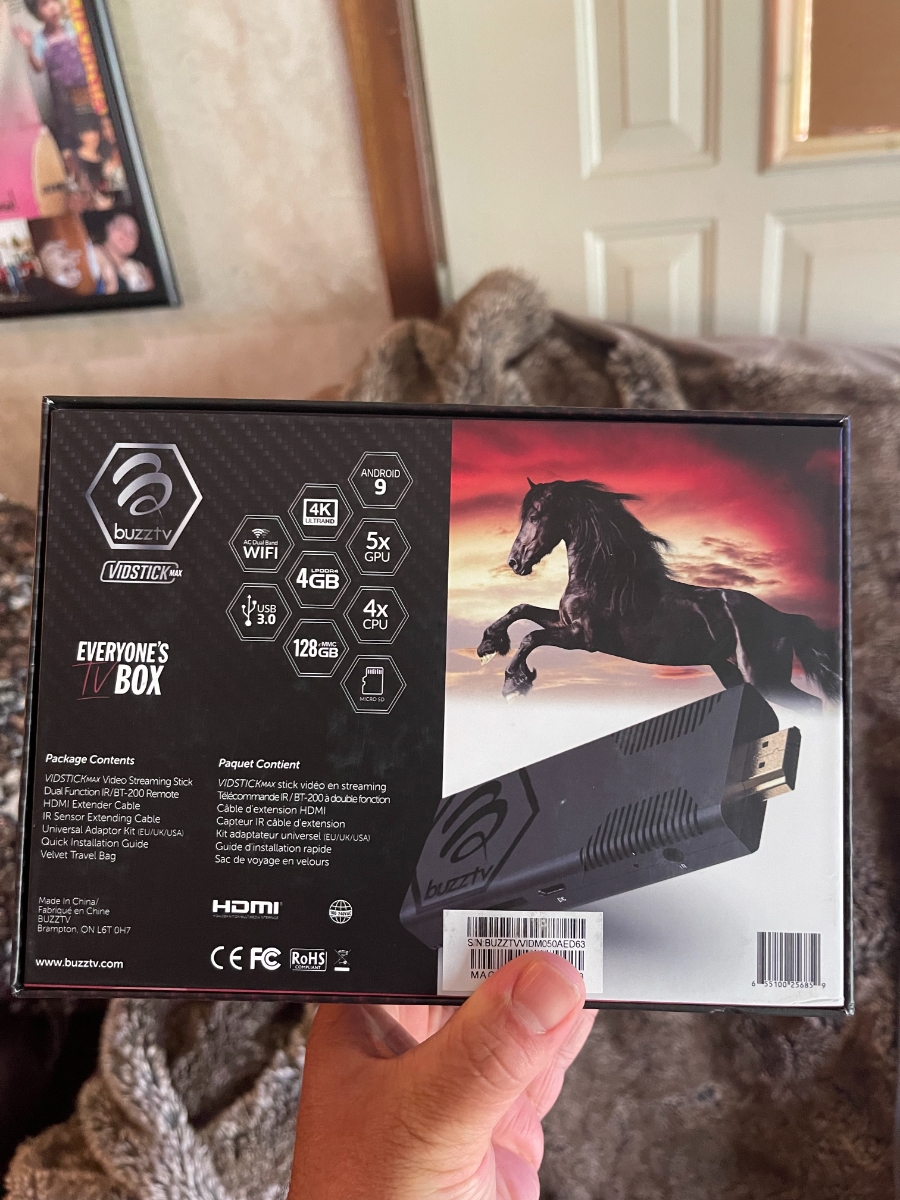
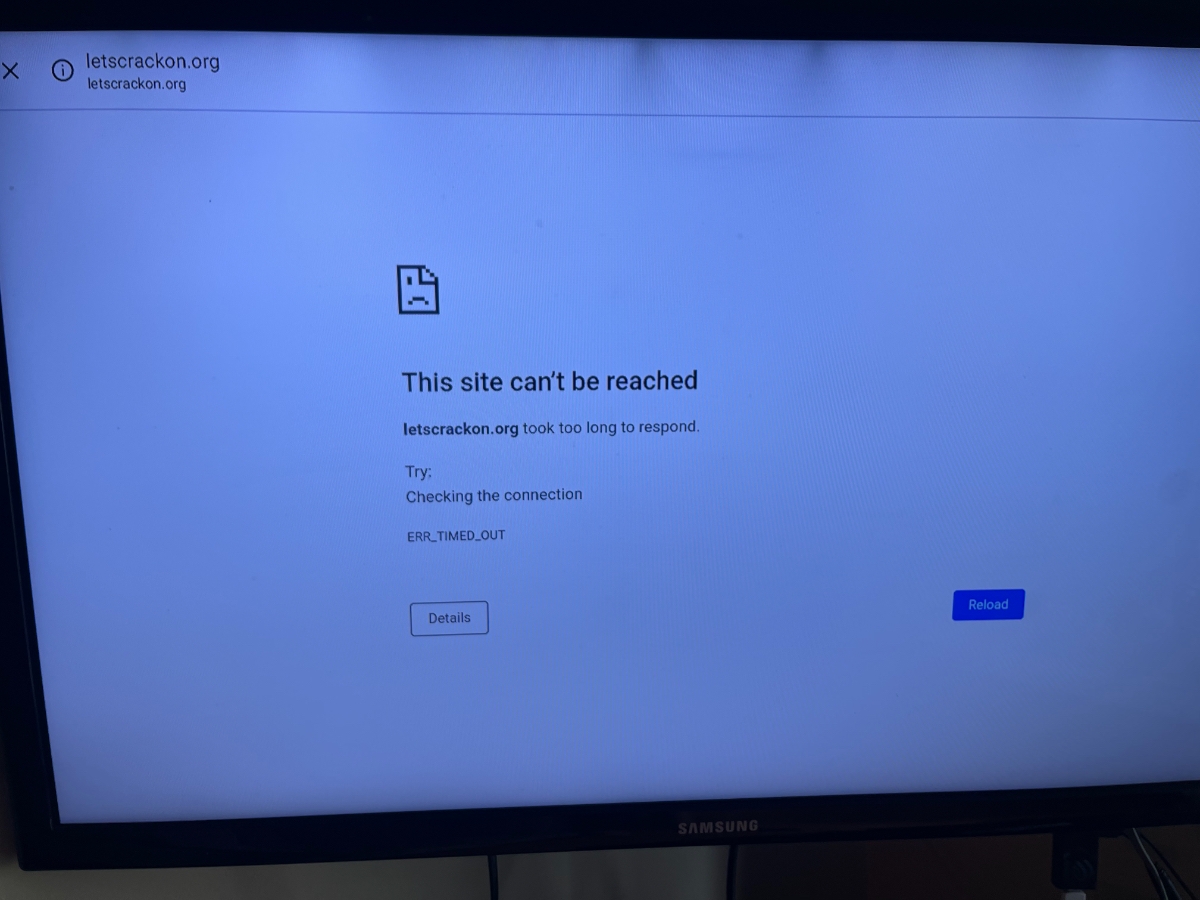
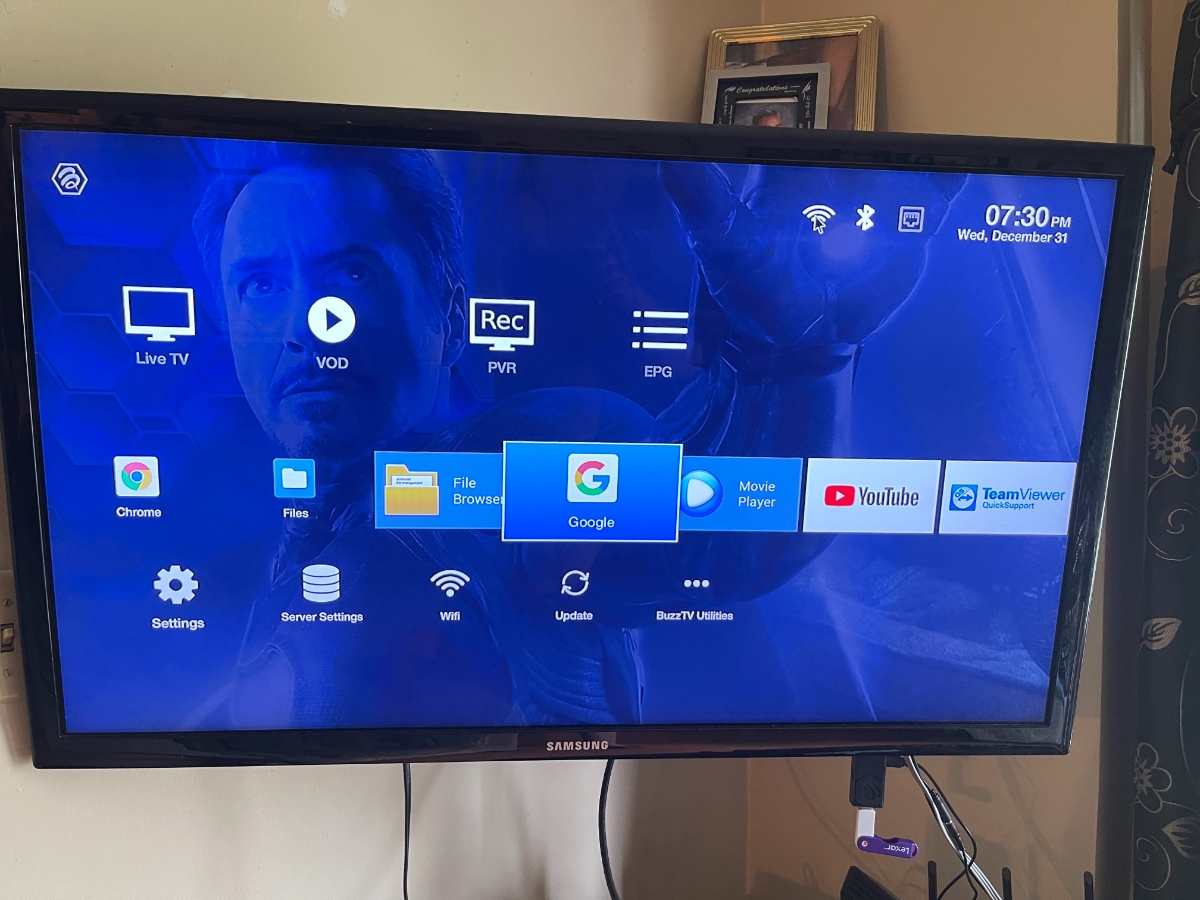
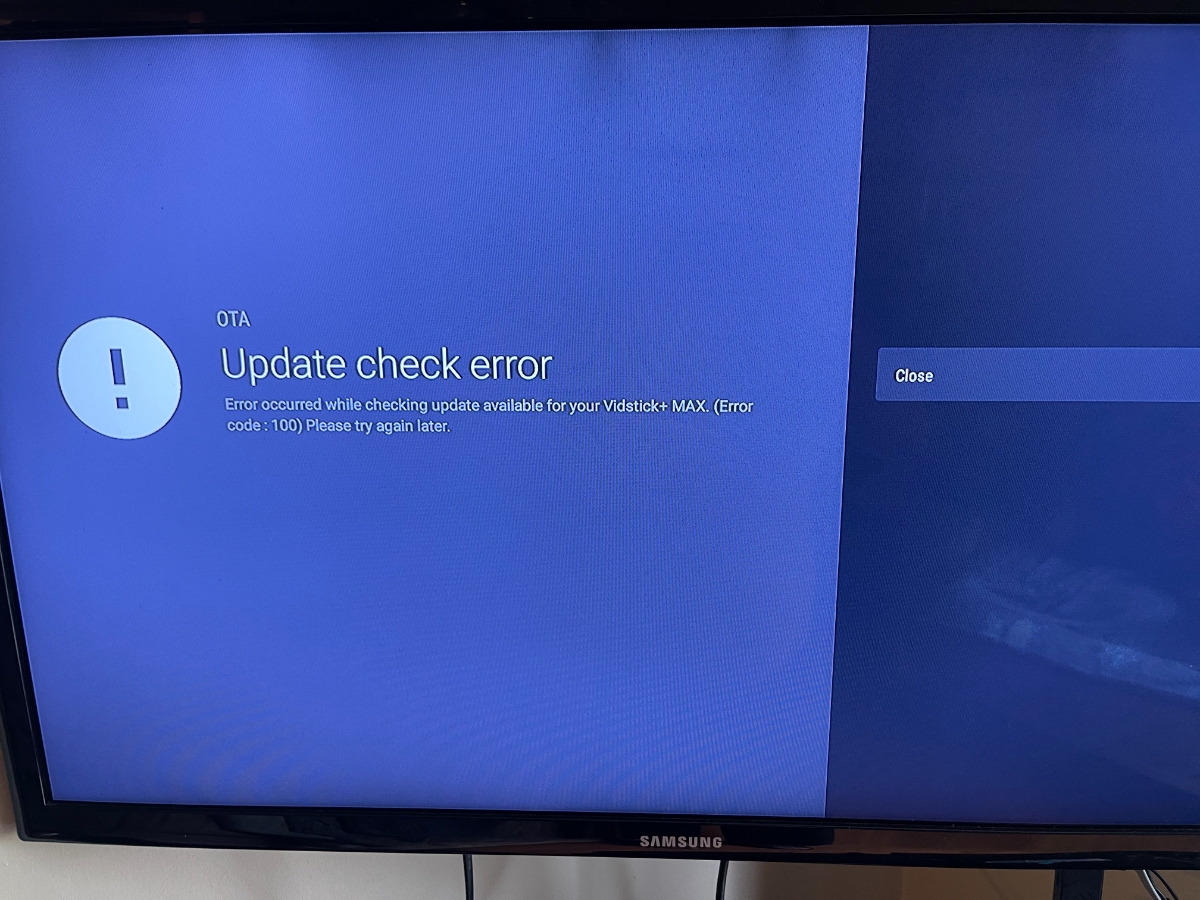
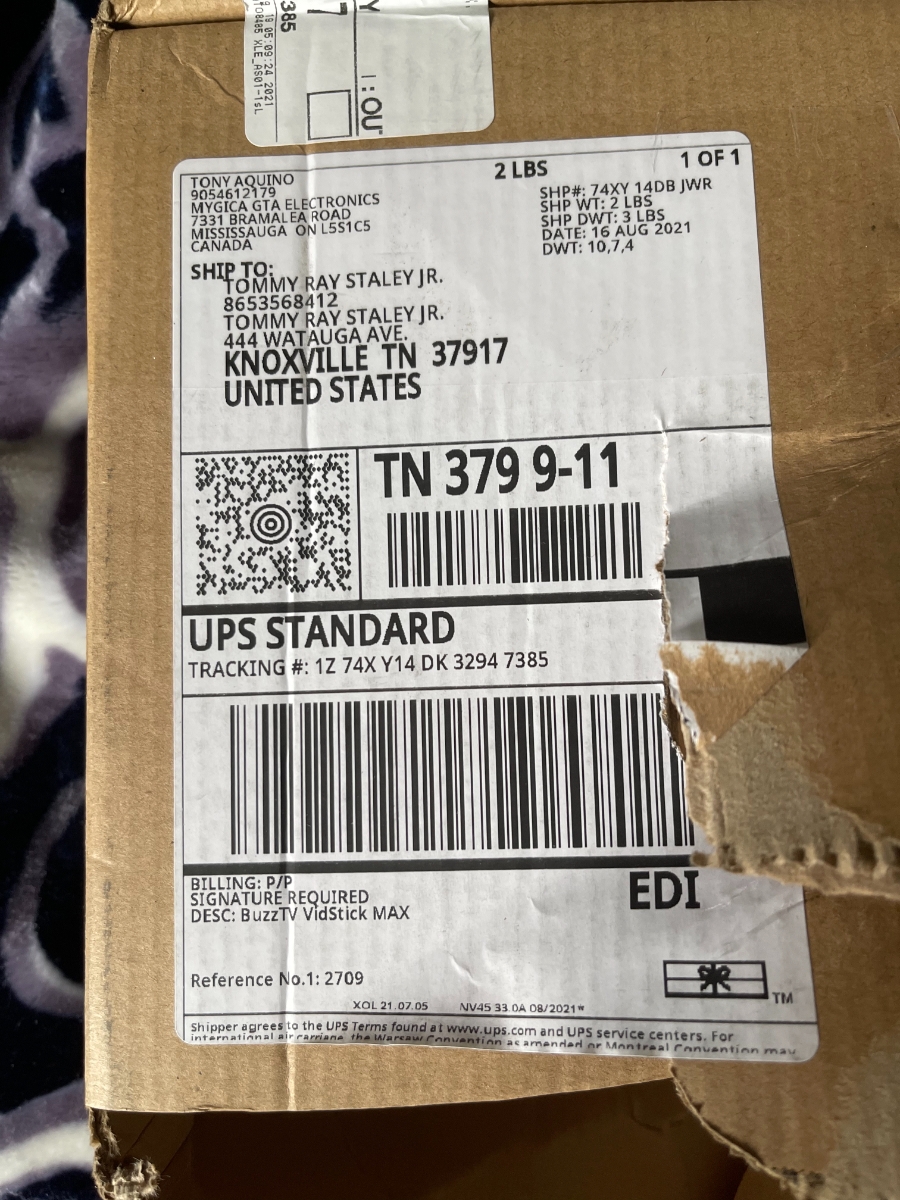
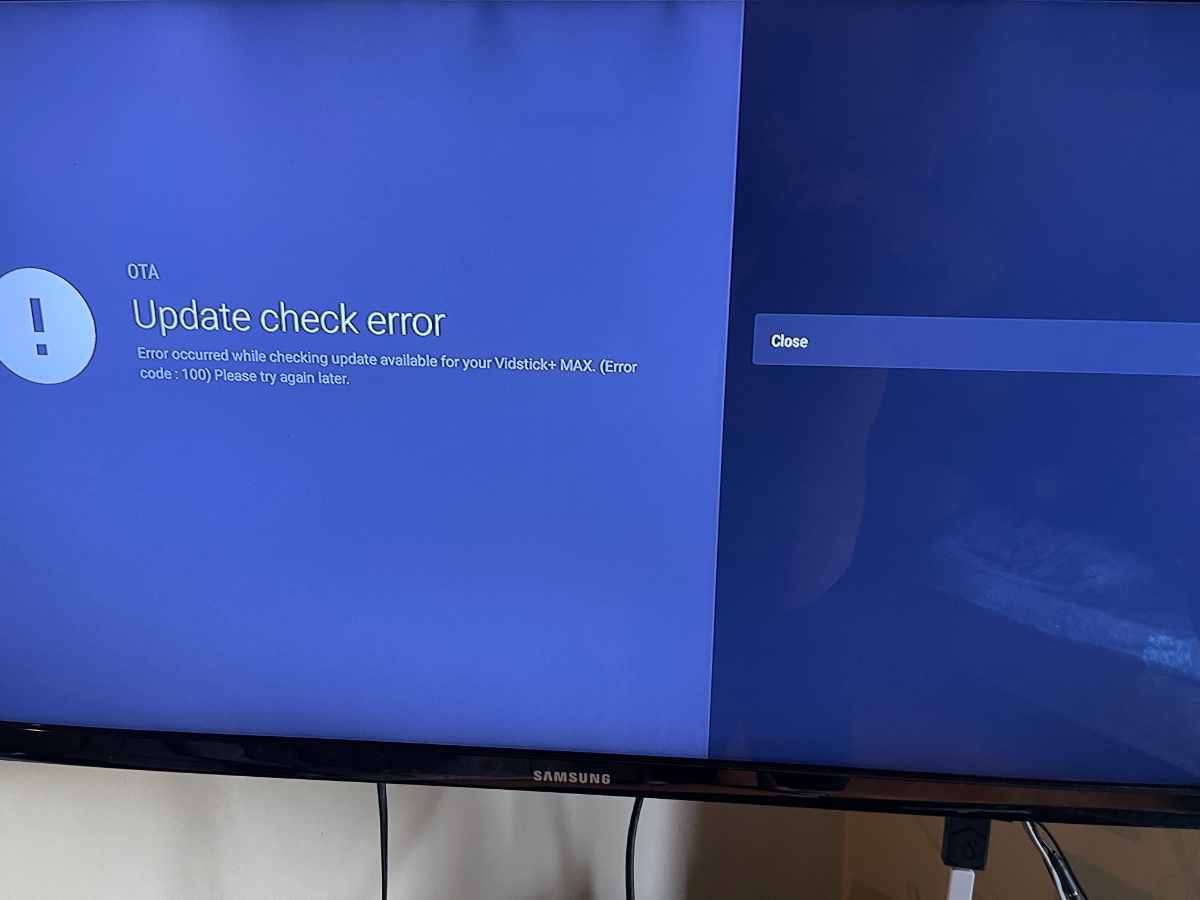
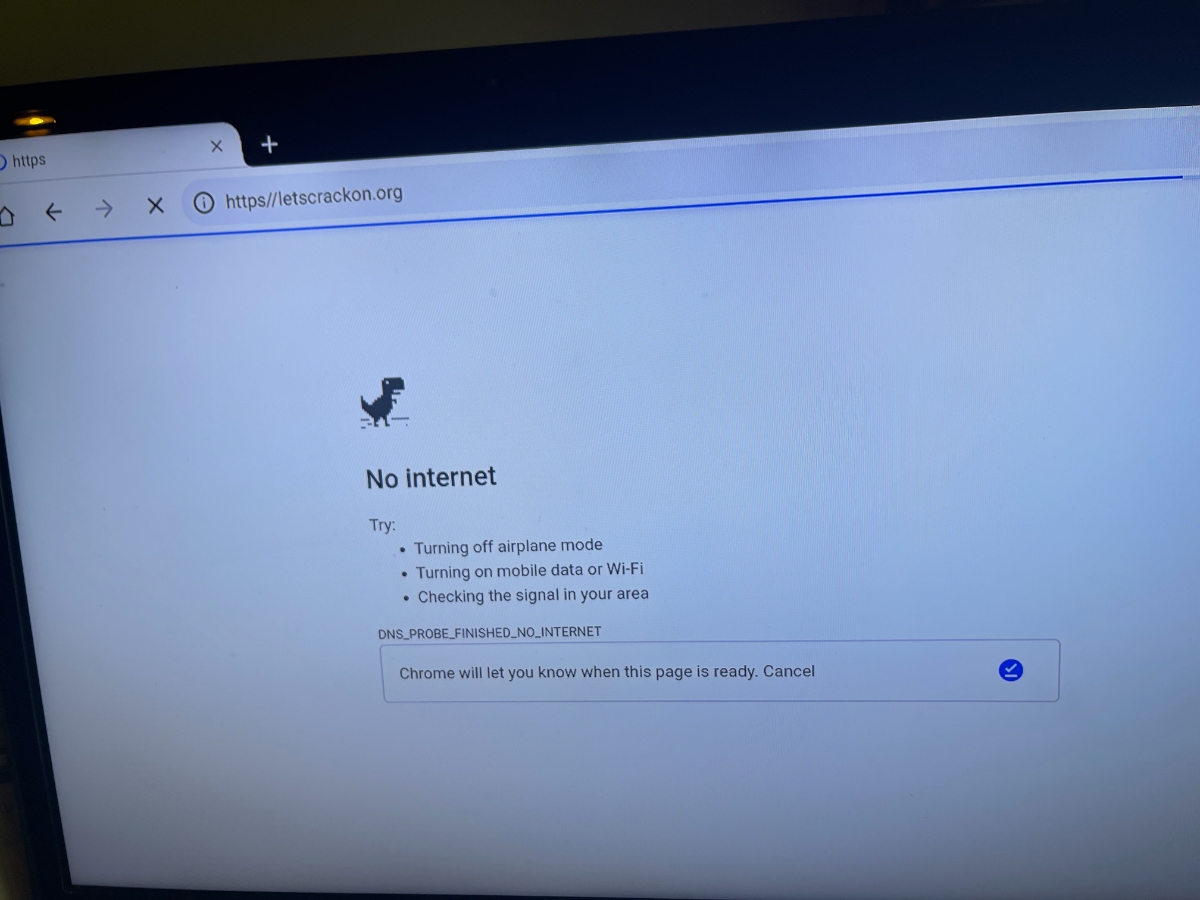
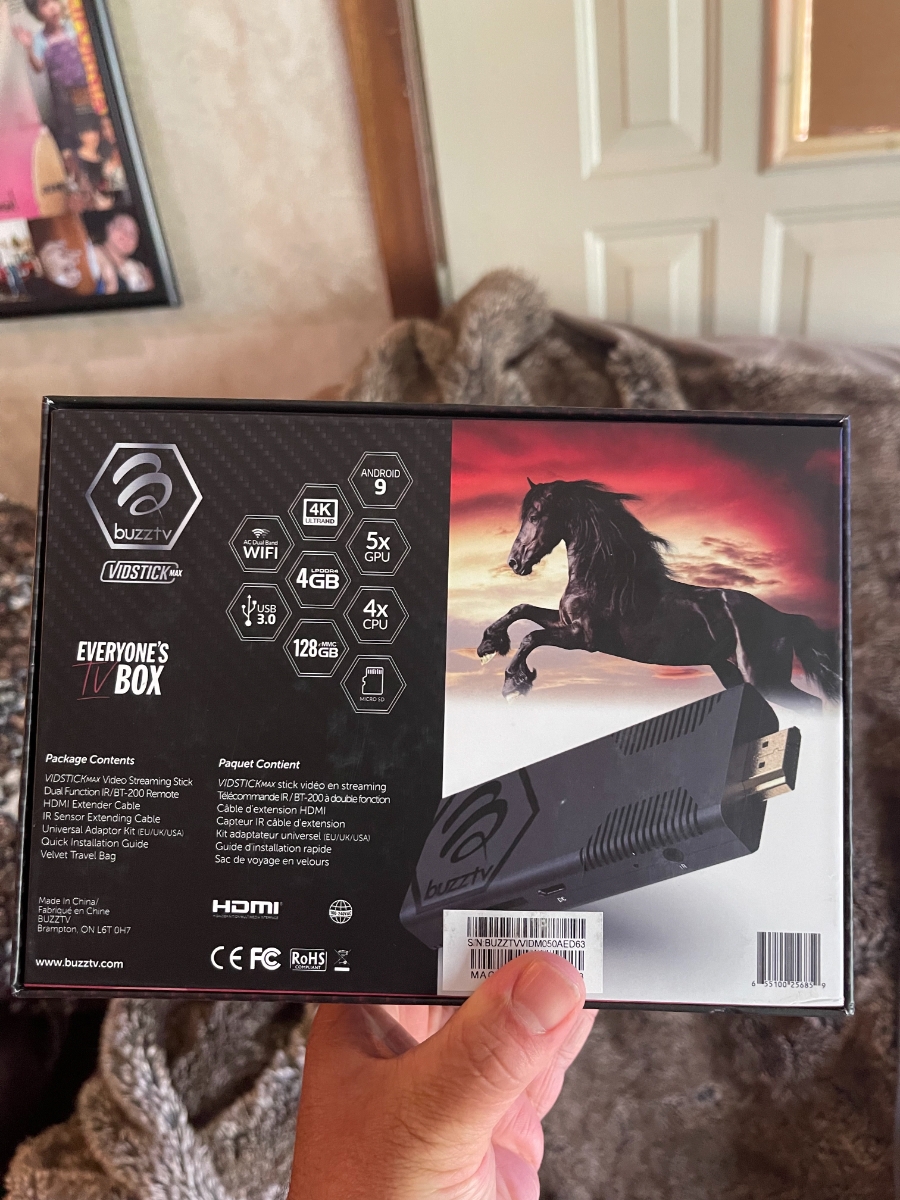
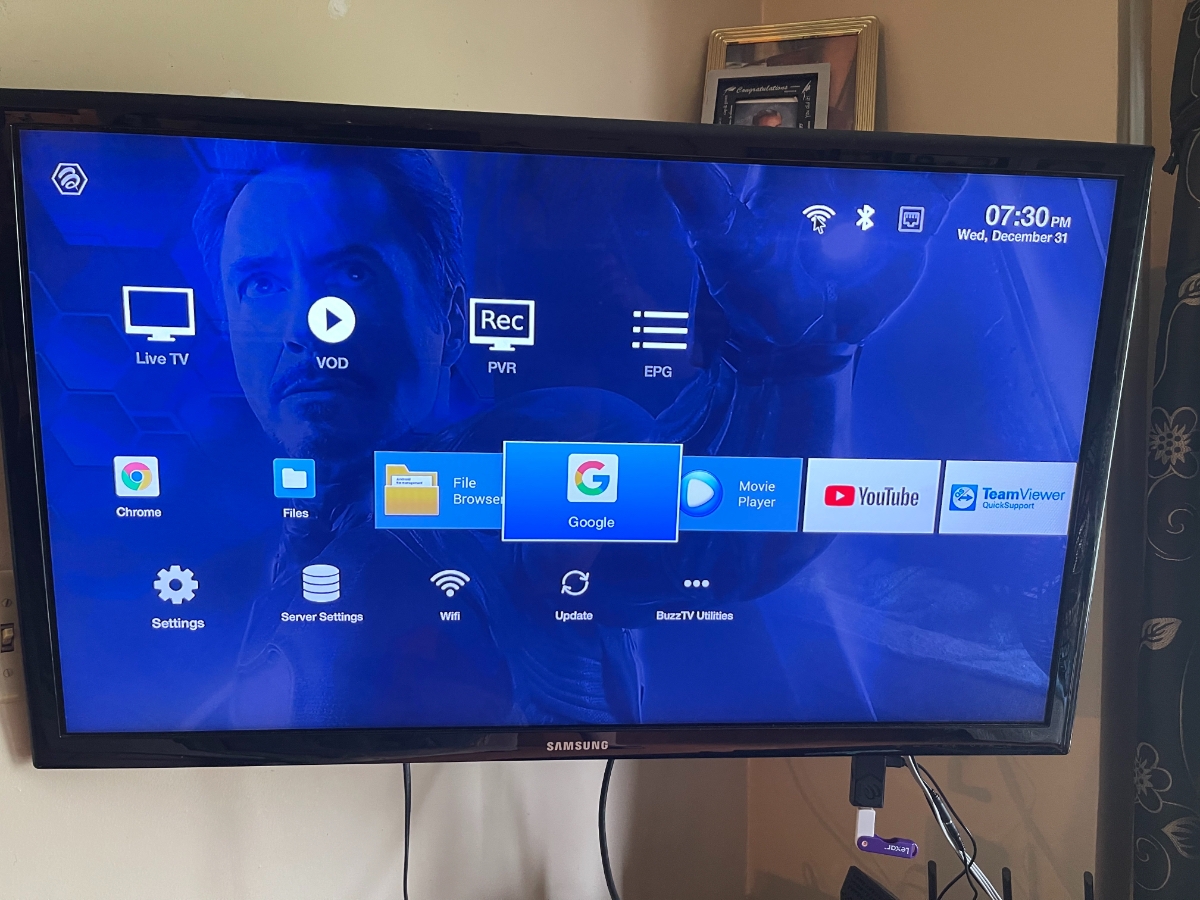
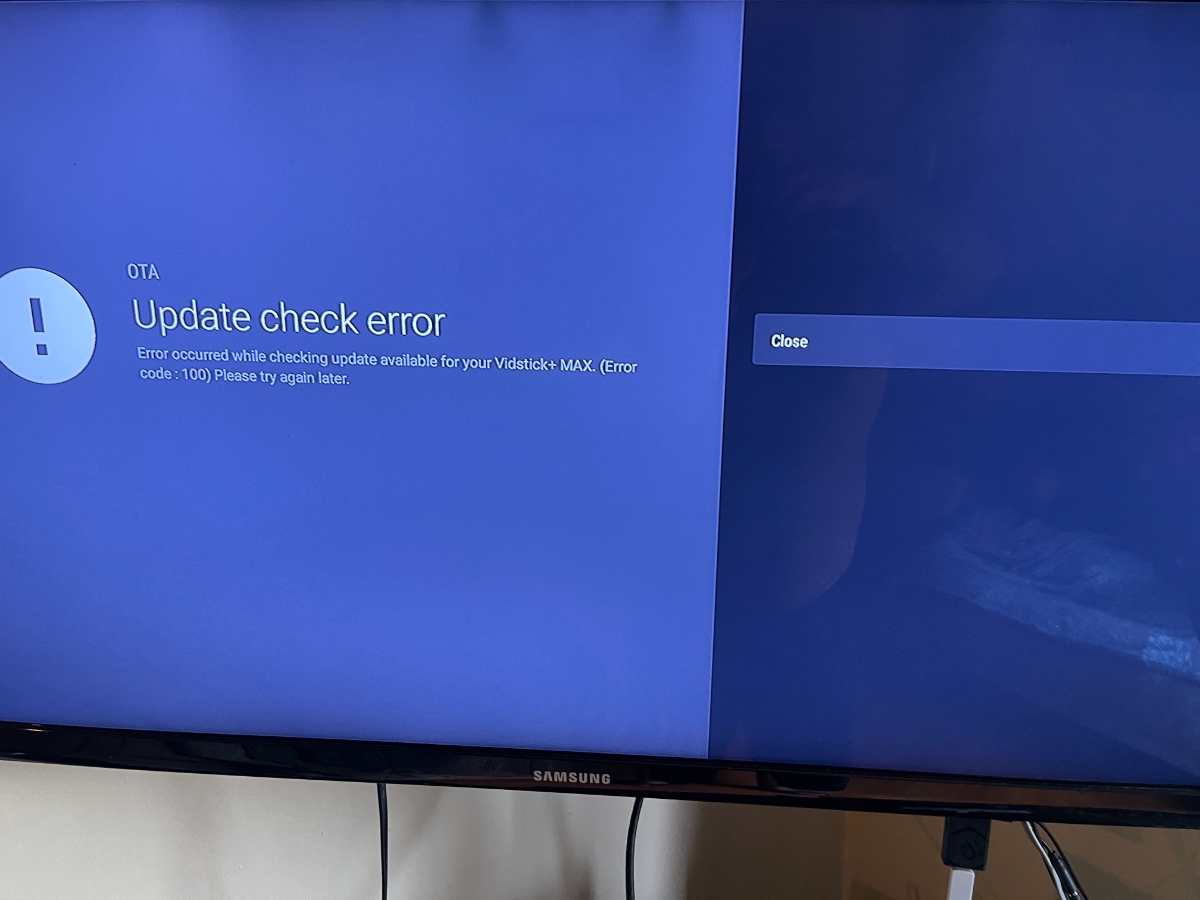
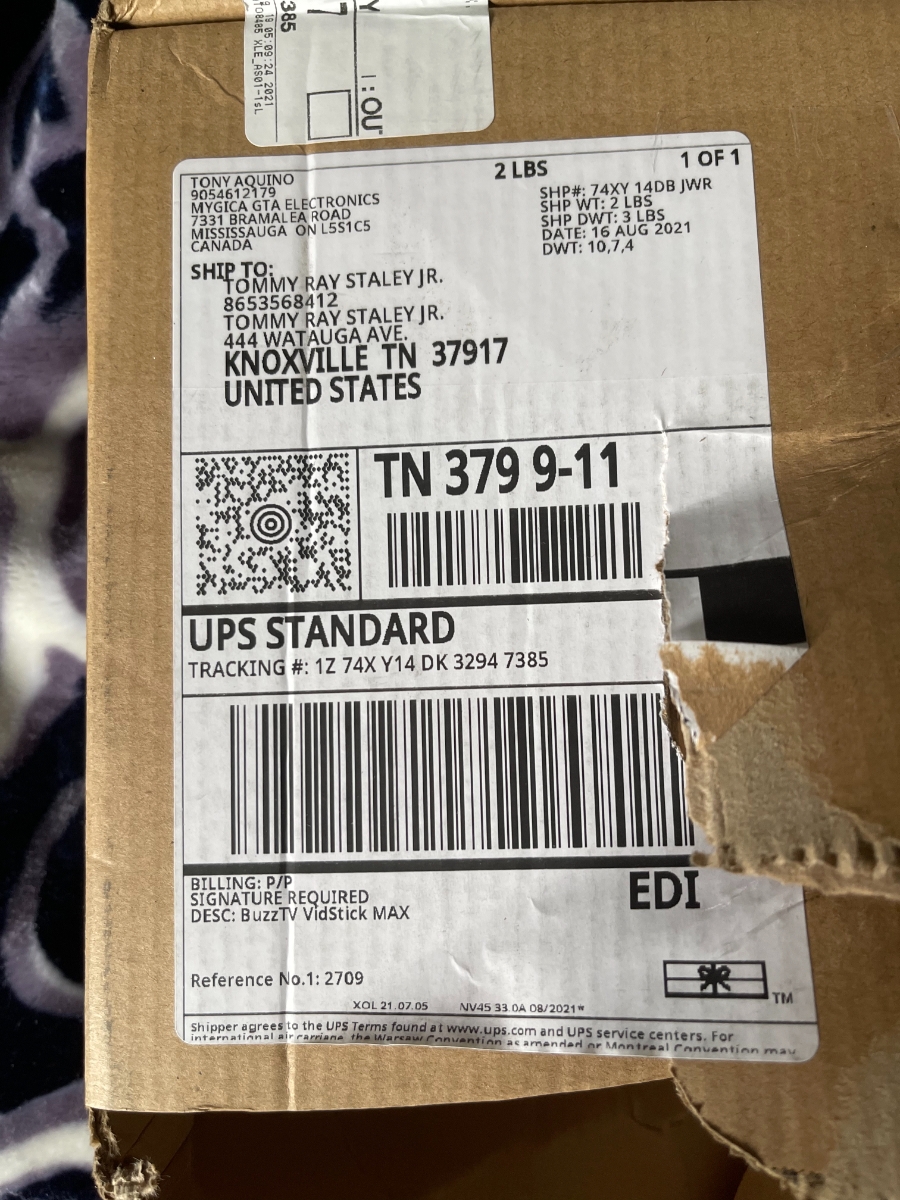
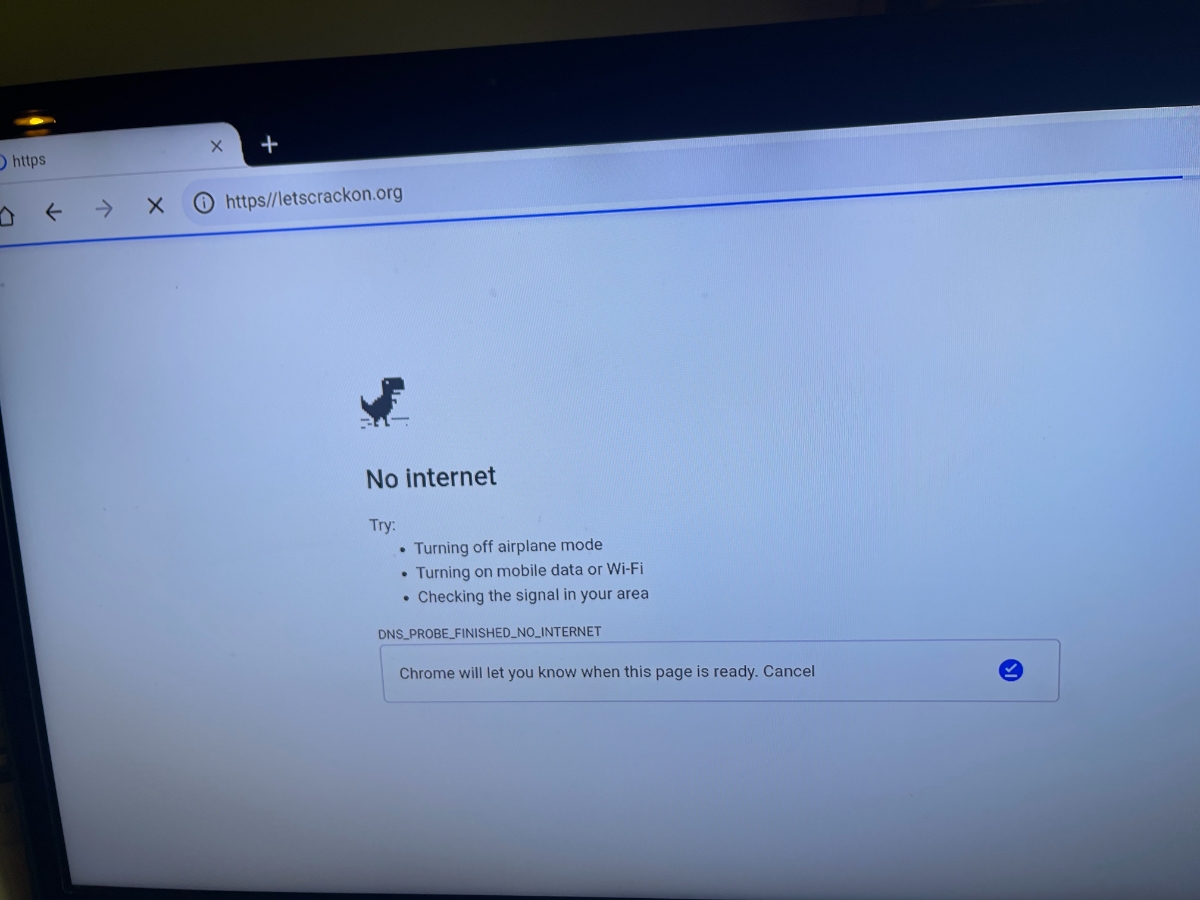
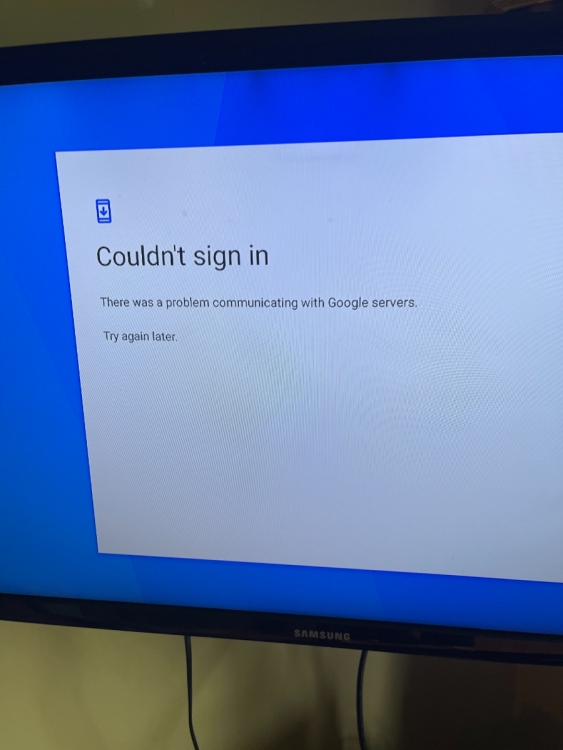
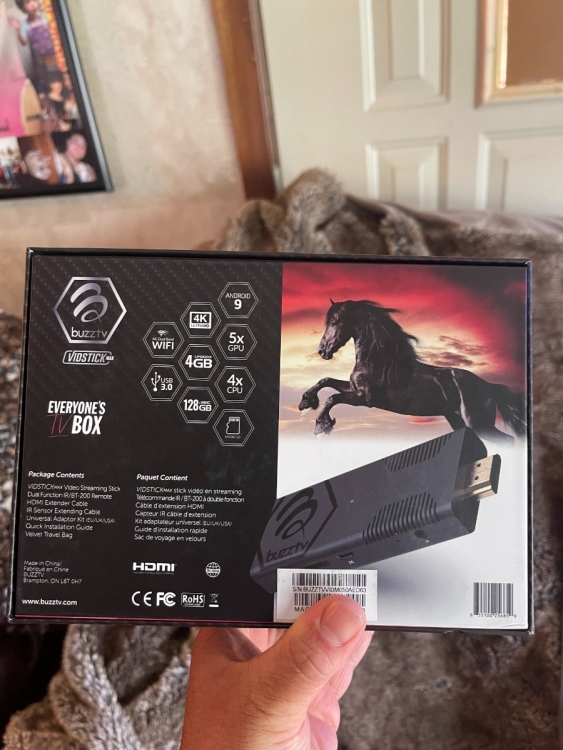
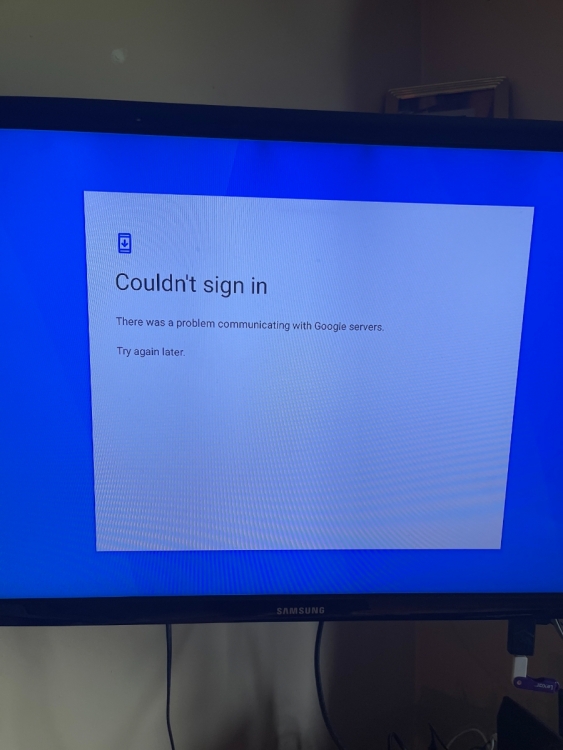
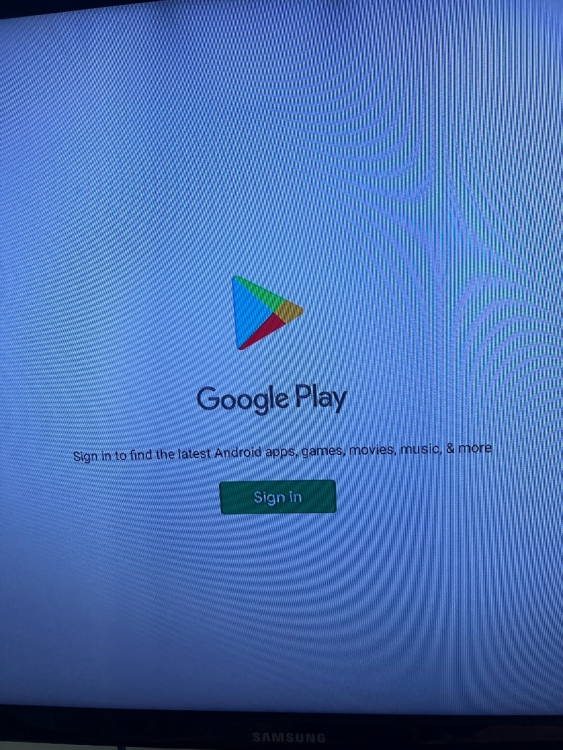
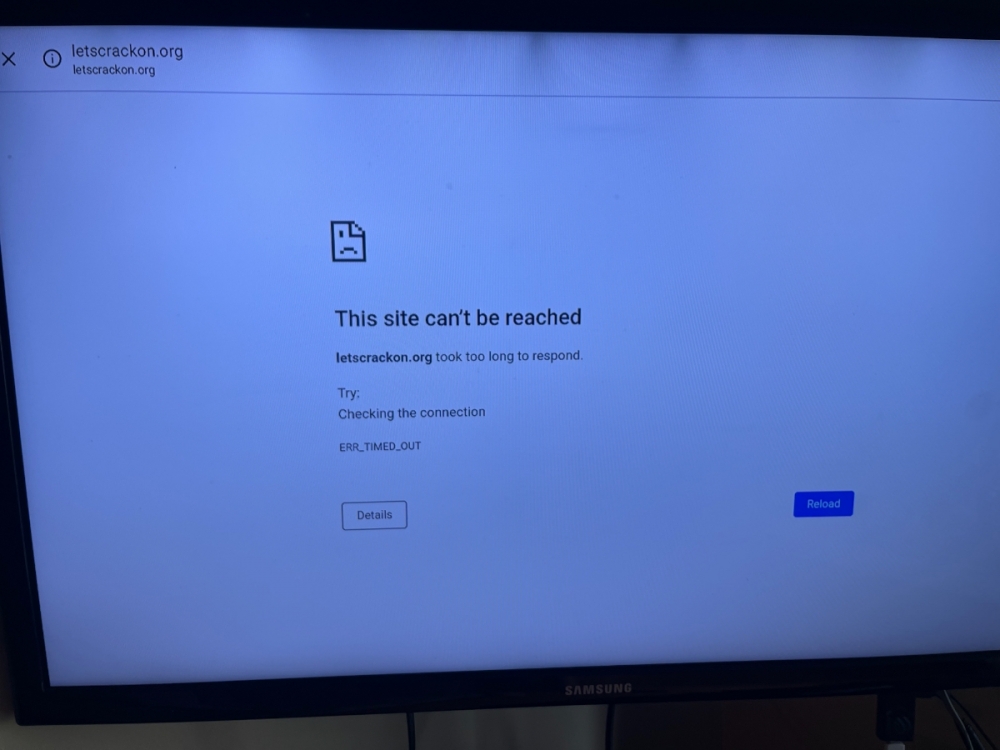
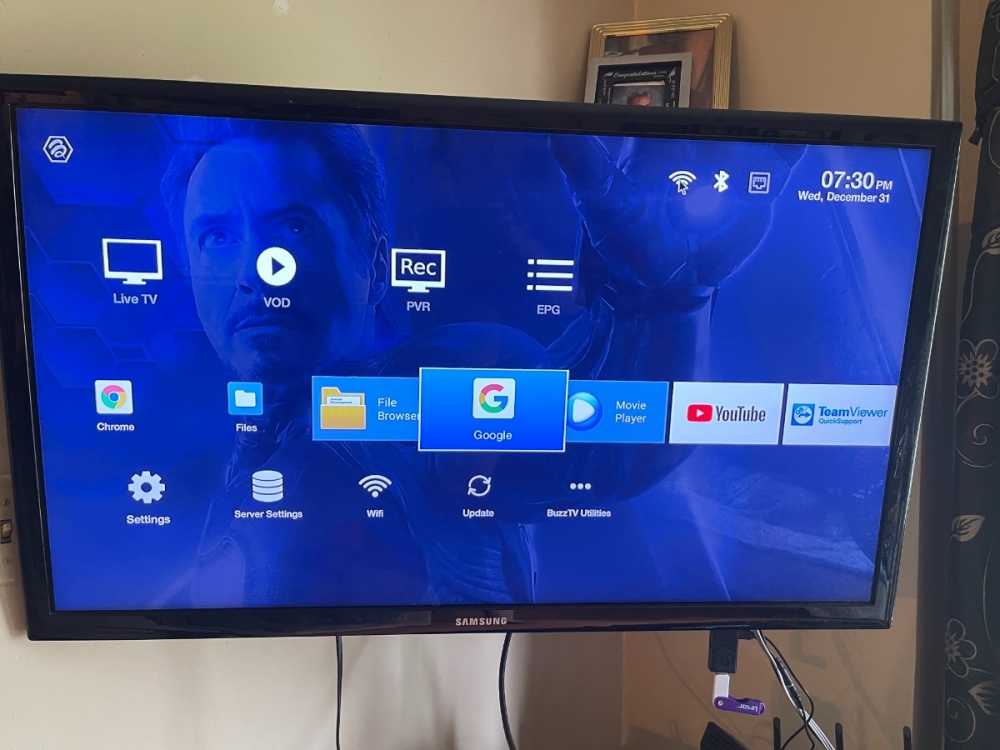
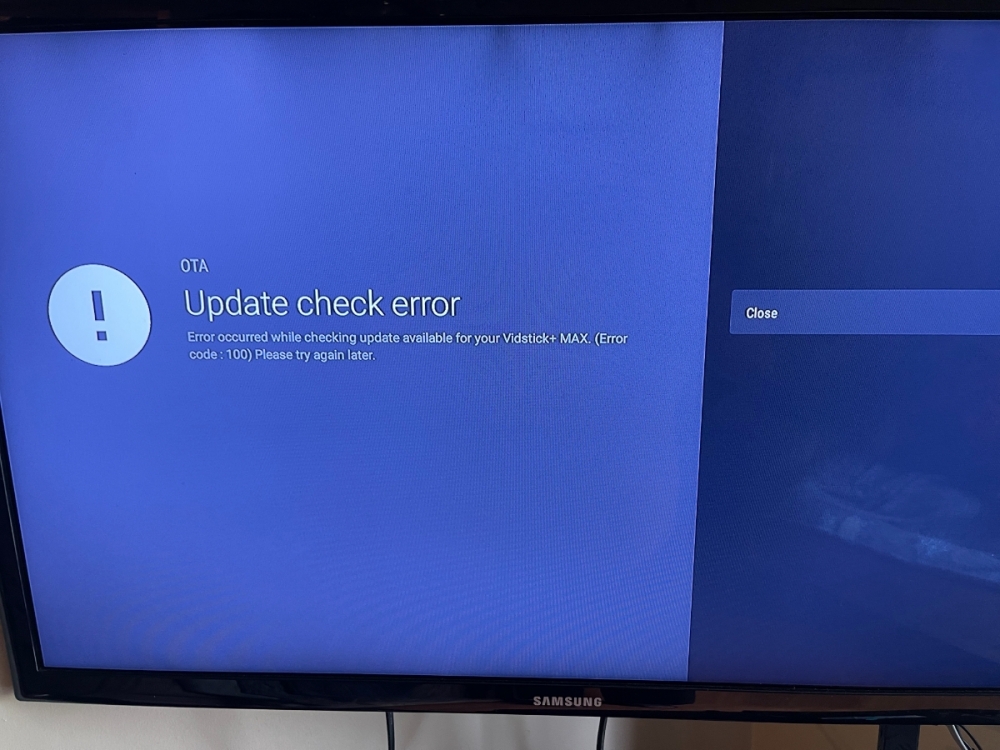
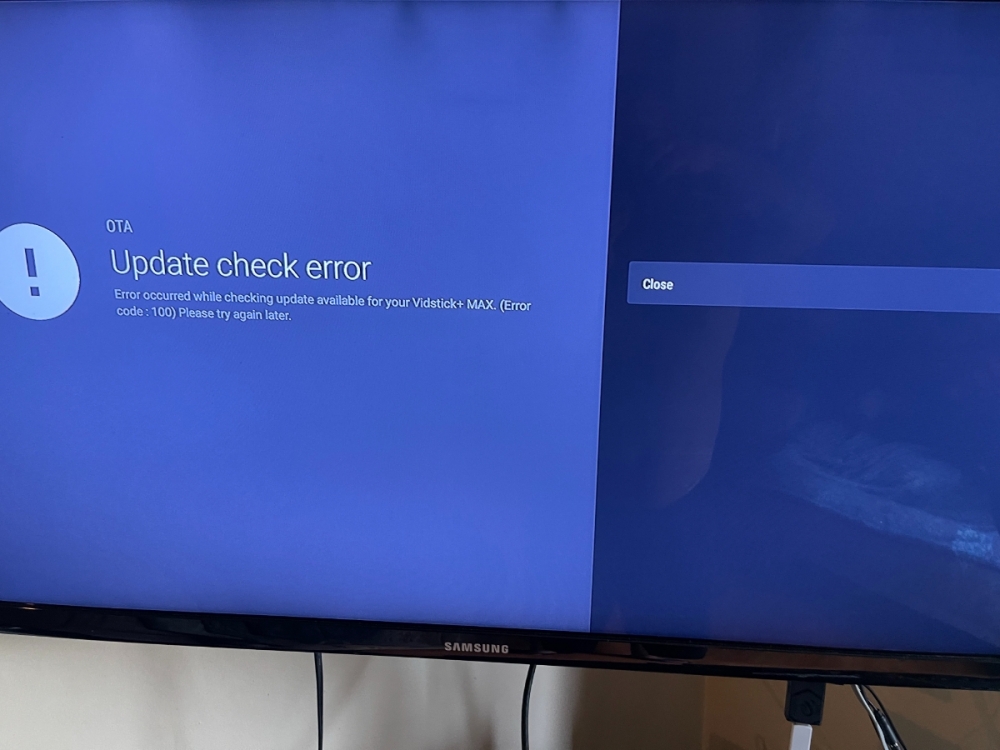
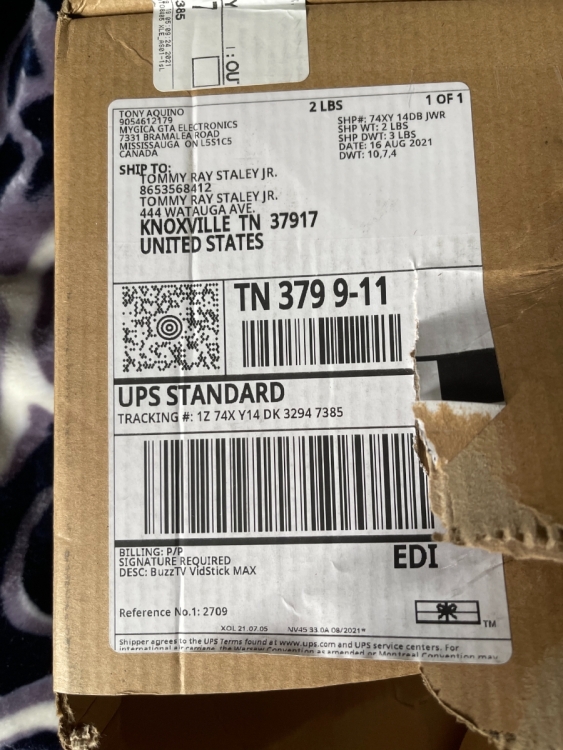
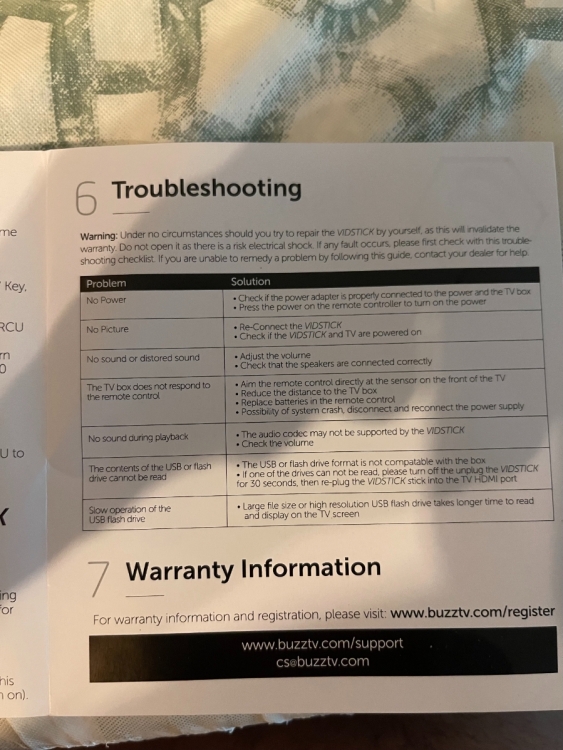
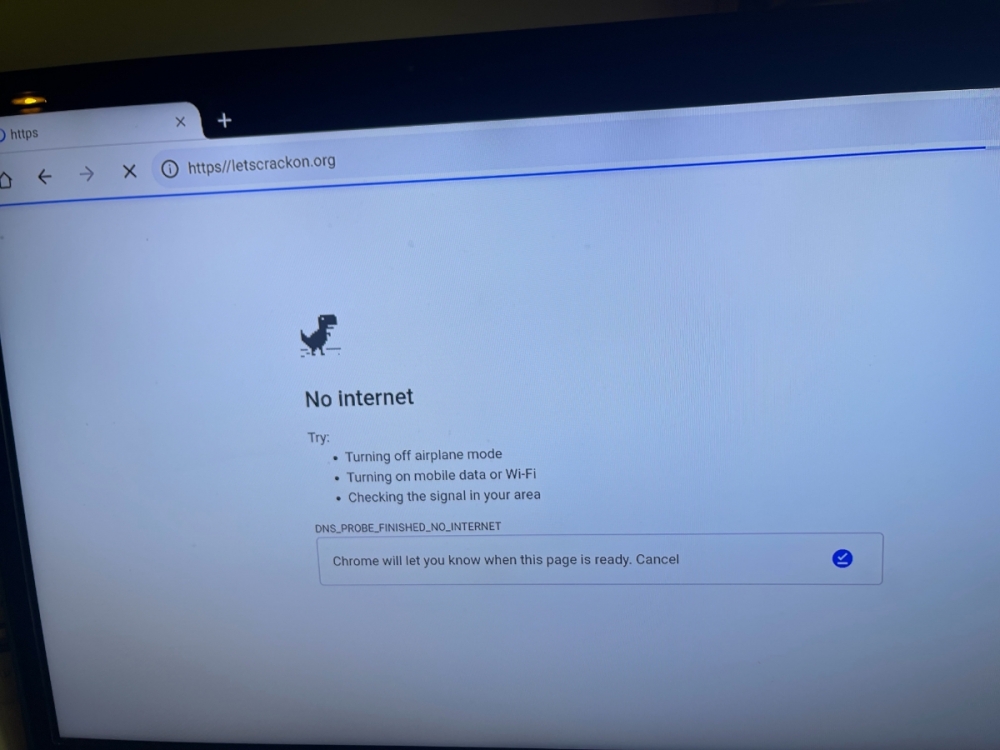
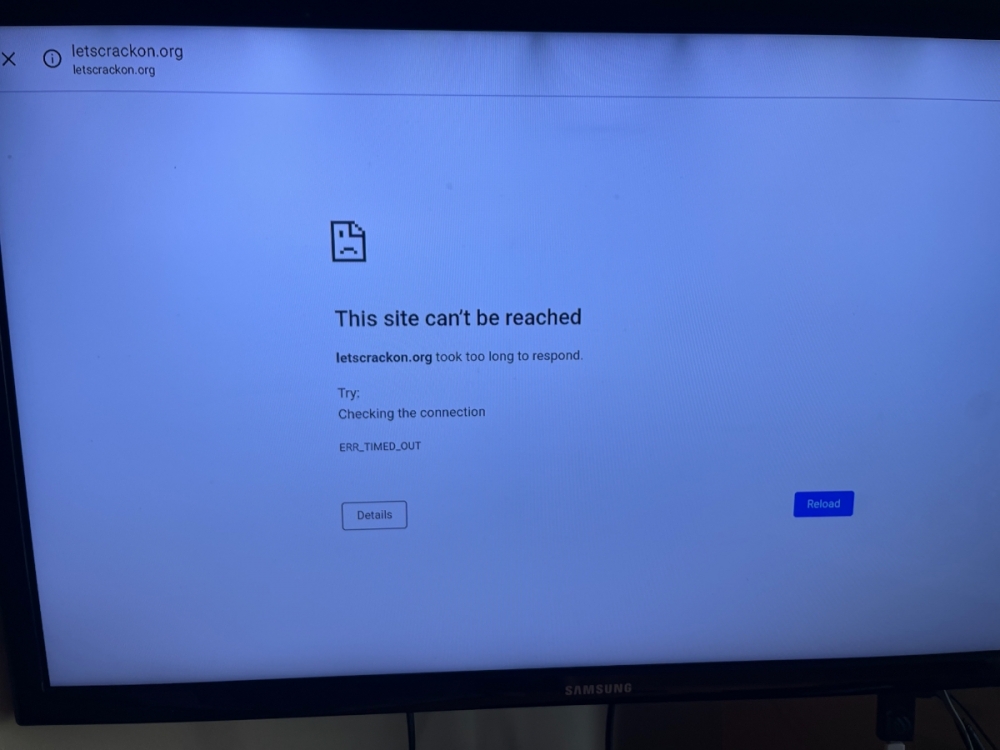
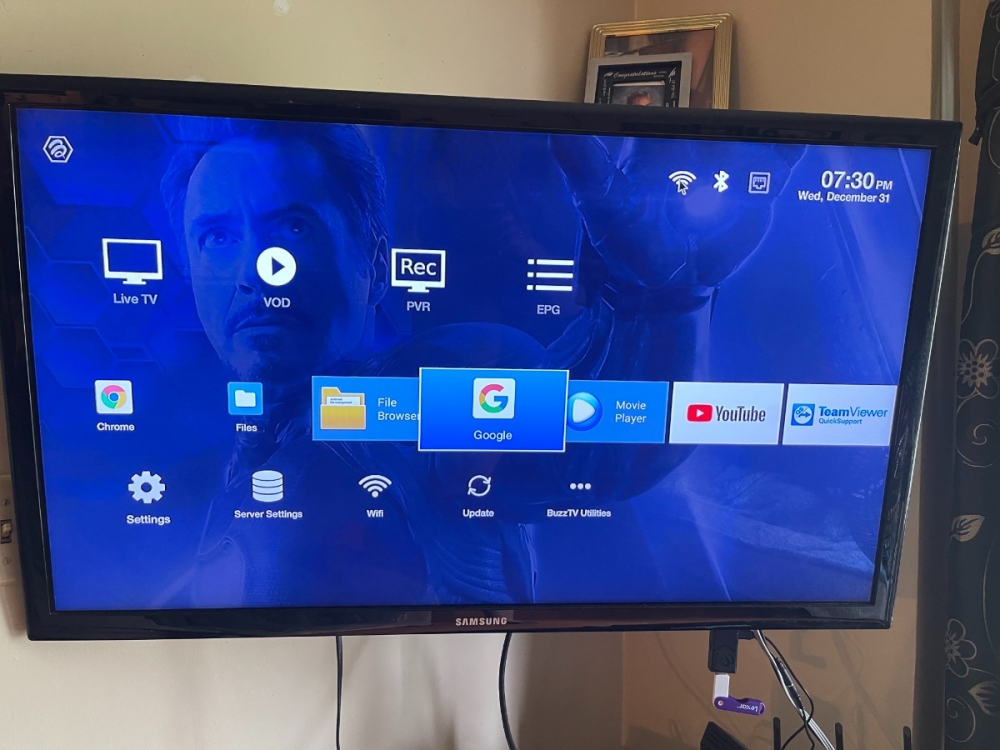
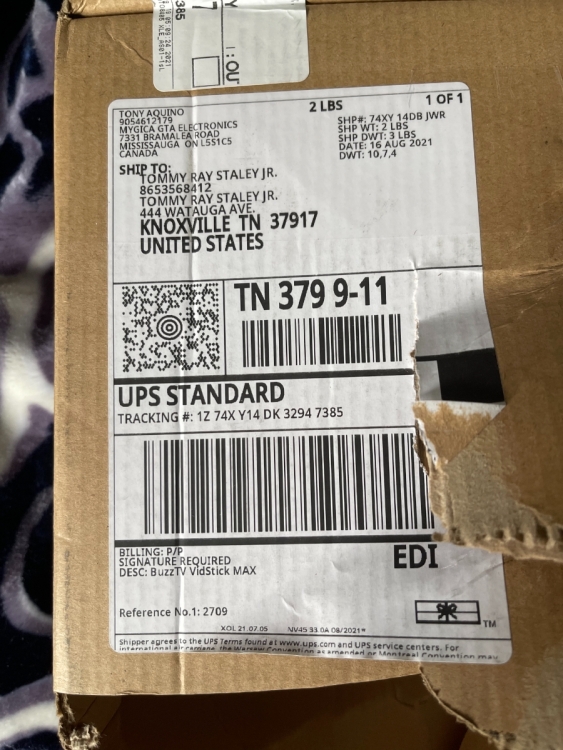
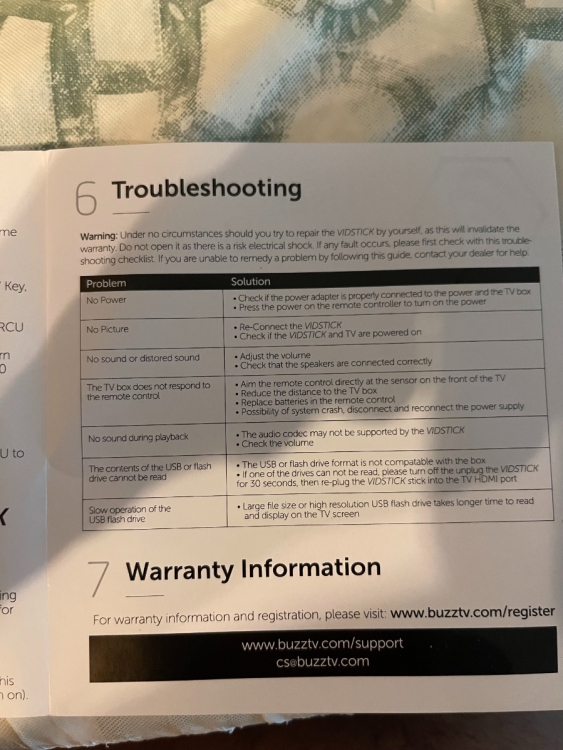
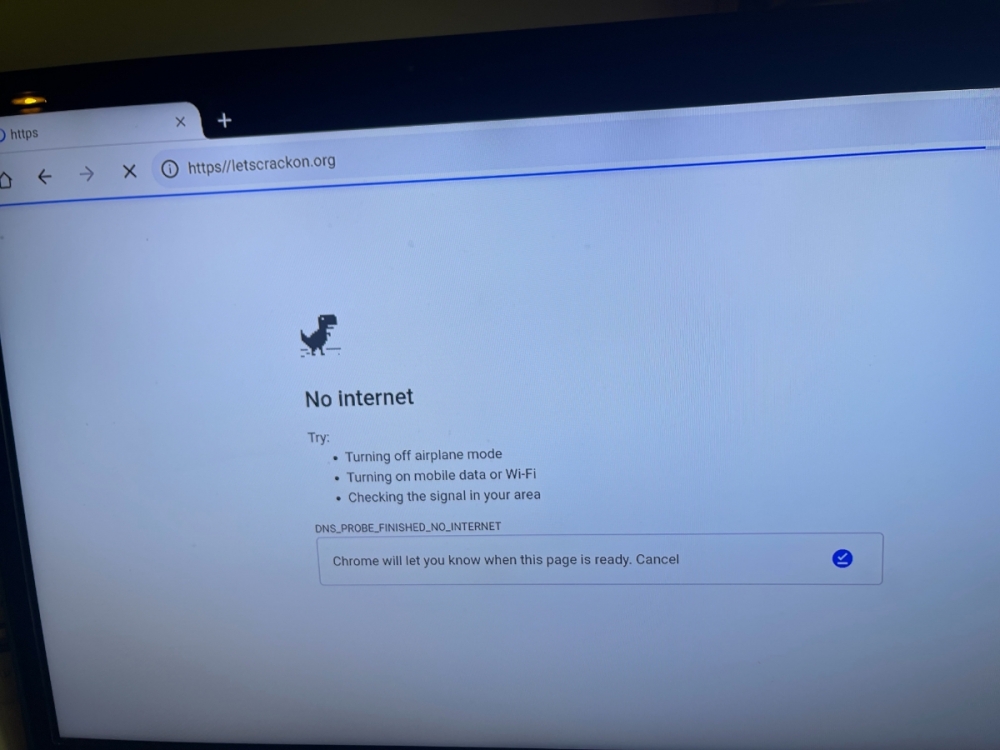
Tommy Ray Staley Jr. replied to Tommy Ray Staley Jr.'s topic in VidStick / VidStick + / VidStick MAXTommy Ray Staley Jr. I’m going into the Wi-Fi on the homepage trying to connect it On the buzz TV 128 GB Stick 4K And I just bought it today yesterday the day before and I can’t get into it for it to work ?
-
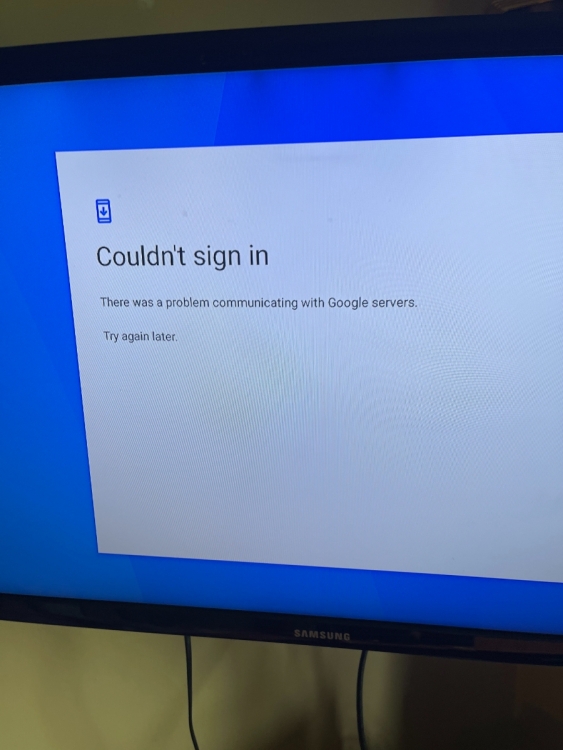
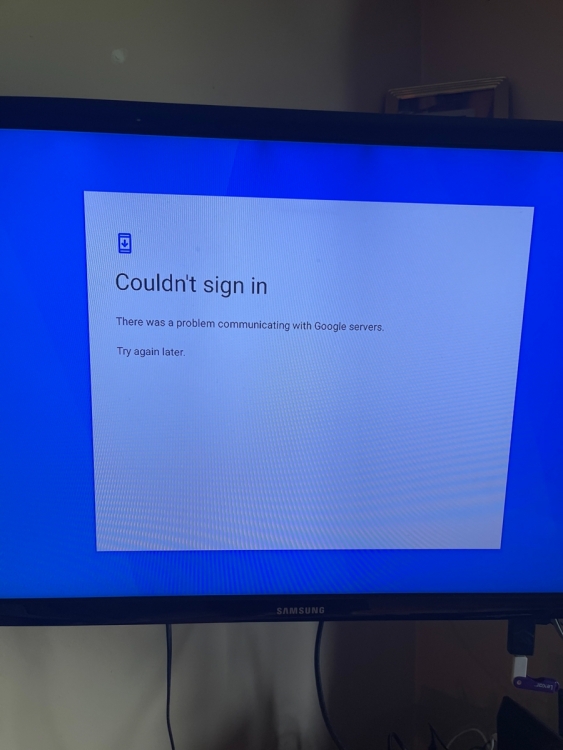
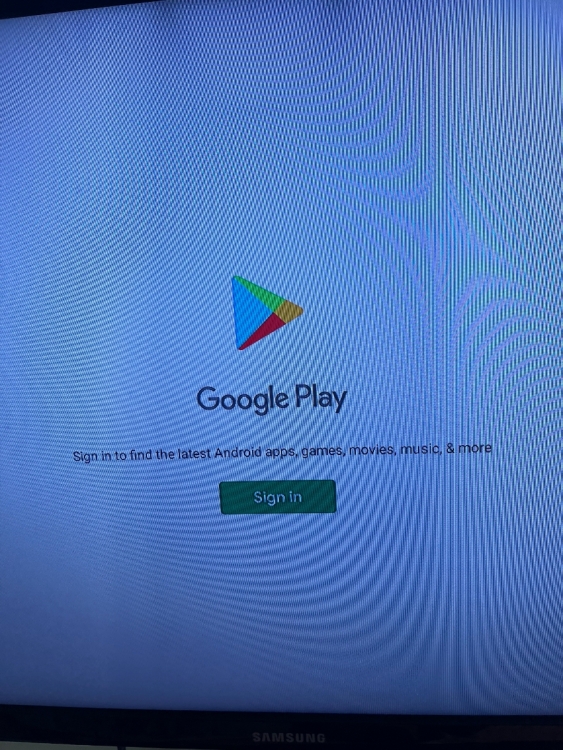
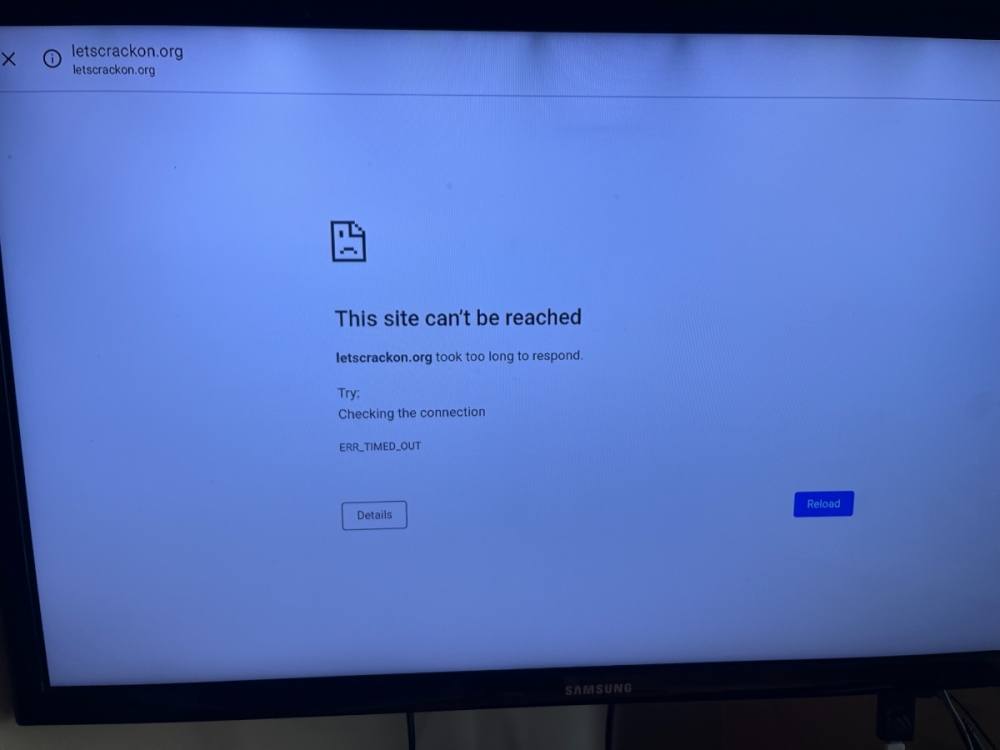
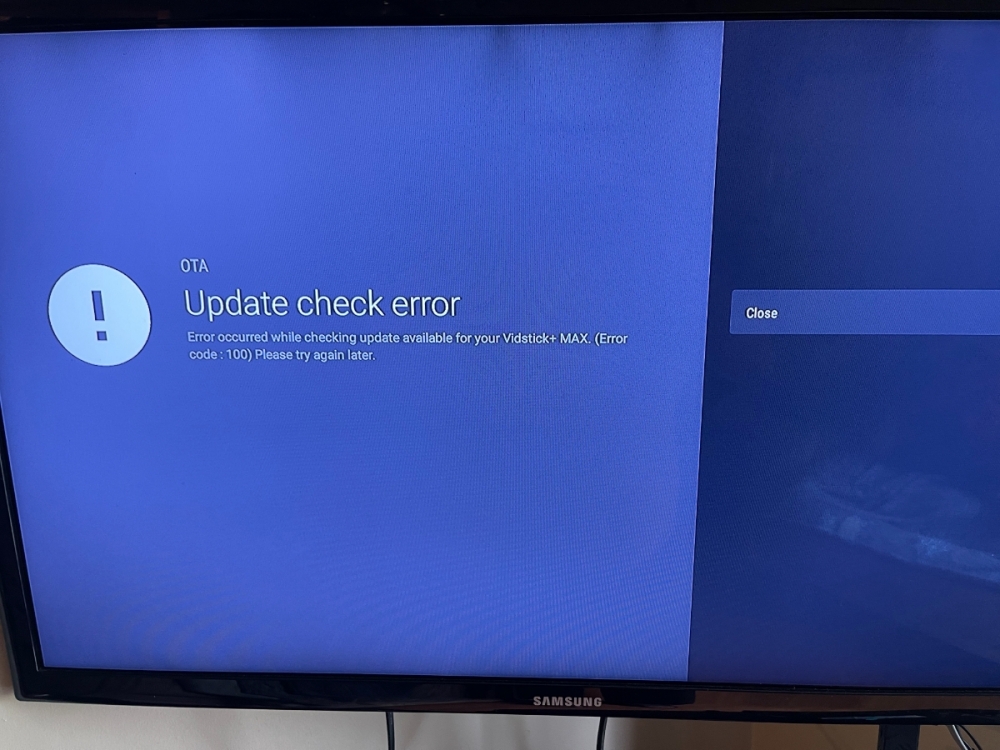
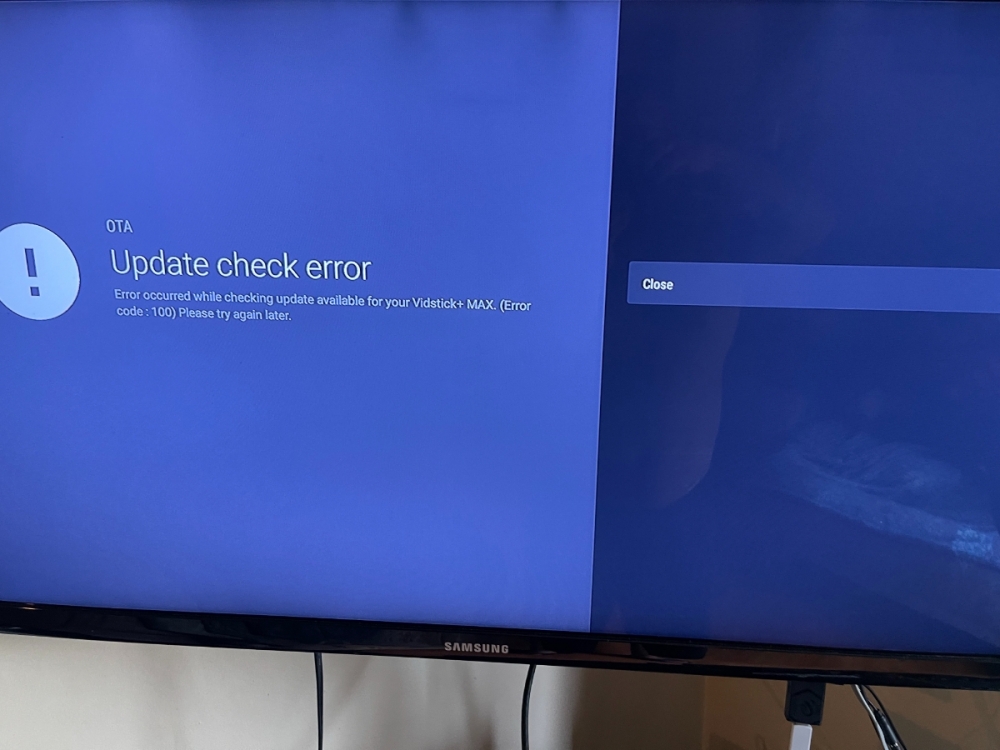
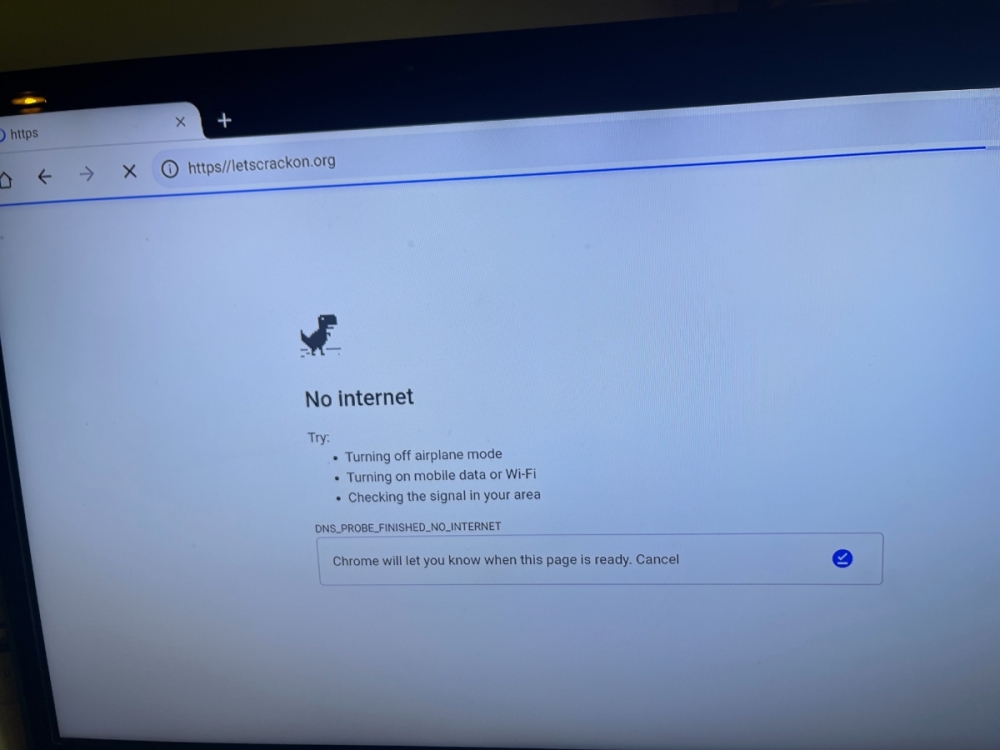
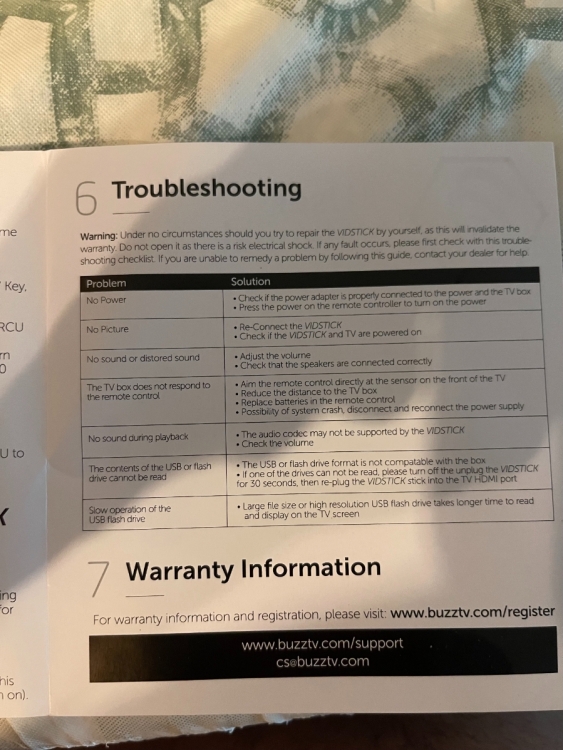
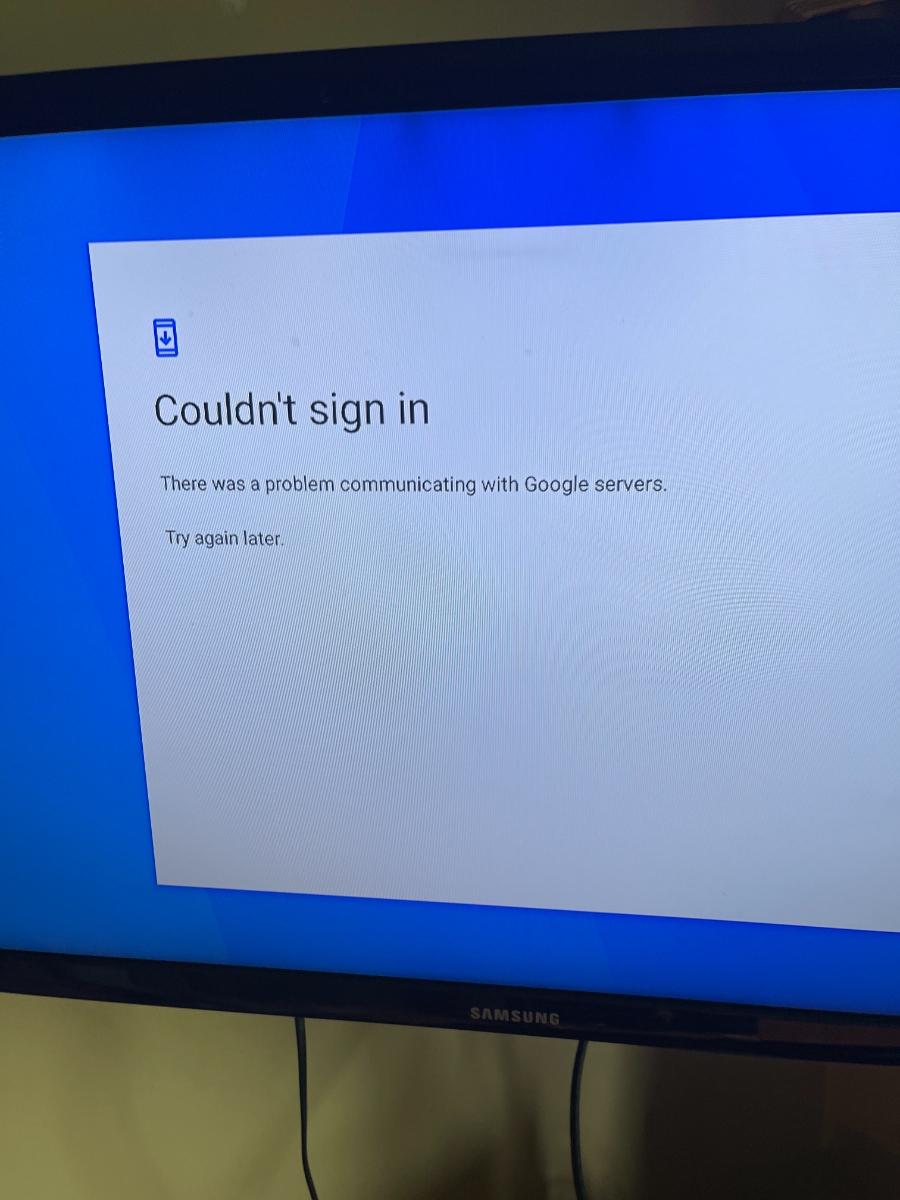
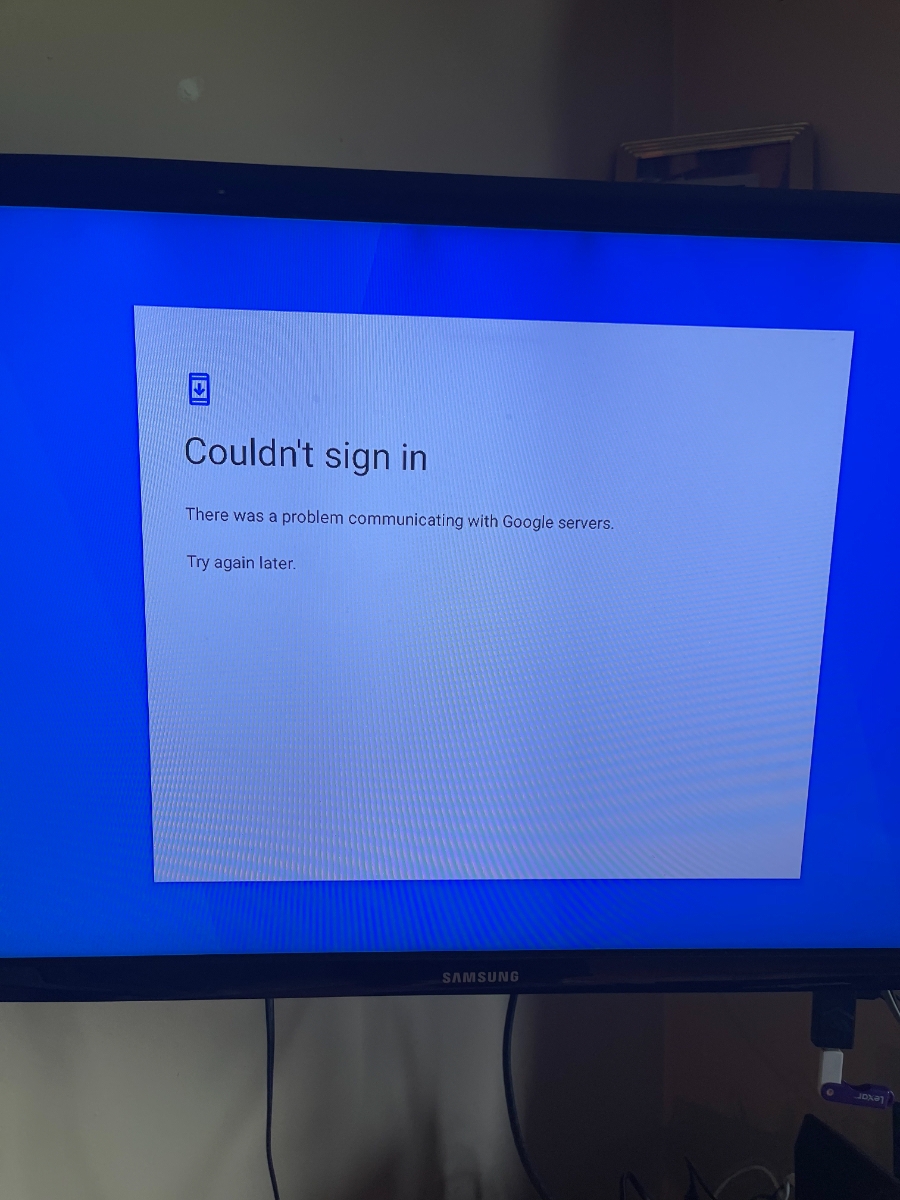
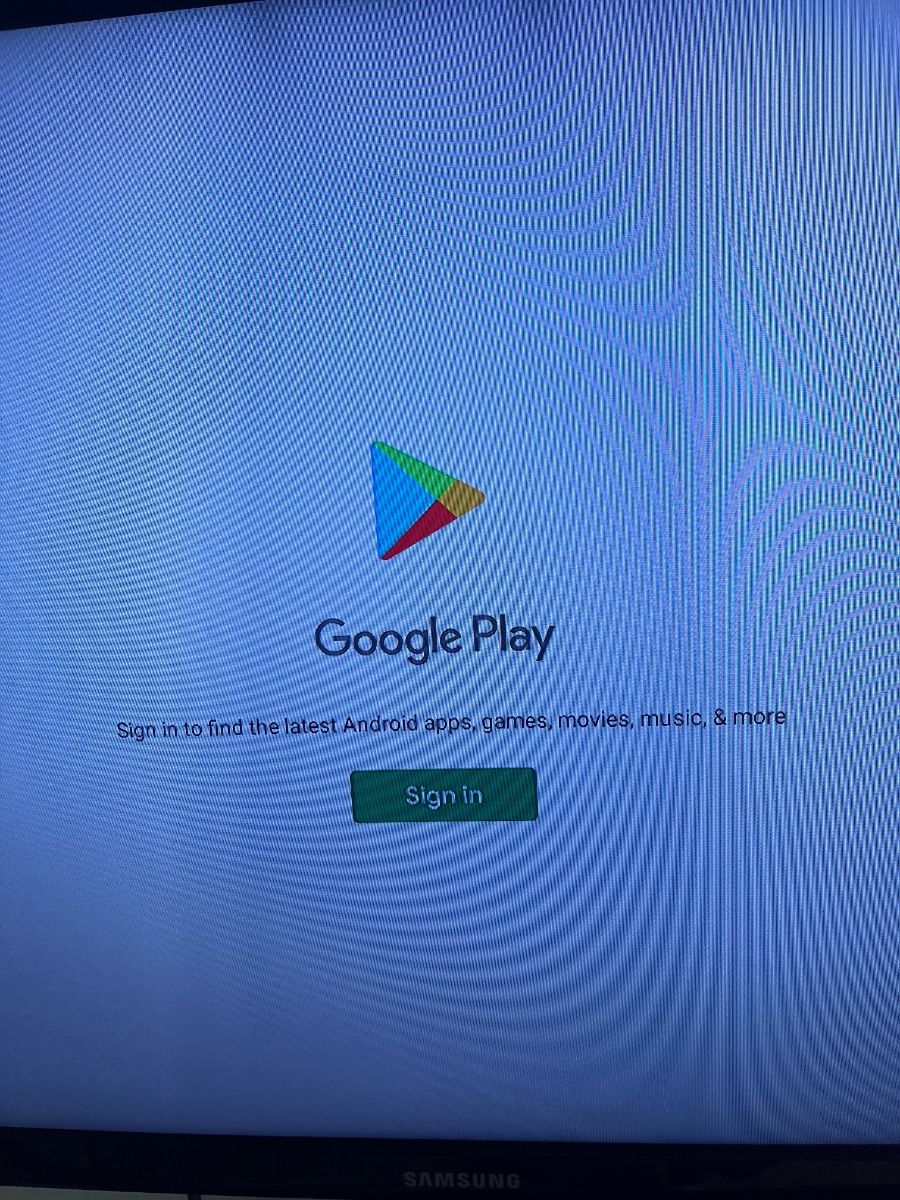
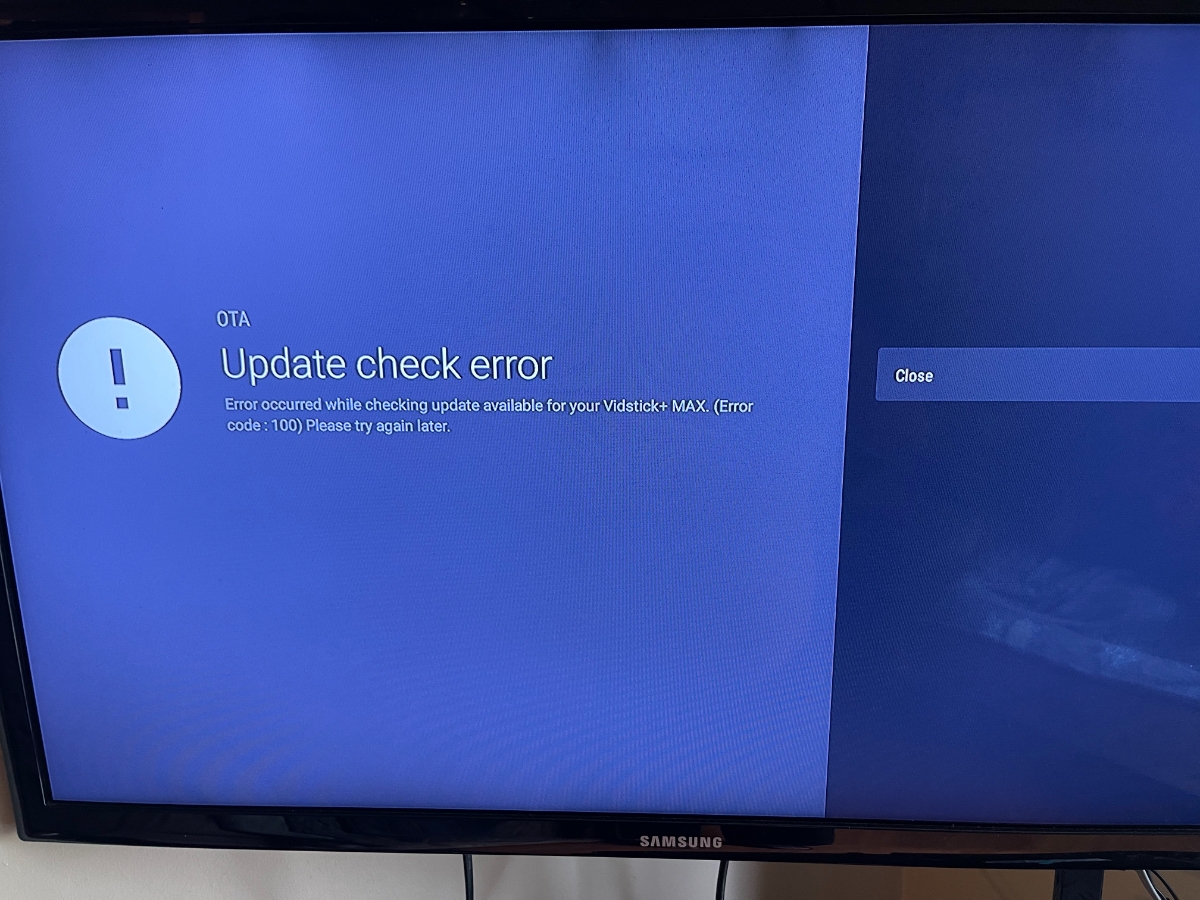
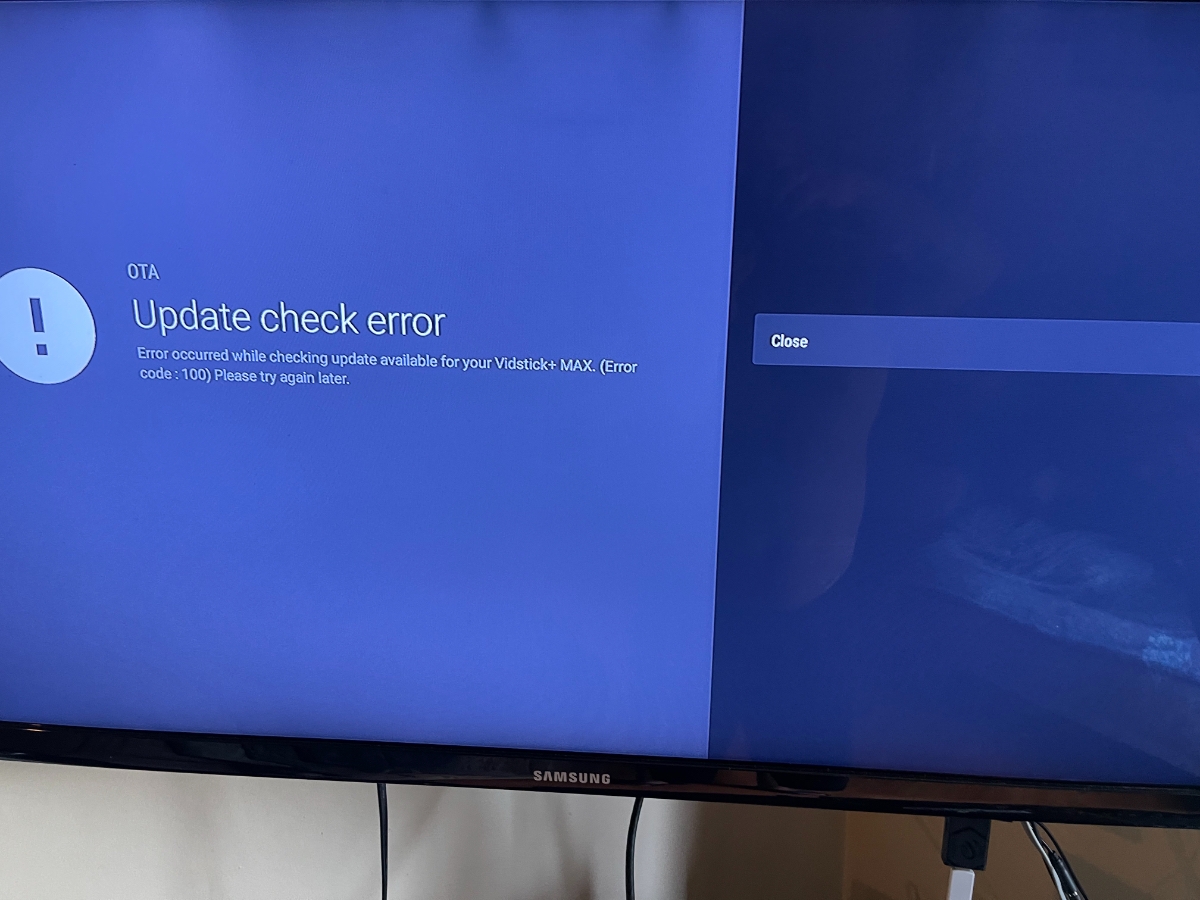
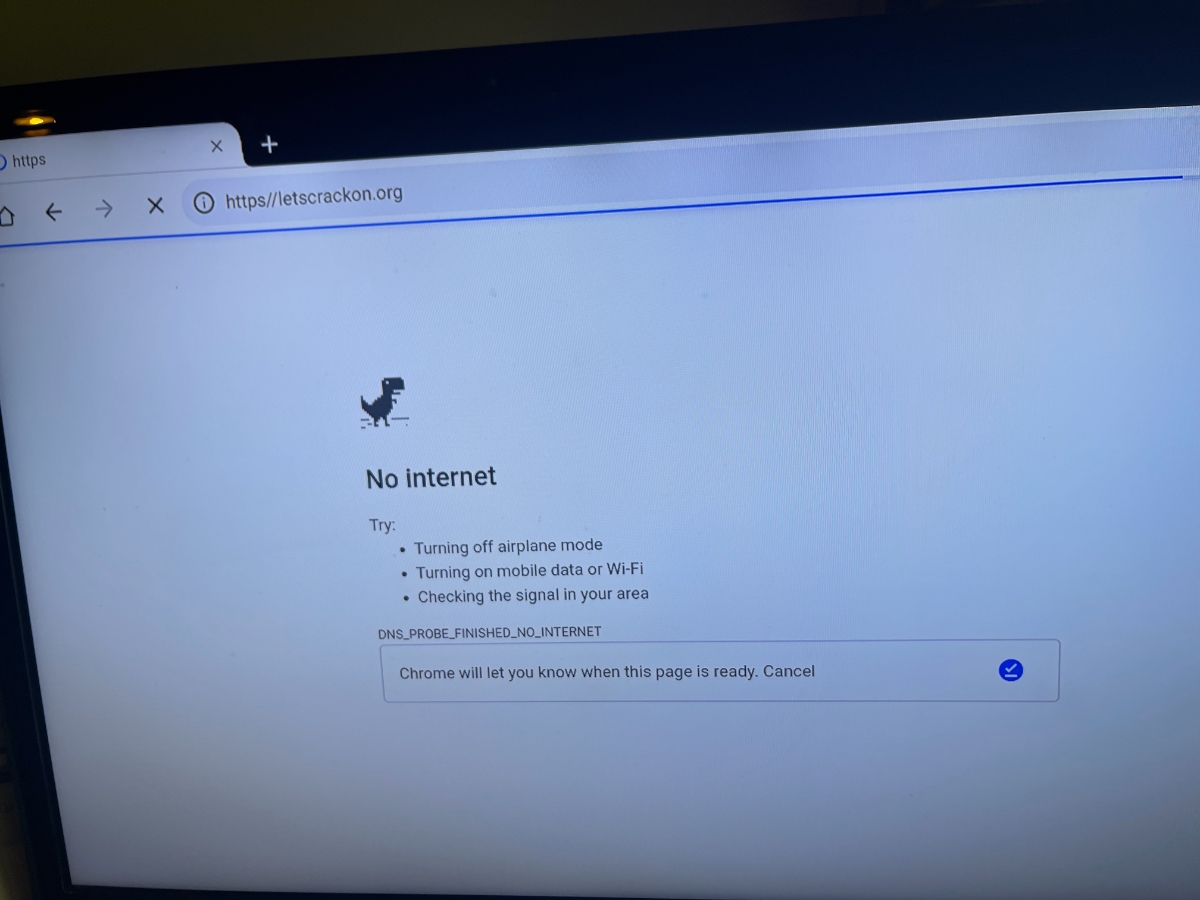
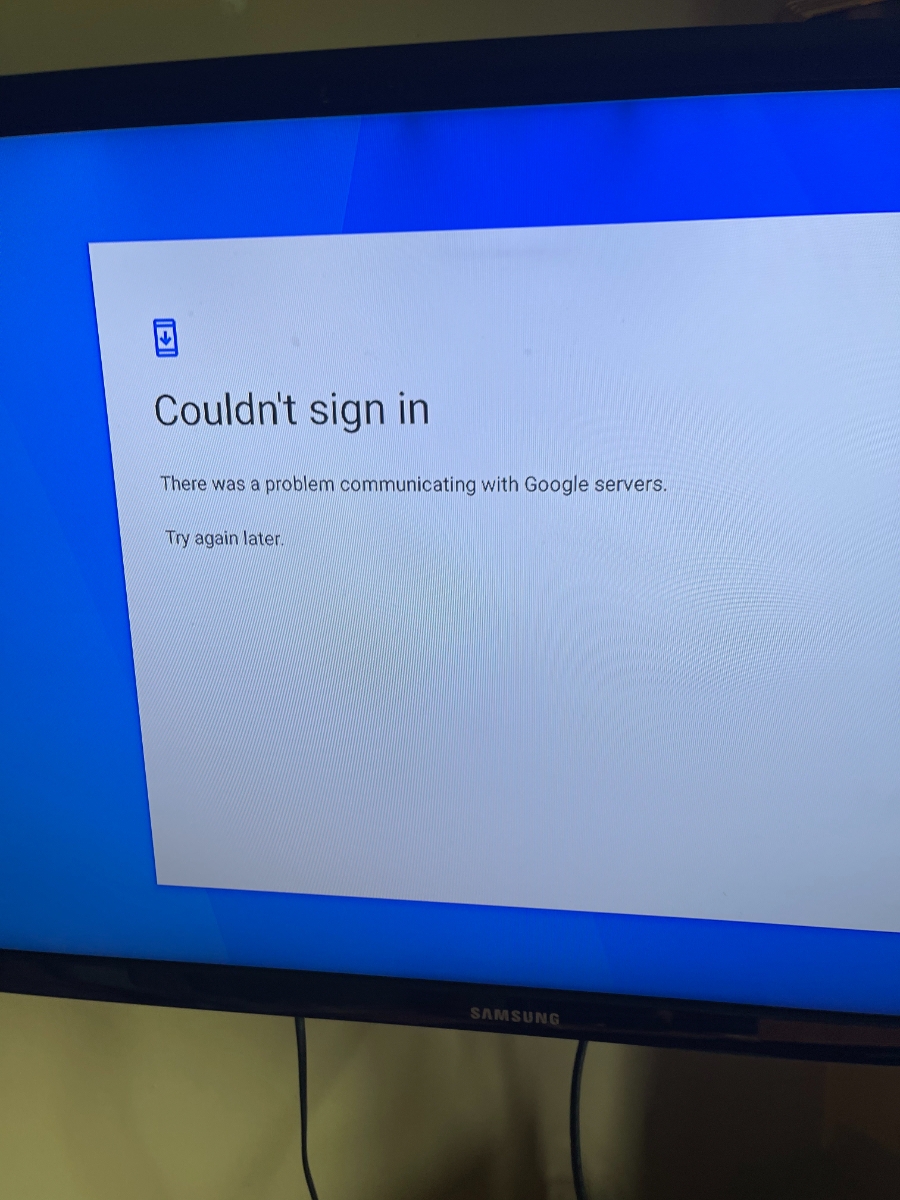
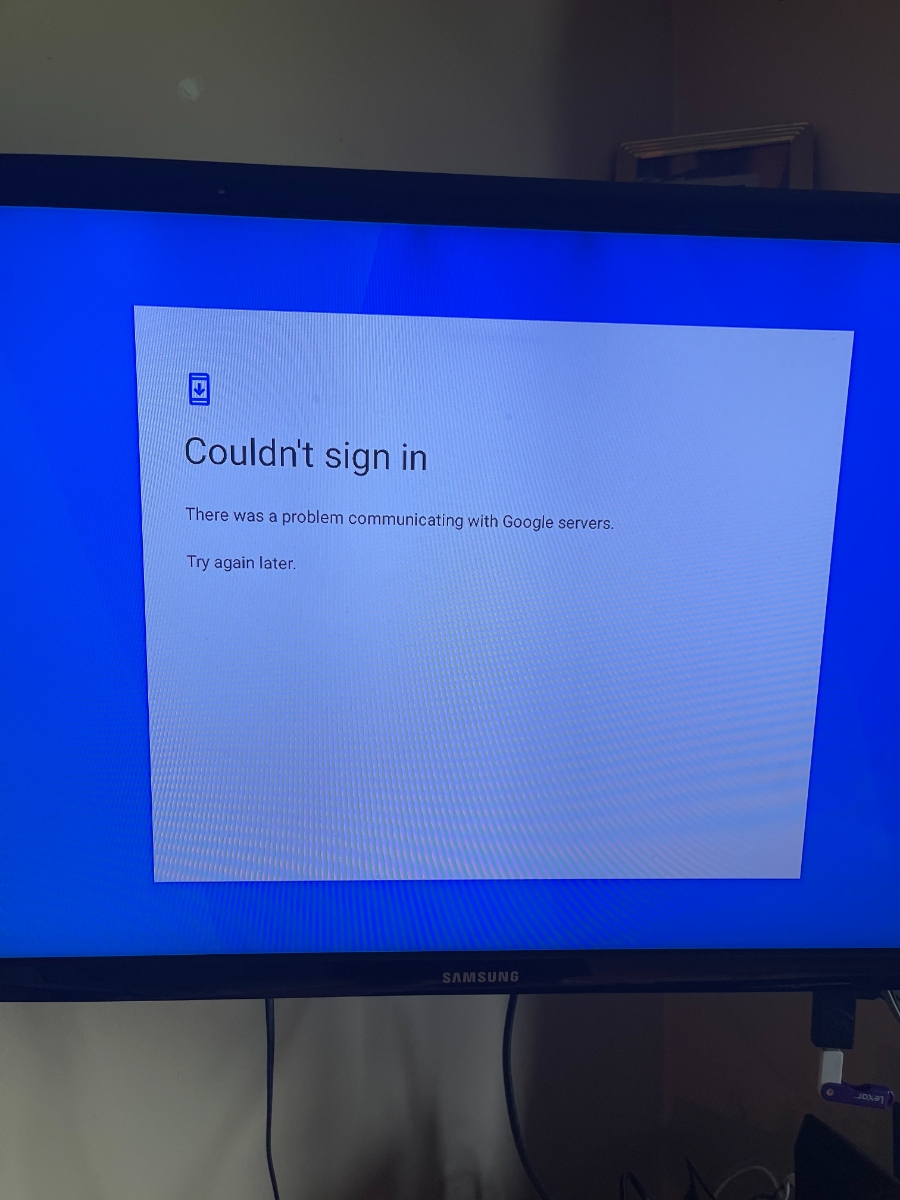
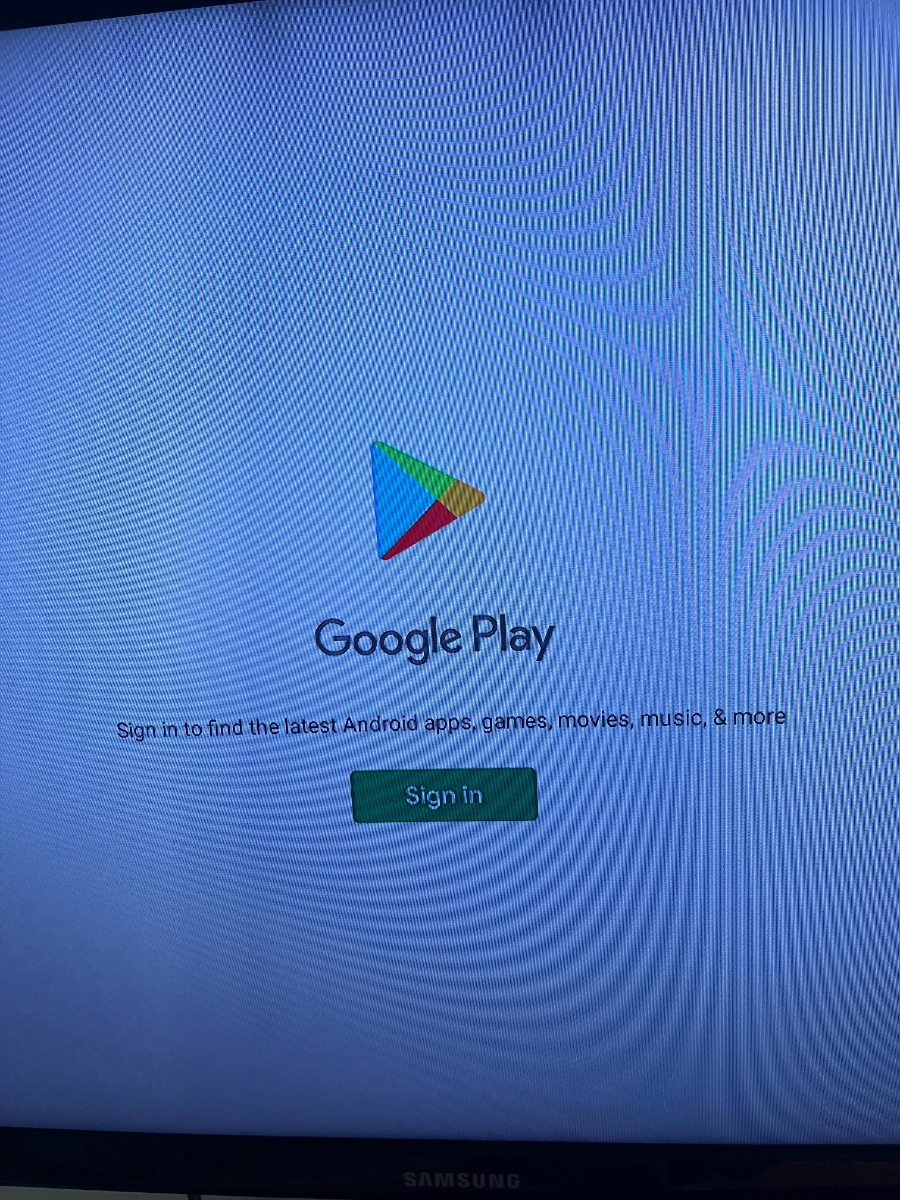
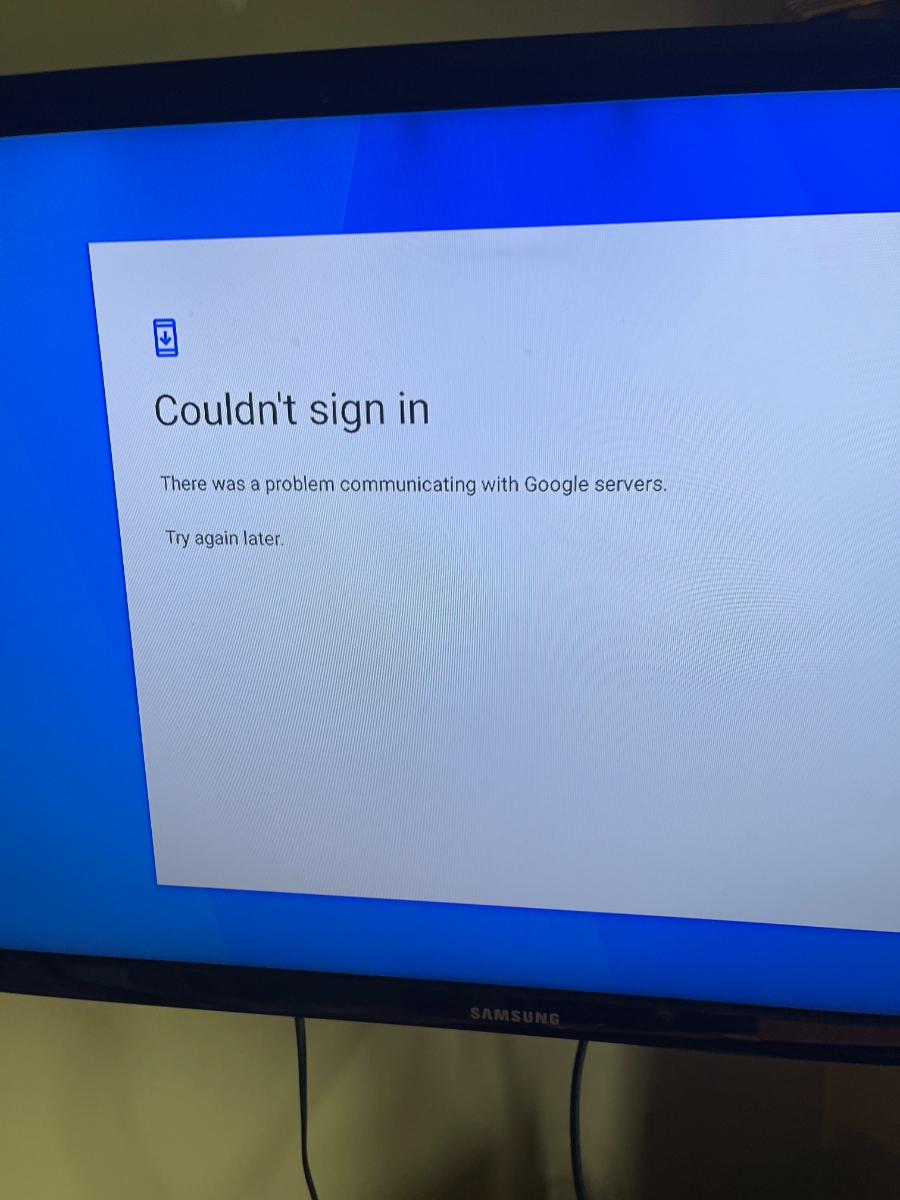
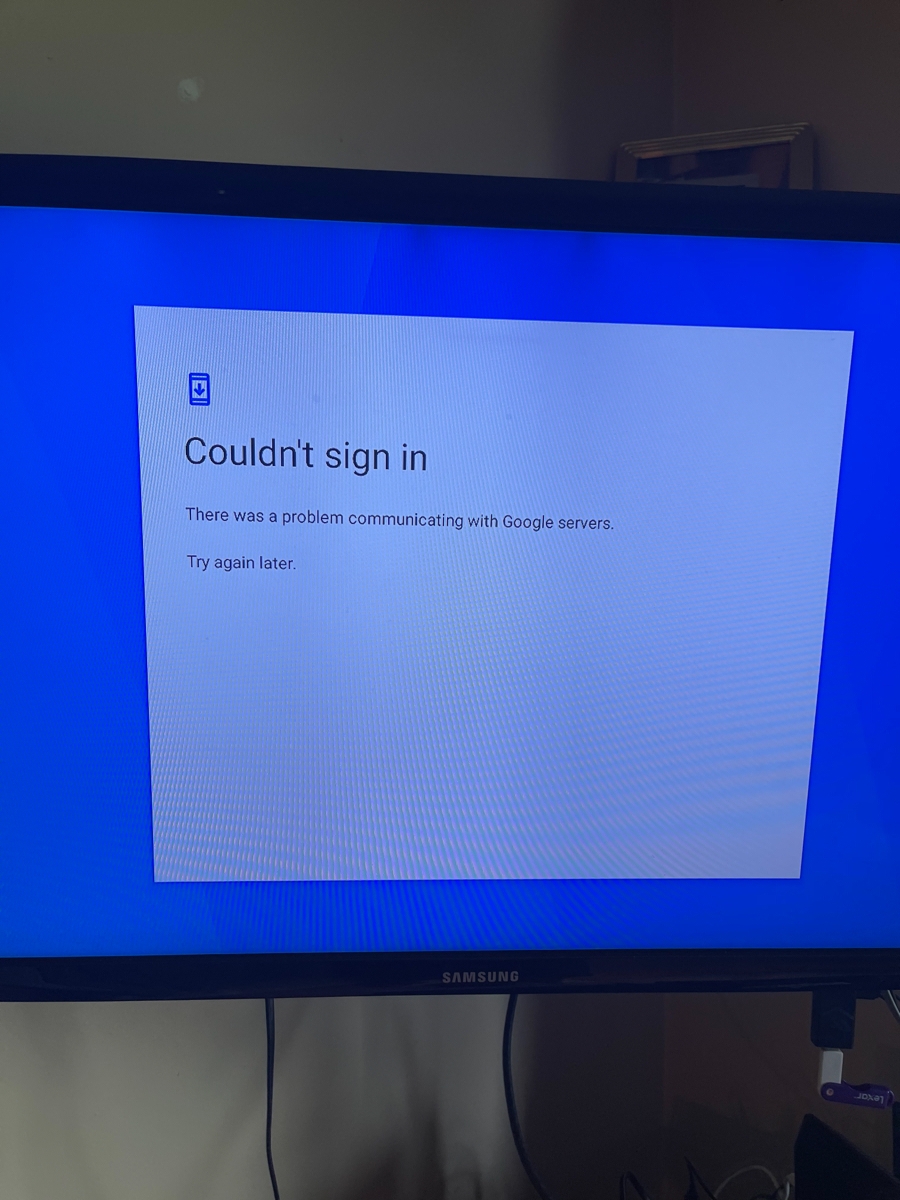
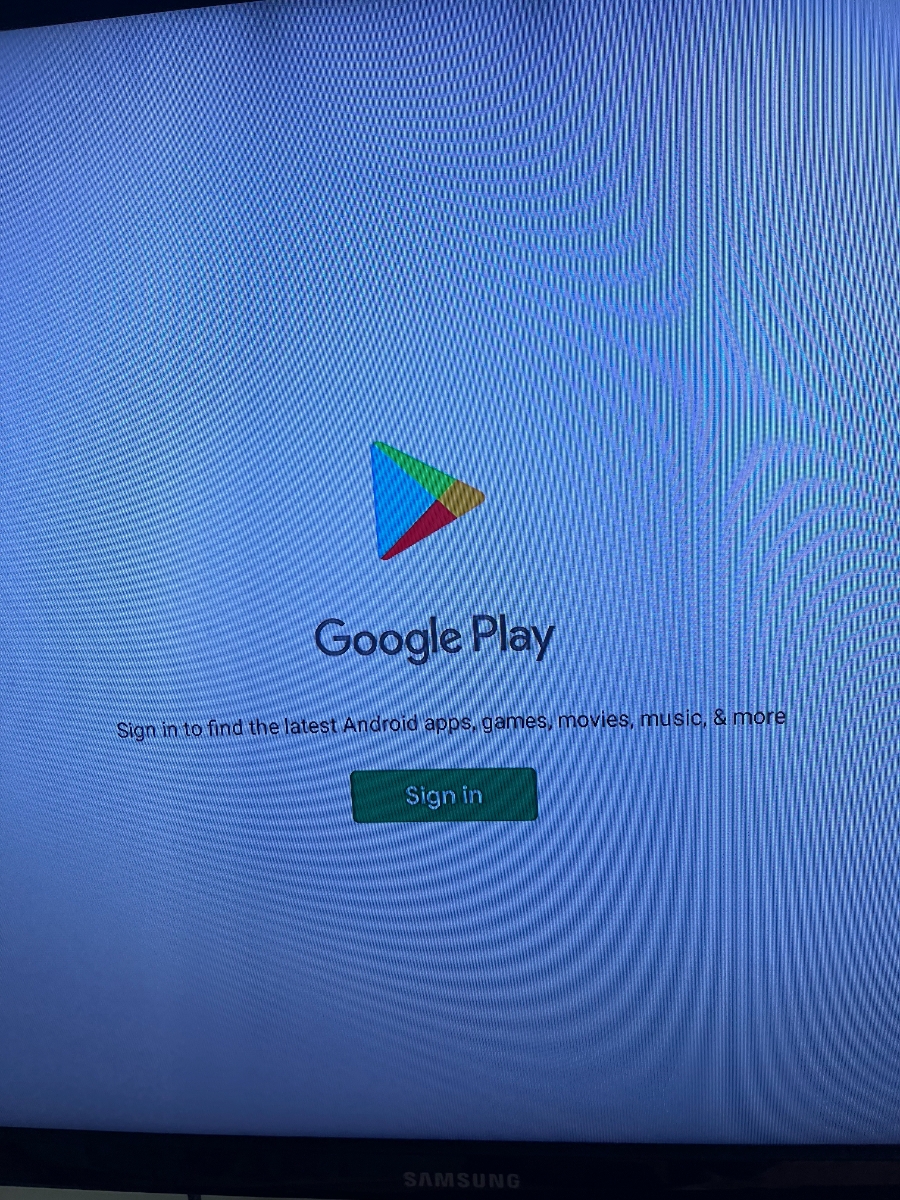
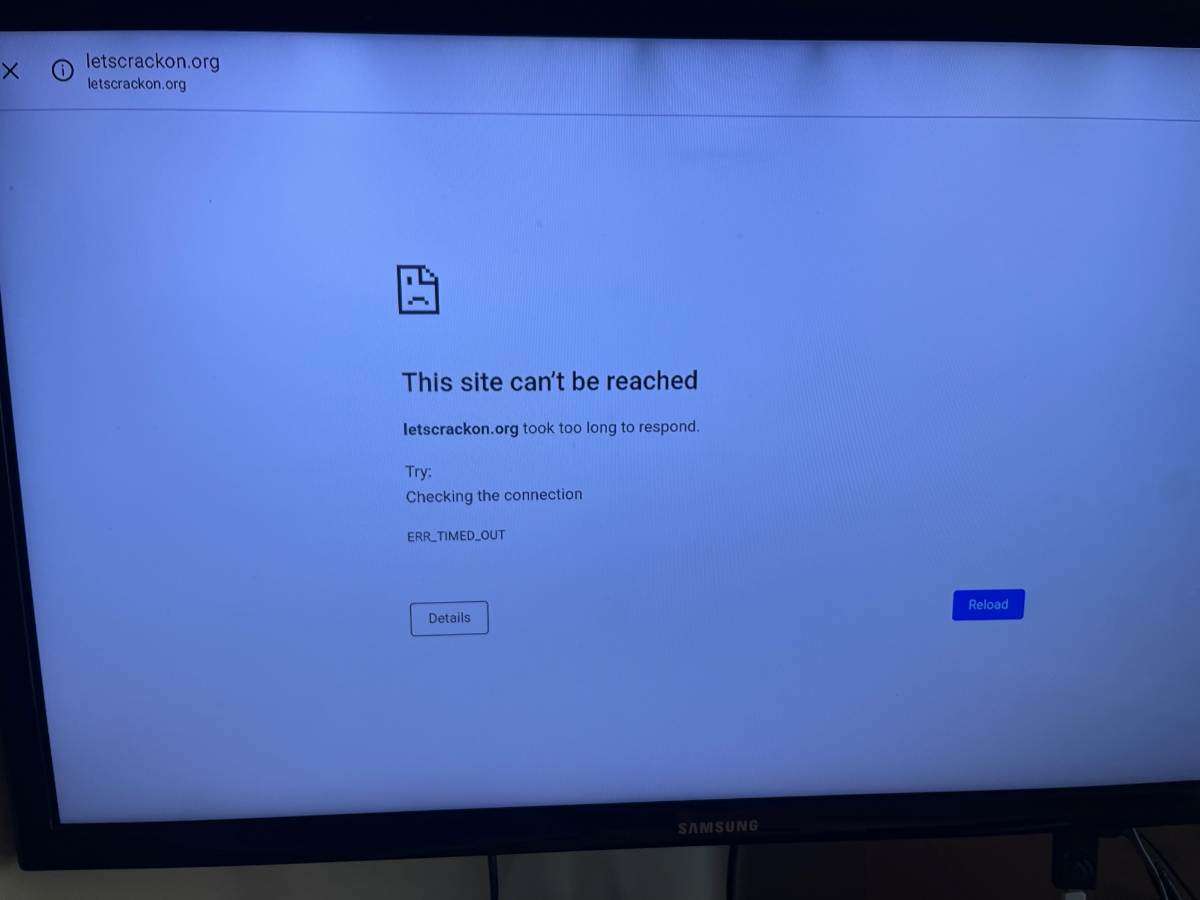
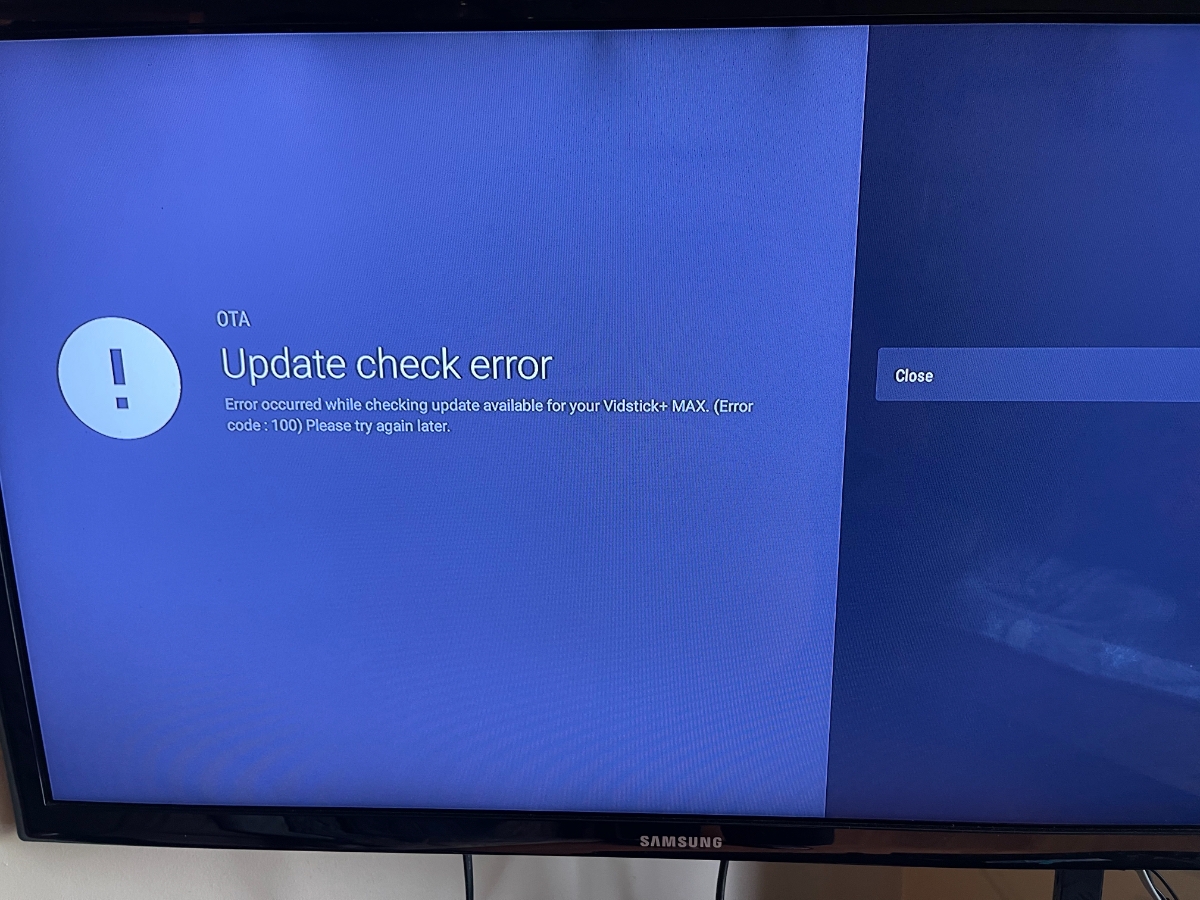
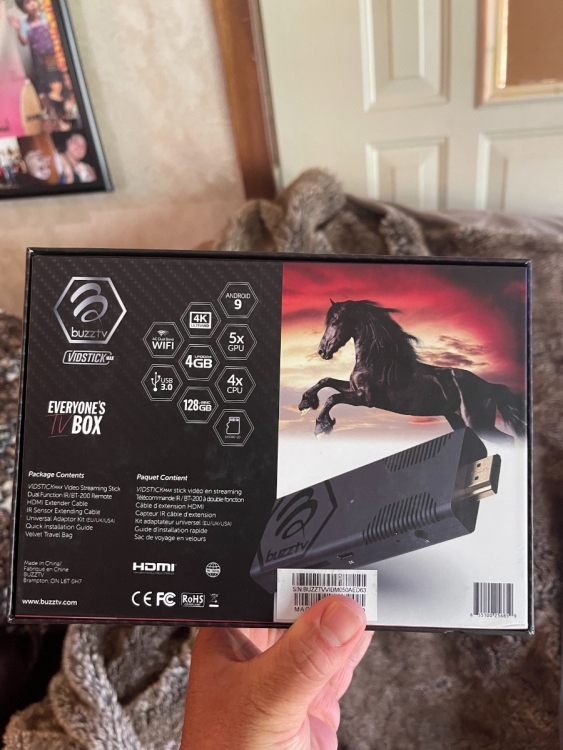
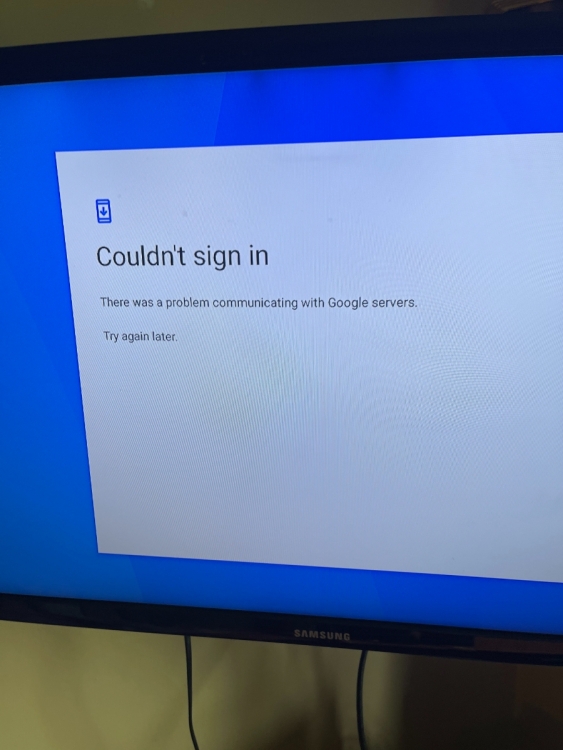
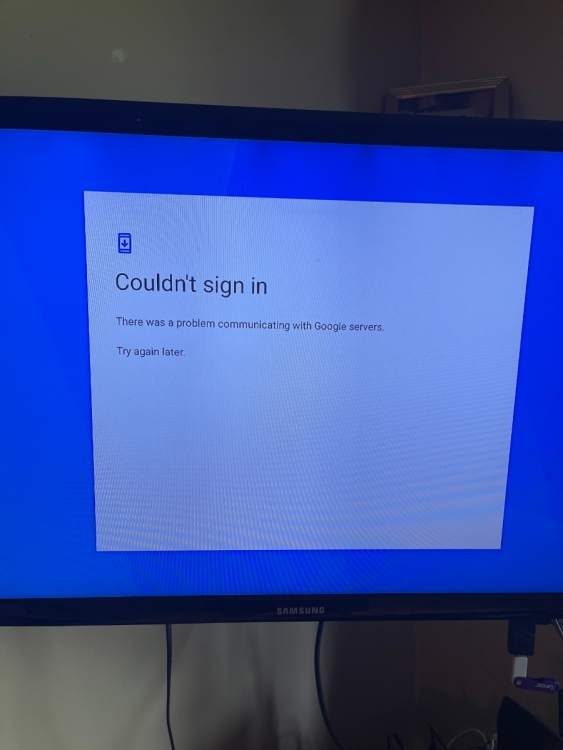
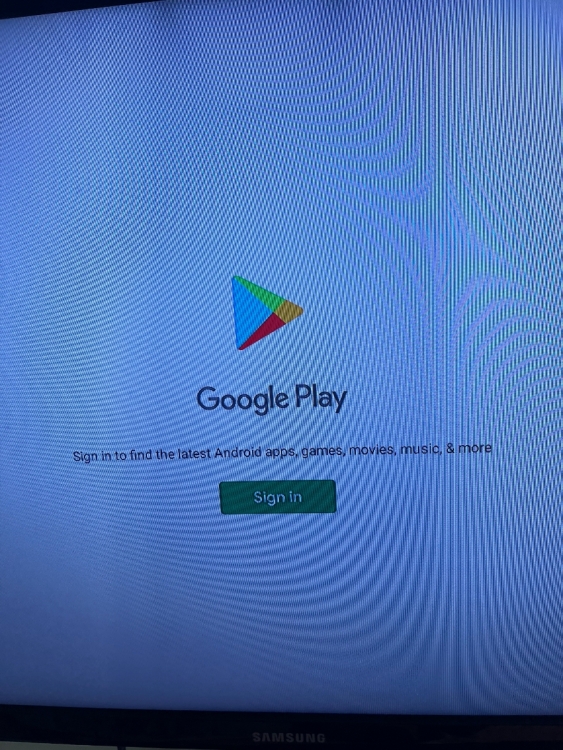
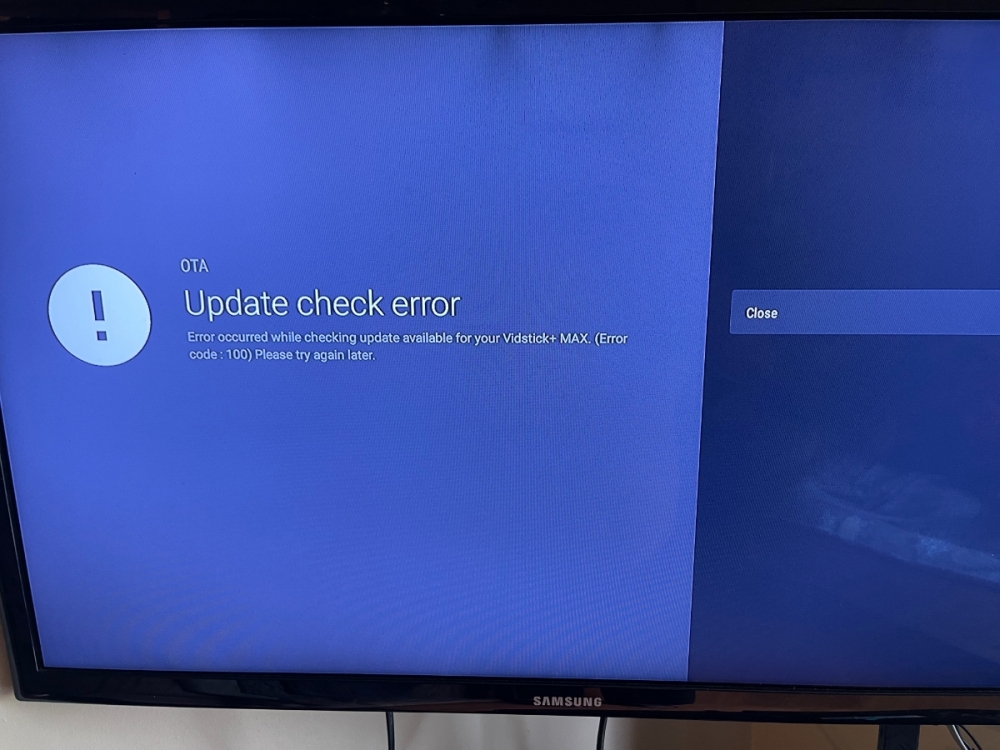
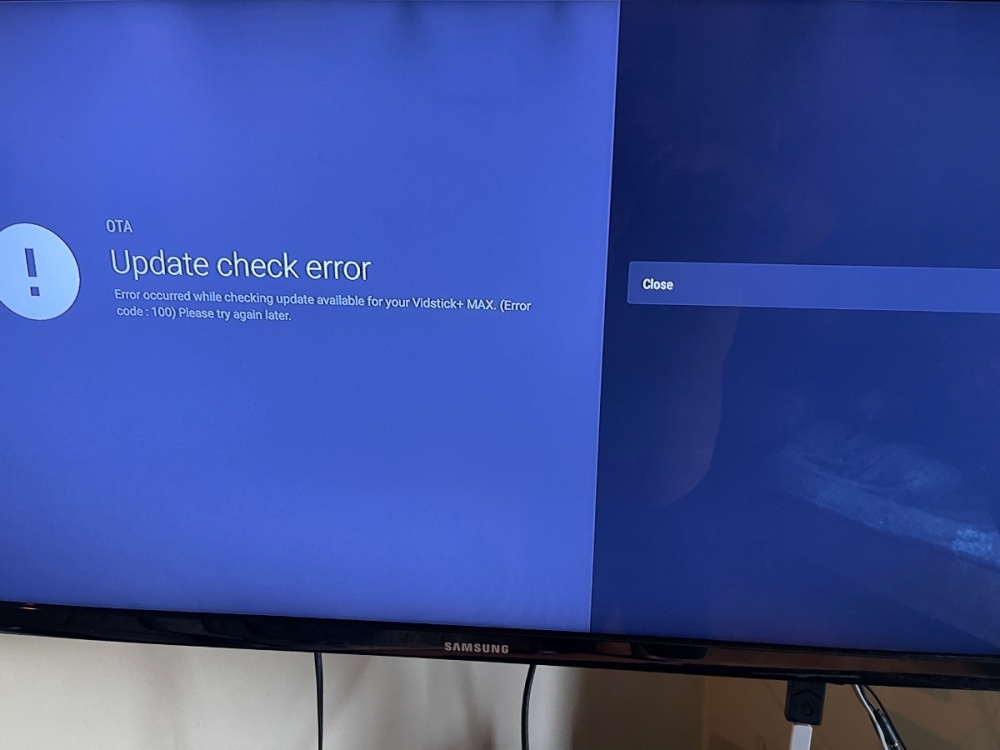
Tommy Ray Staley Jr. i’m having a problem with it with this and I just got it It won’t hook up with the Internet and it keeps saying google proxy server he says try back later The Buzz Tv Stick 128 GB TV stick 4K ?
-
Tommy Ray Staley Jr. i’m having a problem with it with this and I just got it It won’t hook up with the Internet and it keeps saying google proxy server he says try back later The Buzz Tv Stick 128 GB TV stick 4K ?