

puzzeld
Members
-
Joined
-
Last visited
-
Yes. both booted fine after power cycle the box
-
FYI Updated two XRS4500 by updating with 2015 but experienced problem with updates on each box Box A: while updating and after 5 logo the box when into blue screen. Waited about 5 minutes but the screen was still stuck on blue screen so I have to power cycle the box in order for the box to boot properly. Box B: while updating and after 5 logo on the screen, the box informed me that the BuzzTV crashed. I had to power cycle the box to boot properly.
-
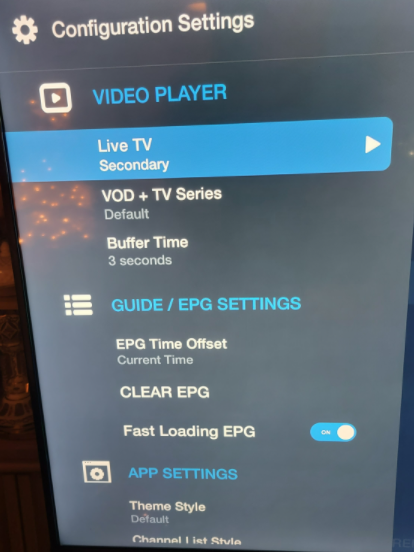
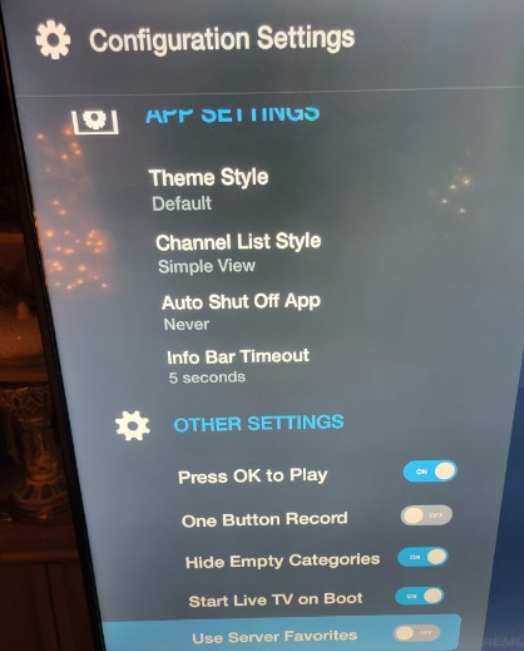
Enclosed pictures of what is under Configuration Setting. As you can see on the pictures below there is no option for Stream format
-
There is no such an option to change stream format. If there is I cannot find it as per your instructions above.
-
updated the box by typing 2015 BuzzTV updated to version 5 Beta version: 5.0.653 For LiveTV under Secondary player now the app states that "no stream available" For LiveTV under Default player the LiveTV works for now
-
version 4.0.522 for all
-
How do I check the version of the app? This problem was already reported by at least 5 customers in the past 5 days.
-
My clients are experiencing the freezing and app crashing especially on default player. Once the player crashes then the client has to power cycle the box in order for the player to work again. Secondary player works longer without crashing but it freezes a lot more. Default player is not causing the freezing but after a while crashes.
