Ultra
Members
-
Joined
-
Last visited
Everything posted by Ultra
-
Hello Emporium. Nice to meet you too. I'm very happy with the BuzzTV brand. Best of the best for sure. I'm always looking forward to either a new device launch or SW/Firmware updates. Do I need another device, no. Do I want, YES ! Have a great weekend man. -=Ultra=-
-
I'm new here to this site, but not NEW to the brand. I have an X5, B5, L1, and now this beautiful super fast Classic AI. Sorry, who is allaboutbuzz ? Please ignore my ignorance. -=Ultra=-
-
lol That worked man. Something I would have NEVER thought would influence my past issue. Thanks dude, and nbs 💗 -=Ultra=-
-
All good nbs. I figured that was after seeing the 5.0 (BuzzTV 5 OS) Thanks for posting dude. -=Ultra=-
-
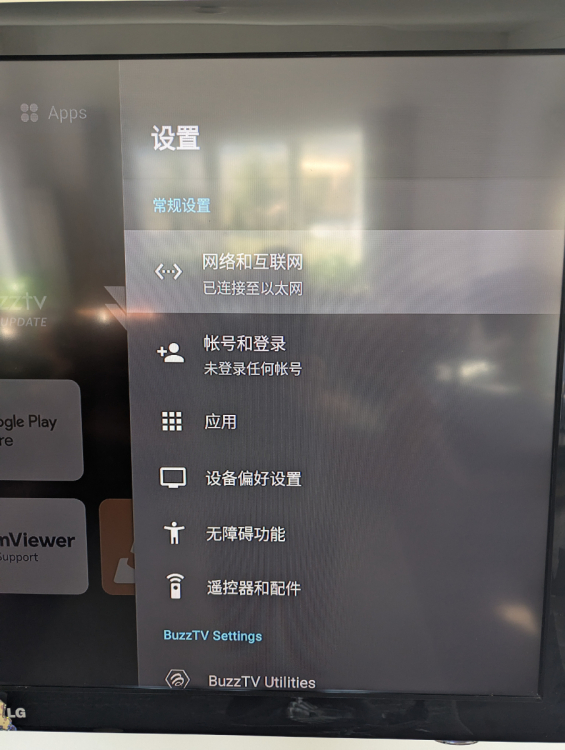
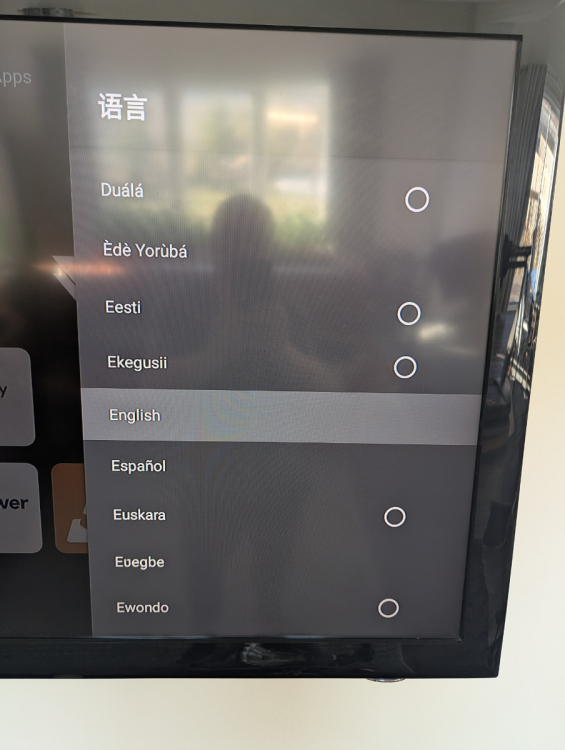
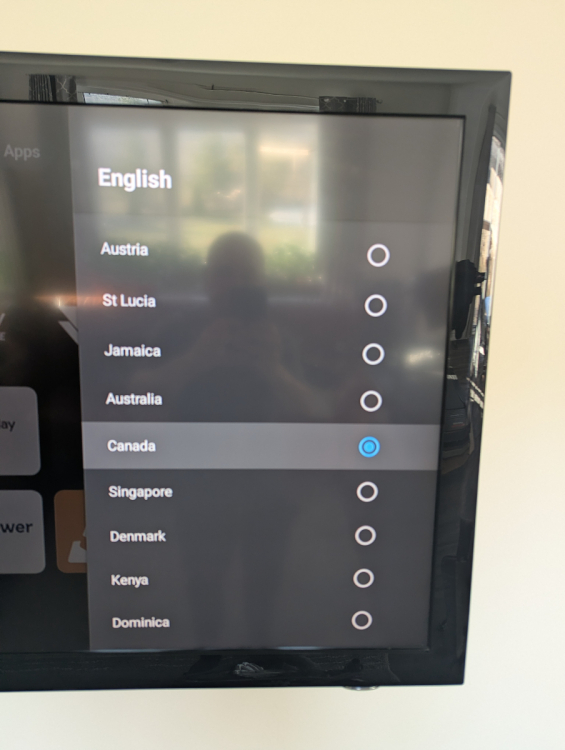
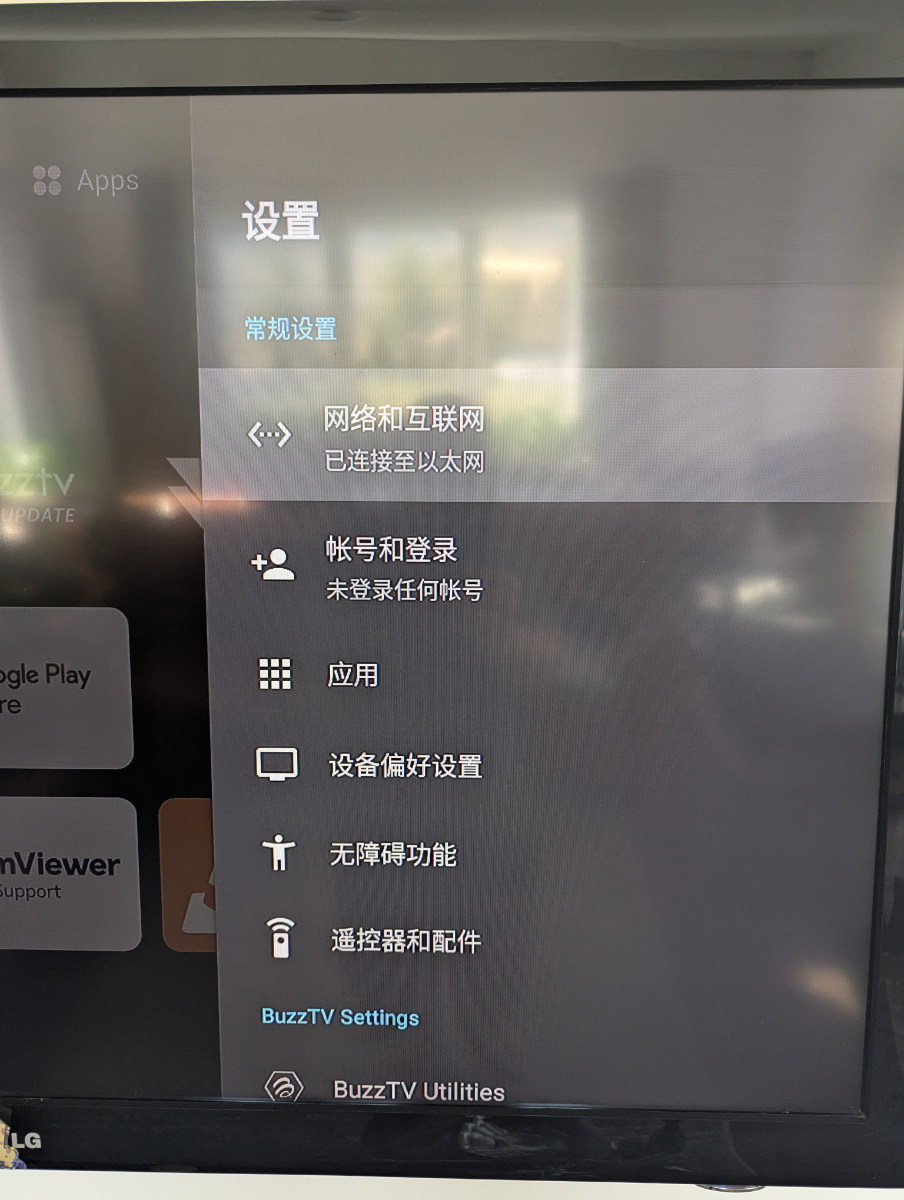
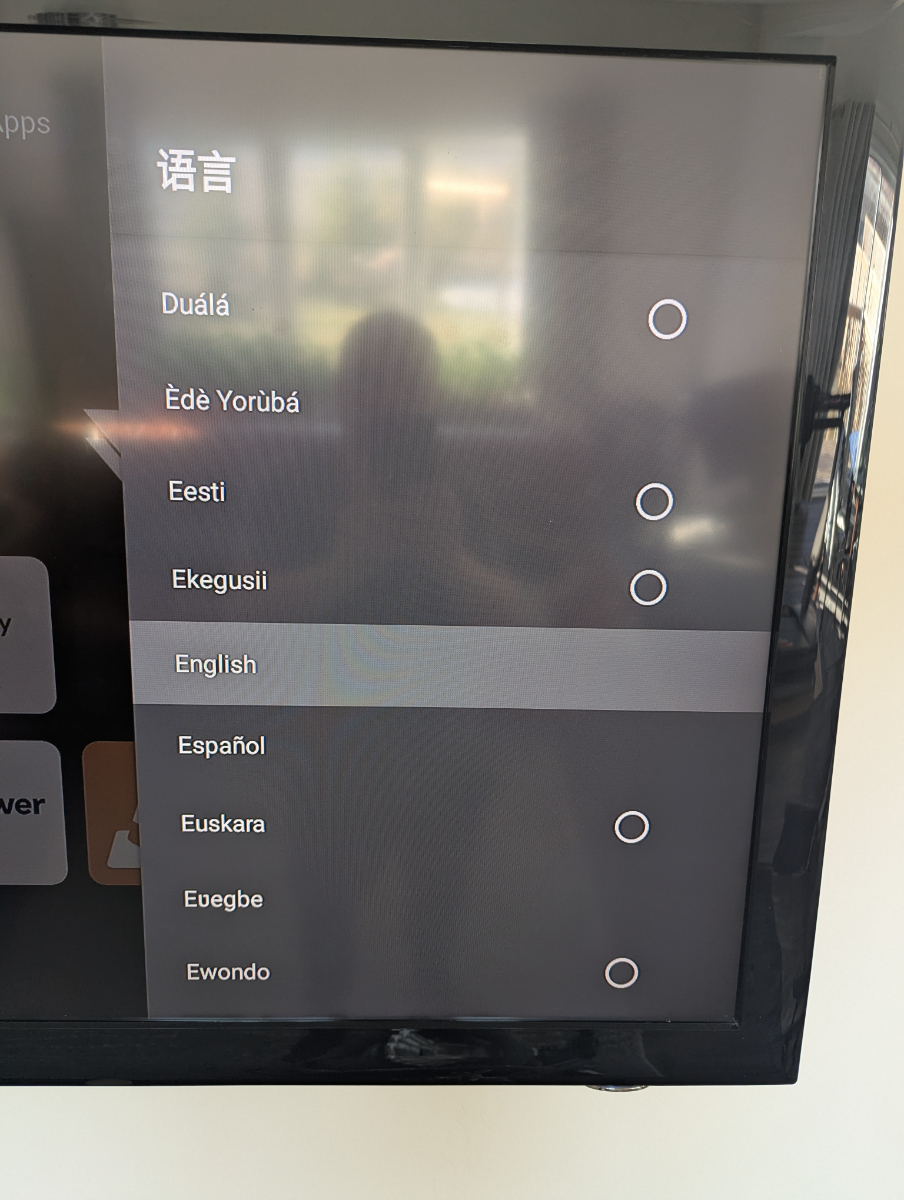
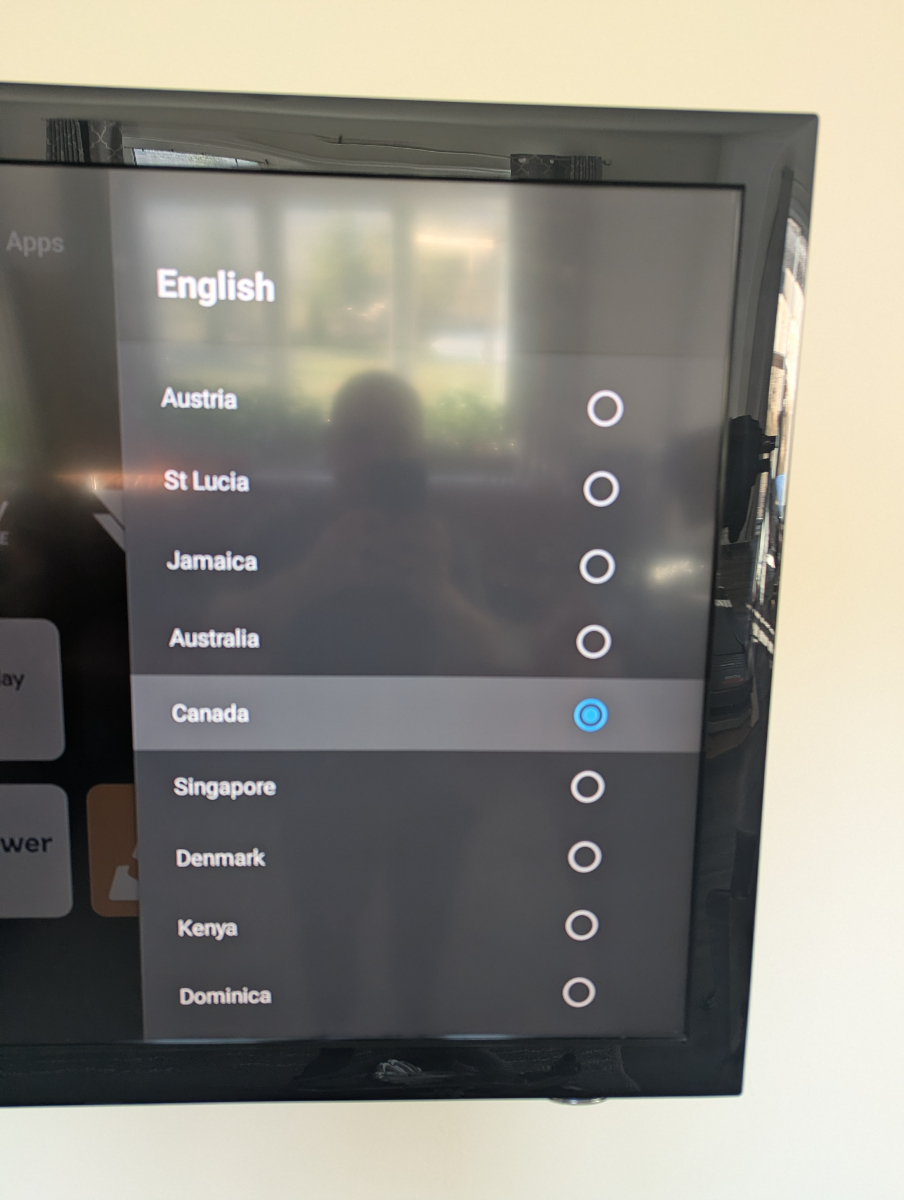
Hello gents. Picked up a New Classic AI and not sure if anybody else is experiencing the same thing I am. All the language in the "Settings" menu is all in Chinese. I have figured out how to navigate and change it to English by going to Device Preferences - Language - English - Canada. But all sticks until I use the Power off Mode in the Power option menu or the Suspend option and then goes back to not remembering my choice of English and keeps defaulting to the Chinese language. Steps that I have tried: Unplugging Power Cord for a min - No Luck Factory Reset through settings - No Luck Accessing the Android Recovery by tooth pick method in the AV port and selecting "Wipe date/factory reset" and then selecting "Reboot system now" - No luck either Just throwing this out here to see if anyone else has come across the same thing. Software Specs on the Unit: Firmware Version: V20260402 Current IPTV Version: 1.0.289 BT-350 Remote: Version 0.0.5 Thanks guys. -=Ultra=-