keztv
Members
-
Joined
-
Last visited
Everything posted by keztv
-
I followed your instructions and found that I do have the same 5.0.969 version. I then navigated to the backup options and can now see the 2 options you mentioned. It is great indeed that the backup file can be restored on newer devices. Thank you kindly for taking the time to provide a complete and helpful response that quickly helped find what I was looking for.
-
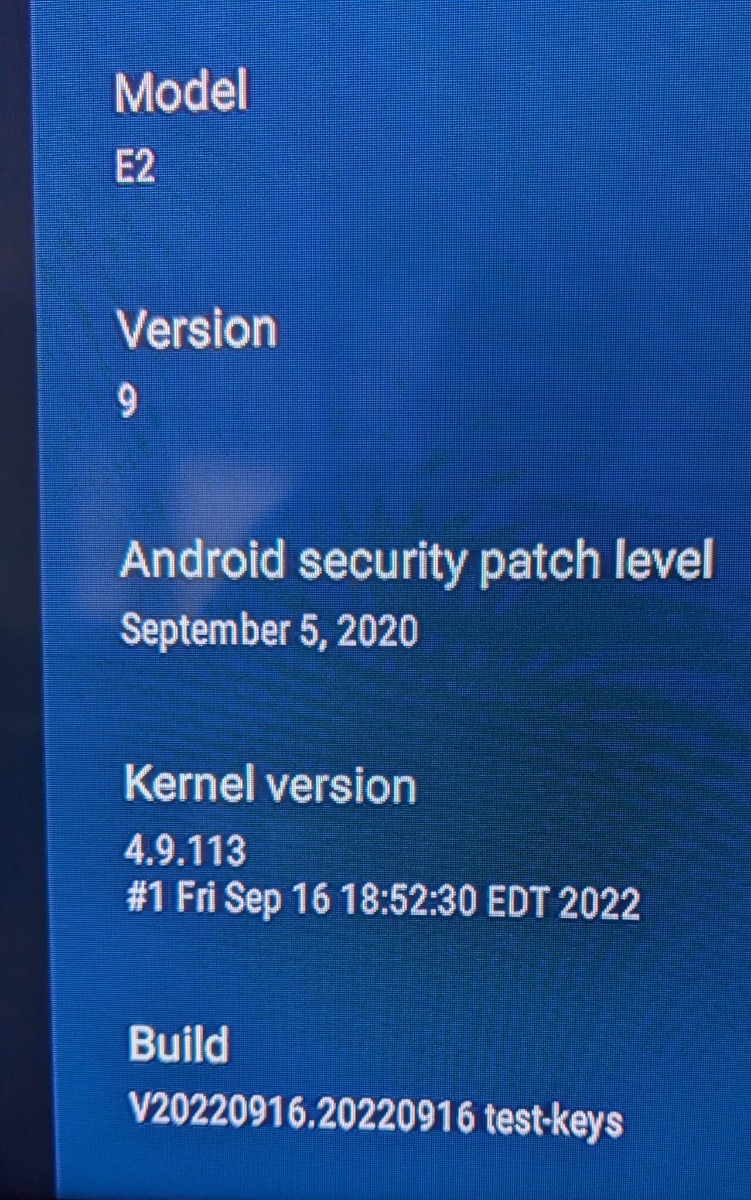
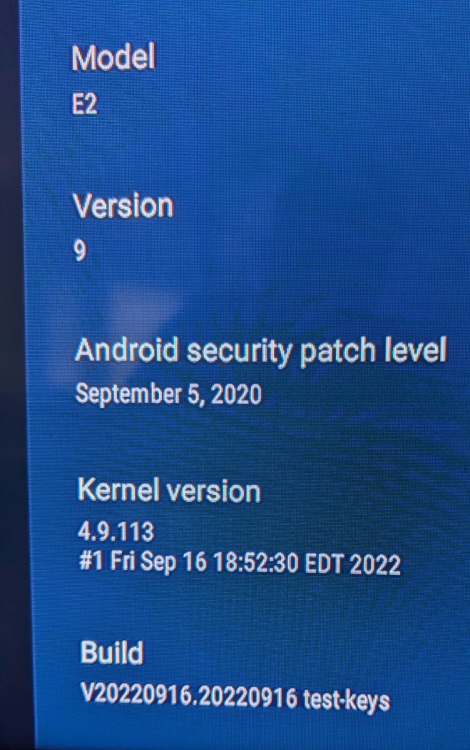
Can I install a newer firmware on this box like maybe BuzzTV 6? Whenever I reset the box and it updates itself, it always ends up on the version above.
-
screenshot from the About section
-
Thank you very much Emporium for your clear reply. My E2 is running BuzzTV 5 but when I select the Backup option I do not get the 2 options you mentioned; It just asks me to confirm backing up to the USB drive. Probably the feature for the 2 options was added later. My E2 is old but it still does a good job streaming. I tested a full backup & restore and it did restore the favorites. I will stick with this until I buy a newer model. Thanks again.
-
I own an E2 and lately have lost the favorite channels several times. I know that I can go into Settings and use "Backup & Restore" to save the box's configuration which I believe includes the favorites (?), but is there a way to backup only the favorite channel list? Is that list saved on the box perhaps as an XML file? Do the newer Buzztv box models allow backing up the favorite channels only? Thank you.