
Skip to content
View in the app

A better way to browse. Learn more.

BuzzTV Help

A full-screen app on your home screen with push notifications, badges and more.

To install this app on iOS and iPadOS
  1. Tap the Share icon in Safari
  2. Scroll the menu and tap Add to Home Screen.
  3. Tap Add in the top-right corner.
To install this app on Android
  1. Tap the 3-dot menu (⋮) in the top-right corner of the browser.
  2. Tap Add to Home screen or Install app.
  3. Confirm by tapping Install.

tvz123

Members
  • Joined

  • Last visited

Everything posted by tvz123

  1. No problem, at least I now know not to throw it away just yet. Thanks.
  2. @nbs. See first post. @dishuser I prefer Classic. @Dave J Ok, thanks.
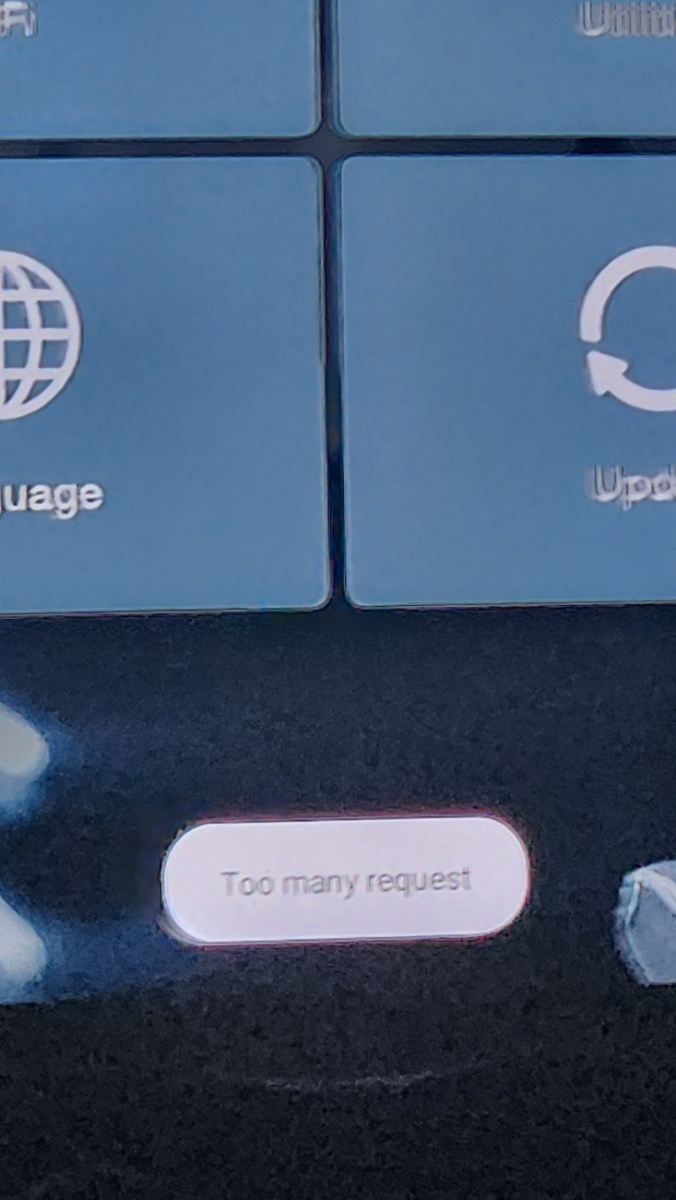
  3. FYI: image of the pop up
  4. Classic. System update says 'system is up to date' and doesn't offer 5.0.919.
  5. Been having to deal with this very annoying pop up message lately whenever switching or closing apps; "Too many request". Just erased and reset the box, message was still one of the first things to pop up on a complete fresh setup. Also, now the channel menu is bold blue and functions a bit different, guess I'll just get used to it. But the "Too many request" message needs to go. Any suggestions? BuzzTV 5.0.766 XRS4000 Android 9 Security patch level: September 5, 2020 Kernel: 4.9.113 Build: V20220919
Account

Navigation

Search

Search

Configure browser push notifications

Chrome (Android)
  1. Tap the lock icon next to the address bar.
  2. Tap Permissions → Notifications.
  3. Adjust your preference.
Chrome (Desktop)
  1. Click the padlock icon in the address bar.
  2. Select Site settings.
  3. Find Notifications and adjust your preference.