Skip to content
View in the app

A better way to browse. Learn more.

BuzzTV Help

A full-screen app on your home screen with push notifications, badges and more.

To install this app on iOS and iPadOS
  1. Tap the Share icon in Safari
  2. Scroll the menu and tap Add to Home Screen.
  3. Tap Add in the top-right corner.
To install this app on Android
  1. Tap the 3-dot menu (⋮) in the top-right corner of the browser.
  2. Tap Add to Home screen or Install app.
  3. Confirm by tapping Install.

Keek12

Members
  • Joined

  • Last visited

Everything posted by Keek12

  1. Keek12 replied to Keek12's topic in BuzzTV 5
    Yes,
  2. Keek12 replied to Keek12's topic in BuzzTV 5
    About 1 year
  3. Keek12 replied to Keek12's topic in BuzzTV 5
    I am pretty sure it’s the latest one because it was set for automatic update. can’t get into to check?
  4. Keek12 replied to Keek12's topic in BuzzTV 5
    Wipe data factory reset
  5. Keek12 replied to Keek12's topic in BuzzTV 5
    I did a hard reset about 10 times over the last 5 days once I got into the start up then froze, unplugged back to the logo.
  6. Keek12 replied to Keek12's topic in BuzzTV 5
    It does the same thing on a Samsung TV and I can do a factory reset but that’s how it turns out stuck on the logo
  7. Keek12 posted a topic in BuzzTV 5
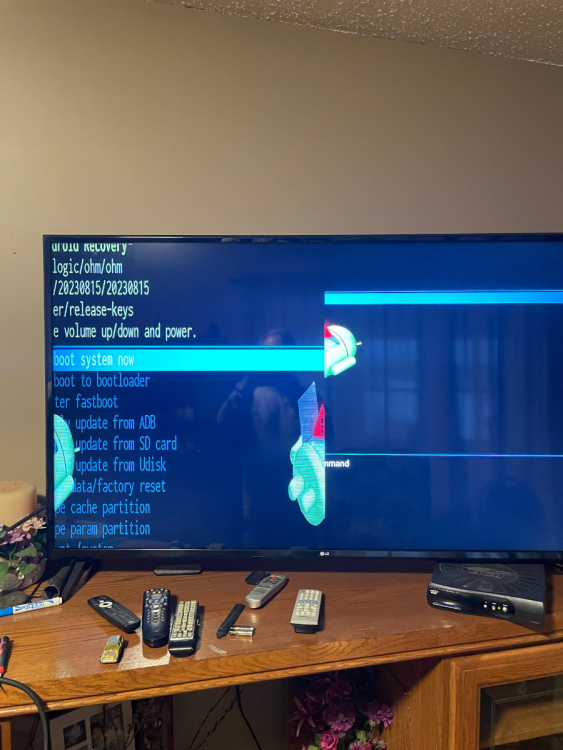
    When I do a hard reboot, this is what happens it does a split screen and goes to the logo then stuck
Account

Navigation

Search

Search

Configure browser push notifications

Chrome (Android)
  1. Tap the lock icon next to the address bar.
  2. Tap Permissions → Notifications.
  3. Adjust your preference.
Chrome (Desktop)
  1. Click the padlock icon in the address bar.
  2. Select Site settings.
  3. Find Notifications and adjust your preference.