JasonN
Members
-
Joined
-
Last visited
Everything posted by JasonN
-
I am the original poster. It is unfortunate to see that others are experiencing the same issue, too. I tried an old 128 GB SSD and it never ejected. I purchased a new 1 TB SSD and it has been running flawlessly in the u5 for weeks now. I repurposed the included WD HDD in my desktop. Has everybody submitted a ticket with BuzzTV? I did and they said there's nothing in the captured logs indicating what the failure could be.
-
Great question! I am using the power cable that came with the U5.
-
Yes, I formatted it. As a test, I took out the WD drive and installed a 120 GB SSD that I had. The SSD has been running (not ejected) for 3 days now.
-
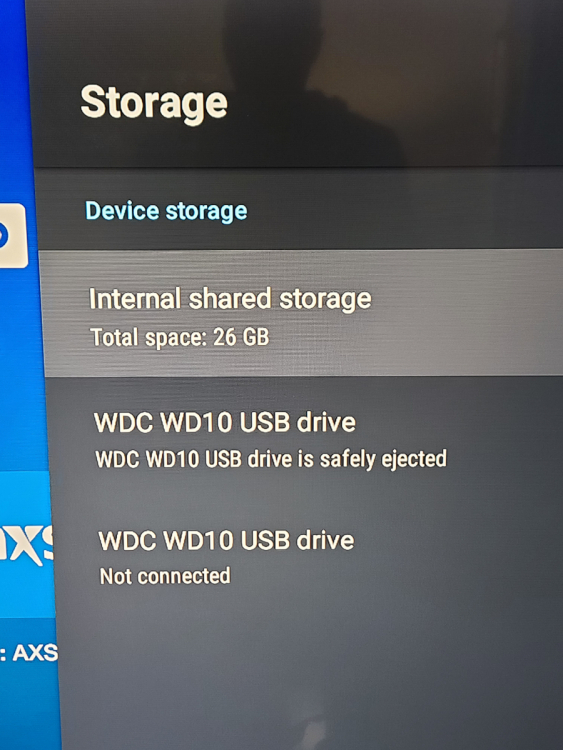
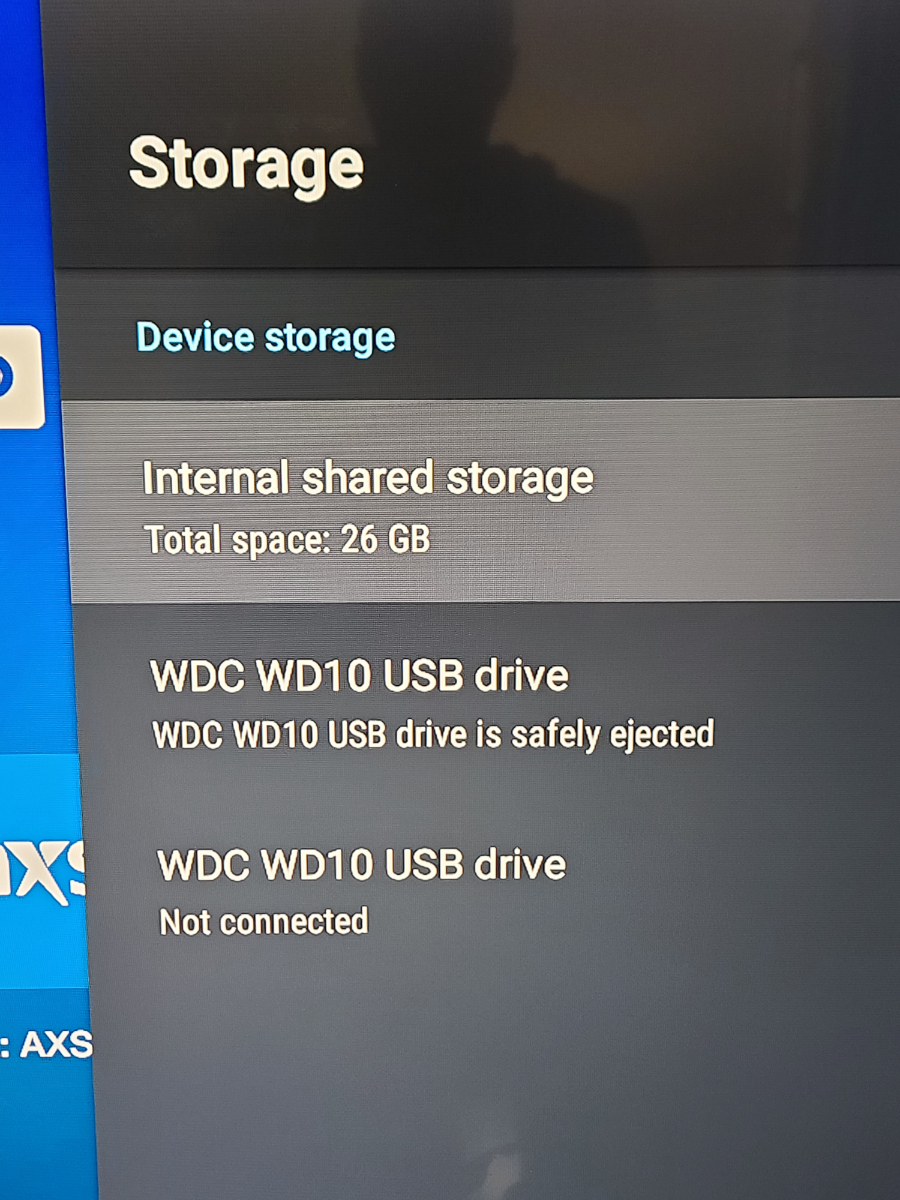
Hello, I have BuzzTV U5 Launch Edition and the 1 TB Western Digital drive (that came with it) is constantly ejected. The only way to get the BuzzTV to re-mount the hard drive again is to factory reset the BuzzTV box. The hard drive will be operational for a few hours and then will be ejected by Android again. I have done this factory-reset cycle 4-5 times now. Has anybody experienced this before? Thanks, Jason