Georges Paquette
Members
-
Joined
-
Last visited
-
Georges Paquette changed their profile photo
-
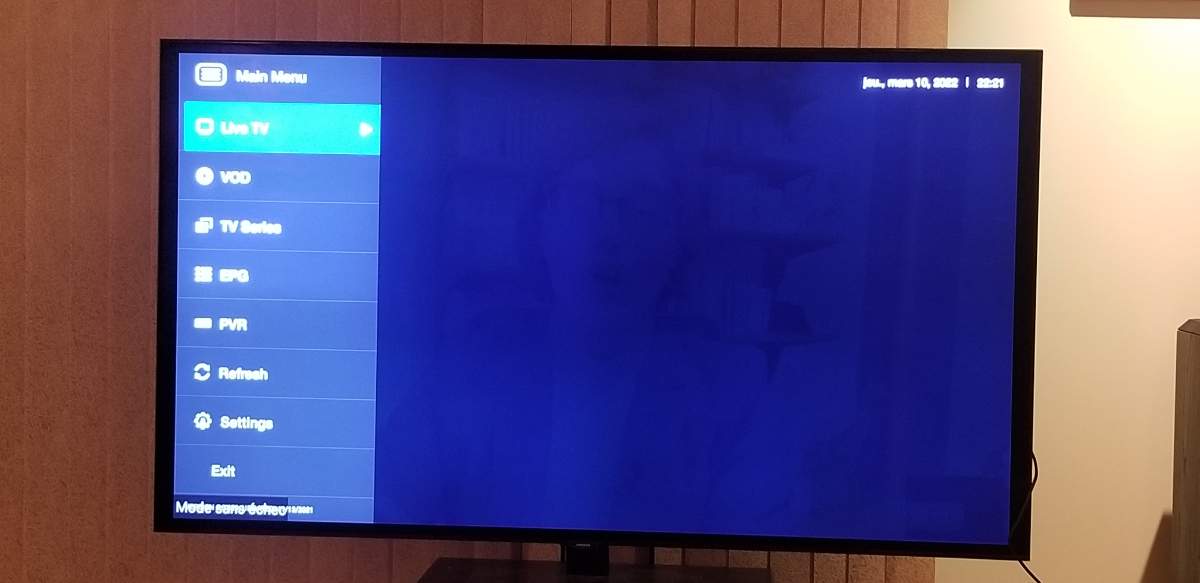
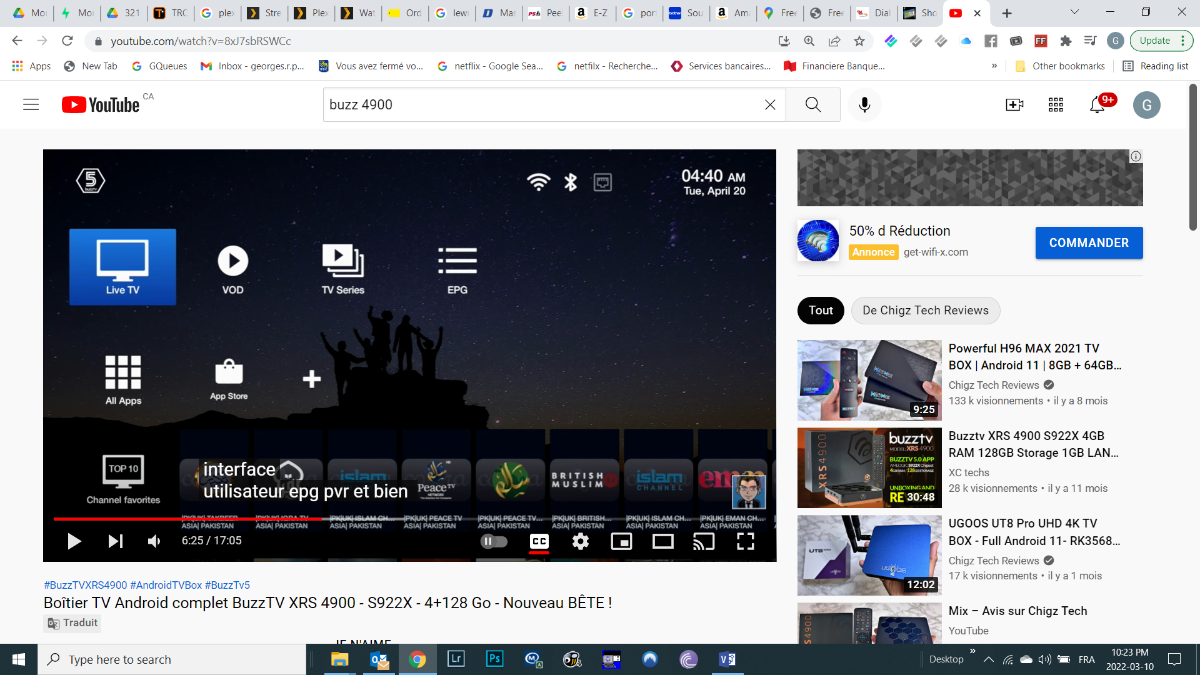
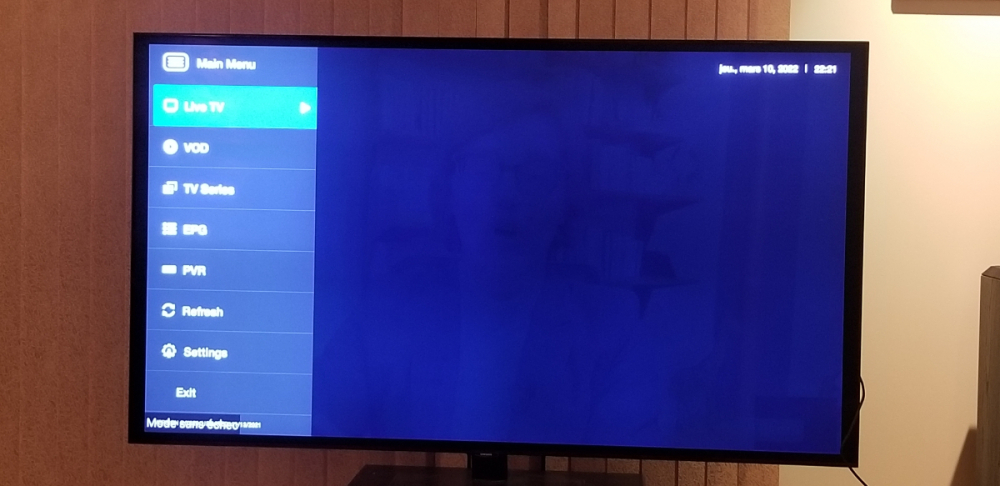
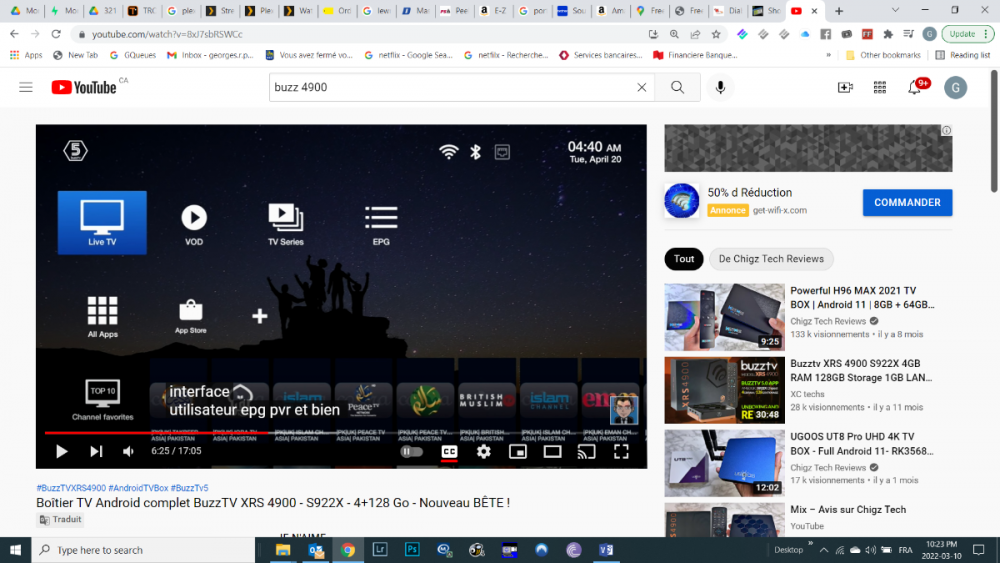
How to I go to this screen? The only screen I get is the one with MAIN MENU
.thumb.png.f2b264177ad0d8a5899081c07f589567.png)
-
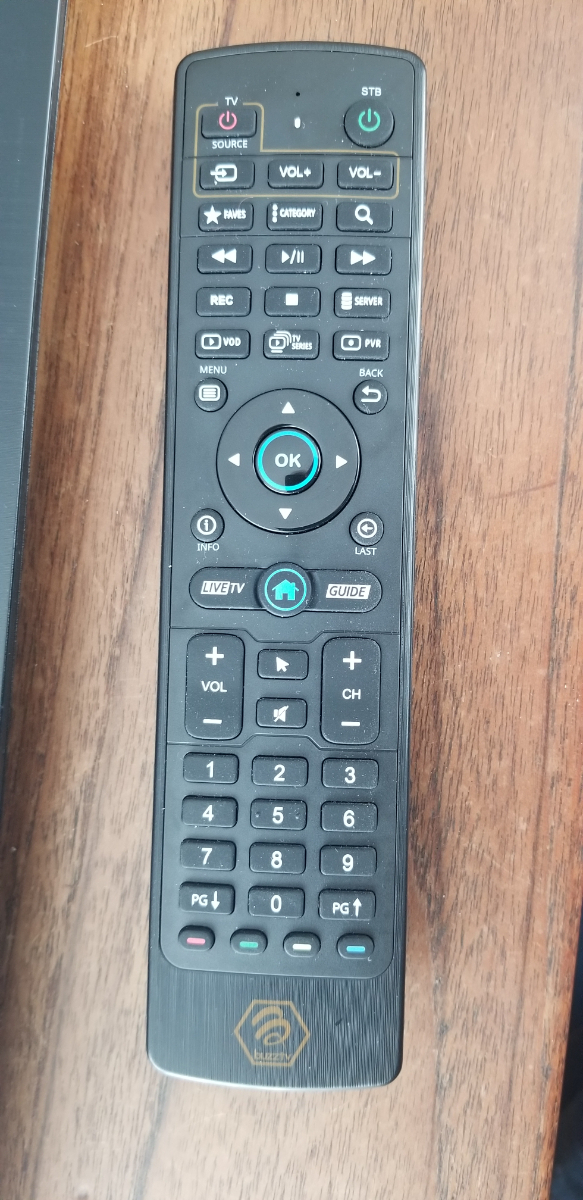
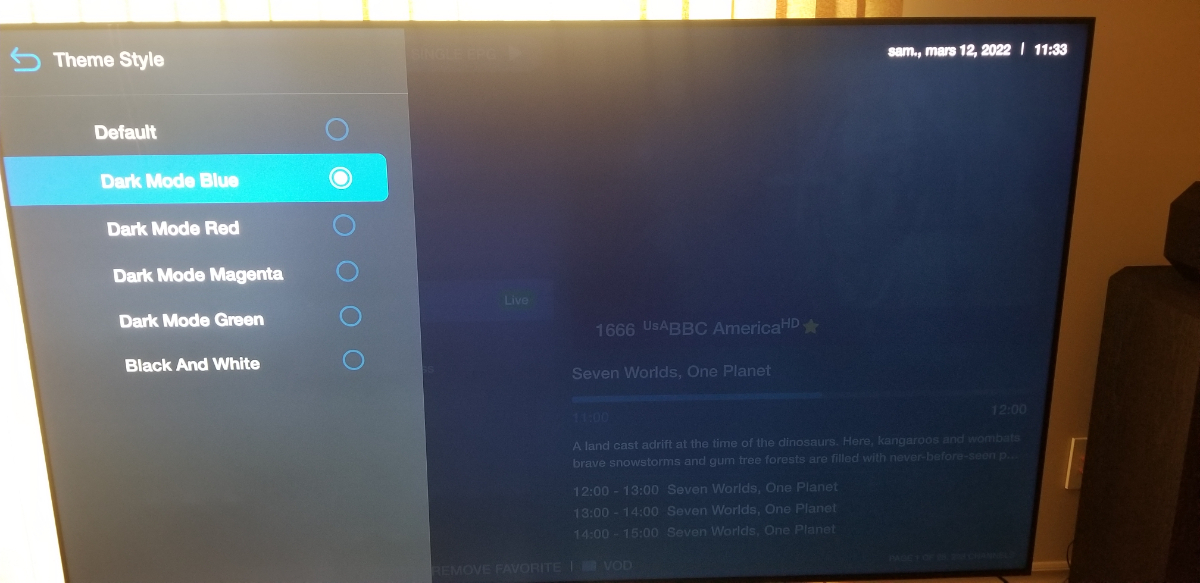
In Settings, I changed the Theme Style from Default to Dark Mode Blue and the set top box reset itself and ask me to sync remote control. I do so but remote does not work. Try to resync many times still does not work. I remove the batteries from remote and now it works. To go to settings I press the menu button on the remote and I get the menu screen shown here. I scroll to settings. As you can see this is not the interface that one sees on the BUZZ web site.
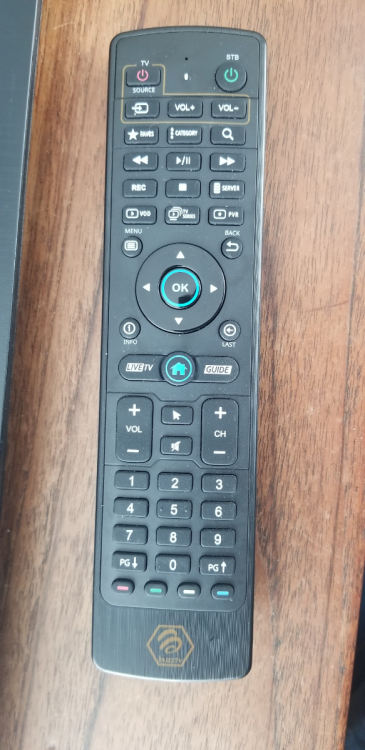
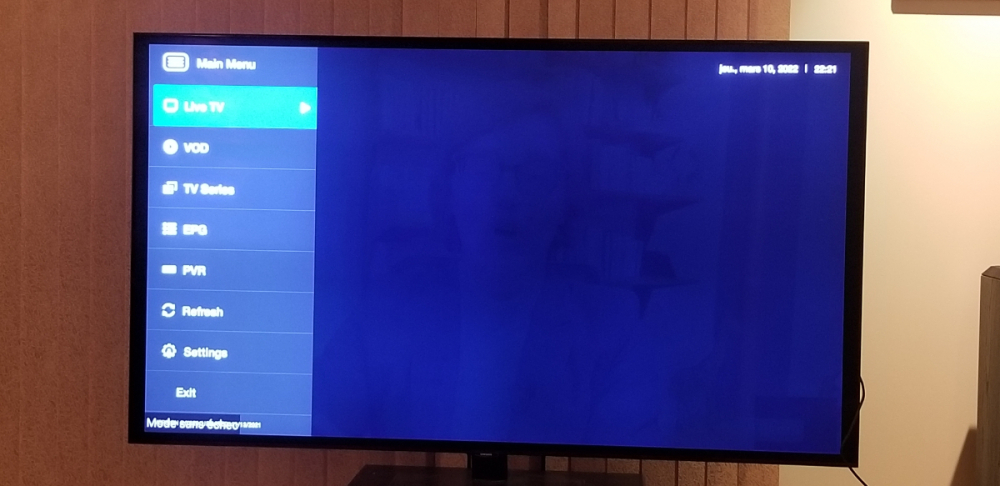
-
In Settings, I changed the Theme Style from Default to Dark Mode Blue and the set top box reset itself and ask me to sync remote control. I do so but remote does not work. Try to resync many times stil does not work. I remove the batteries from remote and now it works.
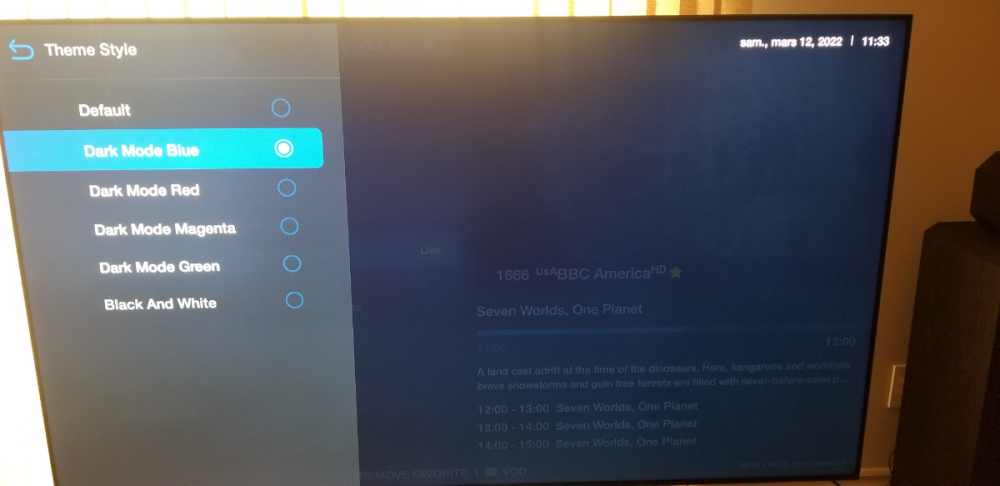
-
When I press the HOME Button nothing happens. I remember seeing at bottom left 'Mode sans échec', meaning 'mode without error'
-
Hi, I just got a BUZZTV XRS4900 last week and the interface is not at all what i have seen on BUZZTV web site. The XRS4900 was at version 5.0.626 updated 11/13/2021 After searching this site I found the version 5.05.653 I downloaded the zip file and followed the instructions for update. I know have version 5.05.653 updated 01/04/2022 but I still get the old interface. How do I get the new interface. Just got the box Thursday March 10. Thanks for the help.

.png.864f8aad0890979b5daaa02628a30b94.png)