harshakavuri
Members
-
Joined
-
Last visited
-
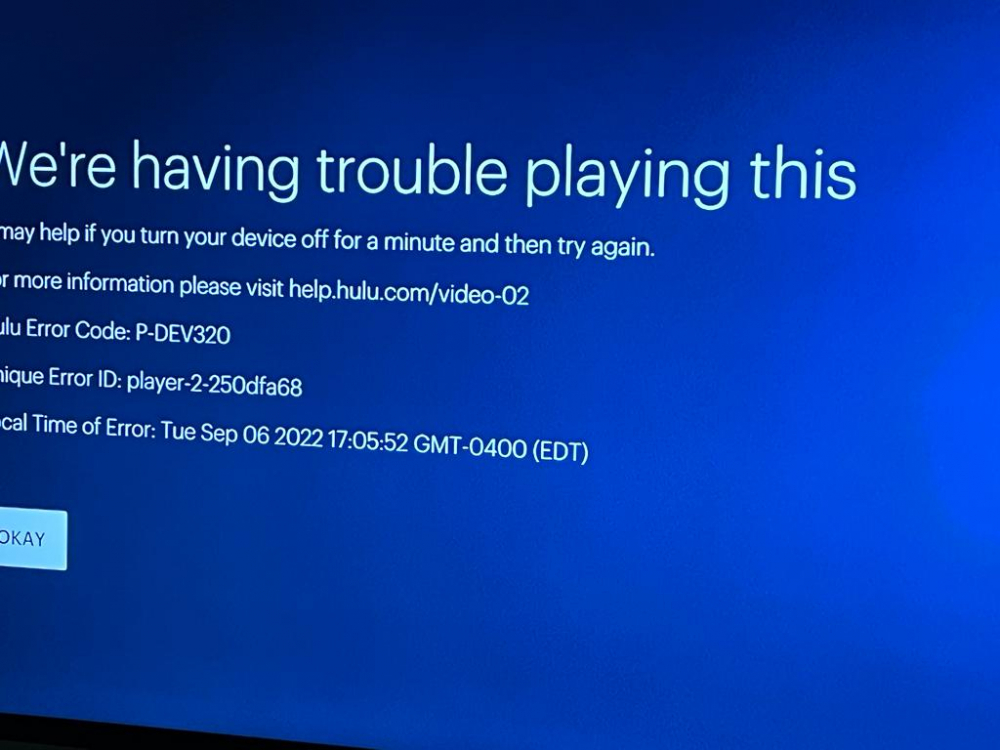
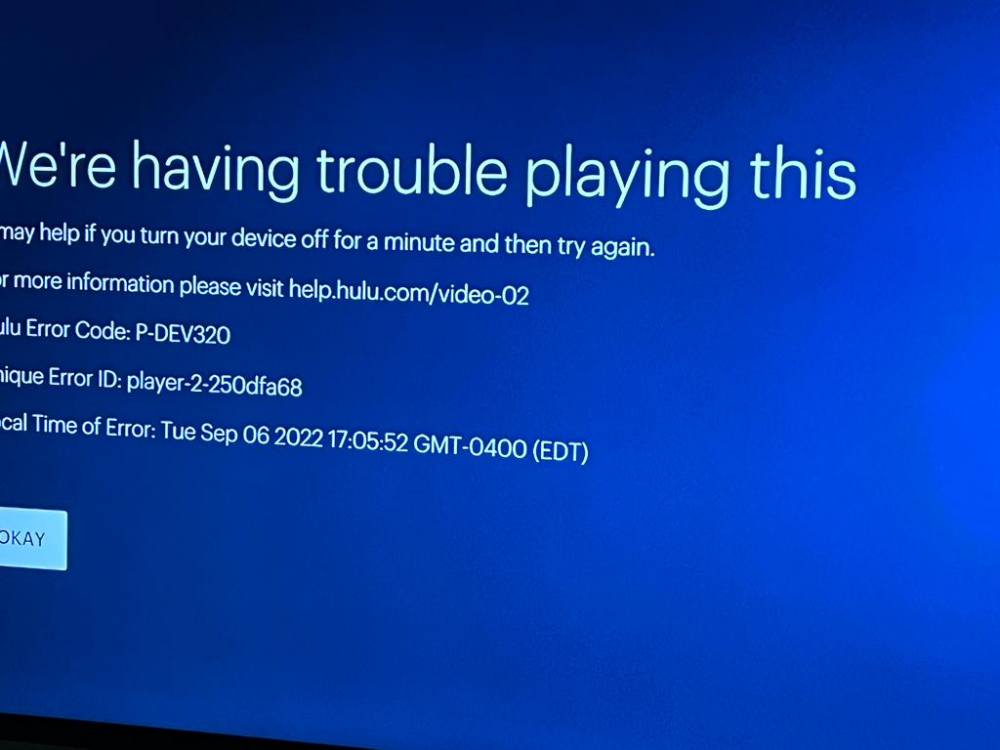
I am in US and not using any VPN. This is a new box and this is the first time I am trying Hulu. I tried in both hardwired and on wifi and getting the same error P-DEV320.
-
I tried all the suggestions in the help site. I also I tried in Apple TV app , my IPhone app and also in Roku smart tv app and all three devices Hulu app there is no problem. Disney Plus and Prime are working no problem
-
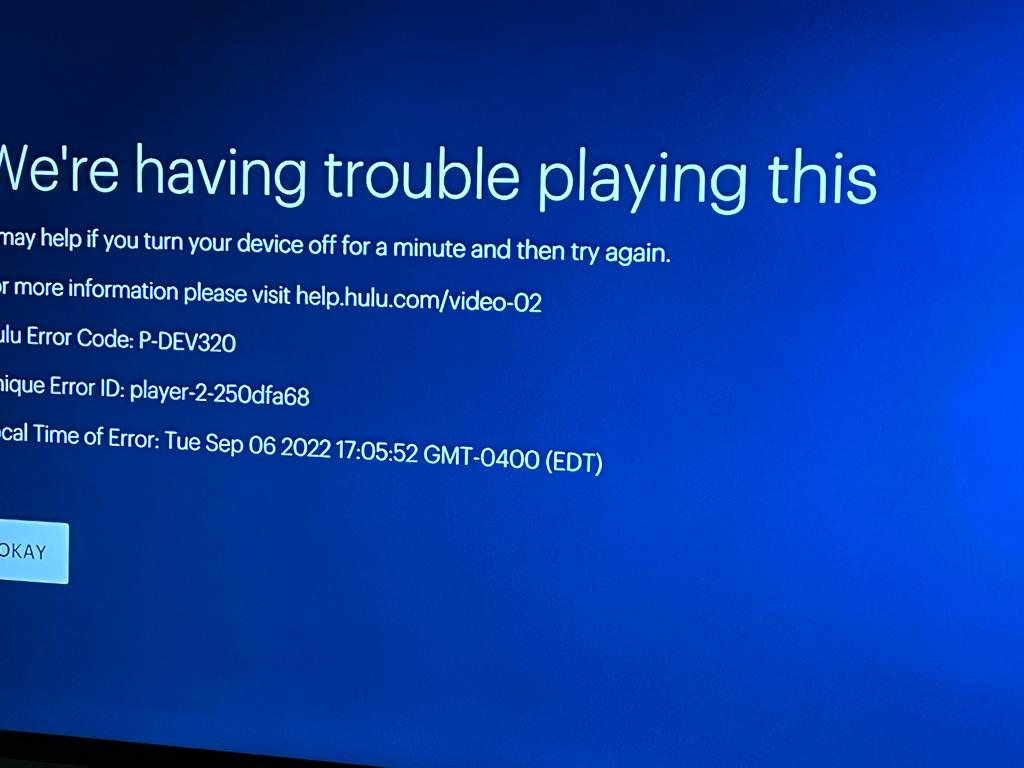
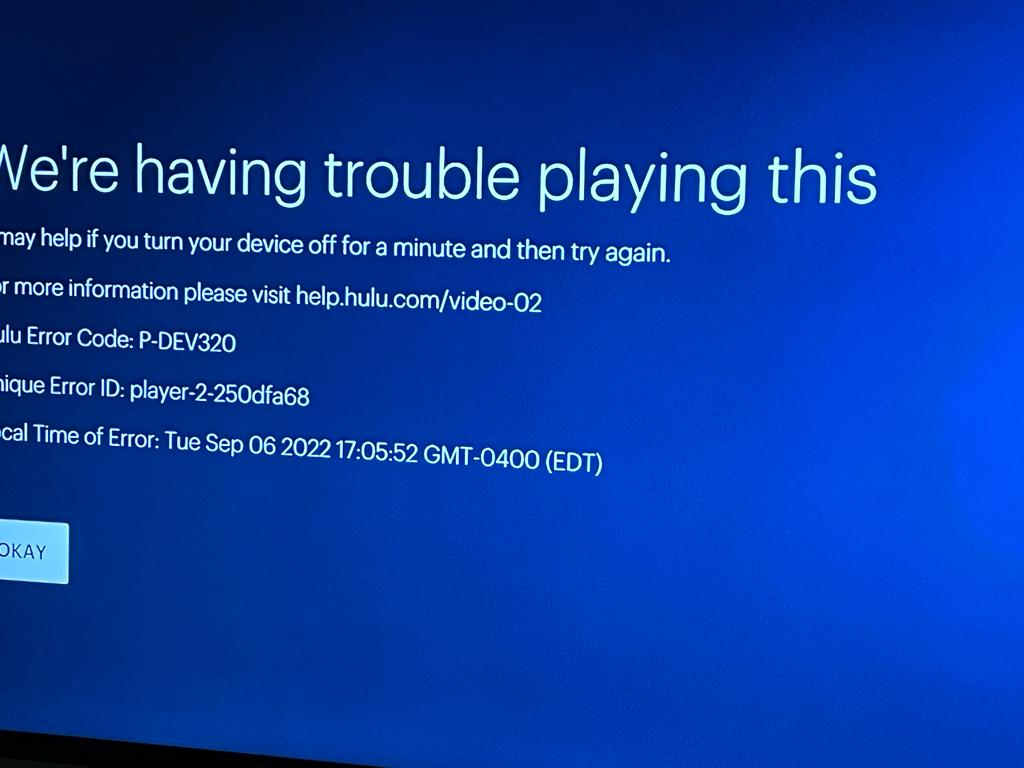
The app install ok. I am able to login ok. Hulu app display all the content ok. The only problem is when selecting a video to play, I get the below error.
-
From Google Play Store and also from Aptoid App store. From aptoid store I tried few different versions.
-
harshakavuri joined the community
-
I have a new Buzztv X5 box. Hulu app not working, getting error code P-DEV320. Tried few different versions of the app(android tv versions) Please suggest a version of Hulu app that woks. Thank you